
The Q Career Plan Setup application lets users create and populate Career Plans and generate the course requests contained in the Career Plan. A Career Plan is a set of courses that forms the basis of student Course Requests. Once the Career Plan has been established, it becomes a tool for counselors to use in guiding students. By defining specific courses or groups of courses for these students to take, the scheduling system can help counselors keep their students on track by generating the appropriate courses for each grade level. Career Plan Course Requests can be generated from with the Career Plan Setup or from Student Schedules. The generated Course Requests can then be used by the various other scheduling applications such as the Student Loader and Student Schedules.
Career Plan Setup is located under the Schedule menu in Q.
When logged in to a school track the Career Plans Setup application displays all available career plans. Select a career plan from the drop down list.

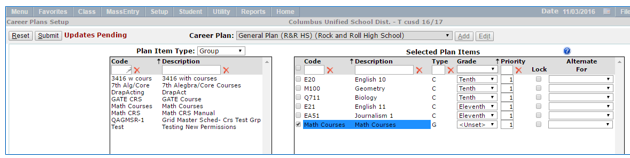
The following is a sample Career Plan with general courses selected for each grade:
The left hand side of the screen displays all courses defined in District Courses available to add to the career plan. The listing is filtered by selecting Course, Group or Team in the Plan Item Type. Search boxes may be used to find a specific course. The right hand side of the screen displays the Courses/Teams/Groups in the selected career plan.
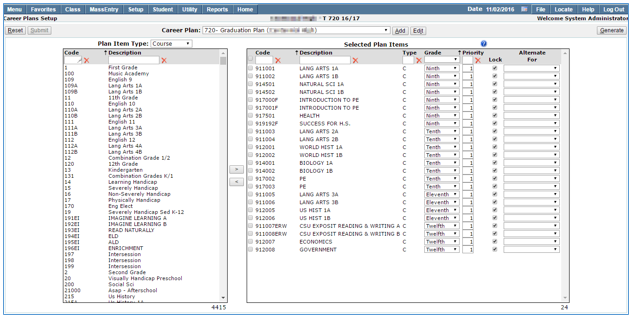
The items in the Career Plans may be sorted by any of the column headers, Click the header with your mouse to display the sort arrow, click again to change order of sort. Items can be quickly found by using the filters.

Data Fields for the selected plan item include:
- Code—Course, group or Team ID number
- Description—Name of the course, group or team
- Type—Displays a code for the type of course, as follows:
- C (Course) – a single course as defined in the District Courses
- G (Group)—a group of courses as defined in the Group Editor
- T (Team) – the Team the Schedule Loader will attempt to schedule a student’s requests into as defined in the Team Editor Program
- Grade—Grade level for enrollment in the course. Course Requests will be generated for students based on the grade level for the track the Career Plan is generating requests for. (i.e., Ninth graders will only receive requests for those courses whose ‘Grade’ field is set to ‘Ninth’.)
- Priority—Set a Priority if you will be setting the Loader to attempt to schedule course requests using an order other than the default
- Alternate for—Name of the request this course is an alternate for, if applicable.
A new career plan may be created by clicking the Add button. When the dialog box comes up name the Career Plan and select whether it will be available to all schools or the Logged In School. Type in a career plan name and select All Schools, Logged-in School, or Selected School (Selected School is only enabled when you are logged in to the District Office). It is recommended that your school code be added to the name of the Career Plan to distinguish it from other plans that might have the same name, for example, General Plan.
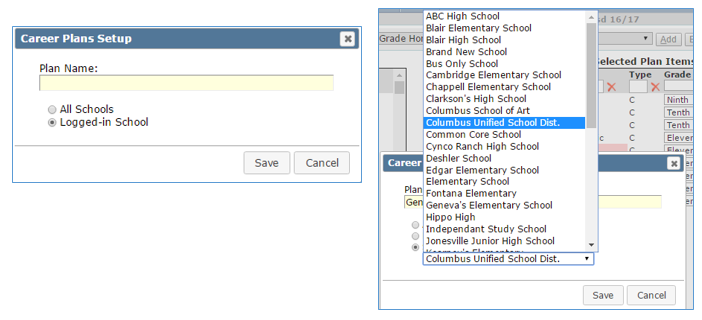
Items may be added from the district side of the screen to the individual career plan by following these steps:

- If you are building a career plan that spans several grade levels it’s easiest to add all the courses for one grade at a time
- Select Plan item type: Course
- Use the filter to quickly find a course from the district course list
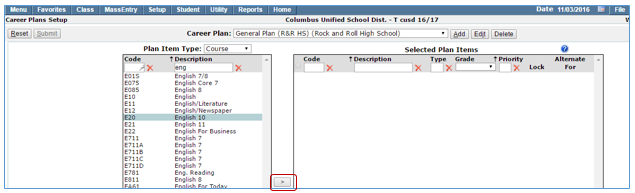
- Move the selected course to the Selected Plan Items by clicking the single arrow
- Once the course is moved over, select the applicable Grade level from the drop down list for the request. If a course request should be generated for more than one grade level it will have to be added to the Career Plan for each grade level.
- Repeat the process for other courses in the same grade, the grade level drop down will remain until it’s manually changed to the next grade level

- You may also enter the following parameters:
- Priority –Enter a priority value (for use by the loader when scheduling students). Highest value is ‘1’.
- Lock–Check this box to lock this request for all students who receive this request through the generate procedure. Locking a request serves two purposes:
- It prevents the request from being cleared by subsequent Career Plan course request Generation procedures (except if you check the 'Clear Locked Requests' option in the Generation d
- It prevents this course request from being deleted or changed by students using the StudentConnection application. This has the same effect as manually locking a single request for a single student when adding requests in the Student Schedules app.
- Alternate for –if this request is to be an alternate for another request, select the other request in this field. Selecting a course request in the Alternate Forfield is dependent on two things:
- Only courses that have already been entered as primary course requests in the Career Plan are available for selection as an alternate. It is more efficient to enter all your primary requests first, before you start working on your alternate requests.
- The courses available in the Alternate For drop down are grade specific and are filtered by the grade you have selected. For example if you’ve selected 11th grade as the grade level, only course requests that were previously entered into the Career Plan, with Eleventh grade will show as choices

- Continue to add requests until you’re done
- To remove a request from the plan, select the course by clicking the box and then click the left arrow
Note: Keep in mind that although all courses defined in the District Course database are available as selections when creating a Career Plan, only courses that have been assigned to a student's school and track via the Track Course Setup will be available as Course Requests for that student. Requests for courses that are not assigned to the target track will not be generated.
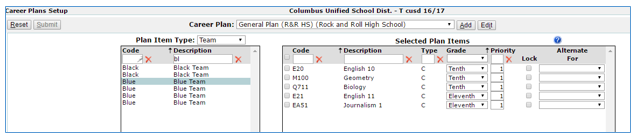
If you know ahead of time that the students who will be receiving requests from a Career Plan should also be a part of a particular Team, you may add a Team Request to that Career Plan at this point as well.
Note: You cannot simply enter a Team request with no courses. Teams are tied to particular students through a Team Request, and are linked to teachers in the Master Schedule. They are not tied directly to courses, however. That is why you must add in BOTH the Course Requests and the Team Request.
To add a Team Request to a Career Plan:
- Select Team from the Plan Item Type drop down list to display all available teams
- Select desired team from list
- Use single arrow to move Team to Selected Plan Items
- Select Grade Level
- Team Requests will display with a ‘T’ in the ‘Type’ column of the Career Plan’s Selected Plan Items
Groups of related courses can be pre-defined in the Group Editor application. These course groups can then be added to a Career Plan. This is a quick and easy way to assign a set of courses that several or all students must take.
In the 'Add Career Plan Item' screen select 'Group' in the Type field.
The Course Groups available for selection in the list will depend on the logged-in school and the identity of the user. Users will see: 1) All the Faculty-owned groups that they own in any track, but not other faculty member's groups, 2) all School-owned groups from the logged-in school, 3) and all District-owned groups in the system, regardless of the logged-in school. Select a group in the list (the group you select must have courses scheduled in the logged in school).
To add a Group Request to a Career Plan:
- Select Group from the Plan Item Type drop down list to display all available groups
- Select desired Group from list
- Use single arrow to move Group to Selected Plan Items
- Select Grade Level
- Group Requests will display with a ‘G’ in the ‘Type’ column of the Career Plan’s Selected Plan Items

Select the Career Plan you wish to edit from the Career Plan drop down list.
To Edit a Career Plan Item:
- Select the item
- Make any desired changes (Grade level, Priority, Lock, Alternate For)
- Submit
Remove items from Career Plan:
- Select Item
- Use arrow to move item from Selected Plan Items back to Plan Item list
- Clicking the ? icon displays a Color Legend indicating if items may be removed from the selected Career Plan
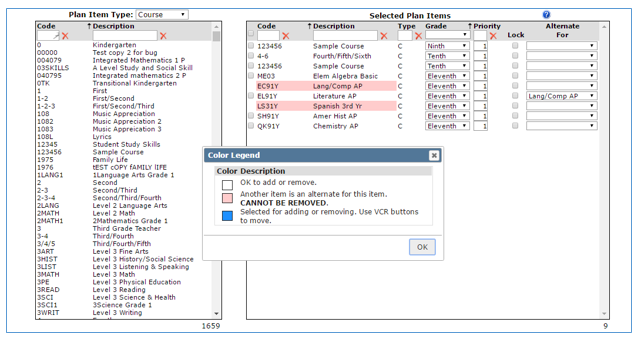
Note: If you make changes to a Career Plan after generating Career Plan Course
Requests, you will have to re-generate those Requests for the changes to be reflected in the students’ Course Requests.
Delete a Career Plan
- In order to delete a Career Plan first all items in the plan must be removed. Once all items in the Career Plan have been deleted the Delete button is enabled for the Career Plan.

- Click Delete
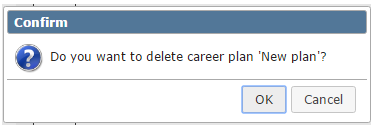
- Click OK to delete the Career Plan
Select the Career Plan from the drop down list then click Edit. Make any desired changes and Save.
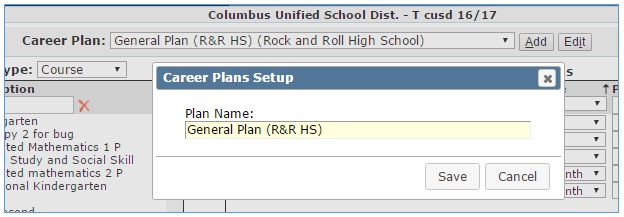
Before using Career Plans in scheduling you must first assign the proper Career Plans to students. Career Plans may be assigned to students by:
- Assigning to an individual using the Student Editor

- Assigning to an individual using Student Schedules
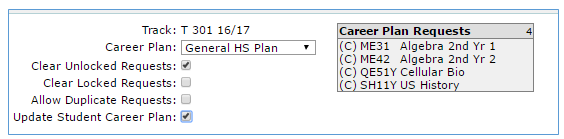
- Batch assigning to a set of students using the Assign Career Plan application (currently available in Front Office, coming to Q in the next release)
According to the parameters selected, Course Requests will be automatically generated and placed in Student Schedules so they can be used in the scheduling process. However, only those courses, which have been assigned to a student’s school and track via the Track Course Setup application, can appear as Course Requests for that student.
When you’re ready to generate requests from the Career Plan click the Generate button from the top right hand side of the Career Plans Setup. The Generation screen displays with several selections that must be made to ensure that the proper requests are generated for the proper students.
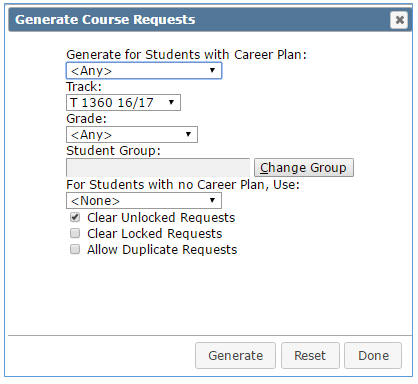
The selections for Generating Course Requests are as follows:
- Generate for Students with Career Plan–This field is used to select what requests you want to generate based on what has been selected as a student’s designated Career Plan.
- <Any> if this is selected, the Generation Procedure will generate the appropriate Course Requests for students with ANY career Plan designated in the Student Editor/Student Schedules. It will NOT generate for students with NO Career Plan designated.
- <No Career Plan> if this is selected, the Generation Procedure will NOT generate Course Requests for students with a Career Plan selected in the Student Editor/Student Schedules.
- (Name of Plan) – if a Career Plan is selected in this field, the Generation Procedure will generate the appropriate Course Requests ONLY for students with the matching Career Plan designated in the Student Editor/Student Schedules. It will NOT generate for students with NO Career Plan designated and it will NOT generate for students with a Career Plan other than the one selected here.
- Track – Select the target track that course requests will be generated for. If you are working on Next Year, make sure to pick the next year’s track.
- Grade– Select the Grade Level to Generate the Course Requests for.
- <Any> - this selection means that Course Requests will be generated for ANY Grade Level that is part of your selected Career Plan.
- (Grade level) – If a grade is selected, it will narrow down your Career Plan selection to ONLY generate Course Requests for students in the selected grade.
- Student Group– Used to designate which group of students you’ve selected to generate Course Requests for. If a group is selected, the Generation Procedure will ONLY generate requests for students in that group, based on your other Career Plan selections on this screen.
- When used with ‘Generate for Students with Career Plan’, it will only generate Requests for the students who meet that selection criteria AND are a member of the selected group. (i.e., if you select ‘General Education’ as the Career Plan and then choose a group, Course Requests will only be entered for students who are BOTH a member of that group AND have ‘General Education’ designated in the Student Editor. Requests will not be generated for students with ‘General Education’ designated in the Student Editor/Student Schedule that are not a part of the group.
- When used with ‘For Students with NO Career Plan, Use’, it will only generate Requests for the selected Career Plan, for students who do not have a Plan designated in the Student Editor/Student Schedules, AND who are members of the selected group. It will not generate Requests for students who are not in the group.
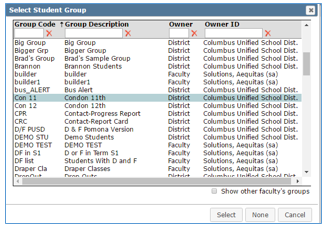
- Change Group – Click this button to make the group selection. A pop screen will launch with a list of all available groups. You may use the filters at the top of the screen to search for the desired group.
- For Students with No Career Plan, Use– The selection made here defines which Career Plan will be used to generate Course Requests for students without a Career Plan designated in the Student Editor/Student Schedule.
- <None> - this selection means that for students with no Career Plan designated in the Student Editor/Student Schedule, no Course Requests will be generated.
- (Name of plan) – select the Plan you want to use to generate Course Requests for students with NO Career Plan designated in the Student Editor/Student Schedule. When used in conjunction with ‘Generate for Students with Career Plan’, this field will allow you to select the same course you selected above to also apply to students with no Plan designated in the Student Editor/Student Schedule. (i.e., you can Generate Course Requests for ‘General Education’ for BOTH students who have that Plan designated AND for students who have no Plan designated. Students with other Plans will not be touched. When a Plan is selected in ‘Generate for Students with Career Plan’, you will only be able to select that Plan or <NONE> from the ‘For Students with No Career Plan, Use’.
- Clear Unlocked Requests – Check this box to clear out any previous Course Requests that have been left ‘Unlocked’. These might be Course Requests left over from a previous Career Plan Generation Procedure (which are entered as ‘Unlocked’ by default), or manually entered Course Requests that were designated as ‘Unlocked’ in Student Schedules. If you are ‘building’ one Career Plan for ‘adding’ Requests to another that has already been generated (you want to keep the Requests from both Career Plans), DO NOT check this on or you will lose the previously generated, ‘Unlocked’ Requests. If you want to regenerate a Career Plan and blow away all of the old Requests that resulted from previous runs of the Career Plan Generation Procedure, DO check this on. All Course Requests generated by Career Plans default to ‘Unlocked’.
- Clear Locked Requests – Check this box to clear out any previous Course Requests that have been defined as ‘Locked’. These might be manually entered Course Requests, which are entered as ‘Locked’ by default or they could be locked requests generated by a previous Career Plan procedure. If you want to re-generate a Career Plan after you have manually gone in and added electives through the Course Request Editor, DO NOT select this or you will lose the courses that you entered manually. If you do want to blow away your manually entered Course Requests, DO check this on.
- Allow Duplicate Requests – In some cases, students may need to take the same course more than once during a school year. Selecting this option will allow duplicate Course Requests.
- Generate – When you are finished making your selections and are ready to start the generation process, click Generate.

- Reset – Resets all of your selections.
- Done – When you’re finished generating requests click Done to return to Career Plan Setup screen.
