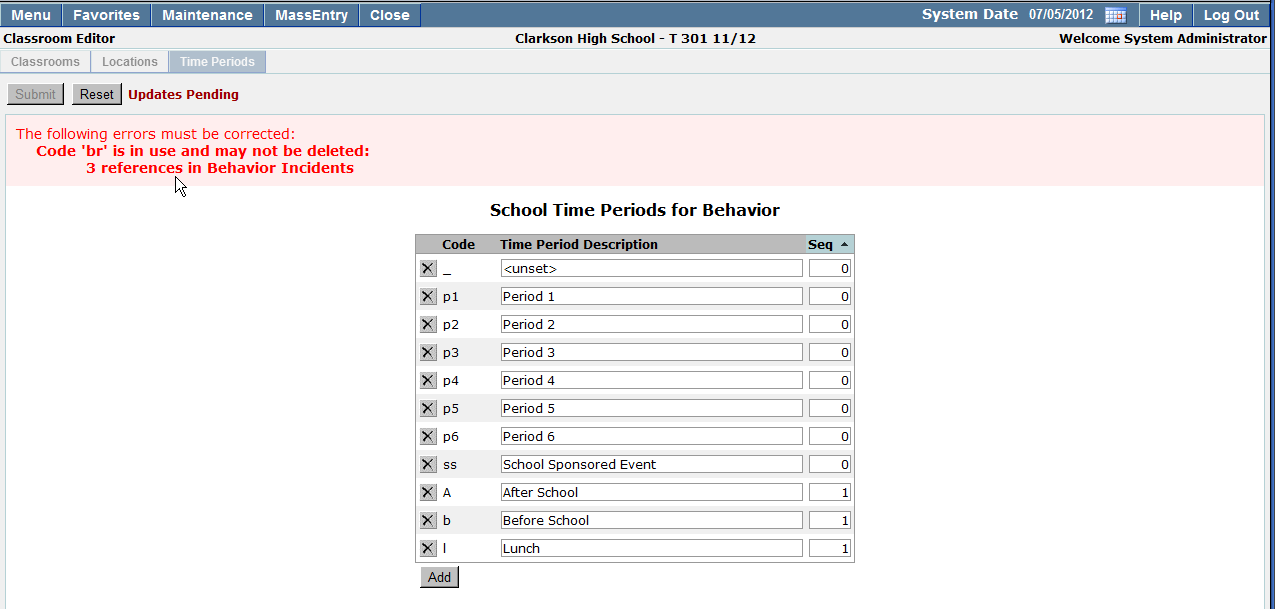
The Classroom Editor defines classroom attributes for the logged in school site. Classroom numbers, locations, types, and seating capacity can be defined in the Classroom Editor for use in the Master Schedule Manager, Behavior, Lockers, and Seating Chart applications. The list of classrooms defined in the Classroom Editor application will appear as selections when scheduling a course section in the Master Schedule Manager. A classroom must first be defined in the Classroom Editor application before it can be used for scheduling in the Master Schedule Manager.
Classroom Editor is located under the School menu in Q.
The Classroom Editor application allows school site office personnel to add, edit, and delete Classrooms, Locations, and Time Periods for school sites. Classrooms can be used in the Master Schedule Manager, Seating Chart, and Behavior applications. 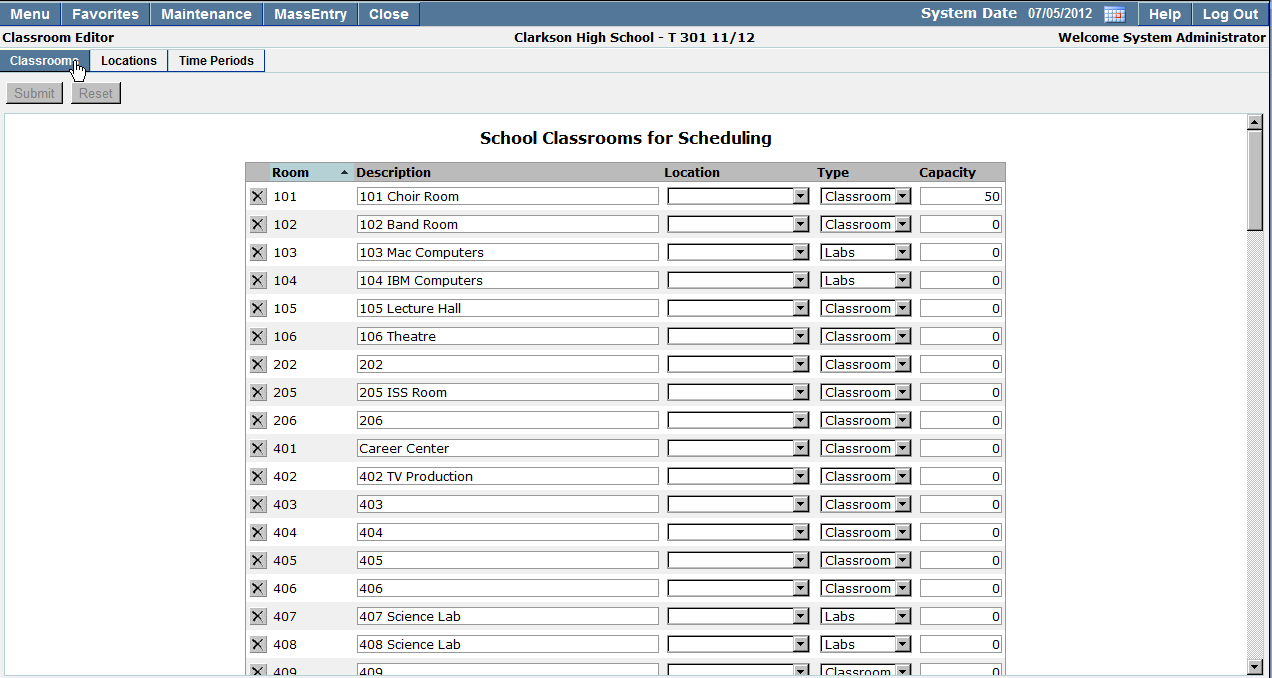
Classrooms which have been created in Q Front Office will be displayed in the Classroom Editor application.
To make changes to existing classroom:
1. Update the desired information in the Description, Location, Type, or Capacity fields.
2. Click Submit to save your changes, or Reset to clear out any changes since the last save.
Note: Room numbers cannot be edited, a new room number must be created and the corresponding information added.
The Classroom Editor application allows users to create Classrooms. Users can assign room numbers, classroom descriptions, campus locations, room types, and classroom capacities. Classrooms can potentially be used in multiple locations and throughout several applications in Q. Classroom locations which have already been created in Q Front Office applications will automatically be displayed in the Q Classroom Editor. School Classrooms may be sorted by clicking on the column header.
- To add new classrooms, click Add.
- Room: Enter a room number which will be assigned to the room you are adding.
- Description: Classroom descriptions are used to help users identify which type of classroom is being selected in the Master Schedule Manager application. Note: Classroom descriptions should be unique in their location and type, easily allowing users to identify which classrooms class sections will be tied to in the Master Schedule Manager application.
- Location: Classroom locations will facilitate mass assignment of student lockers based on classroom/location. Locations allow users to easily identify where classrooms are located in relation to lockers.
- Type: Select the type of room being added. Types may include items such as, but not limited to Classroom, Gym, Lab, etc.
- Capacity: Enter the maximum room capacity or the maximum number of seats in a room.
Note: The capacity field is for display purposes only. Each course section can have a varying number of maximum students assigned. The number entered in the Capacity field in the Classroom Editor will not affect or restrict the number of students that can be assigned to a course section.
Deleting a Classroom
To delete an existing classroom:
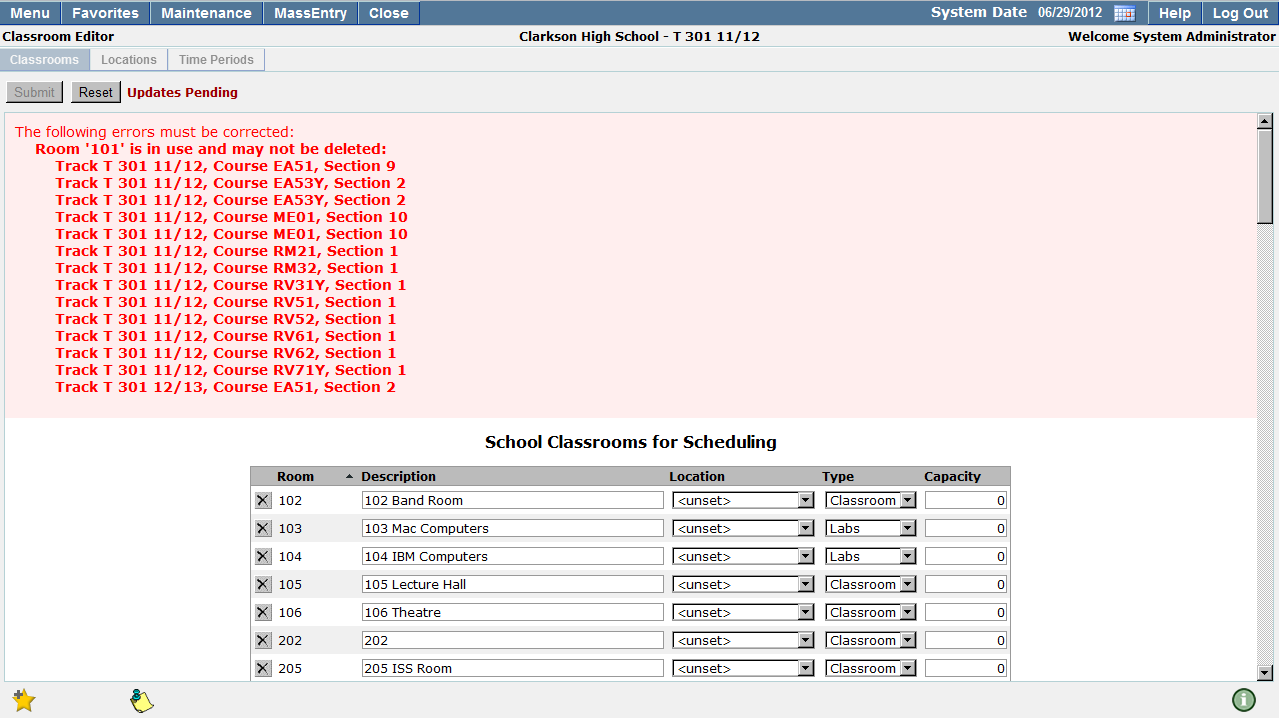
- Navigate to the classroom you would like to delete from the School Classrooms for Scheduling list and click X. The classroom will be removed from the School Classrooms for Scheduling list.
- Click Submit to continue and save your changes, or Reset to cancel the deletion.
Note: Classrooms which are in use by course sections in the Master Schedule Manager may not be deleted.
Locations
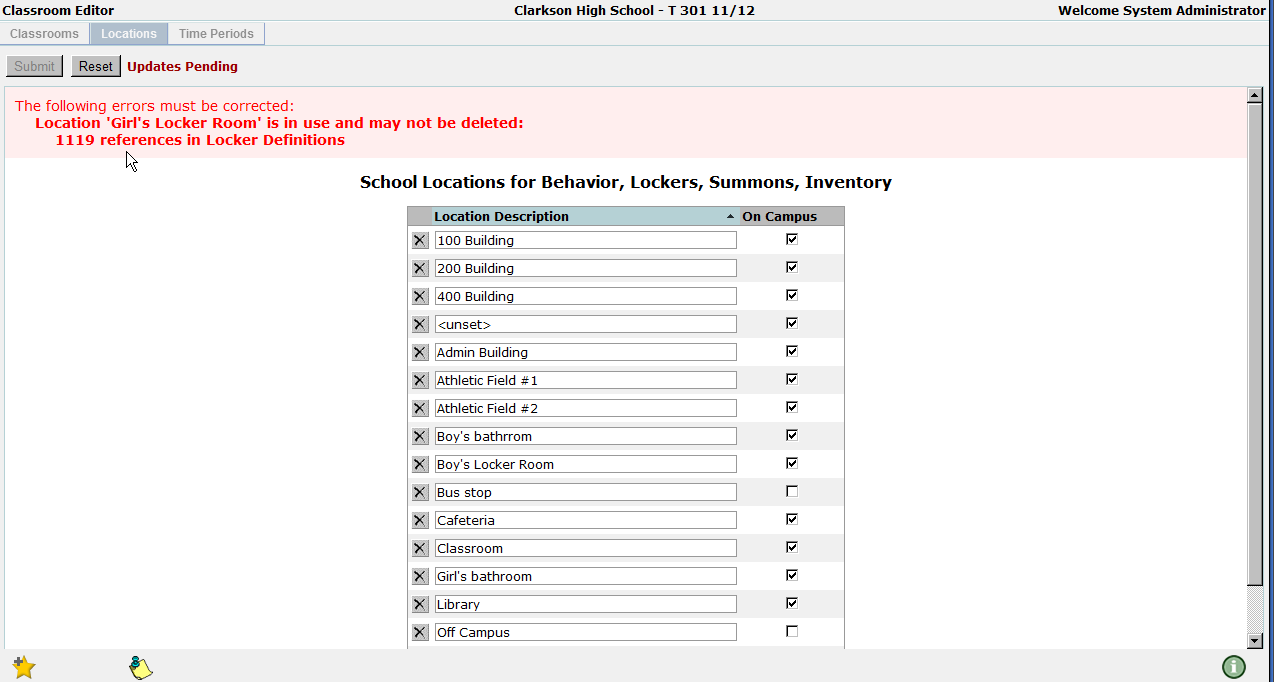
School locations can be created and referenced in Scheduling, Behavior, Lockers, Summons, and Inventory applications. Locations may be sorted by clicking on the column header.
To create a new Location:
- Click Add
- Enter the Location Description. Location descriptions can be used to identify where behavior incidents occurred, lockers are located, students summoned, and inventory has been taken.
- The ‘On Campus’ flag allows users to denote whether the new location is located on or off campus. Off campus, may include locations such as bus stop and off campus school event.
- Click Submit to save your changes, or Reset to undo any changes since your previous save.
Editing a Location
To make changes to existing locations:
- Update the desired information in the Location Description field.
- Select whether the location is On Campus.
- Click Submit to save your changes, or Reset to undo any changes since the prior save.
Deleting a Location
To delete a location:
- Navigate to the location you would like to delete from the School Locations for Behavior, Lockers, Summons, Inventory list and click X. The location will be removed from the School Locations list.
- Click Submit to continue and save your changes, or Reset to cancel the deletion.
Time Periods can be used to denote when specific behavior incidents occurred. Time Periods are user defined times such as ‘Period 1’, ‘Lunch’, ‘Break’, which occur throughout the school day of a particular school site.
To create a new Time Period:
- Click Add
- Enter a unique code which will represent the new time period.
- Enter a time period description.
- Enter a single whole numeric value in the ‘Seq’ column. The ‘Seq’ entered will determine the sort order of the new time code in the drop down list in any applications which may use the time period.
- Click Submit to save your changes, or Reset to undo any changes made since last save.
Editing a Time Period
To edit an existing Time Period, click on the school time period you would like to modify. Update the desired information, click Submit.
Deleting an Existing Time Period
To delete an existing time period:
- Click to select the desired time period from the list of school time periods.
- Click Delete.
- If the time period is being referenced in other applications, an error message advising you that the time period cannot be deleted will be displayed. In order to delete the time period, all references to the code must be removed. Return to the Classroom Editor application and delete the desired code.