
Preparing for Summer School
- If your district runs Summer School as an extension of the current year or as the beginning of the next school year, you should already have Summer School Tracks created from when the New Year Process was run.
NOTE: Sometimes districts rotate which schools will run summers school, so you may need to create new SS tracks for some schools.- Make sure current SS Tracks have the Is Summer School flag set within Track Editor definitions, and have had their calendars created with how many terms, periods, start & end dates have been added.
- Verify in Track Course Setup all the courses offered for Summer School have been added or removed if no longer needed.
- Setup Staff who should be Active for the SS Tracks with any new permissions roles required.
- If you know about how many sections of courses you plan on offering, go ahead, and start building your sections in the Master Schedule Manager.
- Setup Term Dates in the Marks Setup like you would in any normal school year, and this should include the date range for teachers to be able to enter marks.
How to Enroll Students in Summer School
Login to Districts Office and launch Preference Editor. Click on the 2nd Tab, System Configuration.
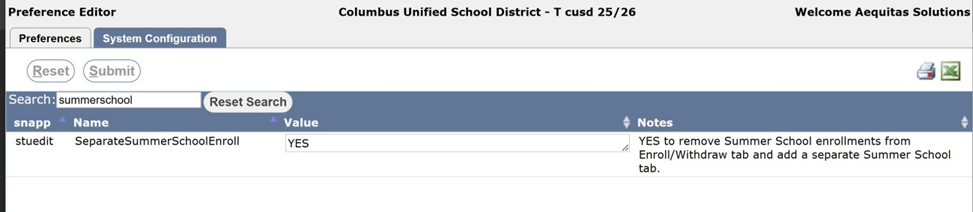
Based on the above screenshot, verify if you want end users to enroll students into Summer School Track to either use the Enroll/Withdraw Tab (Value = NO) or if you want Student Editor to create a new Tab called Summer School (Value = YES).
If Value = NO, users will go to Enroll/Withdraw Tab and depending on when Summer School is being run (end of current school year) users will click Add Part-time Enrollment under the Current School Year and find the desired Summer School Track to enroll the student as Part-time.
NOTE: If Summer School is run as the start of the next school year, then select Add Part-Time Enrollment under Next Year heading.
If value = YES, users who have permissions for  will be able to see an additional Tab called ‘Summer School’. Just click the Add Summer School Enrollment and the ONLY tracks available are Summer School Tracks.
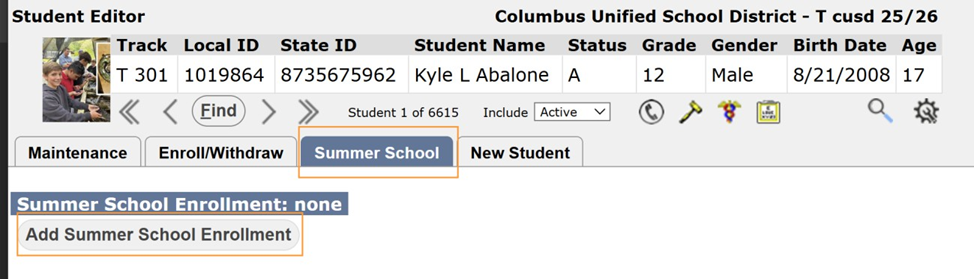
Summer School Enroll Application
This application requires users to have permissions for this application, and when they do, they can enroll students and schedule them within this one application.
Some changes we have made to this application since it was first released include:
- This application can now be used to enroll students into summer tracks after the track has started. Previously users had to use Student Editor once the summer track started, but the Summer School Enroll app can now continue to be used to enroll students once the track has started!
- Search results have been increased from 1000 to 3000 results to make searching for and enrolling students easier!
- Once students are enrolled into a summer track that has already started, they can now be scheduled within Summer School Enroll for one day after the enrollment start date. After that, student schedules will need to be adjusted within the Student Schedules application.
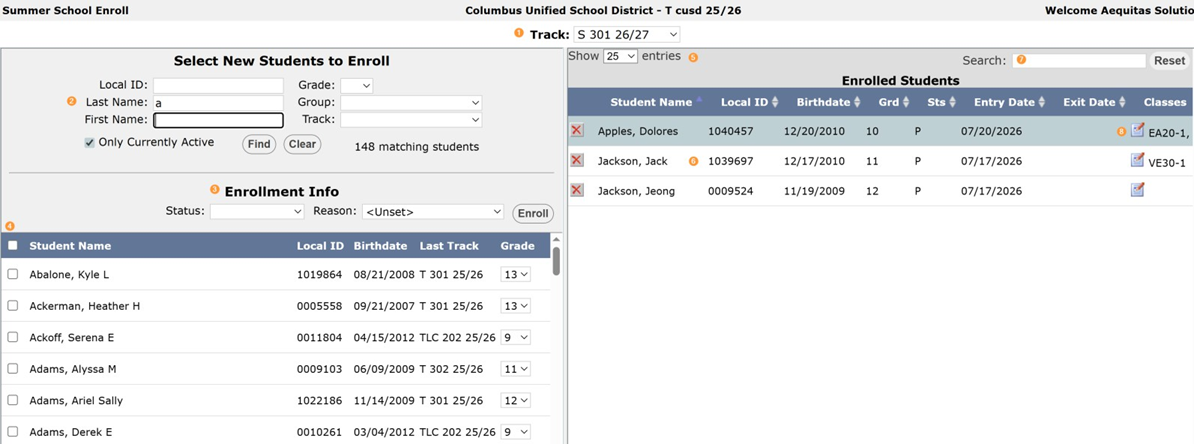
- Select desired Track in case your school has multiple sessions running within multiple tracks.
- Select desired student or students.
- Enter the Status and Reason that will be applied to all students enrolled.
- With the results of student based on the search, you can check the box at the top to highlight all students in the search or select each individual students check box and the click Enroll button.
- We show 25 entries by default, but this can be changed to show 50, 100, 250, 500 or All. At the bottom is a number tally indicating how many students have been enrolled.
- If you are looking for a specific student, you can enter a portion of the student’s name in the search box.
- List of all students enrolled in summer school
- Shows what section a student has been scheduled into.
If a student needs to be scheduled, click on the notepad with the red pen icon to bring up possible sections offered to schedule the student into. Click on the check box for the class to be scheduled and click Submit.
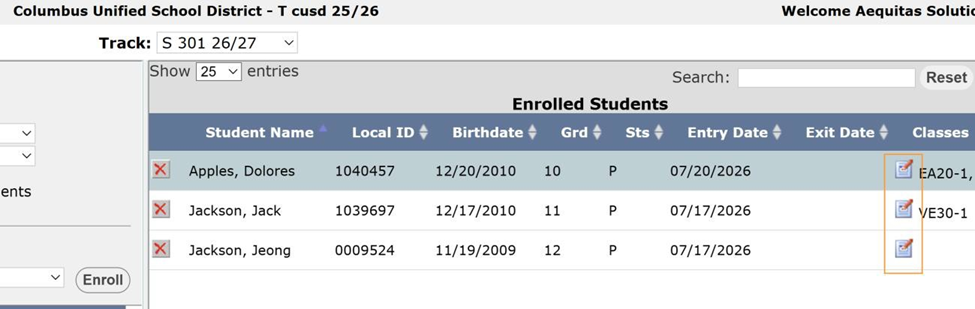

If a Student should be removed from Summer School, just click the red X next to the student’s name and their enrollment will be deleted along with any scheduled section they may have been scheduled into.