
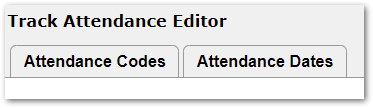
Attendance Setup for tracks may be managed either in the Track Editor > Definitions Tab > Attendance Setup or using the Track Attendance Editor. Track Attendance Editor has two tabs: Attendance Codes and Attendance Dates. Access to each of these tabs may be managed through permissions.
Track Attendance Editor is located under the School menu in Q.
Track Attendance Editor has two tabs: Attendance Codes and Attendance Dates. Access to each of these tabs may be managed through permissions.
To limit the attendance codes available in a track, they may be selected for the track on this tab.
If a track will be using ALL the Attendance codes defined by the district, no Attendance Code setup is required on this tab. 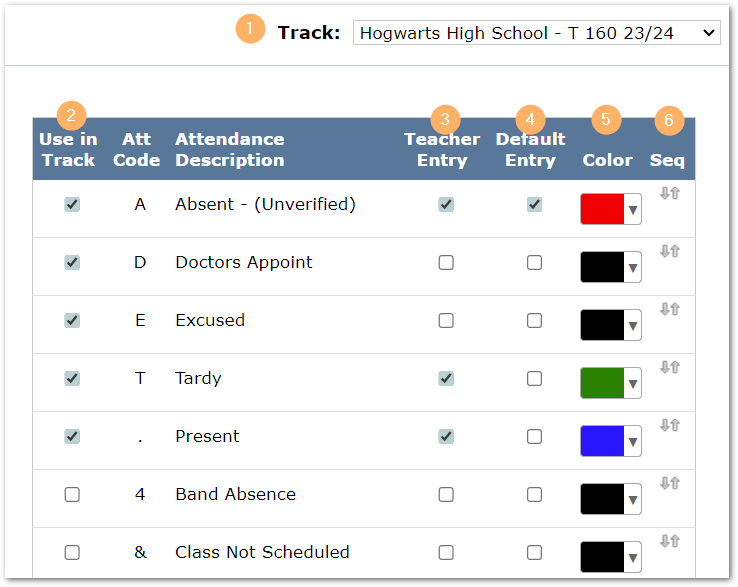
- Select the track at the top of the page.
- Select the codes for use in the track by checking ‘Use in Track’ box to the left of the code.
- Check codes to be available for Teacher Entry by placing a check in the ‘Teacher Entry’ box.
- Select a Default Entry code (keep in mind the Default Entry code is what displays at the top of Class Attendance and used when the teacher clicks the blue arrow).
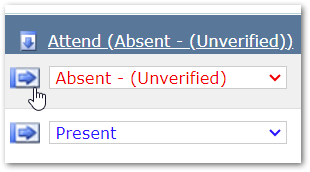
- Colors may be selected for Attendance codes making them easier for teachers to use.
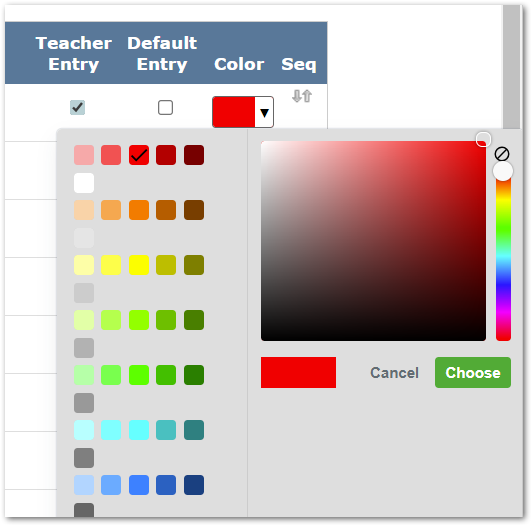
- Sequence the codes using the mover arrows at right.
Save the changes.
The Attendance Dates tab is used to configure the settings that control the days teachers may enter and edit attendance.
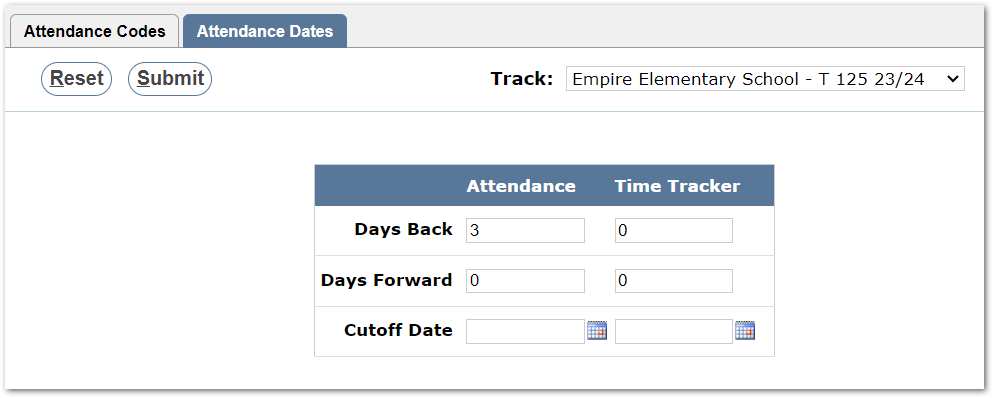
For the selected track, set the number of days back and / or days forward during which a teacher may add and edit attendance records in attendance applications in the appropriate box.
If no values are entered in the box, teachers may adjust attendance with no date restrictions.
A Cutoff Date may be entered and will override the days back and forward set.
