
The Q Widget Editor enables Districts to configure widgets, add new widgets, and make widgets required or optional. Four types of widgets are available: standard table list style, chart or graph, external feed, and HTML. Current external feed types include Twitter and Facebook.
The widgets themselves may be controlled by Role Permissions, however some widgets are visible to users based on other attributes such as Teachers, users who teach a class, users referring a Discipline Referral, etc. The role permissions within the Widget Editor will be used to select widgets users can access, but these internal, inherent ‘permissions’ do limit what a user sees.
Widget Editor is located under the System menu in Q.
The application opens to the list of existing widgets on the left, with the configuration details for the selected widget displayed in the Details pane at right. 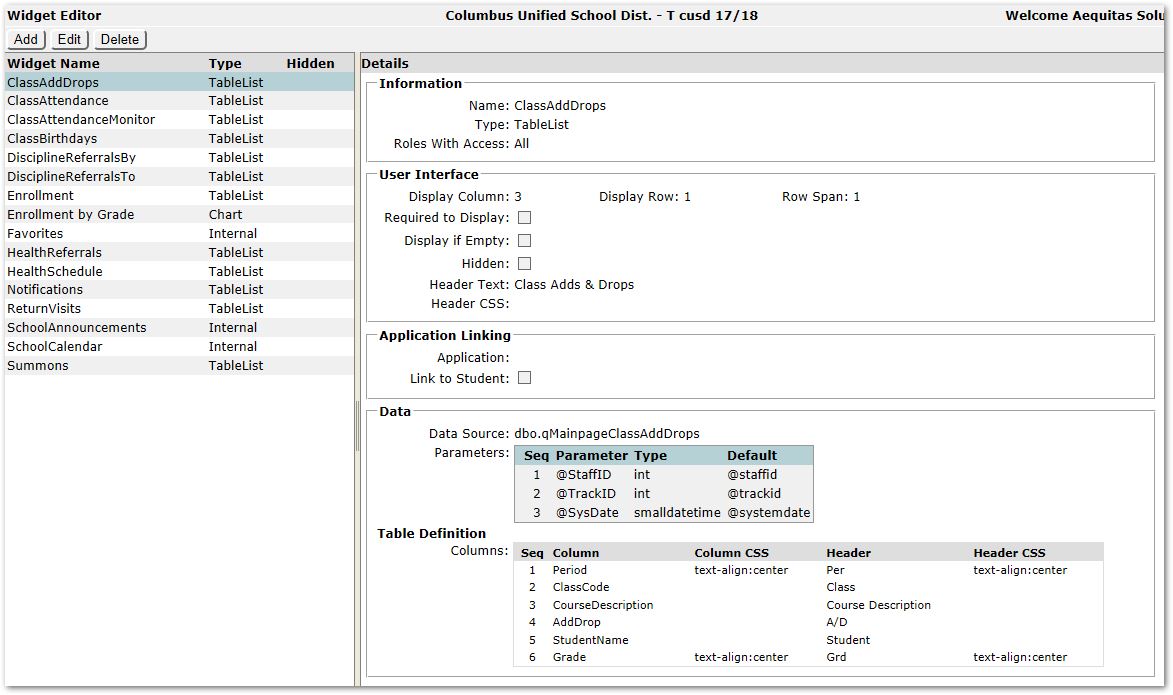
Class Adds & Drops - appears when the logged in user is a teacher and has adds/drops in their class(es).
Class Attendance - appears when the logged in user is a teacher and has attendance activity.
Class Birthdays - appears when the logged in user is a teacher and a student has an upcoming birthday. Students will appear on the widget when their birthday is one week away, and will display until their birthday.
Discipline Referrals by Me - appears when the logged in user has referred a student to another staff member.
Discipline Referrals to Me - appears when the logged in user is the staff that a student is referred to.
Enrollment - appears when the logged in user is flagged as a Site Administrator in the Staff Editor. **NOTE: Site Admin does NOT grant any special permissions in other areas of Q. This flag only gives access to this widget on the Home Screen. NOTE: With Q Version 3.6 the appearance of this widget will no longer be based on the Site Admin flag, and will use role permissions instead.
Favorites - users can flag which apps are their favorites, usually apps that are frequently used by the user. These items will appear in the top center tile for one-click access for users when they log in to Q.
Health Referrals - appears when the logged in user is the staff that the student is referred to.
Health Appointments - appears when the logged in user is the faculty selected for the health appointment.
Notifications – appears when the logged in user has new notifications.
Return Student Visits - appears on the date of a scheduled return visit when the logged in user is the faculty selected for the return visit.
Summons - appears when the logged in user is the staff that the student is assigned to meet with.
Prerequisite Steps:
For all widgets, except External Feed widgets like Twitter or Facebook, make sure you have pre-created a required stored procedure for your new widget. The Add process will require you to select the stored procedure from a dropdown list of procedures in your database.
It is imperative that you test your widgets thoroughly BEFORE putting them into production!
Widgets that fail will take the user to the Q Error screen and there is no way to continue processing in Q when an error occurs on the Q Home page.
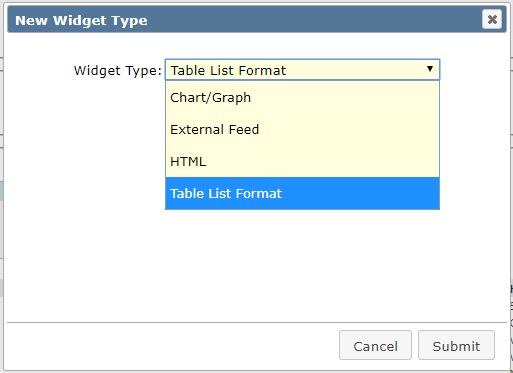
Click Add to create a new widget. A popup dialog will ask you the select the type of widget you want to add:
- Table List Format
- Chart/Graph
- External Feed
- HTML
The following screen will appear allowing you to configure the widget.
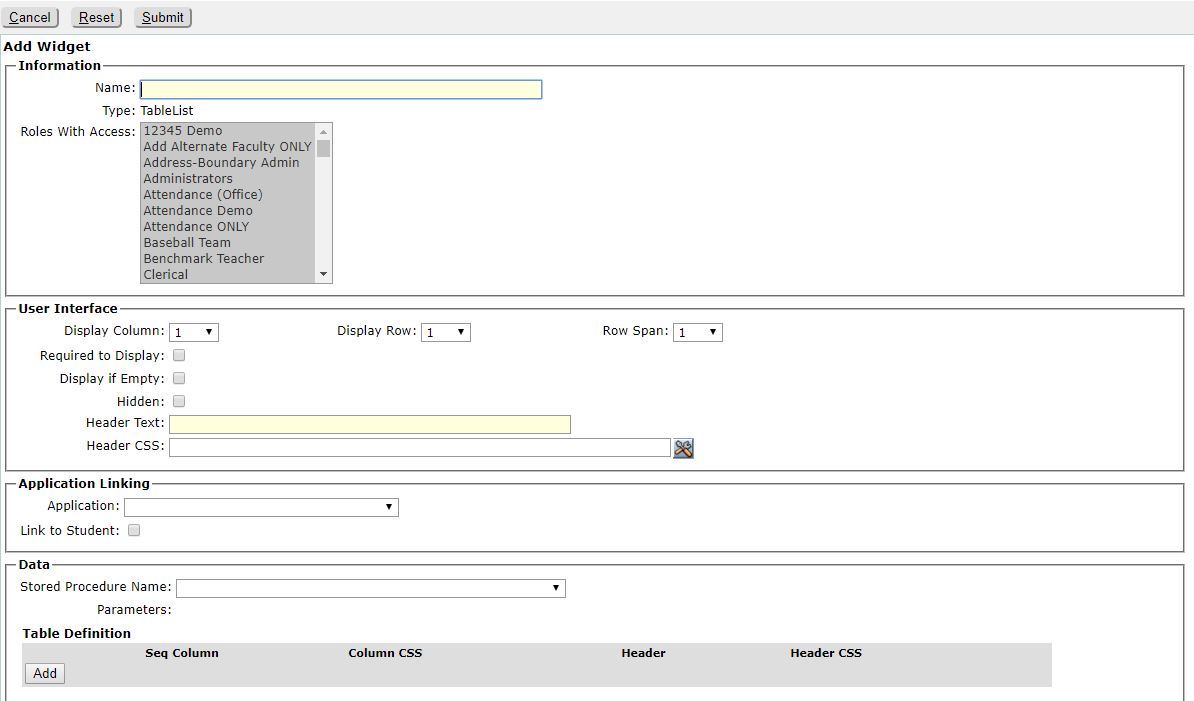
The settings and configuration available on the screen will vary depending upon the type of widget selected. Detailed information for configuring widgets are discussed in the section Configuring a Widget below. Please see that section below for next steps to complete creating a new widget by completing the configuration of the widget.
- Select the widget from the list at left and click Edit.
- Adjust the settings as desired. See Configuring a Widget, below for details.
The configuration of the Enrollment Widget, an example of a Table List Widget, is shown below:
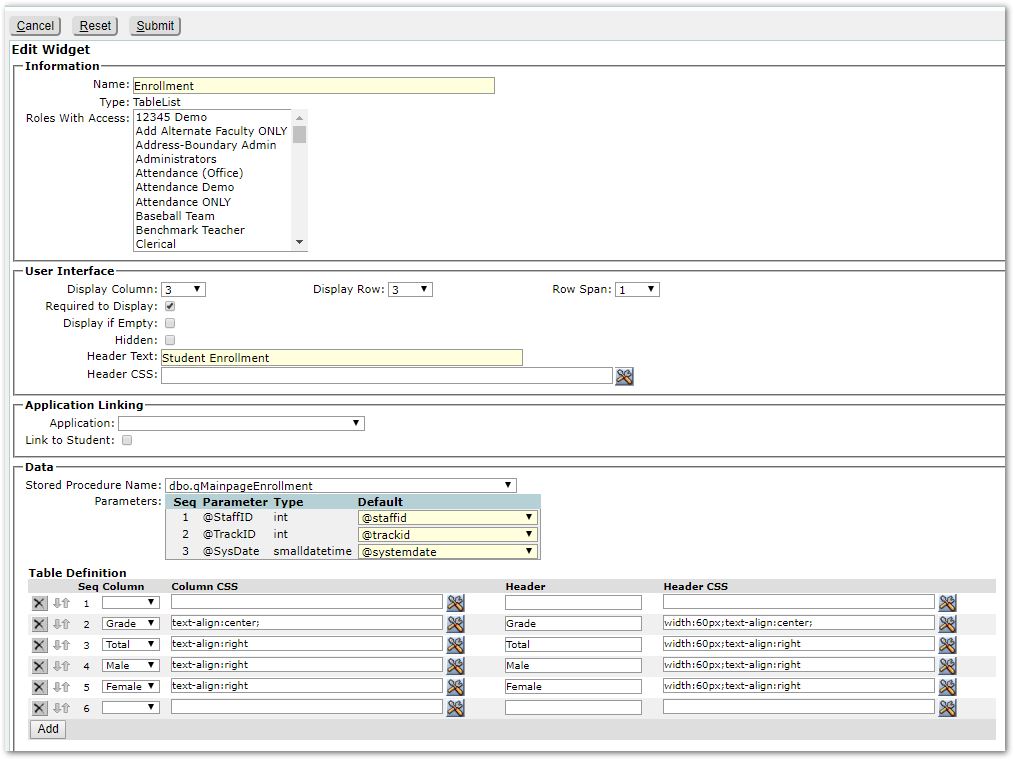
Information area:
Name – Enter the name of the widget as it will appear in the Widget Editor in the list of widgets at left.
Type – One of the defined types available, and selected during initial creation of the widget. This may not be modified. Samples of each are shown in the Data Area below.
- Table List Format
- Chart/Graph
- External Feed
- HTML
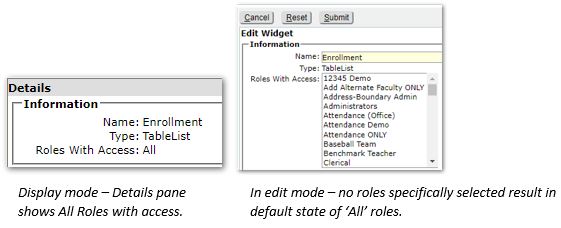
Roles with Access – Select the permission roles to have access to the widget. The default state, when no roles are selected assumes all roles will have access. To limit access to specific roles, select only those roles. As mentioned previously, some widgets are visible to users based on other attributes such as Teachers, users who teach a class, etc. The role permissions within the Widget Editor are used to select widgets users can access, but these internal, inherent ‘permissions’ do limit what a user sees.
User Interface area:
Display Columns | Display Rows | Row Span– These settings control the default relative position of the widget on the Main or Home Page. As example, a widget defined with settings of Display Column 1, Row 1, Row Span of 1 will appear in the upper left corner of the user’s main page and take up one ‘row’ of depth as part of the default settings. Since users may now use ‘My Widgets’ and subscribe and configure the arrangement of their subscribed widgets, the position of the widget may be changed by each user. The Widget Subscription pop-up dialog, below, shows the arrangement, positions, depth etc. of the various widgets.

Required to Display – Required widgets will be available to all users who meet the permission criteria, and required to be in their subscription layout.
Display if Empty – Widgets such as New Notifications are set to display if empty. If you wish to change this, uncheck the box.
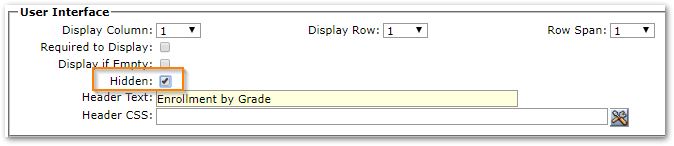
Hidden – Check to hide a widget, such as when in the process of creating a widget.
Header Text – This text will be visible in the Widget Header
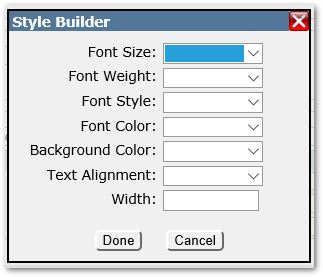
Header CSS – Used to define header style. Click the tool icon to select header style attributes.
Application Linking - Only for Table List Widgets
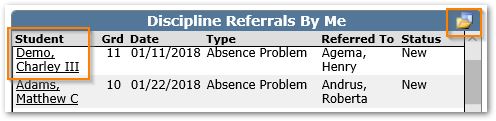
Application – Optionally, select the application to link to the widget. When set, the application link will appear in the upper right corner of the widget. When the application link is clicked by a user, the application will open.
Link to Student – Optionally, check to link the widget to the student. When set, student name will be display with underline indicating a link. When clicked, the associated application will open to the student.
*Note: The stored procedure being called by the widget must return suniq in order for Link to Student to work.
Data Area
The data area will appear with different settings depending upon the type of widget.
Table List
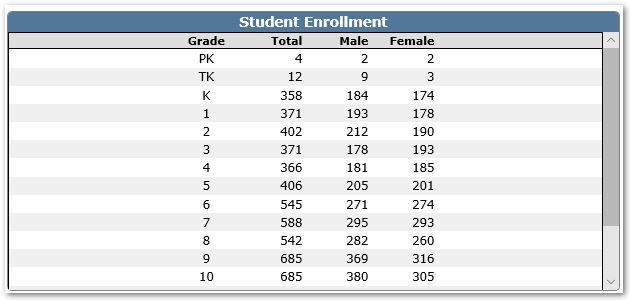
The image below of the Enrollment widget is an example of a table list widget.
Configuration of a Table List Data area:
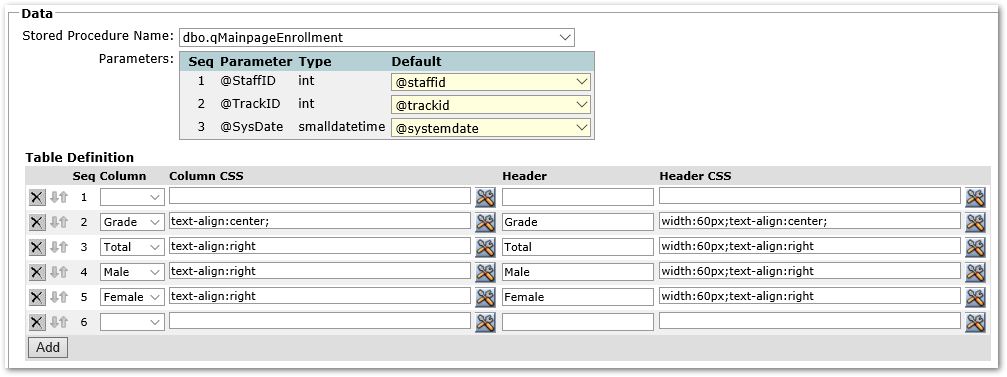
Stored Procedure - A stored procedure is required for the data source.
Parameters – Configure parameters based on the associated procedure.
Table Definition - Configure the table based on the associated procedure:
- Seq – Column sequence
- Column – Select the desired column from the set of possible columns made available by the associated procedure.
- Column CSS – Define the style of the column data returned, i.e. aligned center, left etc.
- Header – Input the header text for the column
- Header CSS – Configure the style of the column header.
Notes: In order for a table list widget to have headers that remain in place while a user is scrolling, the widget name must not contain spaces.
Chart
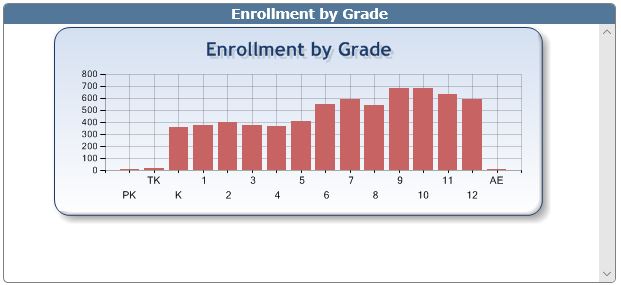
The image below is a sample of a Chart/Graph widget.
Configuration of a Chart Data area:
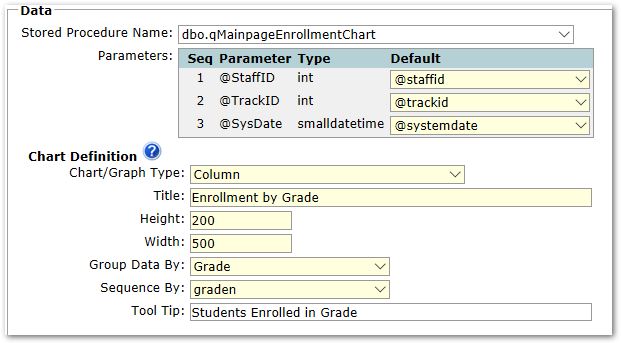
Stored Procedure - A stored procedure is required for the data source. The procedure referenced, qMainPageEnrollmentChart, has been provided to clients as a sample that may be used to create this sample widget.
Parameters – Configure parameters based on the associated procedure.
Notes: Q supports simple types of Bar and Pie charts. When you define a stored procedure to return data for your Chart/Graph, there are a couple of things to keep in mind:
- Data returned must include 1 data row for each entity. This widget cannot operate on summary data. Thus, the sample Enrollment by Grade SQL returns 1 row for each student.
- When you define the Chart/Graph you must specify 2 different columns of data to use in your data.
- One column will be grouped on to create the x-axis values (Grade is the gradec values for stustat.graden) in this sample.
- A second column will be specified as the column to use to sort the x-axis values. In this sample we use the stustat.graden column for the sort.
The Group Data By and Sequence By columns are dropdown lists containing the columns returned by the stored procedure you specified for the widget.
Note: You MUST specify different columns for the 2 values. If want to report on and sort on the same data column, you just need to duplicate the column in your data set and give it a different column name.
The Tooltip is used to provide hover over text for the chart. In this example: ‘Students enrolled in Grade’ will produce hover text of nnn Students enrolled in Grade x, where nnn is the count of students in Grade x. (i.e. 563 Student enrolled in Grade 10)
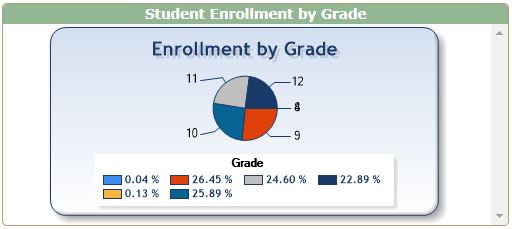
By simply changing the Chart/Graph type you can get other styles. Changing Type to Pie will yield the following:
External Feed
External Feed widgets allow for the definition of two types of feeds from external data sources.
- Twitter Feed
- Facebook Timeline
For both Facebook and Twitter widgets:
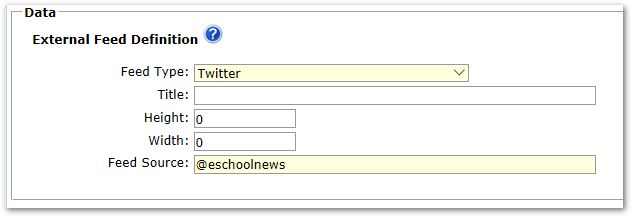
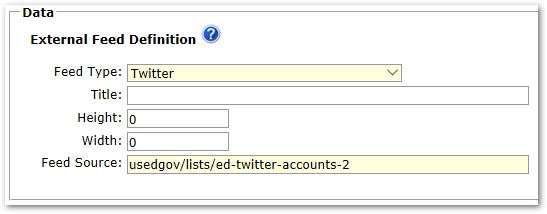
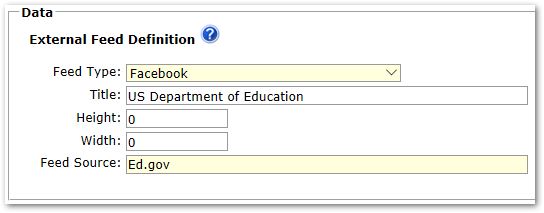
Title - The Data Area Title is not used for Twitter or Facebook feeds.
Height / Width - Set Height and Width both to 0 and the feed will automatically fill the widget.
Feed Source – Enter the name of the account you want to follow, as example:
Twitter - @eschoolnews
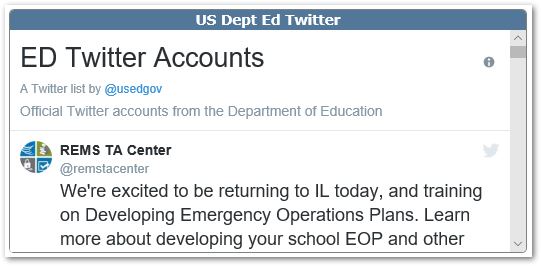
or to follow a Twitter List such as ED Department Twitter accounts enter usedgov/lists/ed-twitter-accounts-2
Facebook – Ed.gov
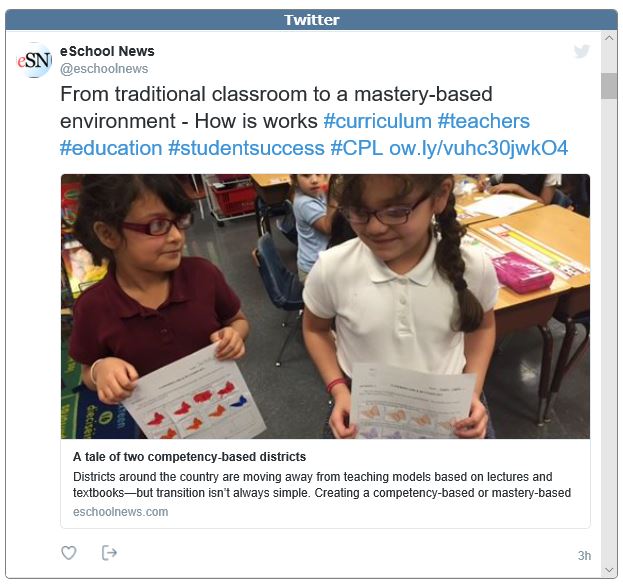
Samples of two Twitter external feed widgets with definitions are shown below:
A Sample Twitter feed
A Sample Twitter List:
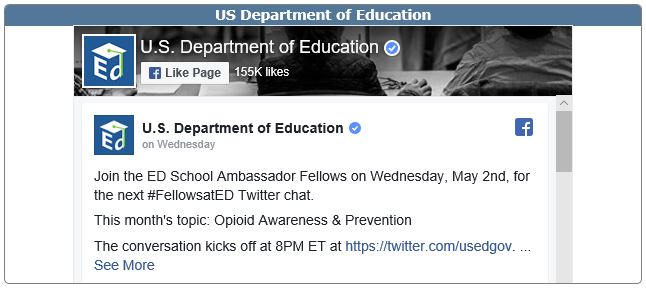
A sample Facebook External Feed widget with its configuration is shown below:
HTML
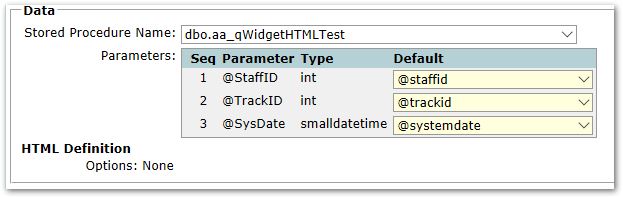
The contents of this widget are returned from a stored procedure. The widget also has a javascript area defined that can be returned from the stored procedure as well.
A sample stored procedure has been provided to clients called: aa_qWidgetHTMLTest
The stored procedure must return two columns.
WidgetHTML - Contains the HTML string to be rendered in the widget.
WidgetJavascript -This javascript string is inserted into a script tag at the bottom of the widget.
An example of an HTML Widget in the Editor:
This sample would look like the following:
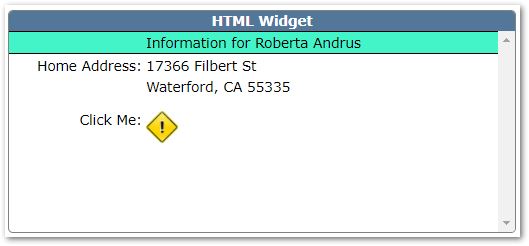
Clicking the image will display a message that blocks the screen. This was code included in the javascript string returned by the stored procedure.
Note: It is important to test your HTML widget thoroughly before putting it into production!
When finished editing the widget:
- Submit to save changes.
Hiding a Widget
You may hide a widget to make it unavailable by editing the widget and clicking the Hidden flag as shown.
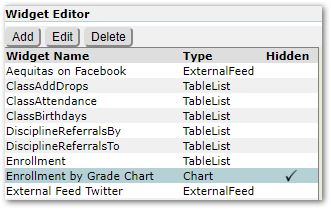
After clicking Hidden and submitting the change, note that in the list of widgets it is easy to tell which widgets are hidden.
If you wish to completely remove a widget altogether, you may delete it.
Deleting a Widget
- Select the widget from the list of widgets at left and click Delete.
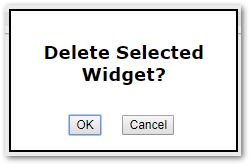
- Click OK to confirm and remove the widget, or to keep the widget click Cancel.
Once widgets have been defined, configured and made available to users, users may subscribe to the widgets or arrange the widgets on their main page or home screen using either the My Widgets link on the main page, or clicking the Widget Subscription button at bottom of the screen.
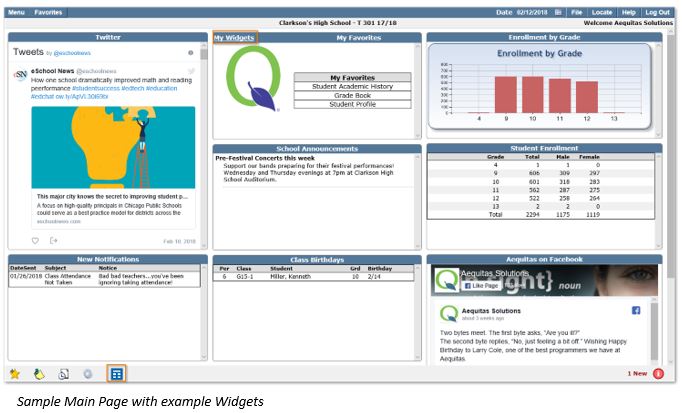
For detailed information on Widget Subscriptions, please click the Help button on the Widget Subscription page.
