Once Online Food Service applications have been submitted by applicants, Process Applications is used to verify or deny eligibility for food service benefits.
Process Applications is located under the Food Service menu in Q.
Process Application has 4 Tabs:
- Process Surveys
- Process Applications
- Find Applications
- Print Archive Applications
Process Surveys only appears if surveys have been configured using Online Income Surveys under the Online Eligibility Setup application. Survey processing is similar to application processing.

The Process Applications interface is used to process food service eligibility applications which have been submitted by applicants through the Online Applications portal and are grouped by Process Status.
1. Process Status: This column shows the types of applications that are ready for processing or review. and the number of rows displayed will vary based on the application types.
2. Count: Shows the number of applications with each status.
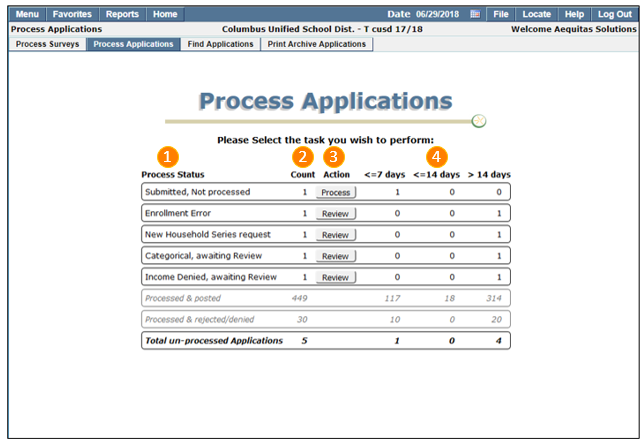
3. Action: Click the Action button to select the type of applications to be processed or reviewed.
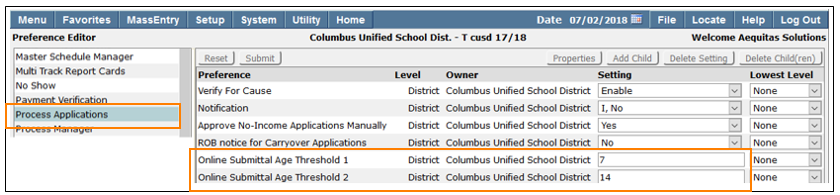
4. Age of Online Submittal: These columns show the number of applications within a time period beginning after they have been filed online. The ranges of time can be adjusted using the settings in the Preference Editor shown below.
- Submitted applications must first be processed to verify that students listed on the application are enrolled in the district, and to determine household eligibility based on the information contained in the application. A progress bar will display with the number of applications processed and their status.
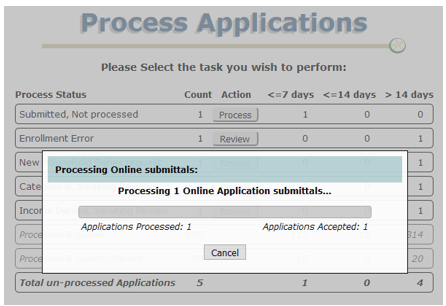
- Once applications have been processed, the Process button disappears from the Process Status list until additional applications have been submitted.
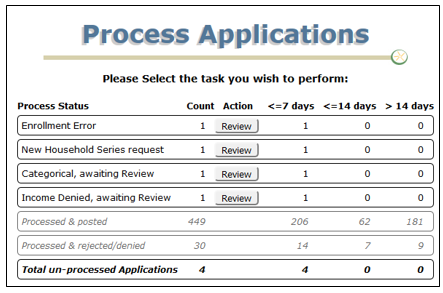
- Processed applications are placed in groups based on whether or not they contain students not found in district enrollment, or whether they are categorically or income approved or denied.
Applications with Errors
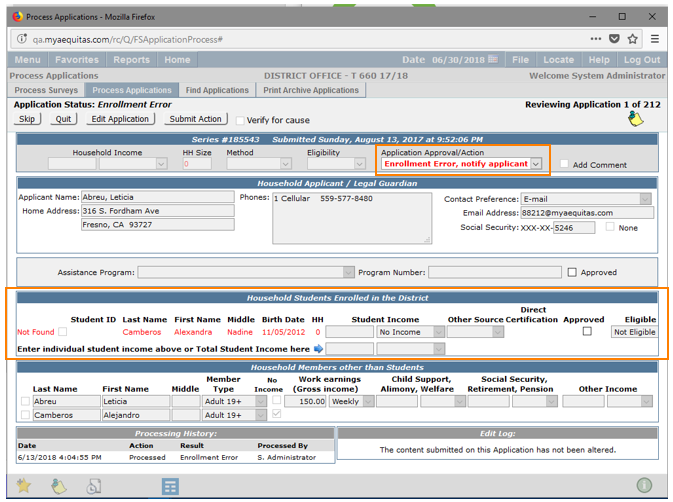
- Applications with status flags set to ‘Enrollment Error’ contain students not found in district enrollment.
- Click Review
- If there are multiple eligibility applications with errors, the first application in the list will be displayed.
Note:
Applications are listed in alphabetical order by applicants’ last name.
Correcting Errors
- Applications with enrollment errors will contain one or more students flagged as either ‘Not Found’ or ‘Not Enrolled’ listed in the ‘Household Students Enrolled in the District’ section.
- Students ‘Not Found’ were unable to be located using their name, or Student ID (if supplied). This is often caused by data entry errors involving student names or birthdates.
- Students ‘Not Enrolled’ were found within the district database, but are not enrolled in a current or future track as of the system date (shown at the top of the screen).
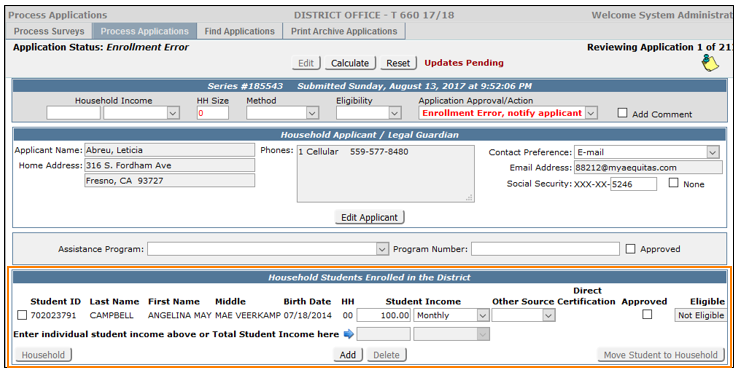
To simply notify the applicant of the error(s), click Submit Action to accept the default action.
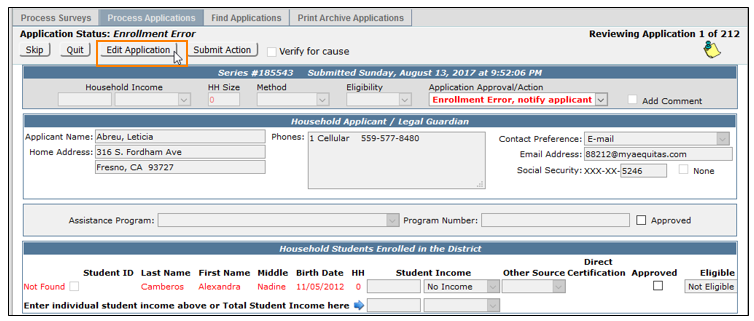
If there is enough information to correct the error(s), click Edit Application. Enrollment errors must be resolved before an application can be processed and posted.
Students not found or not enrolled are displayed as links. Click on the link to open a student search panel.
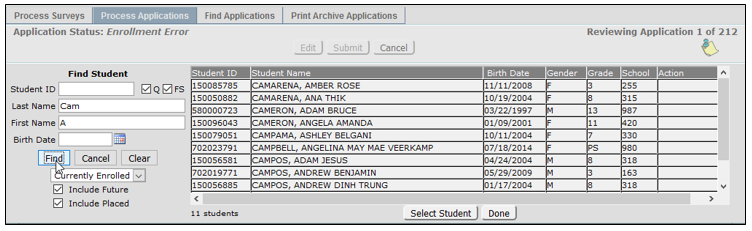
If a spelling error is suspected, correct the error and click Find (or press Enter). Similarly with the birthdate, remove the birthdate from the search criteria, and click Find.
Choose the student and click Select Student. If the student has income, enter it and the income period. Income can be added by student or by Total Student Income but not both.
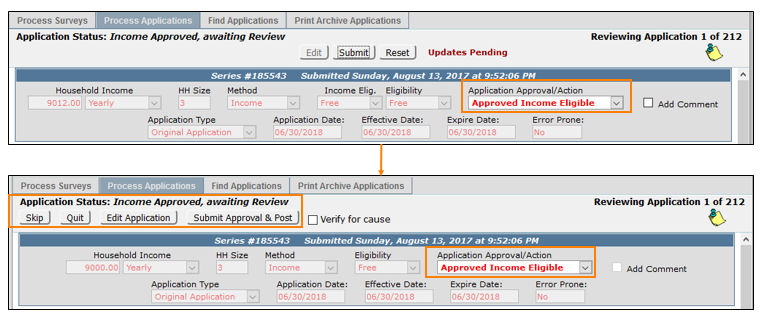
- Once application information has been edited, click Calculate to process the new information. The new application status will appear in the ‘Application Approval/Action’ drop down list.
- Click Submit to save changes, or Reset to undo.
- Click Submit Approval & Post to finish the application.
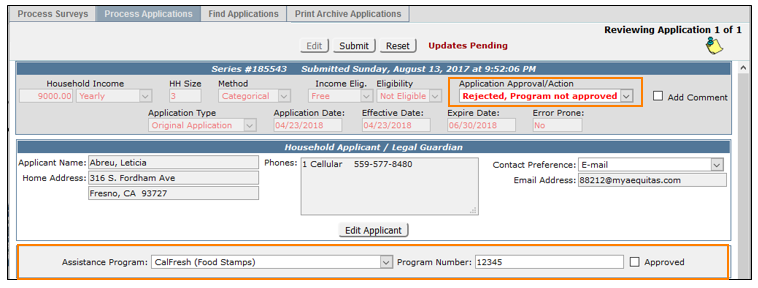
- Applications with an Assistance Program selected are categorically approved. When reviewing these applications, the Application Approval/Action initially defaults to ‘Rejected, Program not Approved’.
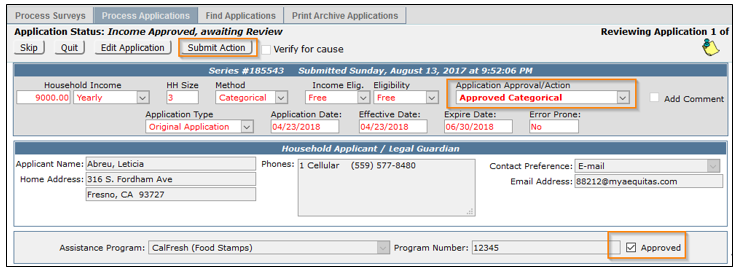
- To approve these applications, verify that the Program Number is accurate by clicking the Approved checkbox which will update the approval to ‘Approved Categorical’, and click Submit Action button.
Other Source Categorical
- Students categorized as Homeless, Runaway, Migrant, in Head Start programs, or Foster children are considered Other Source Categorically Eligible.
- Applications where all the students are assigned to other source programs are automatically categorically approved.
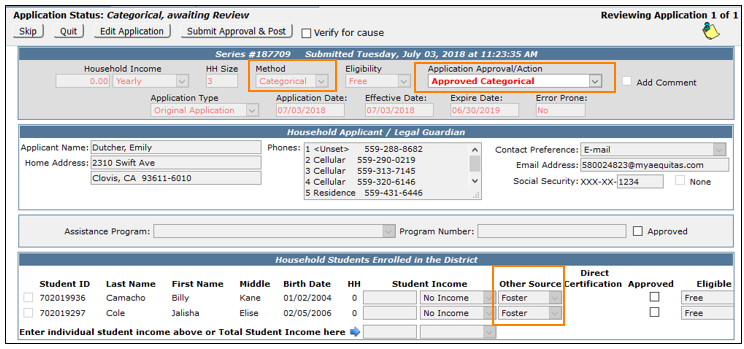
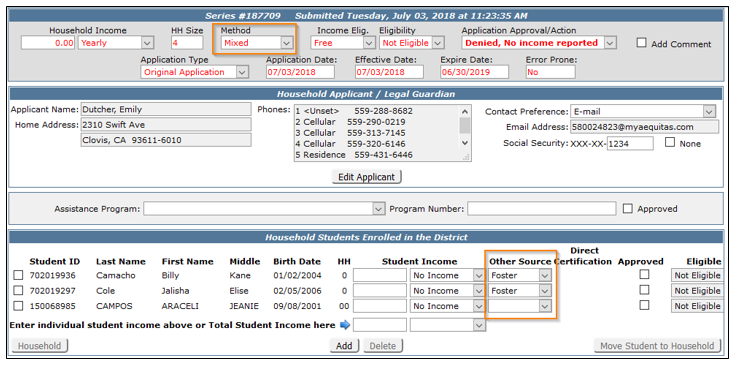
- Applications with some students assigned to these programs are called Mixed households where the Other Source students are income eligible.
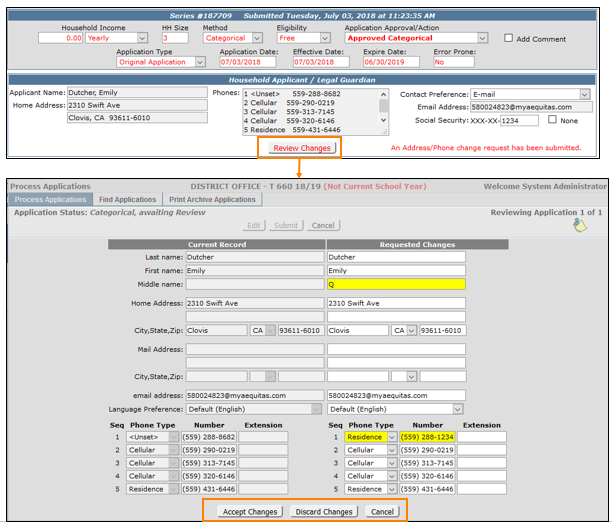
- If the applicant has submitted an address/phone change, a message will appear noting a change has been submitted. Click Edit to open the application and then Review Changes to view the modified information. New information is shown in yellow. Click Accept Changes to approve the address/phone changes, Discard Changes to ignore the update request, or Cancel to return to the previous screen.
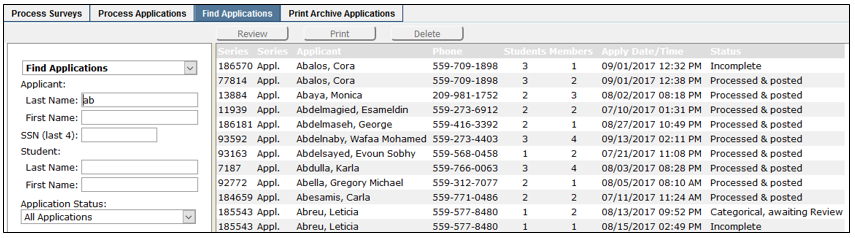
Find Applications provides a way to find an application quickly, and to view, review, or print the application. This function may also be used to delete applications that are Inactive/Disabled.
- Click Find Application
- Enter the information which will help the system find only applications which meet the search criteria. Search by applicant and / or student. Enter information in the Applicant Last name, First name, and / or SSN fields. Or search using the Student Last Name, First Name, and / or Application Status fields. Enter as much or as little information as appropriate and click Find.
- Applications which meet search criteria will be displayed.
- Click on the desired row to select the application and enable the Review button. If an application has been processed and posted, the Print button will be enabled. Click Review, Print, or Delete as desired.
Note:
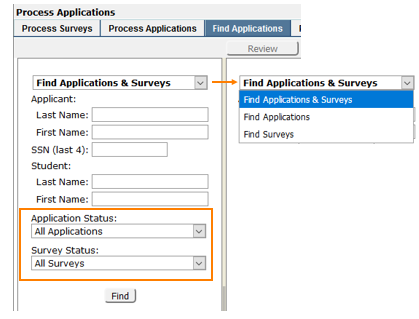
If Process Surveys is configured, the Find Applications tab will show options for finding applications or surveys as well as displaying the status filters for either or both.
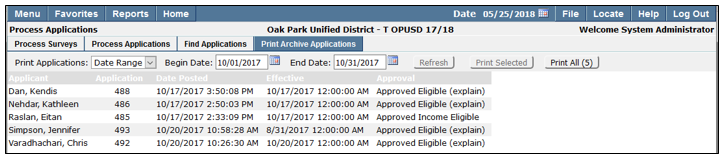
Print Archive Applications provides the ability to archive online applications for auditing purposes. Some districts choose to retain printed copies for archiving while others save images of the applications using .pdf files, which may be printed as desired.
Food Service Eligibility applications may be printed by batch or date range.
- Select to either print by Date Range or Batch by selecting an option in the Print Archive Applications drop down list.
- To print by batch, select the batch date.
- The applicant name and details will be displayed in the application listing window. The total number of applications will be displayed next to the Print All button. To print a single application, highlight the desired application and click Print Selected. To print all applications in the batch, click Print All.