
The Records Access application allows school sites to track various requests for a student’s school information.
Once the application has been launched, users must retrieve and select a student through the Student Banner.
Records Access is located under the Enrollment menu in Q.
Adding a Record
From the Student Banner, click the Add Record Access button to begin adding a record.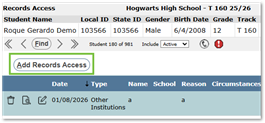
- When creating a new record, minimally complete the required field highlighted in yellow, and enter any additional optional fields.:
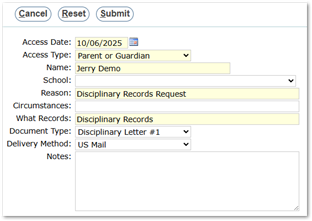
- Access Date – Enter the date manually or use the calendar button to select the date the record was requested.
- Access Type – The type of access requested.
- Name – The name of the requestor.
- School (Optional)– The associated school.
- Reason – The reason for the request.
- Circumstances (Optional)– Specific circumstances related to the request.
- What Records – The records being requested.
- Document Type (Optional)– Type of documents being requested.
- Delivery Method (Optional) – The method by which the records were sent.
- Notes (Optional)– Any additional information relevant to the request.
- Click Submit to save the request.
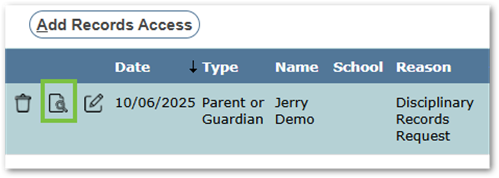
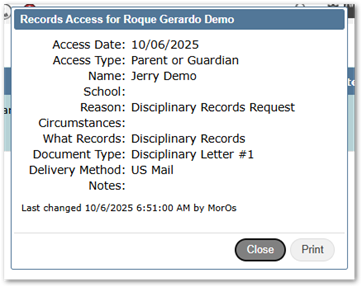
Once submitted, the application returns to the Records Access screen where the new record is displayed. The details of the request can be viewed by clicking the View button. Once the record is displayed, users can choose to Close the Window or Print the record.
Editing a Record
When a request needs to be updated, click the Edit button next to the specific request.

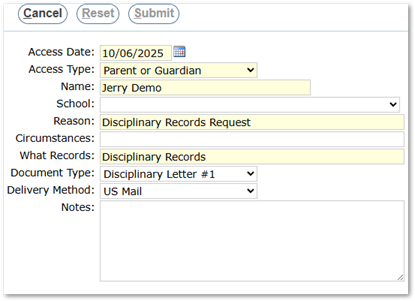
Once changes have been made, click Submit to update status, Reset to undo changes, or Cancel to cancel all changes.
Deleting a Record
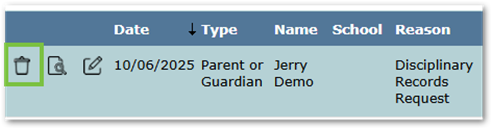
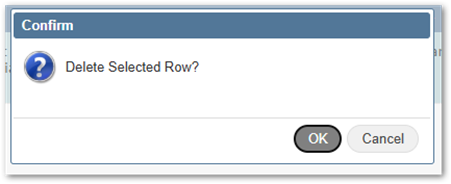
To delete an existing request, select the Delete button next to the specific request. The following prompt will be displayed:
Click OK to confirm the deletion, or Cancel to return to the main Records Access page.
Record Access Log
A Record Access Log report is available under the Enrollment Reports menu.
