
This application enables the user to mass assign graduation requirements for selected students. The user may choose a requirement to assign and assign it to those without any assigned requirement or students without the selected requirement assigned. Results for the requirement being assigned may optionally be calculated and previously calculated results of replaced requirements may be removed, if desired.
Mass Requirements is located under the Marks menu in Q.
The application is divided into two resizable windows. To resize the windows, hover over the middle bar and drag the mouse to move it to the desired position.
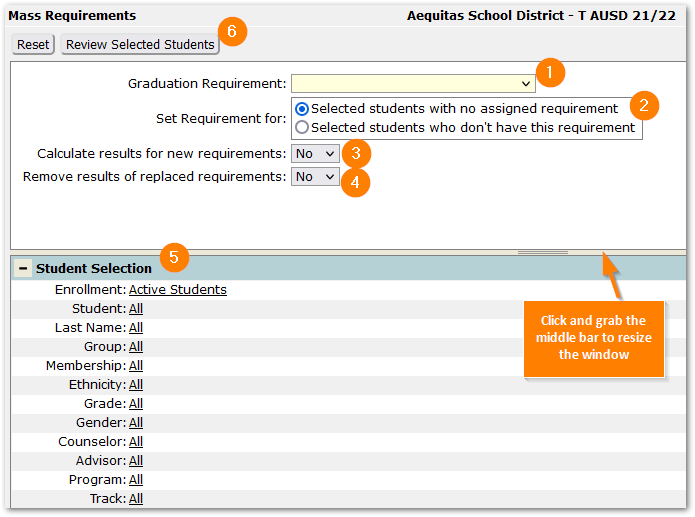
To assign a requirement:
- Select a Graduation Requirement from the drop list. Graduation Requirements are defined in the Requirements application.
- Set Requirement For – Choose either ‘Selected students with no assigned requirement’ or ‘Selected students who don’t have this requirement.’
- Calculate results for new requirement – Defaults to ‘No’. To calculate results for the requirement being assigned, set the value to ‘Yes’.
- Remove results of replaced requirements – Defaults to ‘No’. To remove results of replaced requirements, set to ‘Yes’. This will remove replaced requirement results whether or not new results were calculated in the previous selection.
- Student Selection – Select the set of students to apply the settings using the filter fields in ‘Student Selection’ area. Be careful to apply the settings to the desired set of students using these fields.
- Click the Review Selected Students button at the top to see the set of students being affected or click Reset to clear the selections.
Review Selected Students
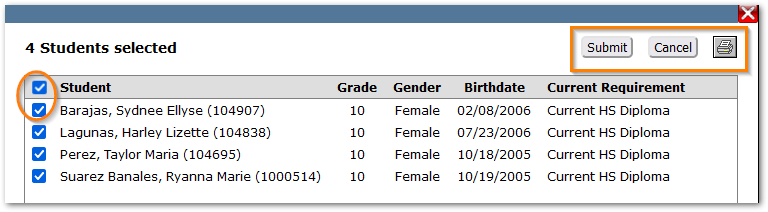
The students affected by the change will be listed with brief information about them including their current requirement.
- To de-select any of the students, uncheck the box(es) at left.
- To process the change, click Submit.
- To backout and revise the settings, click Cancel.
- Use the printer icon to print the list of affected students.
Review Changes
To review individual student graduation requirement settings and any results calculated, open Student Academic History – Graduation Requirements Tab for any of the selected students.
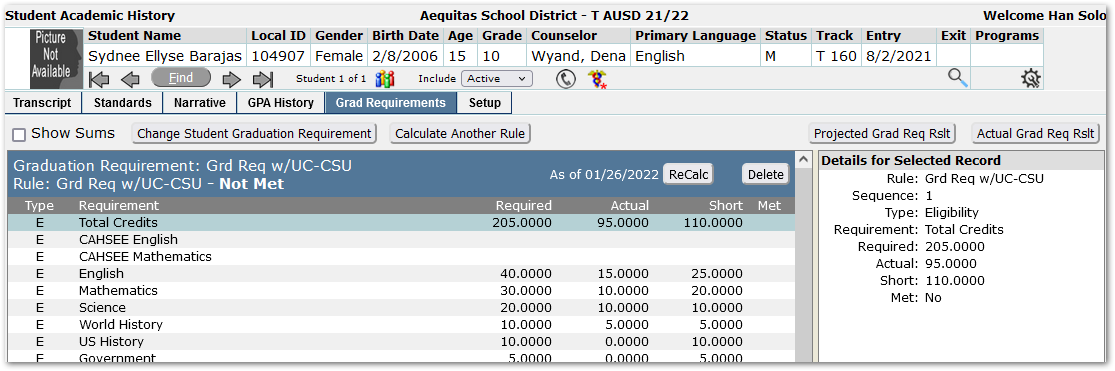
Alternatively, use Marks reports such as Graduation Requirement Results or Graduation Requirements Projected for the selected
