The Monthly Hours Attendance report is primarily used by positive attendance schools to report attendance hours for reimbursement. It provides a listing of total attendance hours for students in a positive or negative attendance track for a specific date range. It can be used to claim reimbursement for the ‘Present’ attendance hours (or its equivalent). This report requires the track has attendance months and at least one bell schedule defined in the Track Editor. If a track has more than one bell schedule, the default Bell Schedule will be used in the calculations for the report.
When attendance is based on hourly attendance (e.g. continuation schools), it is permissible to backpost surplus hours (more than the weekly maximum) to a prior week where the limit was not met. Applying surplus hours to future weeks is not allowed. The hour totals are calculated using the student’s schedule and comparing it to the bell schedule. A break in a student’s enrollment will affect backposting: hours will not backpost to a previous enrollment.
While details specific to this report will follow, users can find general information about reports within the Reports documentation.
Monthly Hours Attendance Report is located within Reports in the Attendance menu in Q.
The following options may be applied to the report:
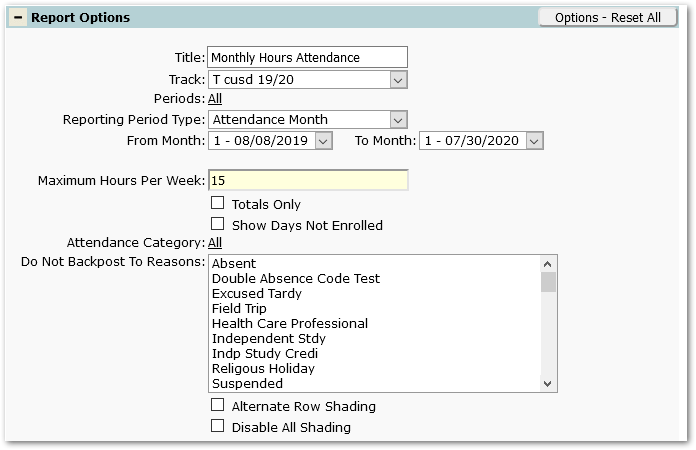
- Title – The default title may be customized by user.
- Track – Select a track for the report. If there is no bell schedule defined for the track, the report will indicate no data returned.
- Periods – Select the periods to include in calculations for the report.
- Reporting Period Type / Date Range – The following two types are available:
- Attendance Month – The From and To month options are pulled for each month of the selected track using the start and end dates set with the Track Editor.

- Custom – This option allows the user to specify a custom date range.

- Attendance Month – The From and To month options are pulled for each month of the selected track using the start and end dates set with the Track Editor.
- Maximum Hours Per Week – Set the maximum number of hours students can be credited for attendance per week according to district or state policy.
- Totals Only – By default, each student’s daily attendance hours include subtotals for each week within the defined date range along with the total hours for the full date range. Check the ‘Totals Only’ option to exclude the week-by-week details and just show the total hours.
- Show Days Not Enrolled – Check to include an additional column showing the number of days students were not enrolled during the reporting period.
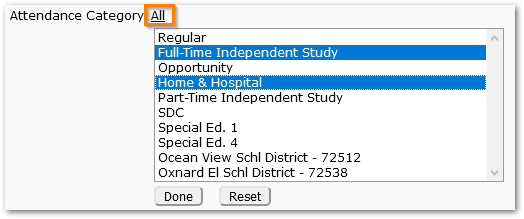
- Attendance Category – By default, all Attendance categories are counted in the report. To select specific attendance categories to be counted, click the ‘All’ link. In the window that opens, individual attendance categories may be selected (hold down the Ctrl key while clicking to select or deselect multiple items). When ready, click the Done button.
- Do Not Backpost To Reasons – Extra attendance hours accrued in a week will be back-posted to previous weeks that are below the Maximum Hours Per Week value entered. Selected attendance codes will not be used to backpost attendance hours. Hold down the Ctrl key while clicking to select or deselect multiple items.
- Alternate Row Shading – Check to apply shading to every other row of the report.
- Disable All Shading – Check to remove all shading and save ink or toner when printing the report.
“Show Days Not Enrolled” , “Totals Only” and “Print Subtotals” options checked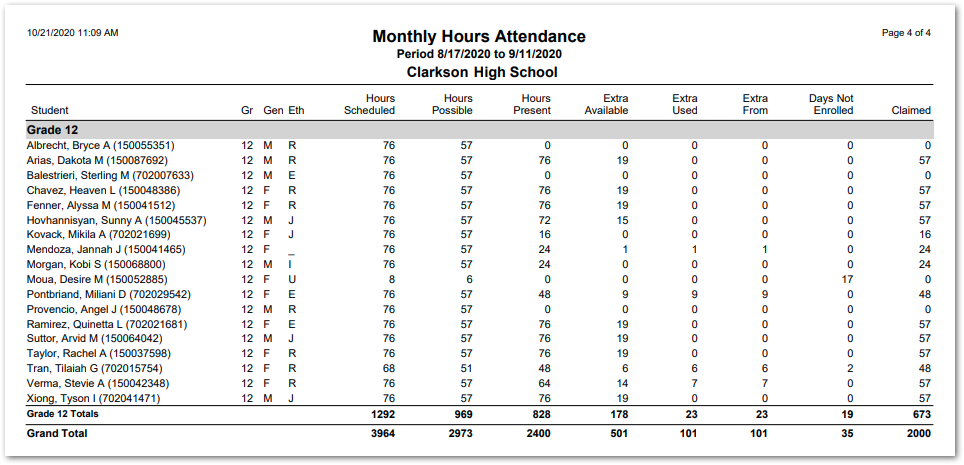
A Statistical Summary is included at the end of every report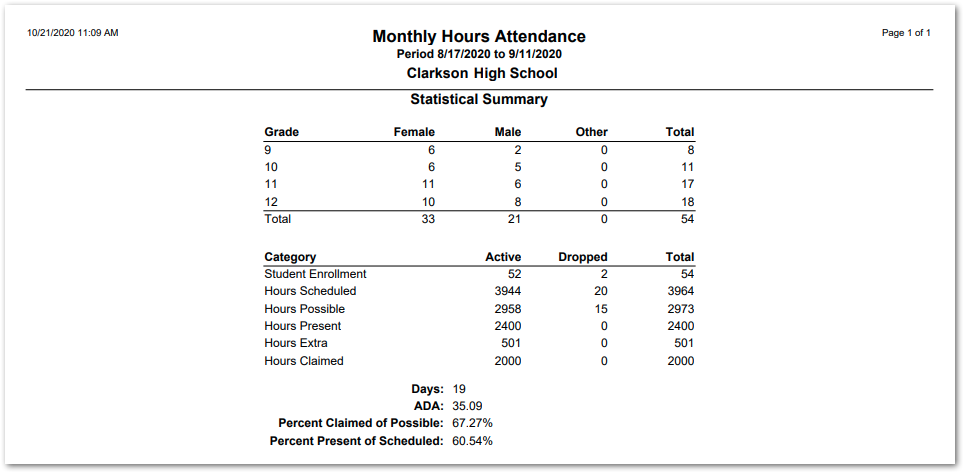
Backpost example 1: Student had 0 hours attendance in week 1 (15 hours short of the maximum) but had 5 and 4 hours extra in weeks 3 and 4, respectively. The 9 extra hours available in weeks 3-4 were backposted to week 1.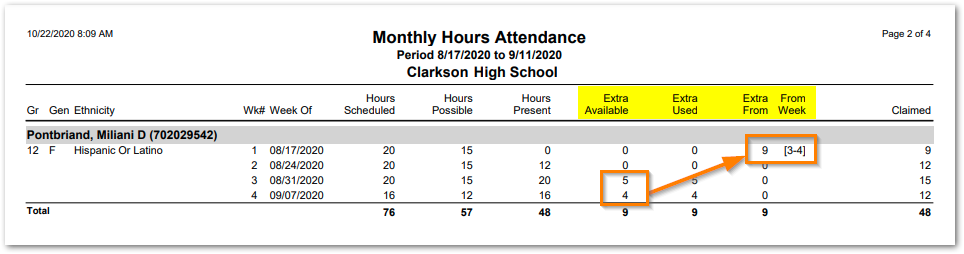
Backpost example 2: The asterisk indicates a break in the student’s enrollment before the week indicated and no hours (if available) will be backposted to previous weeks.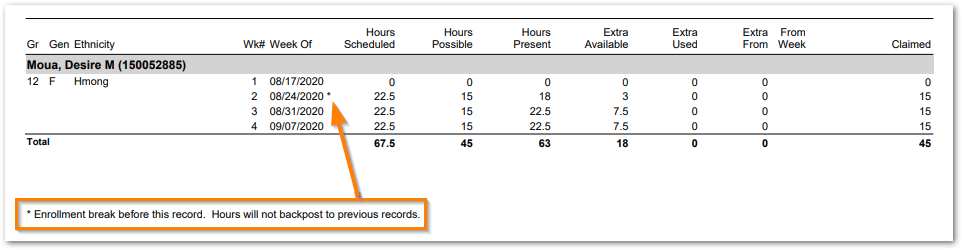
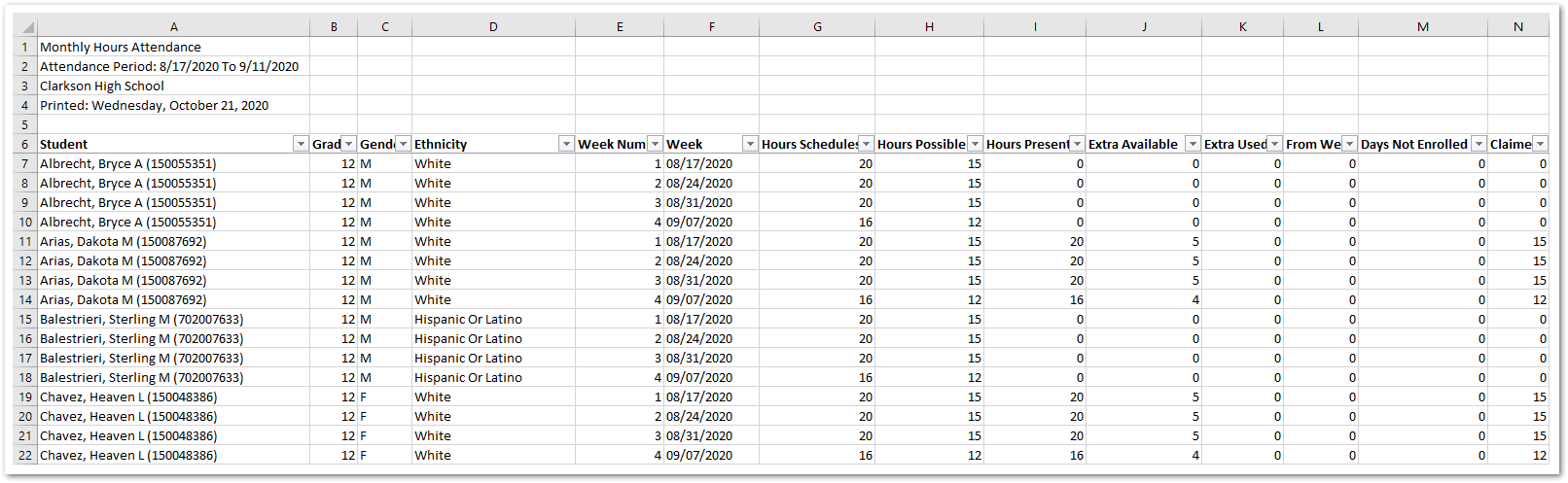
Export Report: Viewed in Excel with column filtering enabled