Course-based applications display selected course information in a banner across the top of the screen. Courses available to teachers are typically those that the teacher is assigned to teach in the Master Schedule for the logged-in track. Administrators traditionally have access to all courses in the logged-in track.

Note
If the logged-in track is flagged as a Summer School track, non-summer school classes will be excluded from the Class Banner list.
The Class Banner lets users view pertinent class information in a common format enabling them to see the same information about a class as they move from one class application to another
- Access: To access the Class Banner, open any class-driven application. There are two ways to find Courses in the Class Banner.
- Arrow Keys
- Find Function
- Searching for classes using the Arrow Keys: There are four arrow keys available for use in the Class Banner. First Class in List, Next Class in List, Previous Class in List, and Last Class in List. To view data for the first-period class, click the First Class in List Arrow key. Courses are listed in order by period

- Searching for classes using the Find Function: Clicking the Find button will prompt users to enter information, which will help the system find only those classes that meet the search criteria.
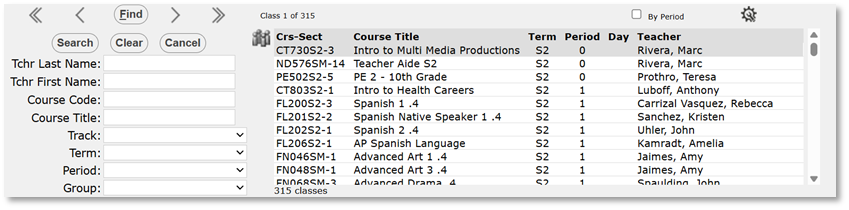
- Results may be sorted by clicking the column headers in the results list.
- Keep Group Together:
- Users may keep the set of filtered courses together and work with them as a group by clicking the Keep Group Together button. It will change color, indicating it is active. Select the desired course from the list, and that course’s information will appear in the banner above. With KEEP TOGETHER active, you may scroll through the filtered group, instead of the full set, using the arrow keys (First Class in List, Next Class in List, Previous Class in List, and Last Class in List).
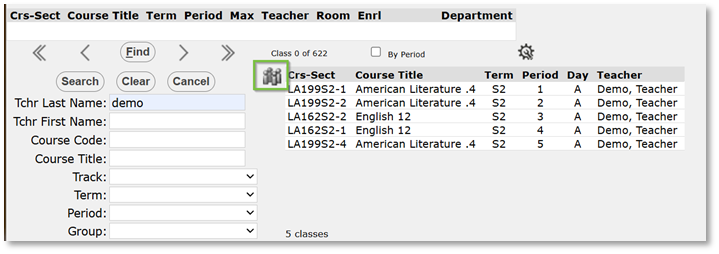
- Users may keep the set of filtered courses together and work with them as a group by clicking the Keep Group Together button. It will change color, indicating it is active. Select the desired course from the list, and that course’s information will appear in the banner above. With KEEP TOGETHER active, you may scroll through the filtered group, instead of the full set, using the arrow keys (First Class in List, Next Class in List, Previous Class in List, and Last Class in List).
- The class count will display next to the Last Class in List arrow. This number will correspond with the number of courses a user is assigned to teach in the Master Schedule.
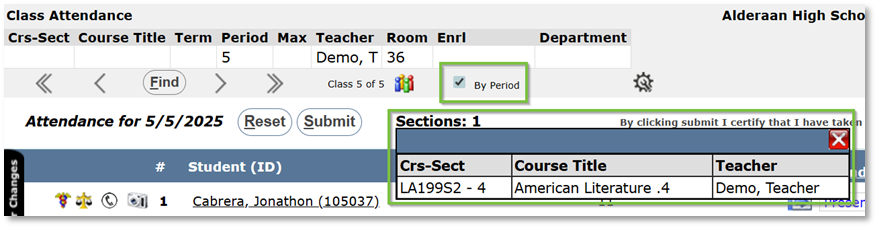
- Some class banner applications have a By Period checkbox: If assigned multiple sections in the same period, click the By Period checkbox to see the set of students for all sections occurring in the selected period. A Sections link will appear to enable you to see course details when clicked.
- Course information in the Class Banner will vary depending on your Class Banner configuration. You may select to view more or less Course information by following the steps in Configuring the Class Banner listed below.
- The Crs-Sect field is an alphanumeric field. It will display the course code and section number of the class entered in the Master Schedule.
- Course information, such as Course, Course Title, Section, Mark Definition, Low Grade, High Grade, Term, Max number of students, and number of students enrolled in the course, may be selected during the Class Banner configuration and ultimately shown in the Class Banner if desired.
The Class Banner may be configured by the District, School, or User.
Districts and schools may pre-define a Class Banner setup for their users which will make this selection the default view for every user when they log in to the system. Users may configure their own, individual settings.
To configure the Class Banner:
- Click the Configuration Tool icon
 located in the lower right corner of the Class Banner.
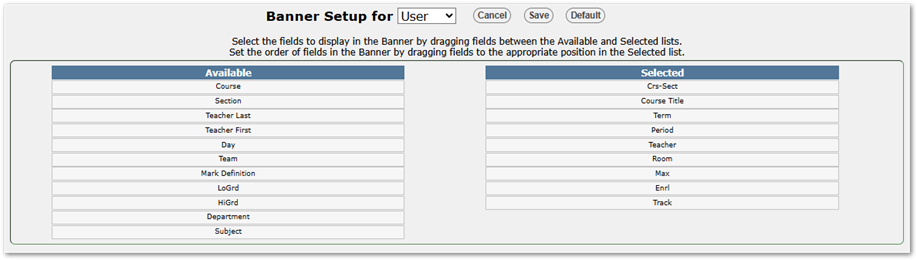
 - A Banner Setup window will open, displaying the currently selected banner items on the right and available items on the left.
Note for Administrators
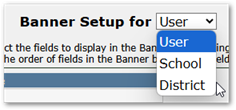
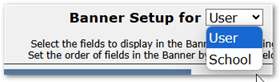
Banner Setup will default to ‘User’ and only provide that option for most users. System Administrators may select ‘District’ from the drop-down and change the default settings for all users. Users with DB Admin access to a track will be able to select School as an option and configure the settings for users in that track.System administrators will be able to select School or District to change the settings for School or District select the appropriate item from the drop-down list, configure the banner as follows and save the settings.
- To add fields to your Class Banner, select them from the list of available items and drag and drop them into the list of selected items.
- To remove fields from your Class Banner, select them from the list of selected items and drag them into the list of available items, dropping them in the desired position.
- To re-sequence the sections in the banner, drag the sections up and down in the Selected Column.
- Click the Save button at the bottom of the screen or click Cancel and return to the banner.
To return to the default settings, click the Default button at the bottom of the screen. This will undo any changes you have made and return the banner setup to the default configuration.
Blocks of content may be made available to users, based on their role, through Banner and Main page Widgets. These may be setup and configured using two applications under the System menu:
- Widget Editor – Used to set required widgets and base configuration for users’ main page. Users can then subscribe to optional widgets and change the arrangement of widgets.

- Banner Widget Editor – Use to make customized blocks of additional information content available to users through Student, Class or Staff banners.