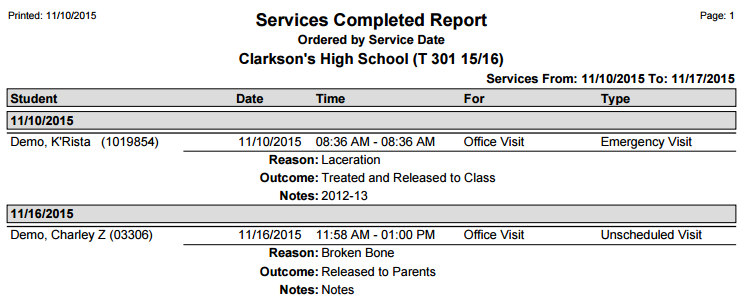
The Q Services Completed Report prints a listing of all Completed Services, as found in the Service Manager application in Student Health.
While details specific to this report will follow, users can find general information about reports within the Reports documentation.
Services Completed Report is located within Reports in the Health menu in Q.
Report Options
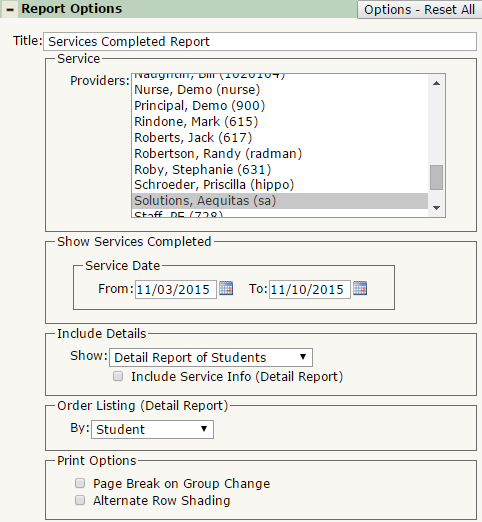
The Services Completed Report offers the following report options:
- Title: Displays at the top of the printed report, rename here if necessary.
- Service Providers: The default selection will be the logged in user. An SA will inherit a list of all providers to choose from.
- Show Services Completed: Service Date: Select the date range of the completed services to return on the report. The default date range is for the past week.
- Include Details
- Show: Select from Detail Report of Students, Summary Counts by Provider, or Both Detail and Summary.
- Include Service Info (Detail Report): The Detail Report has the option to print the details of an Item Source, in cases where the completed service record is a child record. (see an example below in Sample Report section)
- Order Listing By: Select to order the report by Student, Service Date, or Service Provider.
- Print Options
- Page Break on Group Change: Select this to jump to a new page when the group changes.
- Alternate Row Shading: Select this to print shading between records. This is useful when printing a large data set for an easier viewing experience
Example Reports
Report run with Include Service Info on, and Order Listing By: Service Date: