
The Student Marks Listing report provides a listing of classes by student for the selected marking term(s) with any recorded marks. The report may be used to review and verify marks before making them available to Students and Parents. The report enables the user to filter on only classes with marks, classes missing marks, or all classes. For classes with marks, the user can filter the report based on mark values such as classes where the marks are less than or equal to C, etc.
While details specific to this report will follow, users can find general information about reports within the Reports documentation.
Student Marks Listing Report is located within Reports in the Marks menu in Q.
The Student Marks Listing Report offers the following options:
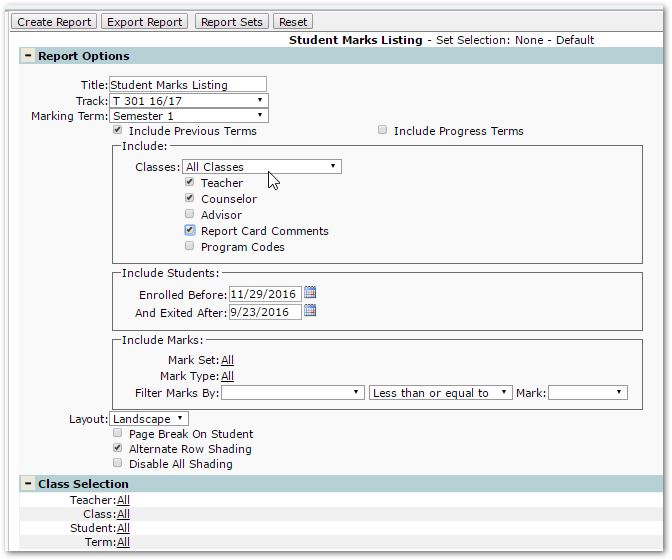
- Title – A default title is provided but may be changed as desired.
- Track – Defaults to the logged in track. Based on permissions, you may select a specific track.
- Marking Term – Select the term for the report. Previous Terms and Progress Terms may optionally be included.
- Select Classes to include:
- All Classes – include all classes for the student for the selected term whether or not there are marks for the class. Missing marks will be blank.
- Only classes missing marks – includes only classes with a missing mark. If the class could have two marks (Academic and Citizenship) and only one is entered, the class will be included because it is missing a mark. Missing Marks will be designated with asterisks (**). On this printout, if there are multiple Marks and only one is missing (like the example here with Academic and Citizenship), the Missing Mark will have asterisks and the non-missing Mark will appear blank.
- Only classes with marks - The report will only include classes that have Marks. Students with no Marks at all will be left off of the report.
- Optional data to include on the report:
- Teacher – If selected the report includes teacher names
- Counselor – If selected the report includes the student’s Counselor
- Advisor – If selected the report includes the student’s Advisor
- Report Card Comments - If selected, report includes report card comments.
- Program Codes – This option will only appear when preferences to show Program Codes and not the symbols for the program is set ON for both the Program History and Report applications. When it appears and selected, the student’s program code will appear in the header.
- Include Students:
- Enrolled Before – include students who have a schedule entry date on or before this date.
- Exited After – include students who have a schedule exit date on or after this date.
- Include Marks:
- Mark Set
- Mark Type
- Filter Marks By
- Mark Set e.g. Letter Marks +/-
- Operators:
- Less than or equal
- Greater than or equal
- Equal to
- Mark:
- Specify specific mark
- Layout
- Landscape or Portrait
- Note: When in Portrait mode the user will need to choose between Advisor and Counselor but not both.
- Landscape or Portrait
- Page break on Student
- Alternate Row Shading
- Disable All Shading
All Classes:
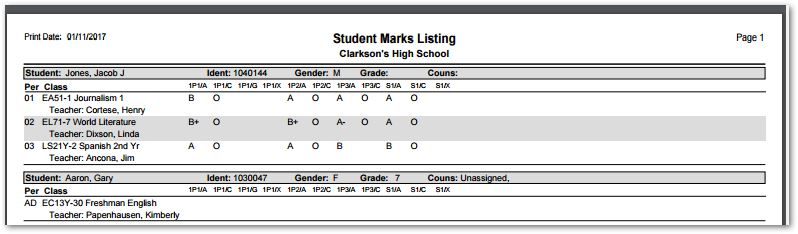 All classes for the student for the selected term appear whether or not there are marks for the class. Missing marks will be blank.
Only Classes Missing Marks:
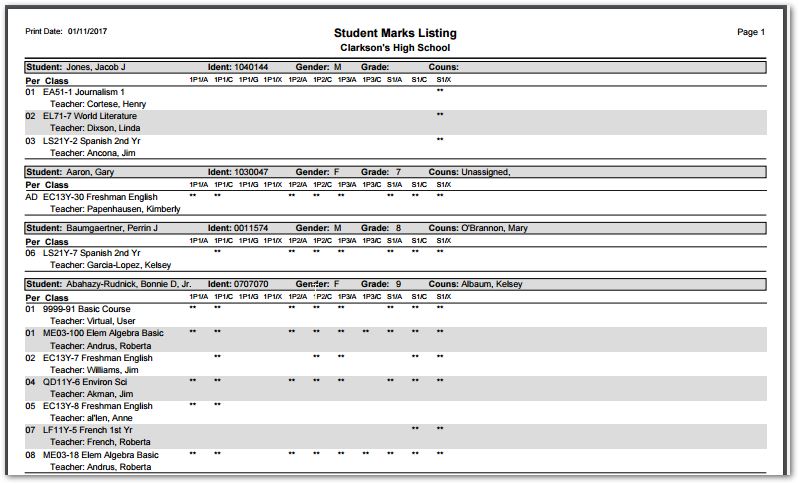 Missing Marks are designated with asterisks (**) and non-missing marks appear blank.
Only Classes with Marks:
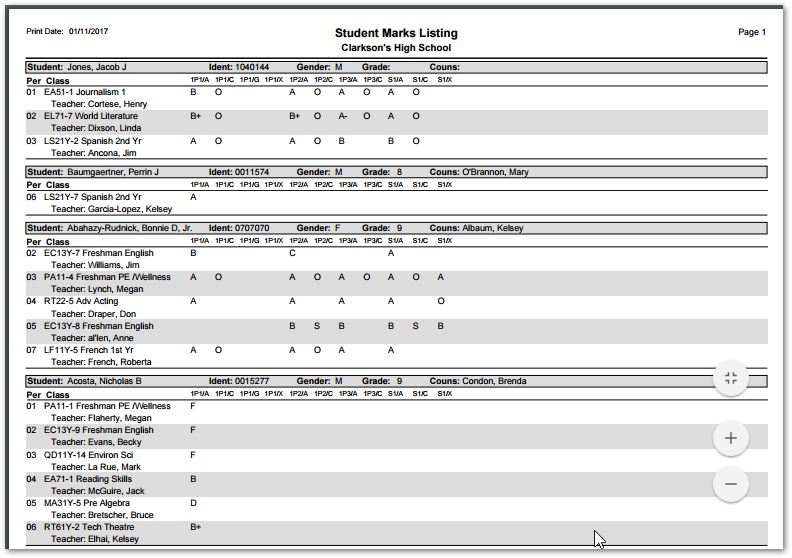 Only classes with Marks are reported and students with no marks at all will be left off of the report.
