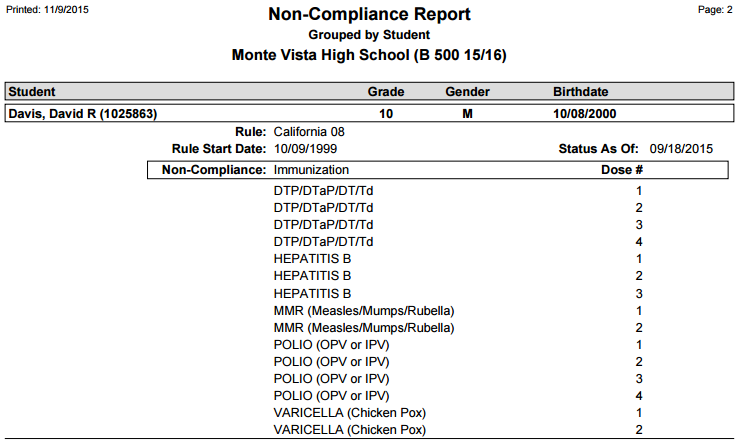
The Q Non-Compliance Report produces a list of students who are non-compliant with their assigned Immunization or Screening Rules, and reports which unfulfilled requirements are causing the non-compliant status. The data is based off the results of running the Calculate Compliance command in the Mass Immunizations app, or in the Immunization and Health Screenings sections of Student Health. For this reason, be sure to run the Compliance Calculation BEFORE running this report.
While details specific to this report will follow, users can find general information about reports within the Reports documentation.
Non-Compliance Report is located within Reports in the Health menu in Q.
The Non-Compliance Report offers the following report options:
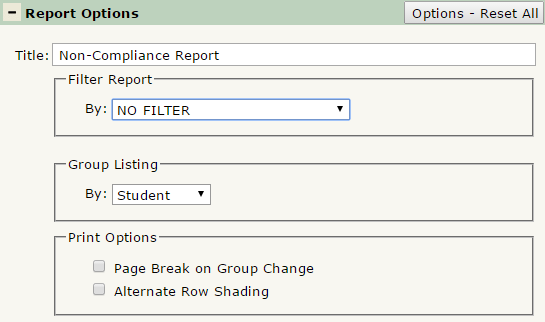
- Title: Displays at the top of the printed report, rename here if necessary.
- Filter Report By
- No Filter: Select this option to have the report return Non-Compliant students for both Immunization and Screening Rules.
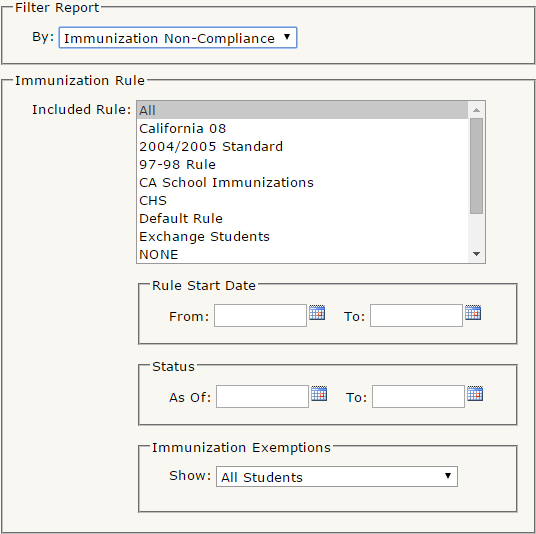
- Immunization Non-Compliance: Select to filter the report by only students with a non-compliant status for their Immunization Rule. You may further filter the report by selecting a certain Immunization Rule, selecting the Rule Start Date, the Status As Of Date, and whether to include students with immunization exemptions or not. See the expanded report options below:
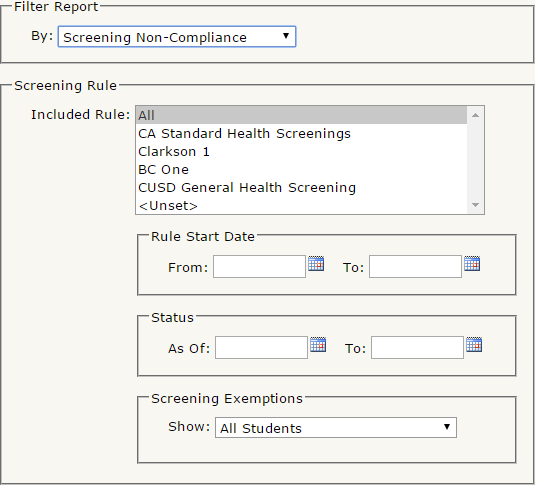
- Screening Non-Compliance: Select to filter the report by students with a non-compliant status for their applied Screening Rule. You may further filter the report by selecting a certain Screening Rule, selecting the Rule Start Date, the Status As Of Date, and whether to include students with screening exemptions or not. See the expanded report options below:
- Group Listing By: Select to group the report by Student, Rule, or Exemption.
- Print Options:
- Page Break on Group Change: Select this box to jump to a new page when the group changes.
- Alternate Row Shading: Select this to print shading between consent records. This is useful when printing a large data set for an easier viewing experience
Report run with default options, No Filter selected: