
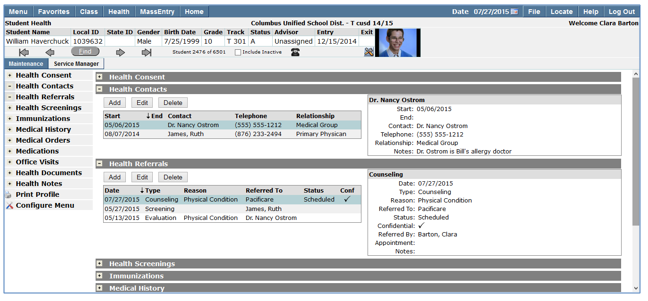
Student Health is a new Profile-like application that incorporates all student-related Health modules into a single application. It includes areas for Health Notes and the ability to upload Health related documents.
Student Health is located under the Health menu in Q.
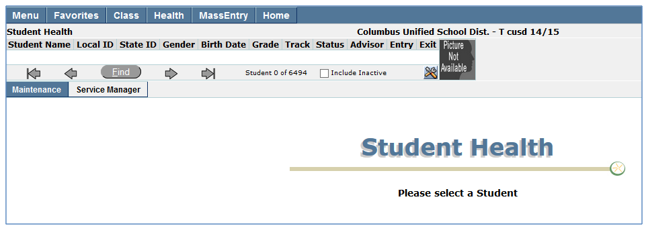
When Student Health is initially launched a student must be selected in order to view the individual health areas.
- Locating Students
- There are two ways to search for a student in Student Health:
- Arrow keys
- Find function
- For more detailed information on searching for students using the student banner please refer to the student banner help documentation.
Once you’ve located a student, the student’s individual health areas display on the Maintenance tab. All available areas default to the closed position. Individual areas may be opened and closed by clicking the plus sign to open and the minus sign to close. Areas that are opened by the user will remain open as the user navigates from student to student.
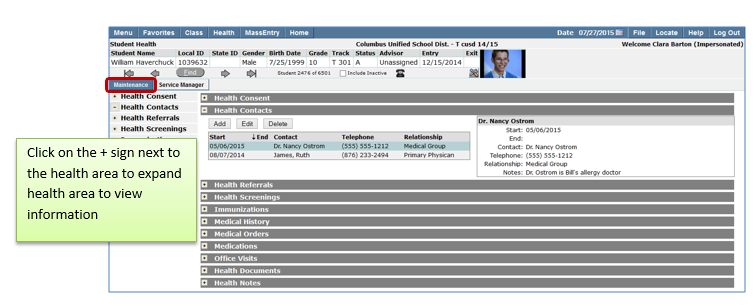
The Student Health Profile application is customizable. Users may select which Student Health areas they want to view and the order in which they’re displayed. The user’s permission role determines which health areas they see and if they have add, edit and delete rights to the area.
To configure Student Health:
- Open the application.
- Select a student.
- Click on the configure icon at the bottom of the profile list.
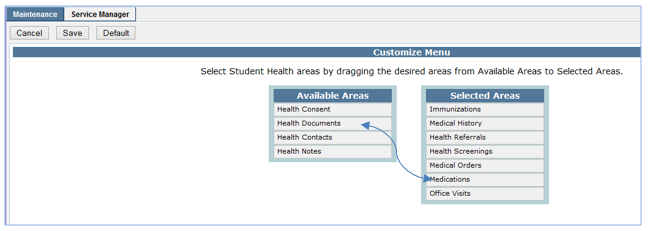
- Using your mouse to drag and drop, move the individual health areas you’d like to view from the available areas to the selected Areas.
- Using your mouse click the individual areas and drag and drop them in the order you’d like to have them display.
- Click Save to save your configuration or Default to return to the default.
All Student Health areas share the following features:
- If there are multiple entries in a health area, the events display in reverse chronological order.
- Select an item on the left to view details on right.
- Columns are sortable by clicking the arrows at the top of the column.
- When adding a new record, required fields are yellow.
- If the user has appropriate permissions the records may be edited and deleted by selecting the desired record from the list and clicking Edit or Delete.
Health Consent
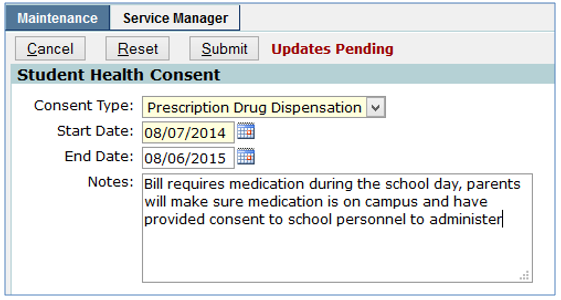
This area maintains records of professional or parental medical permissions issued in relation to the student.
To add a health consent click Add and enter the following information:

- Consent Type—select from drop down list.
- Start Date—enter start date for consent.
- End Date—enter end date for consent.
- Notes—enter any desired notes.
- Click Submit to save the data, Reset to clear all fields. Click Cancel to close the add form.
Health Contacts
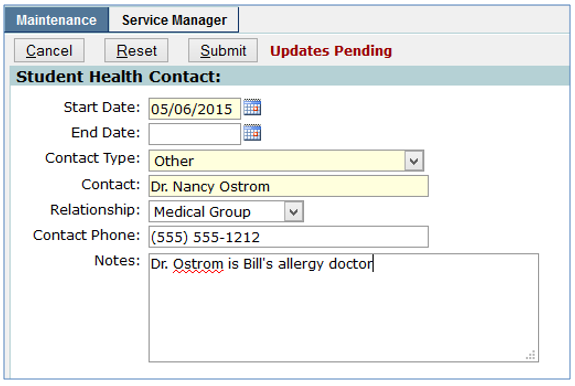
Health Contacts stores and maintains health contact information for a student. Health contact examples include physicians, caregivers and health plans.
To add a Health Contact click Add and enter the following information:

- Enter Start Date—enter the applicable date.
- Enter End Date—this field is not required but may be used if applicable.
- Contact Type—Select the contact type. When the Health Contact type is selected a drop down list displays listing Health contacts that have been added to the database. If Other is selected, the Contact Field is free form text entry.
- Contact—select name from drop down list or enter name of contact if contact type is
- Relationship—select relationship from drop down list.
- Contact Phone—when a contact type of Other is selected a Contact Phone field is available for entering the contact’s phone number. When the Contact Type of Health Contact is selected, the phone information is included with the health contact
- Click Submit to save the data, Reset to clear all fields. Click Cancel to close the add form.
Health Referrals
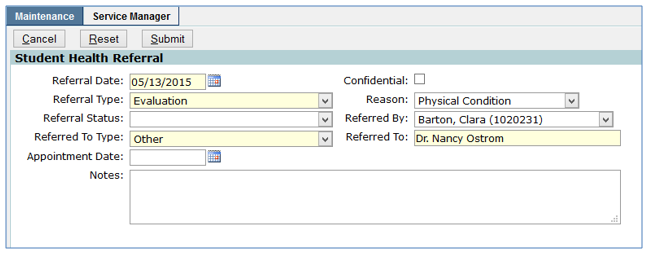
A Referral is a recommendation for a student to consult with or receive services from a health provider. A health provider could be a medical professional, a health plan, a faculty member or other health contact. In this application, referral records for a student are created and maintained. Referral records can also be created in other Health applications, such as Health Screenings and Service Manager. Regardless of where the referral is created, all referrals for the student are displayed here. Please refer to the Service Manager section later in this document for details on how to manage Referral records per faculty member.
To add a Health Referral click Add and enter the following information:

- Referral Date—Enter the date in which the referral was made.
- Confidential—check this field to hide this record from other users whose permissions do not allow viewing of confidential records.
- Referral Type—Select the type of referral from the drop down list.
- Reason—select the reason for the referral.
- Referral Status—Select the status of the referral.
- Referred By—if the logged in user has a status record at the track the referred student is currently enrolled in, the Referred by name will auto populate with the logged in user’s name. It is also possible to select staff names from the drop down list.
- Referred to type—select the type for whom the person was referred
- If Health Contact is selected, the Referred To list will populate with predefined health contacts
- If Faculty member is selected, the drop down list will contain names of faculty at school where student is enrolled.
- If Other is selected the Referred to list becomes a free form text box
- Referred to—selection options change depending on Referred to type.
- Appointment Date—a date may be entered if desired.
- Notes—Notes may be added if desired.
- Click Submit to save the data, Reset to clear all fields. Click Cancel to close the add form.
Health Screenings
Health Screenings tracks all medical screening tests administered for the individual student. Screening information entered from this application as well as Class Health Screenings and Mass Screenings is included in the student’s screening list. The student’s Screening Status and assigned Screening Rule are displayed here. The student’s Screening Compliance can also be calculated here.
View and edit a student’s Screening Information

- Click Edit.
- Exempt from Screenings—If No displays in this field, the student’s Screening Status will be calculated according the Screening Rule applied whenever the Calc Compliance command is executed. If Yes in this field, the Reason field will be displayed to the right side (reason for the exemption) and the Screening Status value will always be Compliant after a calculation is run.
- Screening Rule—this field displays the Screening Rule applied to the student (or Unset if no rule is applied).
- Start Date—this date value defaults to a blank field (no value), but a date must be entered (in edit mode) for Compliance to be calculated. This date should be the anchor date prescribed by district policy for Health Screening Rule compliance calculations. It is typically the date of the student’s first day of enrollment in the district (but not necessarily the birth date of the student, as is typical for Immunization Rule calculations).
- Screening Status—this value can be Compliant, Noncompliant, or Unset. This value is auto-calculated when a Screening Rule is applied and the Calc Compliance command is executed. However, a calculated value in this field can be overridden manually by selecting another value while in the edit mode.
- As Of—this field will display the date of the last change in the Screening Status
Note:
The Calc Compliance button will only appear if a stored procedure is set up to calculate compliance (Under Menu > System > QLIP Hook Editor). This is something that is usually done at the district level and may vary by district.

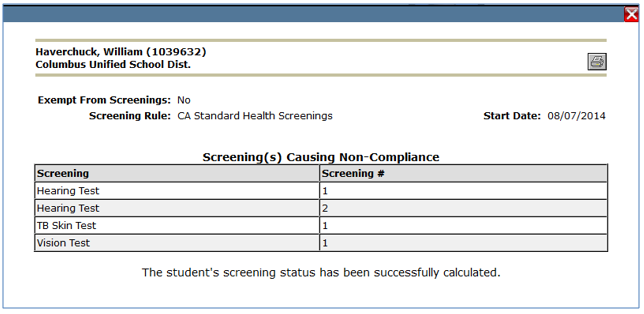
When a student is not exempt from screenings and the screening status is non-compliant, the reason the student is non-compliant may be seen by clicking the Details link.
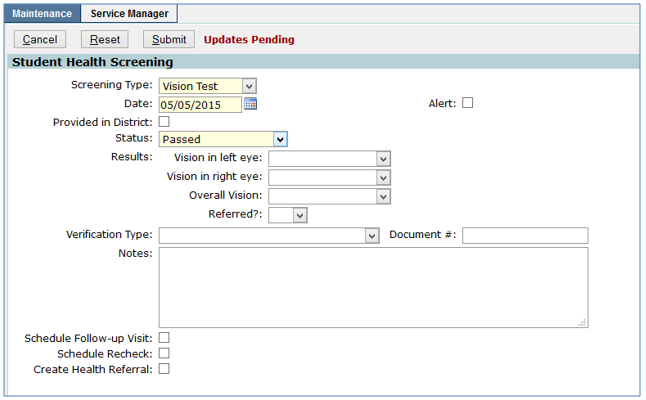
To add a Health Screening click Add and enter the following information:
- Screening Type—select the screening type being entered for the student.
- Date—enter the date the Screening was administered.
- Provided in District—check on if the Screening was provided by the School District and you want to record it as such.
- If this is checked on, a With field will appear – this is to notify who administered the screening at the District level for the student.
- Must be checked ON if you want this record to be submitted for Medicaid billing.
- Alert—check this field to generate a Health Alert flag for this student. The Alert will appear in the student’s demographic record in the Student Editor application as well as in the Student Profile.
- Status—enter the student’s status code in relation to the test.
- Results—enter the results of the screening.
- Verification Type—refers to the type of documentation used for the screening.
- Document Number—the verification document identification number.
- Notes—users can enter comments/concerns about the screening as needed.
- Based on the Screening Type selected additional information may be recorded.
- Click Submit to save the data, Reset to clear all fields. Click Cancel to close the add form.
Note:
Once a Screening has been marked as either Provided in District or not (whether that box is checked on or off), when in Edit mode, users cannot switch this status. It must be marked correctly when the screening is first entered into the system.
Immunizations
This area is for entering and maintaining a student’s immunization history. The application can also calculate the student’s immunization compliancy and allows for storage of additional immunizations outside of the assigned immunization rule.

Immunization Rules are usually batch assigned by the district but can also be assigned to individual students on this screen.
To add or edit a student’s immunization rule:
- Click Edit.

- If a student is exempt from immunizations place a check in the box. When the box is checked the Reason field displays. Select the appropriate pre-defined exemption reason from the drop down list.

- Immunization Rule—if the student is not exempt from immunizations, select the appropriate Immunization Rule from the drop down list.
- Start date—select a start date if other than the default date, for the immunization rule to be calculated.
Note:
The start date field defaults to the student’s birth date and is normally the date the rule uses to calculate an immunization dose schedule. The start date can be edited but this should only be done for special cases, such as for immigrant students who have no immunization history. In these special cases, a special Immunization Rule will typically be created and assigned to the student.=
- As Of—the As of field is a read-only field and is automatically updated to reflect the date of the last change, each time the Immunization Status field is modified.
- Click Submit to save the data, Reset to clear all fields. Click Cancel to close the add form.
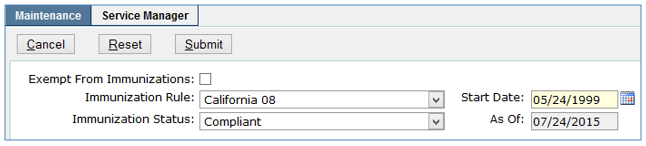
Once a rule has been added for the student, the student’s immunization compliance may be calculated.

- Click the Calc Compliance button to check a student’s compliance against their assigned immunization rule. A screen displays with the results which may be printed by clicking the printer icon.
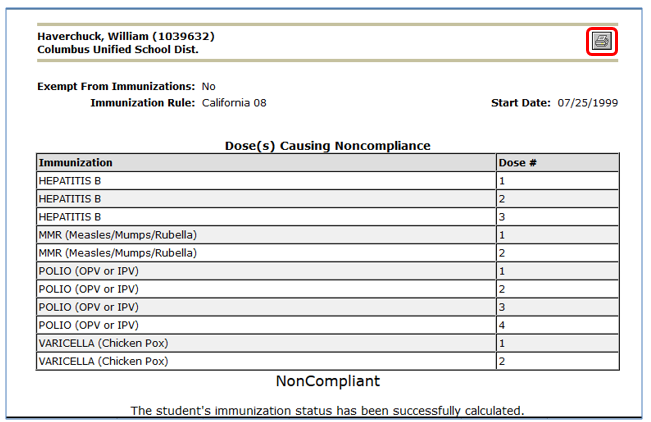
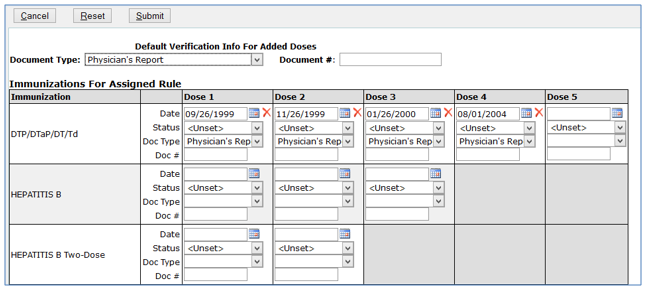
To add immunization doses to a student’s immunization history:
- Click the Add/Edit button above the Immunizations for Assigned Rule.
- When the Add/Edit button is clicked, the immunization entry form displays showing existing dosage entries and available entry dosages. The red next to existing entries allows users with delete rights to delete existing dosages.
- Document Type—enter the type of document used to verify immunization dates. The Document Type may be entered at the top of the screen as a default for all immunization entries but may also be entered for each individual entry. Document Type is a required field; however, document # is not required.
- Enter the Date—under the specific dose, enter the date. Dates may be typed in using the 00/00/0000 format without typing the /. A calendar pop up box is also available for entering dates.
- Status—a status for each immunization may be entered but is not required. If a student has a status of “had the disease” it is also necessary to enter a date.
- Click Submit to save the data, or Reset to clear all fields. Click Cancel to close out of the add doses mode and return to the summary list.
- An error message will display if dosage dates entered are before the birth date or prior to the previous dose.
Immunization doses may be recorded for immunizations that are not part of the Assigned Immunization Rule. To enter these immunizations:
- Find the student and Click on Add/Edit button.
- Scroll below the immunization chart to access the Additional Immunizations area. Click the Add Immunization Type
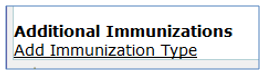
- Select Immunization from the drop down list.

- Enter information for date, status and document type.
- Click Submit to save the data, Reset to clear all fields. Click Cancel to close the add form.
Medical History
This area is used to maintain a student’s medical history. The student medical history application is also used to create Health alerts that appear in the banner applications as well as on Teacher’s class rosters.
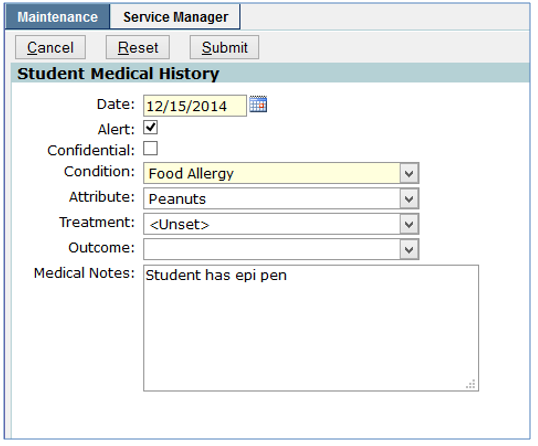
To add a Medical History item click Add and enter the following information:

- Date—enter the date of the medical event.
- Confidential—check this field to hide this record from other users whose permissions do not allow viewing of confidential records.
- Alert—check this field to generate a Health Alert flag for this student.
- Condition—choose the health condition that best describes the student’s health concern. Choices available have been predefined by the district.
- Attribute – this field will only appear when items are available and configured to use them. Ex: when a condition of Food Allergy is selected, the attribute field will appear to select which type of food the allergy is specific to.
- Treatment—choose a medical treatment that best describes what care the student received for this condition. Choices have been predefined by the district.
- Outcome—choose a medical treatment that best describes the outcome for this health concern.
- Medical Notes—enter any notes.
- Click Submit to save the data, Reset to clear all fields. Click Cancel to close the add form.
Medical Orders
This area is used to maintain historical records of a student’s Medical Orders. Medical orders may include medical prescriptions not involving medication and/or official instructions issued for a student by a student’s contacts (parents or doctor, teacher, health plan).
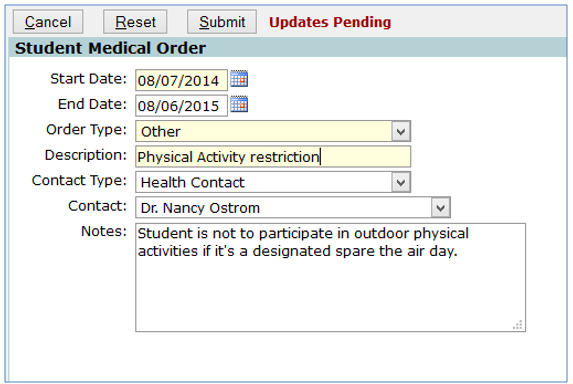
To add a Medical Order click Add and enter the following information:

- Start date—enter the start date of the medical order.
- End date—enter the end date of the medical order.
- Order Type—Select from the drop down list.
- Description—enter a description of the Medical Order.
- Contact Type—select contact type from whom the medical order was received.
- Contact—select from the drop down list, if a contact type of other was chosen a free form text box will be available for entry.
- Medical Order Notes—add any applicable notes.
- Click Submit to save the data, Reset to clear all fields. Click Cancel to close the add form.
Medications
This area is for keeping records of all medications prescribed to a student. Medicine prescriptions along with the schedule for administering the medication is entered for the student.
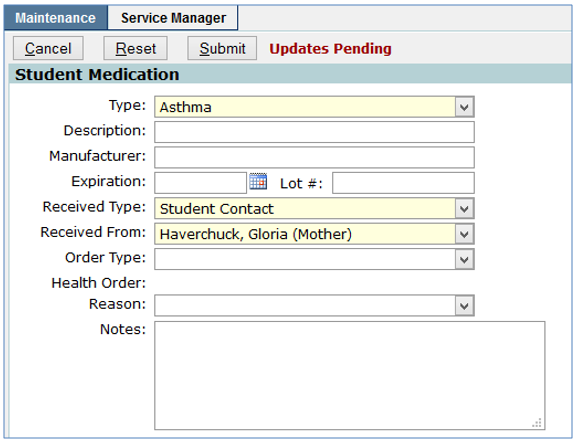
To add Medications click Add and enter the following information:

- Type—select medication type from drop down list
- Description—enter a description of the medication.
- Expiration—enter an expiration date for the medication.
- Manufacturer—enter the medication manufacturer
- Lot #enter the lot number of the medication.
- Received Type—select type of person from whom the medication was received from drop down list.
- Received From—select from the drop down list or if Other is selected under Received Type a free form text box will appear.
- Order Type—select whether this is a student or district order.
- Health Order—based on the previous selection this field will populate with the appropriate type of order.
- Reason—enter reason for medication.
- Notes—enter any appropriate notes.
- Click Submit to save the data, Reset to clear all fields. Click Cancel to close the add form.
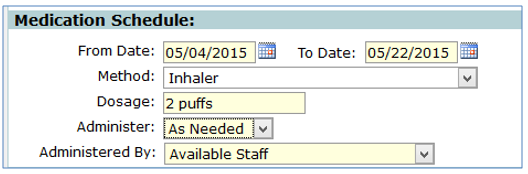
The Medication schedule may be entered in the lower half of the screen as follows:
- From date—enter the date the medication should begin.
- To date—enter the date the medication should stop.
- Method Given—select the type of method the medication is administered.
- Dosage—enter the dosage amount for this medication.
- Administer—Select how often this medication should be administered.
- Administered by—select staff.
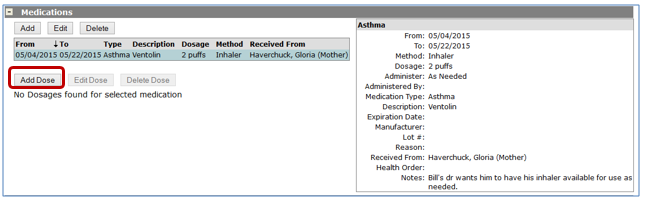
Medication dosages may also be entered in Student Health for individual students. To track a dosage click the Add Dose button and enter information.
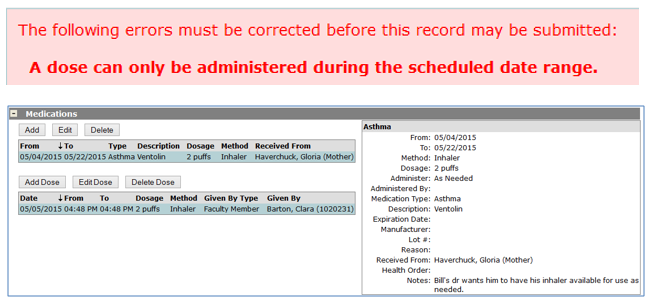
When Add Dose is clicked a screen opens with the medication dose pre-populated with the medication information. The Given By field defaults to the logged in user’s name. When the user clicks Submit the dosage is recorded in the Student Health Medications area for the student.
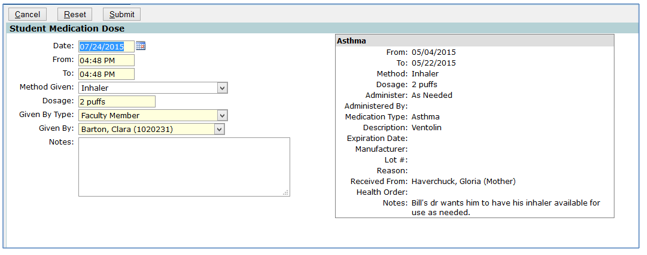
If the Date is outside the date range defined for the medication an error will appear when Submit is clicked.
Office Visits
This area maintain records of a student’s visits to the health office. Visit information may be recorded from this application. Visits that are entered through the Health Office Visit Log for the student are also displayed.
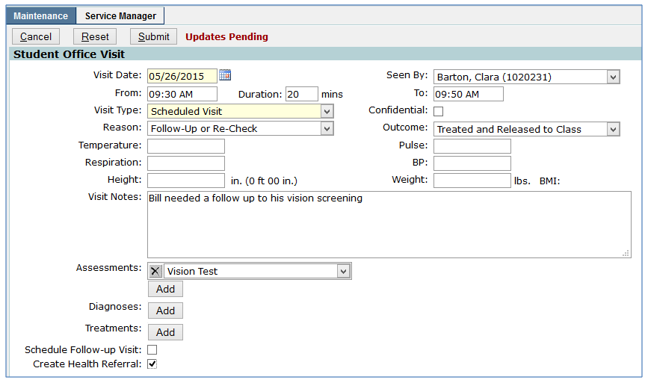
To add a Health Office visit click Add and enter the following information:

- Visit Date—defaults to current date but may be changed.
- Seen By—defaults to the logged in user but may be changed to any staff name in the drop down list.
- From/To Times—when adding From/To times, the duration field automatically populates. You may also enter a duration time to have the To time auto populate.
- Visit Type—select a predefined visit type from the drop down list.
- Confidential—check this field to hide this record from other users whose permissions do not allow viewing of confidential records.
- Reason—select a predefined reason from the drop down list.
- Outcome—select a predefined outcome from the drop down list.
- Temperature—enter student’s temperature if applicable.
- Pulse—enter if applicable.
- Respiration—enter if applicable.
- BP—enter student’s blood pressure, if applicable.
- Height—enter student’s height in inches and it will be converted to feet and inches upon entry.
- Weight—enter student’s weight in pounds.
- BMI—the student’s BMI will auto calculate upon entry of height and weight.
- Visit Notes—free form notes about the visit may be entered.
- Assessments—may be added. Medical assessment codes are typically used for state reporting. Click the Add button to select an assessment from the predefined list. Multiple assessments may be added by repeating this process. Assessments may be deleted by clicking the X icon.
- Diagnoses—may be added. Medical Diagnosis are also typically used for state mandated reporting. Click the Add button and select a Diagnosis code from the predefined list. Multiple diagnosis codes may be applied to an office visit by repeating this process. Diagnosis records may be deleted by clicking the X.
- Treatments—may be added. A treatment code is another set of codes typically used for state-mandated reporting. A treatment code may be combined with an existing health order.
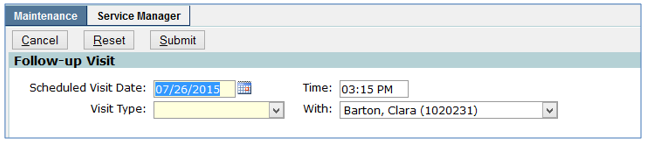
- Schedule Follow-up visit—when this field is checked, a Follow-up Visit schedule form will open upon successful save of the Office Visit record. This convenience is provided so the user can schedule an appointment record on the fly. Enter the appropriate data and click Submit to save the record and return. The record created here will be saved to the Service Schedule (Appointment Schedule) of the faculty member designated in the With
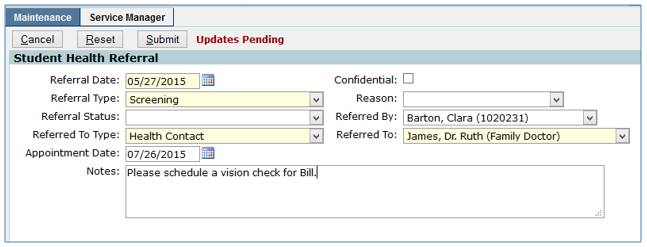
- Create Health Referral— when this field is checked a Health Visit schedule form opens upon successful save of the Office Visit record. Enter the appropriate date and click submit to save the record. The record created here will be saved to the student health referrals record for the current student and to the Referrals (to me) records for the faculty member designated in the Referred to field (if the referred to type field was set to faculty member.
Click Submit to save the data, Reset to clear all fields. Click Cancel to close the add form.
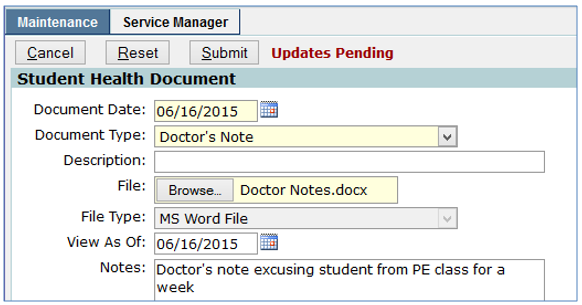
Health Documents
Health Documents offers a place to store any document related to the student’s health.
To add a Health Document click Add and enter the following information:

- Document Date—enter effective date for document.
- Document Type—select document type from drop down list.
- Description—enter a description if desired.
- File—browse for the location of the document to upload.
- File Type—defaults to type of file uploaded.
- View As Of—select date to allow viewing of document.
- Notes—enter any desired notes.
- Click Submit to save the data, Reset to clear all fields. Click Cancel to close the add form.
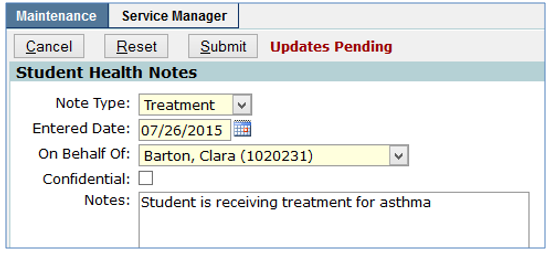
Health Notes
This area provides a place for school health officials to enter free form notes relating to the student.
To add a Health Note for a student click Add and enter the following information:

- Note type—select from drop down list.
- Entered date—defaults to today’s date but may be changed.
- On behalf of—defaults to logged in user; additional names may be selected from drop down.
- Confidential—notes may be marked confidential to only be seen by person entering the note and users with confidential permissions.
- Notes—add any additional notes if desired.
- Click Submit to save the data, Reset to clear all fields. Click Cancel to close the add form.
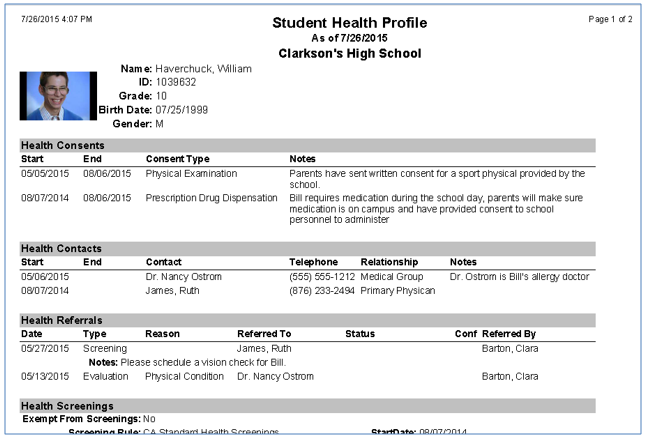
The Student Health Profile may be printed from the application for the individual student. All Health areas that are open (the plus sign clicked) will print on the report. Items that are marked confidential will only print for those users who are involved in the item or who have permission to view confidential items.
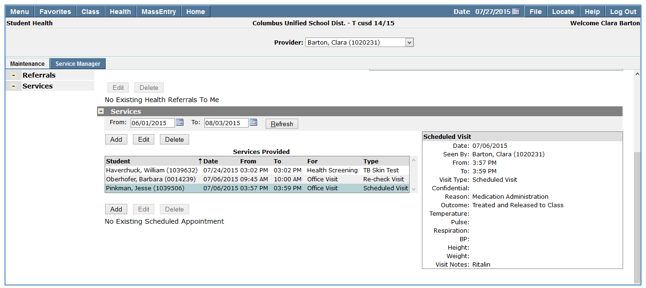
This application is used by faculty members to manage their health referrals and health service appointments. To access the Service Manager, launch the Student Health application and select the Service Manager tab.
When initially launched the logged in user is listed as the provider. If the user has permission to view all referral records, additional providers may be selected from the provider drop down list. The referrals listed default to the previous week ending on today’s date. To select a different date range, selected the desired dates and click the Refresh button.
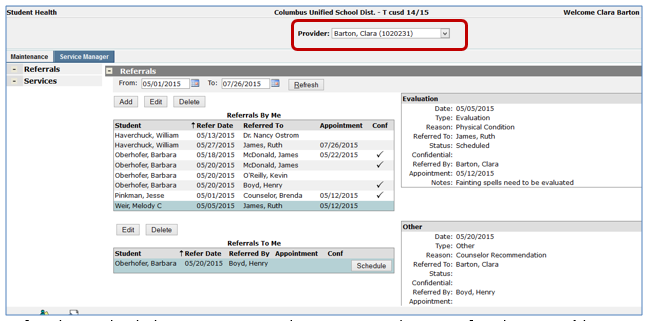
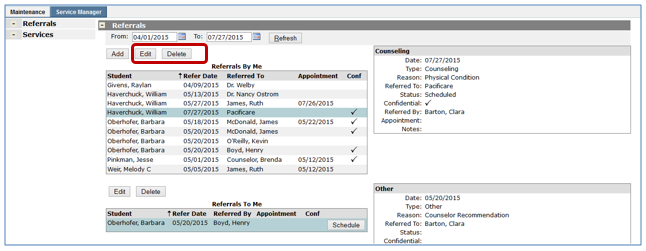
Referrals are divided in two sections, the top section listing Referrals By Me (the logged in user or selected provider) and the bottom section listing Referrals To Me (logged in user or selected provider). New referrals may be also be added from this screen. Existing referrals may be edited or deleted.
Adding a New Referral
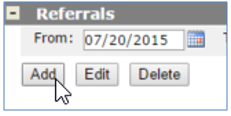
To add a new referral, click on the Add button, and search for the student you want to enter a referral for and enter the following information:
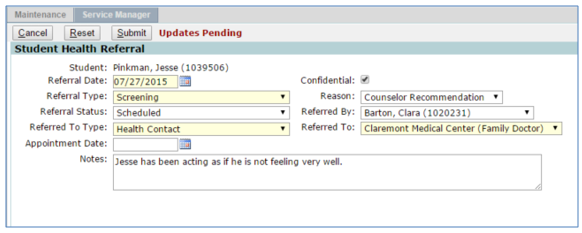
- Student – this field will not be editable once you search for and select a student
- Referral Date – enter the date of the referral
- Referral Type – select the referral type from the drop-down
- Referral Status – select the referral status from the drop-down
- Referred to Type – select the referred to type from the drop-down
- Appointment Date – enter the date of the appointment
- Confidential – check this box on to hide this referral from other users whose permissions do not allow viewing of confidential records.
- Reason – select a reason for the referral from the drop-down
- Referred By – this field defaults to the logged in user, but other staff can be selected from the drop-down
- Referred To – select who the student is being referred to from the drop-down; these options change depending upon what Referred To Type is selected; If Other is selected for Referred To Type, the Referred To box is free form
- Notes – users can enter additional notes if needed
Existing referrals may be edited or deleted by selecting the referral and clicking edit or delete.
Services
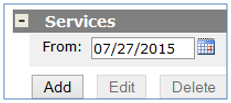
A listing of all services provided by the logged in user (or provider selected from the provider list) displays. The default date range for services listed starts with today’s date and goes forward one week. The date range may be adjusted and the list refreshed.
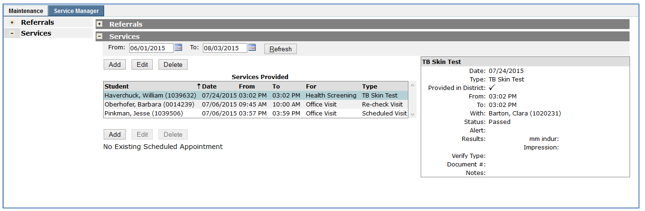
Adding a New Service
To add a new Service, click on the Add button, and search for the student you want to enter a service for and enter the following information:
- Select the service type to add
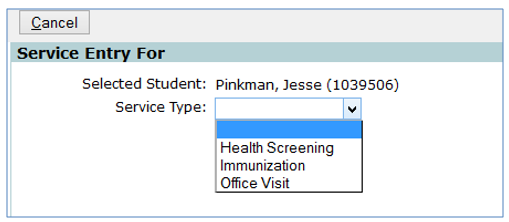
The entry screen that displays will correspond to the service type. Please refer to earlier in this document for the fields used in Health Screenings, Immunizations and Office Visits.
