This application includes extracts for state reporting purposes, a convenient place to store links to resources (e.g. state Department of Education) and may include tools for importing data.
State Reporting is located under the System menu in Q.
The first tab in the State Reporting application includes all the stored procedures for data extracts. 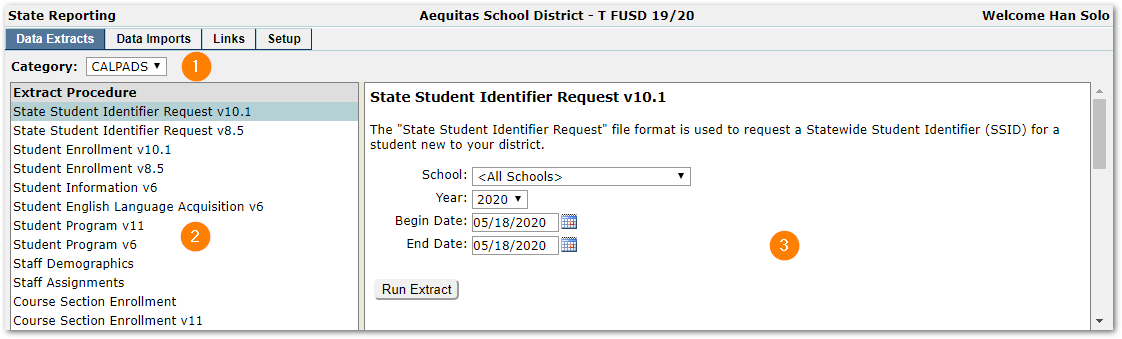
- Category – Data extracts may be organized into categories.
- Extract Procedure – Click to select one of the available procedures.
- Extract Details – Details of the selected extract appear in this pane and includes a “Run Extract” button.
Available Extract Procedures
See the documentation for the data extracts available by state.
Saving Extracted Data
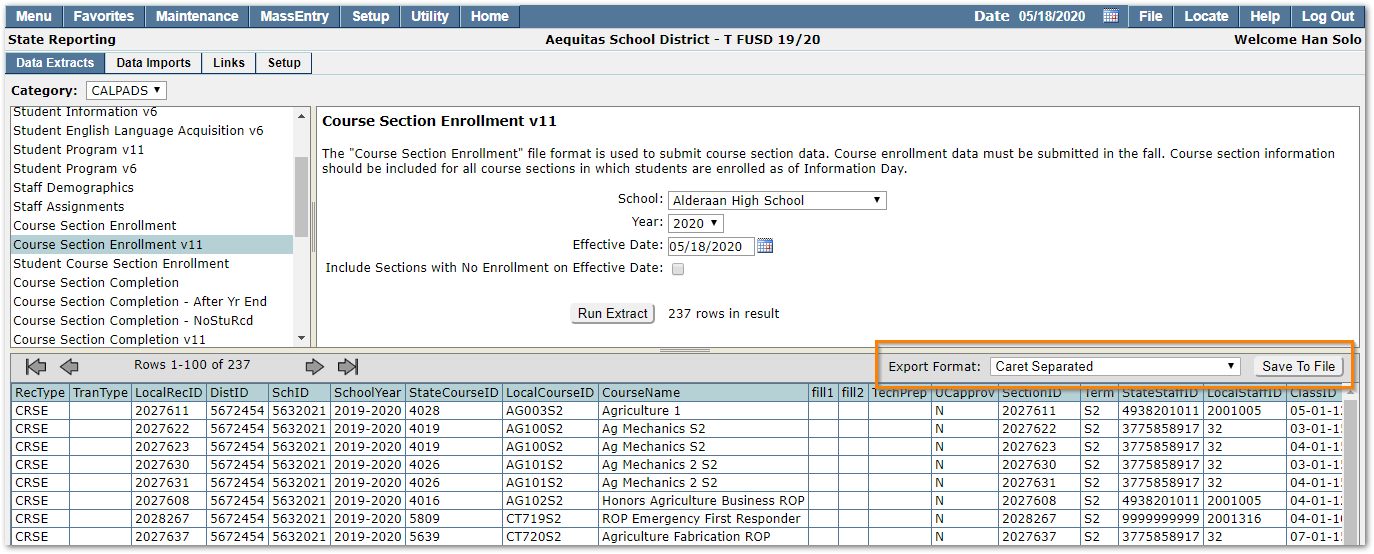
When an extract is run, the results appear in the lower pane for review. To save the extracted data, choose the desired export format from the menu as pictured below, then click the Save To File button.
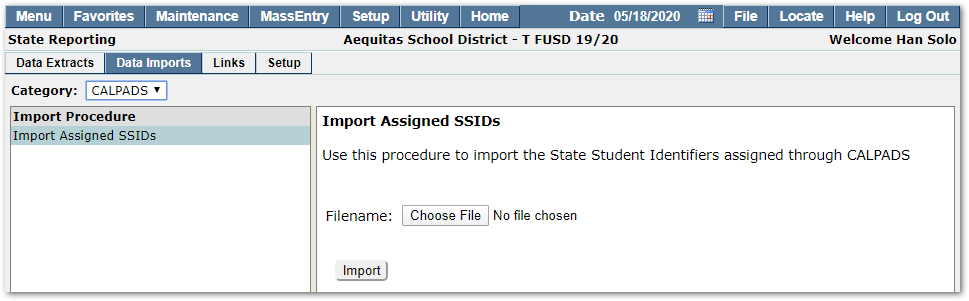
Not all states will have a tab for data imports. Please see our QWiki documentation for data imports available by state. Where data imports are available, first select the import procedure from the left pane, choose a file from a local drive, and finally click the Import button.
User created links are displayed on this tab of the application. Links may be organized under a parent heading. See the Setup section below for information about how to create these links.
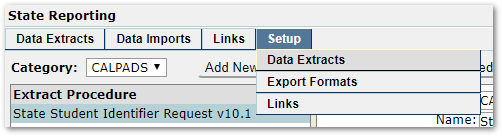
The Setup tab is available based on user permissions and contains 3 menu options. Hover over the Setup tab to view and select an option.
Setup: Data Extracts
Districts may manage the extracts delivered with Q. To manage an extract, first choose from the Category menu, then click to highlight an extract in the left-hand pane. The larger right-hand pane displays the configuration for the selected extract. The buttons above the right-hand pane allow users to add a new procedure, delete the selected procedure, reset the configuration, or submit changes.
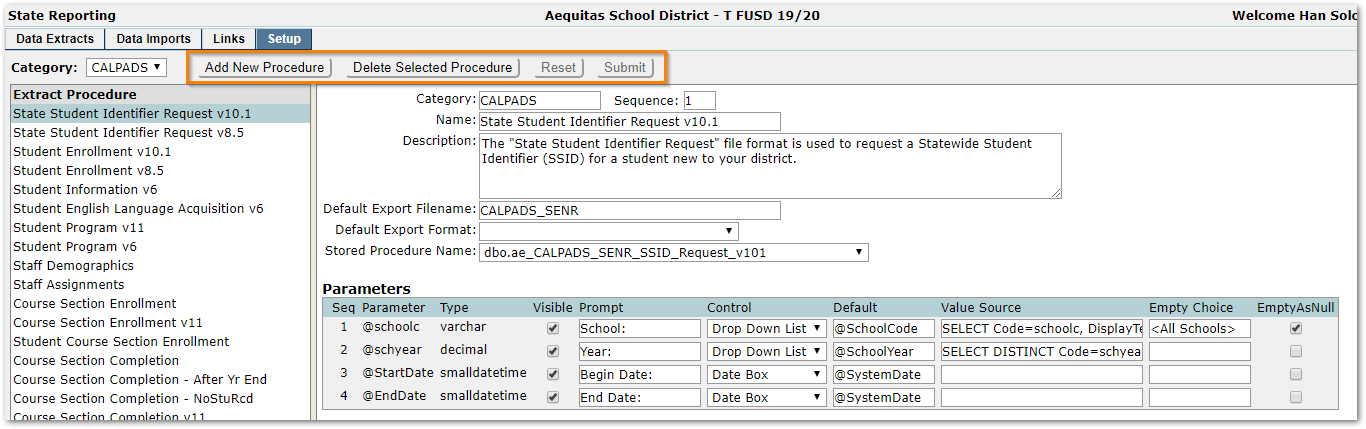
Extract Configuration
The following options are available when configuring an extract:
- Category – Enter an existing category name to group extracts or create a new category.
- Sequence –Optional. Customize the order of the extracts in a category using a sequence number. Otherwise extracts are ordered alphabetically.
- Name – Name of the extract.
- Description – Optional. Details about the extract.
- Default Export Filename – Optional. If blank, export files are named during the run process.
- Default Export Format – Optional. Choose from the list of available export formats. Additional formats may be created following the instructions in the next section below.
- Stored Procedure Name – Choose a stored procedure to be used for the extract.
- Parameters – Not all stored procedures include parameters. When available, information about the data that is passed into the extract procedure is displayed. If necessary, items like the default value, value source, etc. may be changed.
Setup: Export Formats
A variety of export formats are shipped with Q. Select an existing format in the left-hand pane. The configuration for that format is displayed in the larger right-hand pane. The button across the top allow users to add a new format, delete the selected format, reset the configuration, or submit changes.
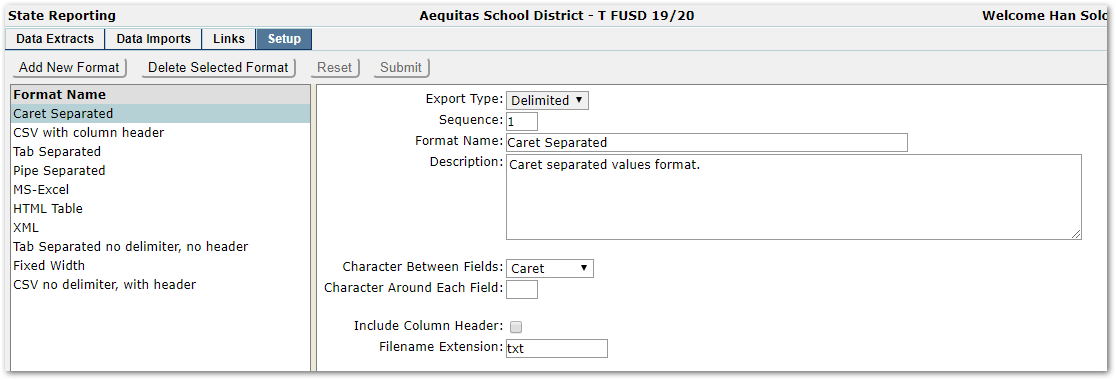
Each format has the following settings in common:
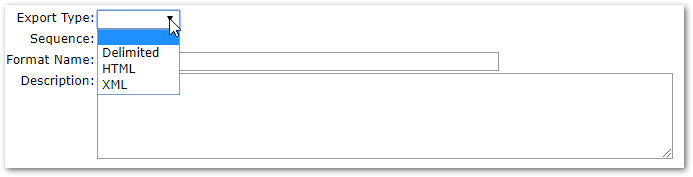
- Export Type – Delimited, HTML, or XML
- Sequence – Numerical value used to order the list of formats
- Format Name – User provided descriptive name
- Description – Details about the format.
Beyond the common settings, each format type will have its own set of configurations. For example, HTML and XML formats have opening and closing tags and the delimited format has a separator character as well as an option to include column headers. Typically, users will find the export format settings self-explanatory.
Add New Format
Click the Add New Format button to create a new export format option. The configuration form that appears will change depending on the Export Type selected (Delimited, HTML, or XML).
Setup: Links
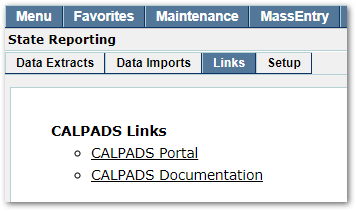
As pictured here, links may be organized into bulleted lists with a bold heading (parent).
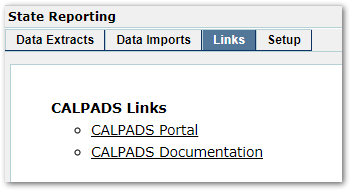
To manage existing links, select an option in the left-hand pane and the settings will be displayed in the right-hand pane. The buttons across the top allow users to add a new link, delete the selected link, reset the form, or submit changes.

Add and Organize Links
To create a new link heading (parent), click the Add New Link button and enter a Sequence number and Description. Leave the Parent and URL fields empty. In the sample below, the new heading, “District Resources,” will be the second heading on the Links page. Click the Submit button when ready.
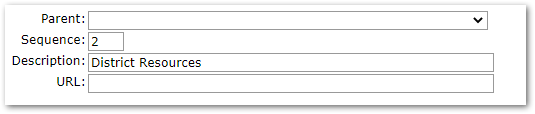
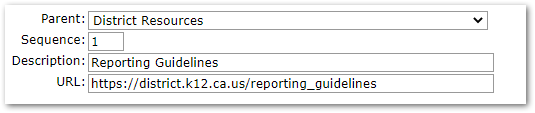
To create a new link under a heading, click the click the Add New Link button, select the Parent (heading), then complete the rest of the form. In the sample below, “Reporting Guidelines” will appear as the first link beneath the heading “District Resources”. Click the Submit button when ready.