Course Configuration
Classes added in the Master Schedule Manager with the Drop-In Section flag and Attendance Taken boxes checked will appear in Drop-In Attendance.
If using the California Attendance Recovery calculation, the ‘Count Attend’ flag must be checked also. 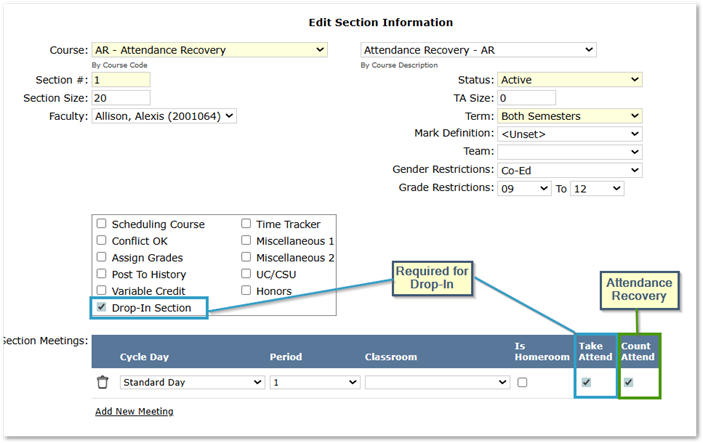
When a section is flagged as a Drop-In Section, it may not also be flagged as a Scheduled Section. In addition, Drop-In sections may not have ‘Assign Grades’ or Post to History’ checked. Attempting to set any of these flags will result in an error when saving the record.
Drop-In Attendance codes may be defined in the Lookup Codes application, but they are not required to log drop-in attendance. If they are not defined, no Code option will appear in the application.
Example in the application:
Defining the Lookup Codes: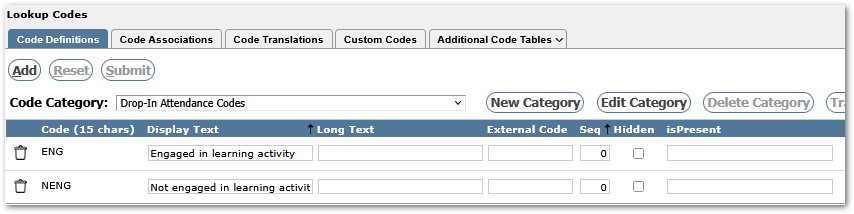

Allow Students from Other Schools
To enable teachers to add students to the roster who attend other schools, set the ‘Allow Students from Other Schools’ preference to Yes.
Student Search Focus
The Drop-In Attendance application has a Student Search Focus preference to enable teachers to set the search focus. They may set the focus to be either Last Name, First Name or ID.
Drop-In Attendance has its own permission item: ‘Attendance: Drop-In Attendance [Application]’. Teachers assigned to Drop-In class sections will need this permission item.