Truancy Tracking enables districts to produce customized letters and or/emails for students that meet a pattern of absences qualifying them as truant based on district-specific rules. The application will also create corresponding student communication records when specific letters are produced. Districts typically define a series of truancy letters or sets that reflect an escalating pattern of truancy such as up to 3, 6, 9, and 10 or more days of absence.
Truancy Tracking is located under the Attendance menu in Q.
The setup of Truancy Tracking involves defining Sets, e.g. ‘First Notification’. Each Set may either be associated with the District or School (depending on the logged in track) or a User. Administrative level permission, Q - TruancyTracking [Administrator], is required to enable a user to be able to configure District or School Sets. For detailed information on Permissions for Truancy Tracking, please refer to the separate document, Q Truancy Tracking Permissions.
In each set, a rule, such as the number of periods absent or a percentage of periods scheduled, defines a qualifying attendance event. Each set has at least one rule and may have an optional second rule defining the qualifying attendance event. The configuration of each set includes: a range of qualifying events and a default time span. In addition, the set definition involves including and/or excluding specific communication tracking record types to help ensure that the correct set of students is selected when processing occurs.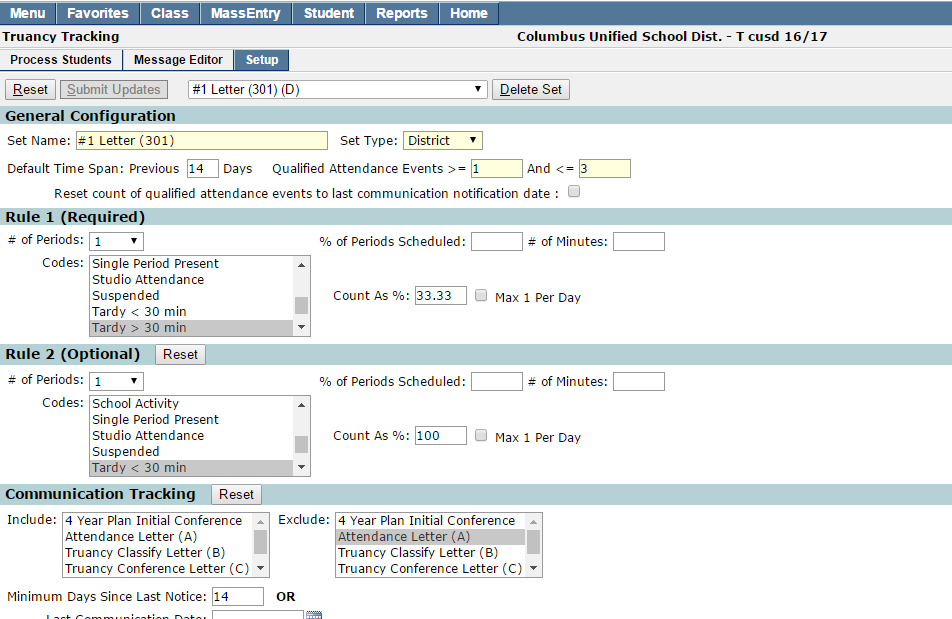
To create a set:
- Enter a unique, identifiable name in the Set Name field.
- Select the Set Type:
- District or School– if logged into the District or School
- When District or School is selected, the set will be available to those with permission to the application to process students in the relevant track.
- School
- When a set is created as a School type (S) it can't be seen when logged in at other schools
- User
- When User is selected, the Set will only be visible and selectable to the logged in user
- District or School– if logged into the District or School
- Optionally, you may set a Default Time Span for the previous number of days.
- When the process is run, the date is set to today’s date. The number entered here will set the number of days back from the date processed to calculate those meeting the absence criteria. The number of days entered here may be over-ridden when actually running the letters. Sample settings include:
- If the process is run once a week, set the default to 7 days
- If the process is run every two weeks set the default to 14 days
- When the process is run, the date is set to today’s date. The number entered here will set the number of days back from the date processed to calculate those meeting the absence criteria. The number of days entered here may be over-ridden when actually running the letters. Sample settings include:
- Enter the range of Qualified Attendance Events that a student must meet for a letter or email to be generated. An attendance ‘event’ is defined by the value set in the # of Periods, % of Periods Scheduled, or # of Minutes in the Rules.
- In example below, a letter is to be generated if the student has between 1 and 3 attendance events

Rule 1 (Required)
To define a Qualifying Attendance Event using Rule 1, define the rule by selecting one of the following:
- # of Periods: the minimum number of periods which must have one of the selected absence codes for a student to be considered truant. The entries available are from 1 to the number of periods for the logged on track.
OR
- % of Periods Scheduled: The percentage of a student's schedule (on any given day) for which the attendance codes must be present for a student to be considered truant.
OR
- # of Minutes: The number of minutes in a student's schedule (on any given day) for which the attendance codes must be present for a student to be considered truant. Using this parameter requires that a Bell Schedule is defined for the track in the Track Editor.
- Codes: Select the appropriate attendance codes from the multi-select codes list box. The CTRL button may be used to select multiple codes.
- Count As %: A percentage weight given to the selected attendance code, for example a code of Tardy > 30 can be given a weight of 33.3 % to indicate that 3 Tardy codes = 1 attendance event.
- Max 1 per day: can only count one unexcused for a day even if they have 3 unexcused periods per day.

If you count tardies as an attendance event you can stop at the first rule.
Rule 2 (Optional)
Rule 2 may be used to assign a percentage to tardy codes. For instance, if you want to count 3 tardies as one attendance event, you would select the tardy code and count it as 33.3%.

Communication Tracking
Communication Tracking must be set up in Communications Setup before information may be added here. For help setting up communication, please see the Communications Setup documentation.
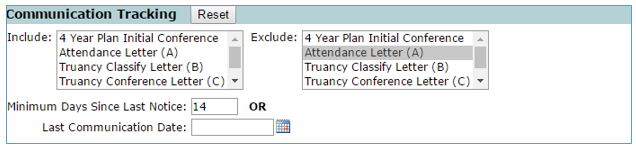
Communication Tracking indicates whether a student's Communications tracking records should be examined when determining selection for the report. This procedure is used to filter records in order to prevent duplicate or redundant letters from being generated. The settings selected here specify whether a student is Included or Excluded based on Communications tracking records.
- Select one or more attendance Communication Types to Include and Exclude.
- Specifies either a Communication Date or the Number of Calendar Days Before Last Day of Truancy
- Number of Calendar Days - A student is included or excluded if she has a Communications record (of a selected type) within the specified number of days before the last day she is considered truant in the date range.
- Communication Date - A student is included or excluded if he has a Communications record (of a selected type) on or after the specified date.
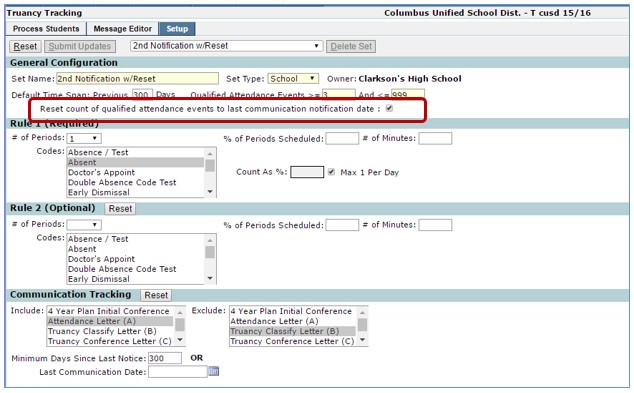
If the Reset count of qualified attendance events to last communication notification date option is checked the count will be reset. An example of using this option follows:
School runs Truancy Tracking the 2nd Friday of the school year. Student A has (6) unexcused absences over the first 2 weeks of school and actually qualifies for Truancy Letter #1 and Truancy Letter #2, but because the student hasn’t received Letter #1 yet they will receive only Letter #1. When the student receives Letter #1 it does the trick in keeping this student from missing class and they don’t have any more unexcused absences. However, two weeks later when the school runs Truancy Letter #2, this student will receive Letter #2 due to having a total of 6 unexcused absences. If the reset option is checked, the attendance events that qualify will start over with counting after the last communication record. So in this example the student will not receive Letter #2 until they receive (3) more qualified attendance records (NOT 6 since we are resetting counts) from the date of the last communication.
Note:
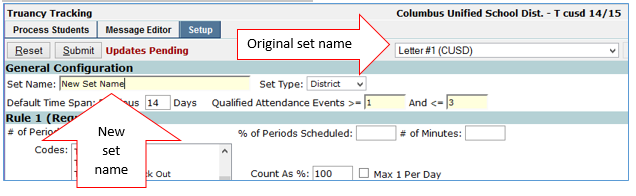
Sets may be easily copied by bringing up an original set, changing the set name to a new name and clicking submit.
The Message Editor area of Truancy Tracking is where the documents are created and stored. Documents may be created in different languages and formatted to send as letters or emails.
To create a new document:
- Select Add New from the Document drop down list.
- When the New Document pop up box opens, add a document title and document owner.
- When logged in to the district track, all tracks will display in the dropdown list.
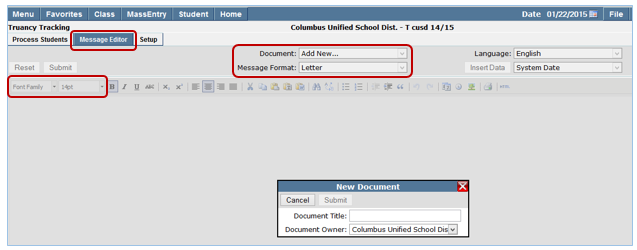
- Select Message Format; Letter or Email.
- Select Language (the default is English but other languages are available in the Language drop down list).
- Select Font Family and Font Size.
- Select Communications Setup options (these options are dependent on communications tracking being set up in Communication Setup).
- Set communication type.
- Sender Participation type.
- Recipient participation type.
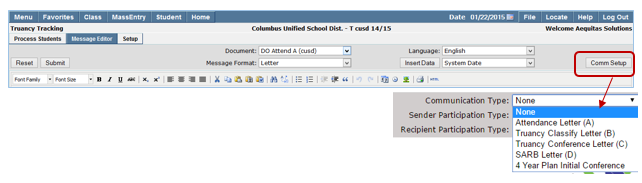
Once all the selections have been made, you’re ready to add the letter/email content. Images such as school logos may be added to letter and email messages.
To add an image to a message:
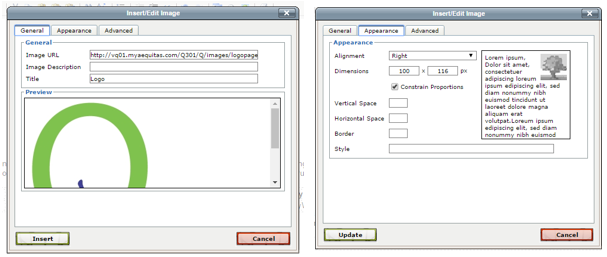
- Select the image icon on the toolbar.

- When the image editor opens enter the Image URL.
- Enter a title (the image will show up in the message editor but will not print on the letter unless a title is entered).
- The image size may be adjusted by entering dimensions on the appearance tab.
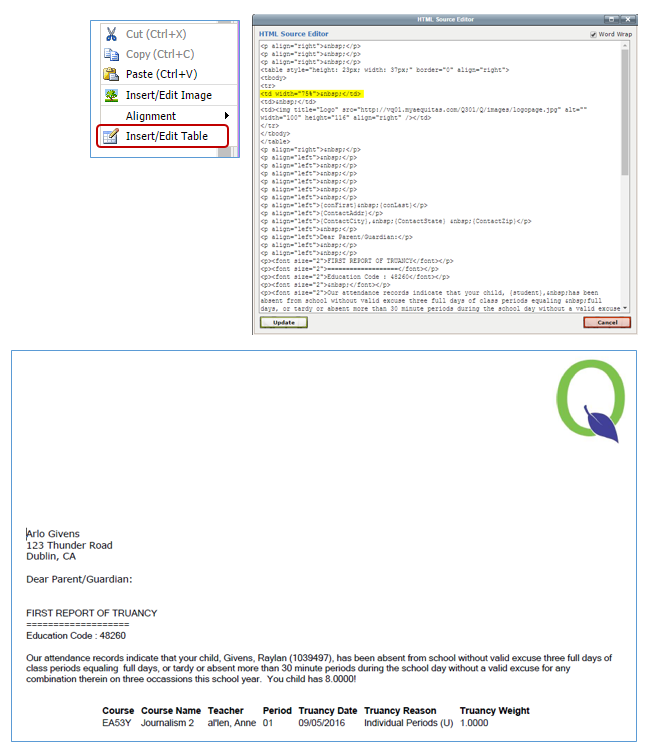
- Although images placed in the message editor may look like they’re right justified, when printed the image defaults to the left. If you want to keep an image on the right put the image in a table with 2 cells. Tables may be created by right clicking in the message area and selecting insert/edit table. Create a two cell table leaving the left cell blank and place the image in the right cell. After the image is placed open the html editor and adjust the width of the left cell using a percentage for the width (you may have to experiment depending on the image size). Update the html.
- Available merge fields are displayed in the drop down list next to Insert Data.
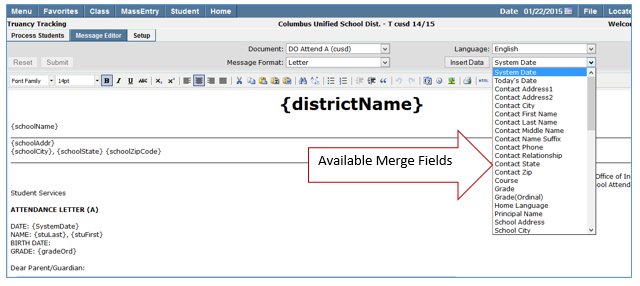
- Type your letter adding merge fields where desired.
- Merge fields are added by selecting the merge field from the list, positioning your curser where you would like the field to appear in the letter, and clicking Insert Data.
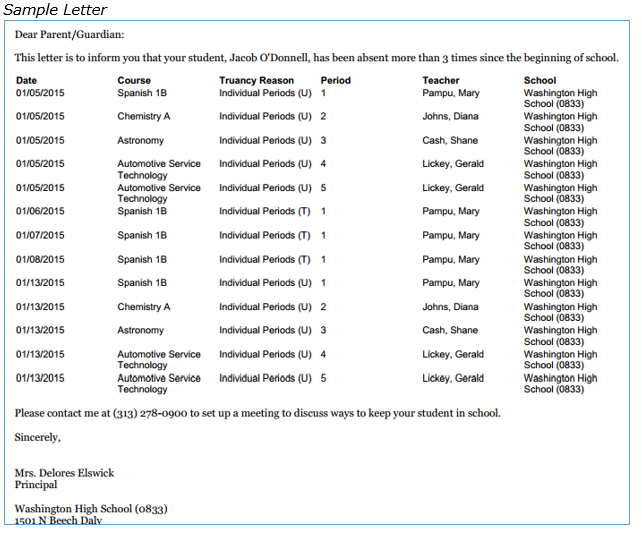
- In order to display multiple detailed records (the student’s absence listings) in one form letter the appropriate detail merge fields are grouped together in the body of the letter and enclosed in a ‘data block’. There are two options available for blocking information, the Repeating Table and Repeating Block.
- Repeating Table: A listing of a student’s attendance events is easy to add to the letter using a repeating table. To add a repeating table:
- Select Repeating Table from the merge fields drop down list.
- Enter desired Column Headings.
- Select corresponding column content from drop down choices.
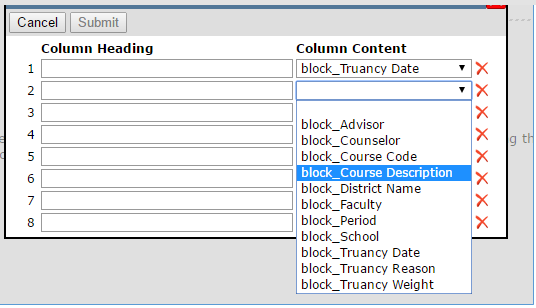
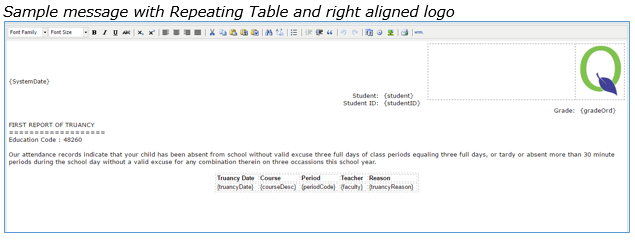
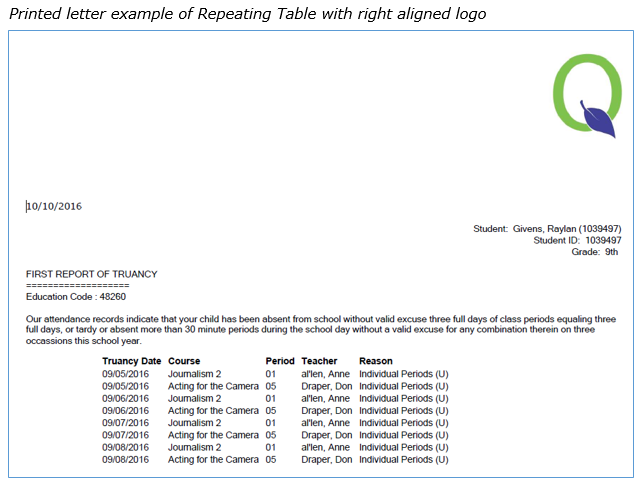
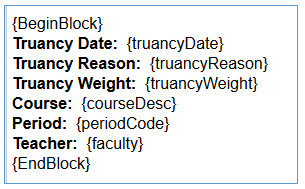
- Repeating Block: The student’s attendance events can also be listed in a repeating block. The repeating block will display the student’s data in chunks up and down the page.
- Select Repeating Block from drop down list.
- Additional merge fields with the absence details must be enclosed between the begin and end tags. Whatever is inside the pair is repeated for each instance of the detail. Normal text, tabs, and carriage returns can be added inside the block to create labels, blank lines, spacing, headers, etc.
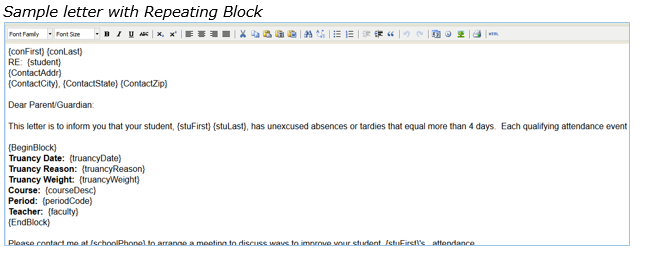
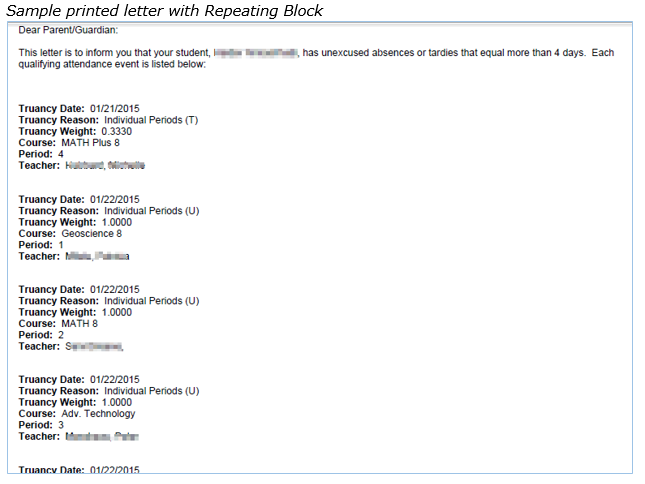
- When all letter content has been added, click Submit to save document.
The Process Students Tab is the place to print a report of truant students, the attendance letters, or generate the email. A report may be printed before the letters and communication records are generated.
To print a report:
- Click the Process Students tab.
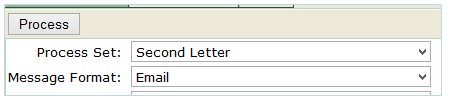
- Select the process set from the drop down list.
- Select Print Report Listing from the Message Format drop down.
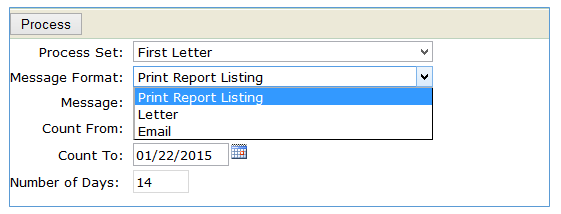
- Enter dates in the Count From and Count To date boxes.
- The Number of Days will adjust to match date range.
- Use the student selection filter if you want to select certain students, grade levels, etc.
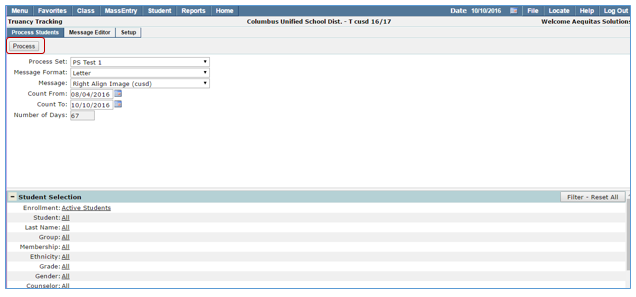
- Once the selections are made, click the Process button.
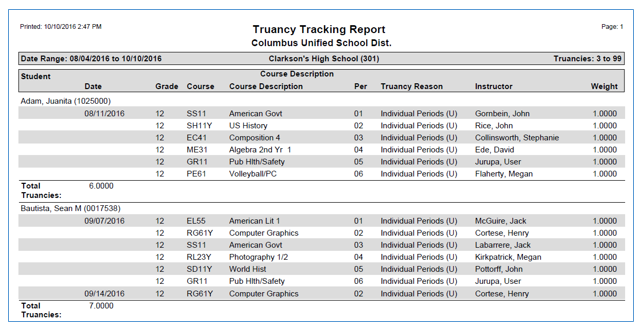
After reviewing the report you can print the letters or generate the emails by:
- Selecting the message format (letter or email) from the drop down list.
- Make any desired selections using the student selection filter.
- Click Process.
- The list will generate and gives you a further chance to select or de-select the recipients.
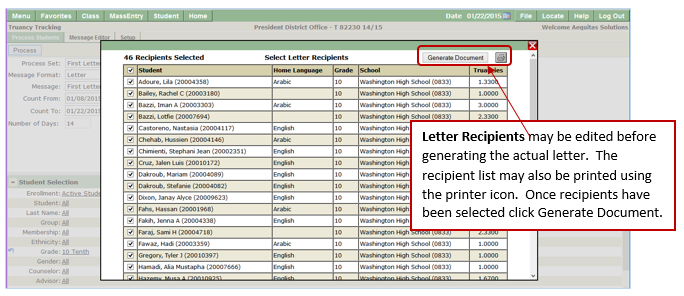
If letters have been added in additional languages in the Message area the letter will print in the student’s Home Language.
You may remove any students you do not want a letter printed for by removing the check by their name. When all selections are to your liking, click the Generate Document button.
- If Email is selected as the Message Format:
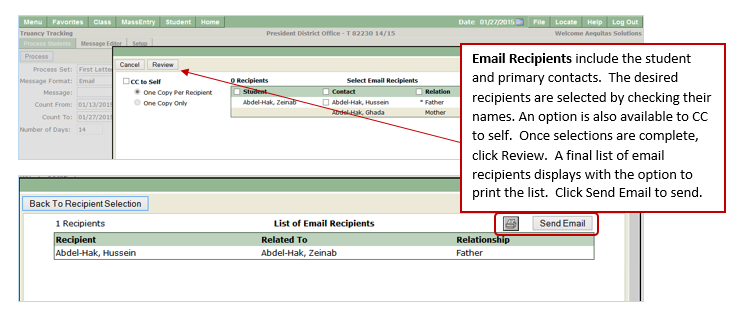
- The email recipient list will generate and gives you a further chance to select or de-select the recipients. The email recipients include the student and the student’s primary contacts. An option is also available to CC Self.
- When selections are complete, click Review. A final list of email recipients displays. The list may be printed using the printer icon.
- Click Send to send the emails.
|