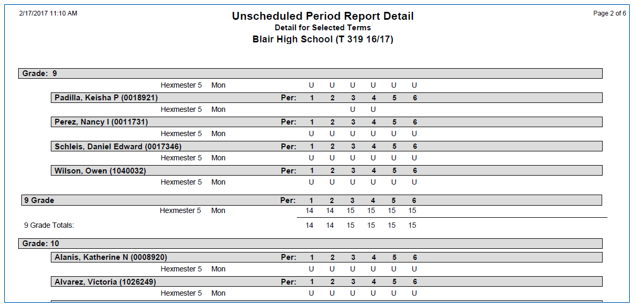
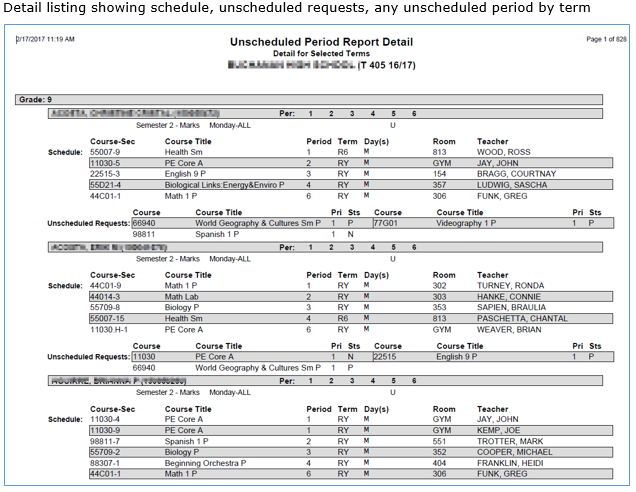
The Unscheduled Period Report prints a list of students with unscheduled periods. It is typically run immediately after the Loader is run the final time. The report can be set to search a term or set of terms, or search a specific date. In the detail section, unscheduled periods are pinpointed in a matrix. In the summary section, the total number of unscheduled periods for the parameters requested is reported..
While details specific to this report will follow, users can find general information about reports within the Reports documentation.
Unscheduled Period Report is located within Reports in the Schedule menu in Q.
The Q Unscheduled Period Report offers the following options:
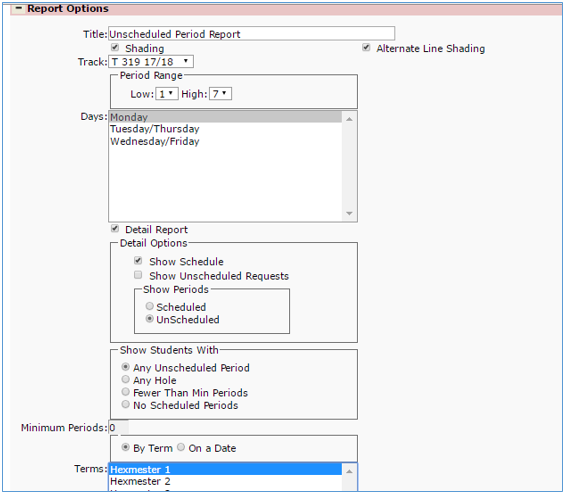
- Report Title—the default title of the report is Unscheduled Period Report but may be edited by the user
- Shading—Select if shading is desired in report
- Alternate Line Shading—if checked alternate lines of information will be shaded
- Track—Select a track to report from within logged in school
- Period Range—Set the range of periods to report using the drop down lists
- Days—Individual cycle days may be selected for tracks that have multiple cycle days
- Detail Report—Select this option to enable detailed report
- Detail Options—Select desired options from the following:
- Show Schedule—This option will display the student’s schedule
- Show Unscheduled Requests—This option will display each student’s unscheduled requests, if any. Details include the status value and priority value of each unscheduled request
- Show Periods—Select a view mode
- Scheduled—Scheduled periods in the matrix will display as ‘S’. Unscheduled periods will be blank
- Unscheduled—Unscheduled periods in the matrix will display as ‘U’. Scheduled periods in the matrix will be blank
- Show Students With:
- Any Unscheduled Period—Select to list students with any unscheduled periods in any range
- Any Hole—Select to list only students with an unscheduled period or range of unscheduled periods for which there is a prior scheduled period and a subsequent scheduled period
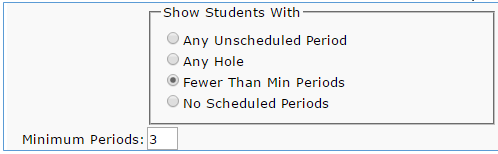
- Fewer Than Min Periods—This option lists students with fewer unscheduled periods than the value entered in the Min#Periods field (activated only when this option is selected)
- Minimum Periods—Enter number of minimum periods to look for
- No Scheduled Periods—This option lists only students who have no periods scheduled at all
- By Term—When this option is selected a list of available reporting terms is displayed in the Terms list. Select a term or terms to report by clicking the items in the list. To select or de-select more than one term at a time, hold down the Ctrl key when clicking
- By Date—When this option is selected the Terms list is replaced by a Date selection field, allowing the user to select a specific date
For more detailed information on student selection filter, sort selections, exporting to excel and creating report sets please refer to the general reporting document located in Help under the Q Menu>Reports.
Sample Unscheduled Period Report with shading summary on
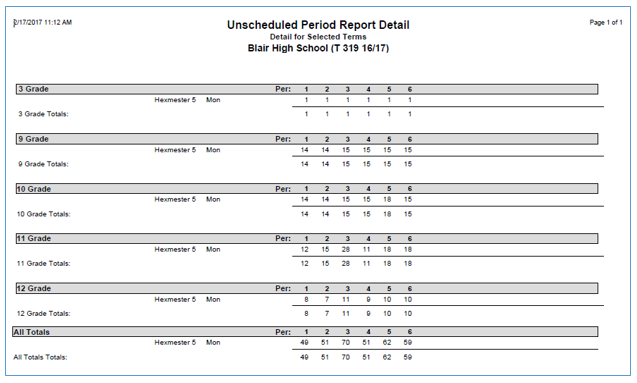
Detail with alternate shading showing unscheduled periods for a cycle day and term