
The Class Attendance Counts report displays class rosters with an attendance breakdown of total absence and tardy counts for each student. The report may be run for user defined date ranges with additional selection options available.
While details specific to this report will follow, users can find general information about reports within the Reports documentation.
Class Attendance Counts Report is located within Reports in the Attendance menu in Q.
Report Options
Report Options can be accessed by clicking the + sign next to Report Options, or by clicking the Options link on the right hand side of the screen.

The Class Attendance Counts Report provides the following options:
- Attendance Date Range – Enter from and to dates or select dates from pop up calendars.
- Select class schedule status of students to include in report:
- Check the box Only Include Students Enrolled as of System Date to display only those students scheduled in the class as of the system date.
- Leave the box unchecked to show all students in class, including those students that have withdrawn from the class.
- Select desired Student Identification option:
- Include both Student’s name and ID.
- Student ID only.
- Select items to include:
- Days Present Count (within date range).
- Absence Breakdown by Excused/Unexcused.
- Alternate Row Shading.
Example Reports
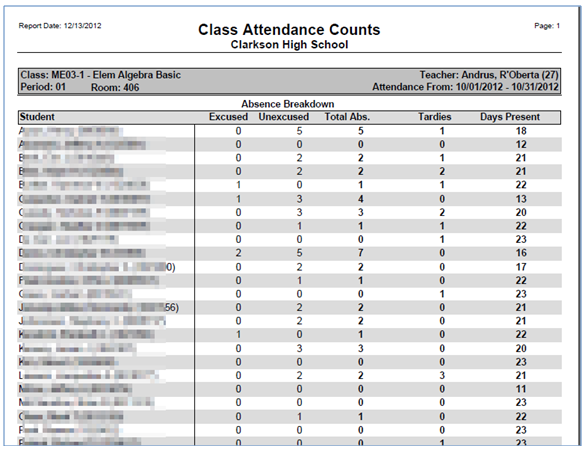
NOTE: Reports may look different depending on options and selections chosen.
