The Q Class Marks Monitor provides an at a glance view of which classes have missing marks, or no marks entered for a specified marking period. Classes that appear in yellow indicate some students are missing marks. Classes that display in light red indicates there are no Marks for any students. The user may drill down on each section to view the class roster and associated marks for the student. The application also provides a quick way to notify those teachers with missing marks by way of a notification or an email. A System Preference for the application allows the choice of sending teachers an email or Q notification.
Class Marks Monitor is located under the Marks menu in Q.
When the Class Marks Monitor is launched the display defaults to show Academic Marks, Sections with Missing Marks, the logged in track and all Mark Types. 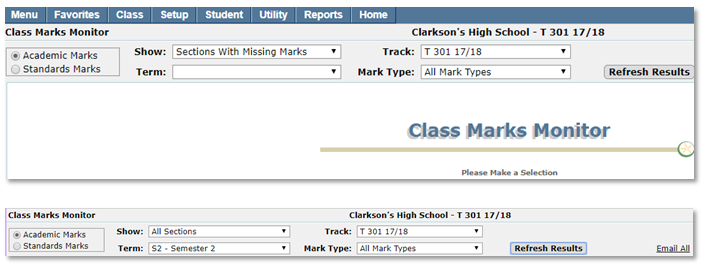
Users may adjust the display by selecting Academic Marks or Standards Marks and then selecting the desired show option, track, term and mark type using the drop down boxes. When all selections have been made click the Refresh Results button to display selections.
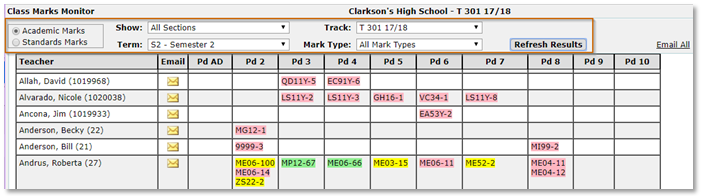
Class sections are color coded to quickly identify the Marks entered status.
- Light Red indicates no marks for any students in the class have been entered
- Yellow indicates some students in the class are missing marks
- Green indicates all marks have been entered for all students in the class
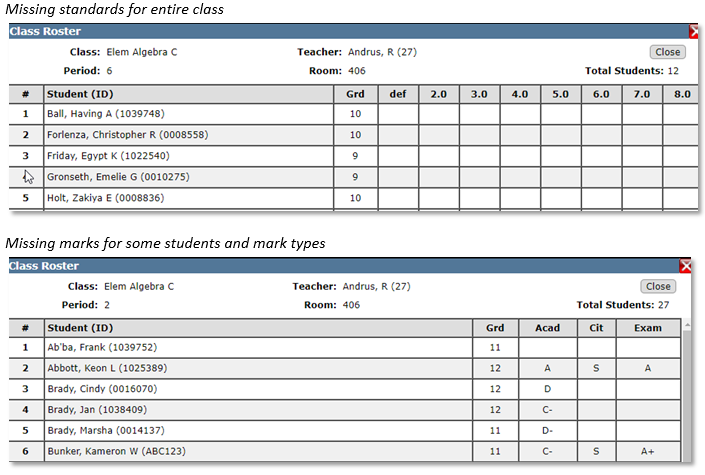
Clicking on a section launches the class roster with the associated marks information.
A preference has been added in the Q Preference Editor which controls whether teachers with missing marks will be notified by email or using Q Notifications.

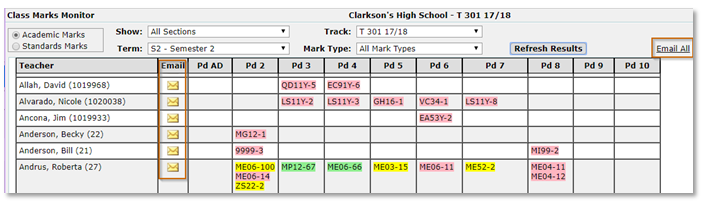
When the preference is set to Email, emails may be sent to individual teachers by clicking the envelope icon next to the teacher’s name. All teachers may be emailed by clicking the Email All link.
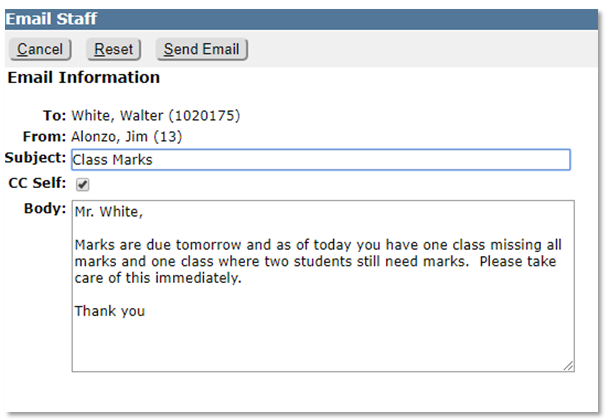
Clicking the envelope link opens an email message editor where the user may create the message and select to CC self.
Notification
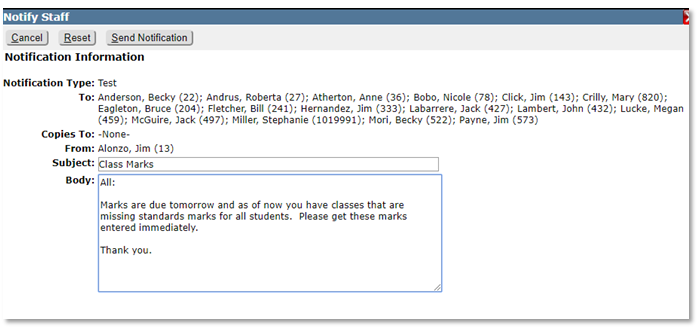
When the preference is set to Notification, notifications may be sent to individual teachers by clicking the envelope icon next to the teacher’s name. All teachers may be notified by clicking the Notify All link.
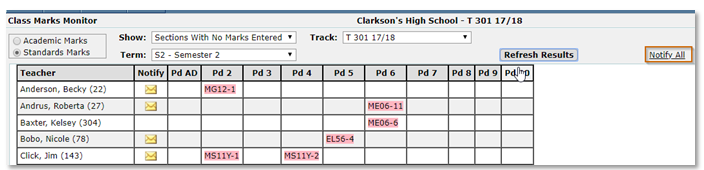
Clicking the Notify All link opens a notification message editor where the user may create the message.