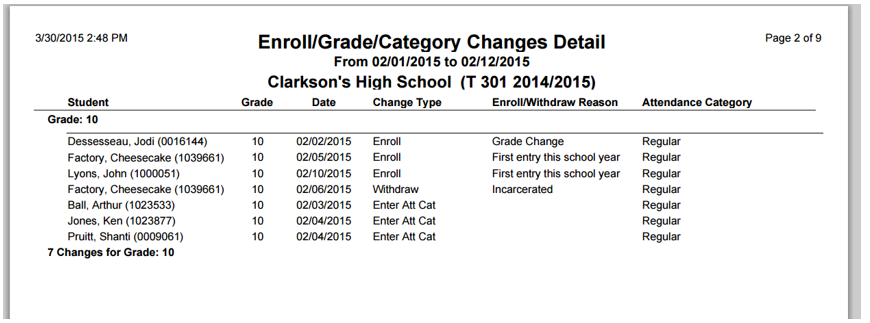
The purpose of this report is to show changes in Enrollment, Grade, and Attendance Categories.
While details specific to this report will follow, users can find general information about reports within the Reports documentation.
Enrollment/Grade/Category Change is located within Reports in the Enrollment menu in Q.
Report Options
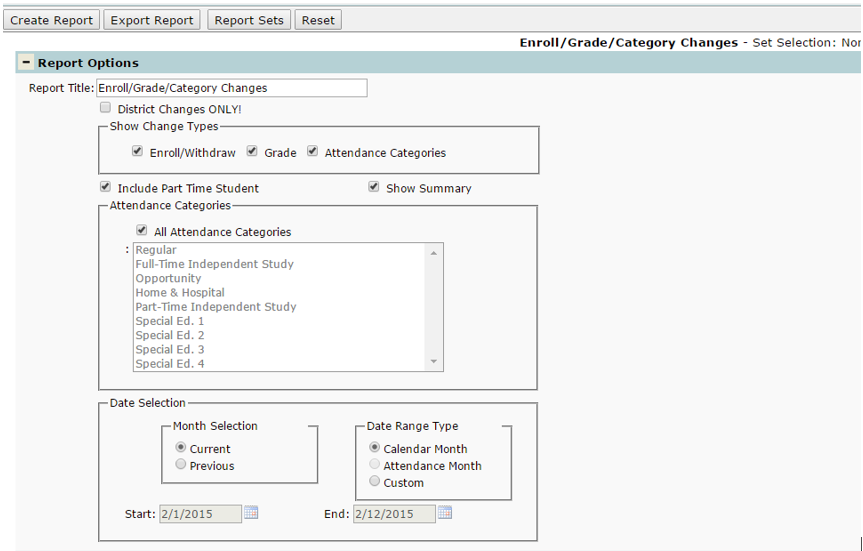
- Report Title: The report title defaults to Enroll/Grade/Category Changes, but is able to be edited and a user-defined title can be entered.
- District Changes Only: turn this option on to only include changes that were made through the district on the report.
- Show Change Types: Select which types of changes you want in the report, in any combination of: Enroll/Withdraw, Grade Changes, and Attendance Categories.
- Include Part Time Students: This option is checked on by default. Deselect this option to filter out part-time students from the report.
- Show Summary: Check this option to show summary counts of changes that occurred per track. If not checked, you will only get student detail records.
- Attendance Categories: This list will only be enabled when Attendance Categories is selected as a Show Change Types option. Select the attendance categories to report by clicking in the list (to select or de-select more than one category, press the Ctrl key while clicking) or select the All Attendance Categories checkbox to auto-select all categories in the list.
- Date Selection: for month selection, select Current or Previous and then select the Date Range Type: Calendar Month, Attendance Month, or Custom. If Calendar Month or Attendance Month is selected, the system will auto-populate the Start and End Date fields depending on the current month or previous month selection. If Custom is selected, the start and end date fields will become active for the user to input dates manually.
Example Reports