
The EC Aging Report provides a listing of EC Accounts with unpaid charges that includes a breakdown of the number of days of aging. Users may filter the accounts reported and set the threshold days over for reporting a total. The report may optionally include charge detail by student.
While details specific to this report will follow, users can find general information about reports within the Reports documentation.
EC Aging Report is located within Reports in the School menu in Q.
EC Aging’s Report Options enable the user to:
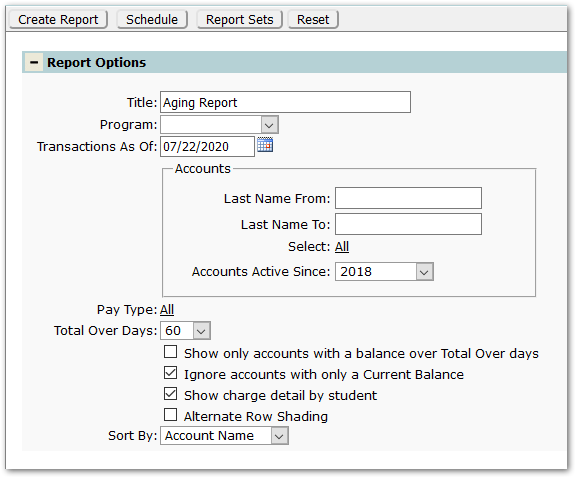
- Title – The default title of ‘Aging Report’ will appear, but it may be edited and revised.
- Program – A program must be selected.
- Transactions As Of – The date will default to today’s date. Set the date as desired.
- Accounts – To filter the set of accounts returned by the report, either:
- Last name From / To – Enter values in these fields to return a range of the accounts by last name
- Select ‘All’ – To search for specific accounts
- Accounts Active Since - Set the value as desired.
- Pay Type – Select specific pay types or leave to default to all pay types.
- Total Over Days – Set the threshold number of days over (30, 60, 90, 120) for the total to calculate.
- Show only accounts with a balance over Total Over days – Check on to see account with balances that exceed the ‘Total Over Days’ calculation.
- Ignore accounts with only a Current Balance - Check to exclude accounts with only a current balance.
- Show charge detail by student – Check on to see student charge detail.
- Alternate Row Shading – Check to enable shading on alternate rows.
- Sort By: Select either ‘Account Name’, the default, or ‘Account Number’.
Reports may look different depending on the options, selections, and sort items chosen.
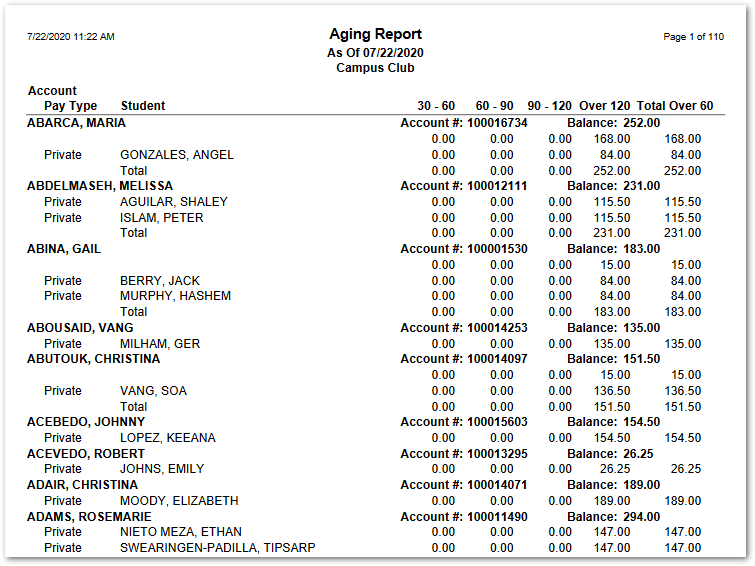
The sample below has the option ‘Show charge detail by student’ ON:
The following sample has the option ‘Show charge detail by student’ OFF: 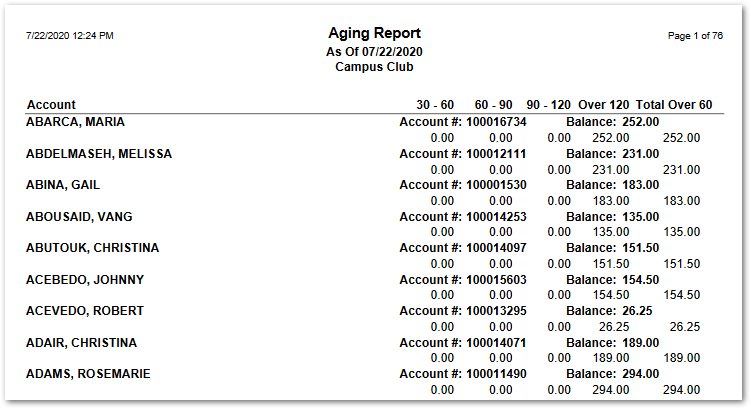
A report summary is included at the end of the report:

