
Google Manager is used to configure Google administrative functions and manage the integration of Q Grade Book and Google Classroom.
When Google Manager has been configured, it may be used to:
- Synchronize existing Google Users with Q
- Create Google Users from Q
- Create Classes and Rosters in Google Classroom
- Import Classwork (Assignments) and Student Submissions (Scores) from Google Classroom
The integration requires that the district has Google Workspace for Education (formerly G Suite for Education), and a domain created in Google. In addition, you must also have previously completed configuring Google for Q Integration.
Configuration Steps
Each of the configuration steps explained in the following sections is required to complete the integration to Q. This process will specify which tasks to perform, and the order in which to do them.
Q Web Server
There is one setting you need to check on your IIS servers for the AppPool used by Q.
- Look at the Advanced Settings for your AppPool and find the LoadUserProfile setting.
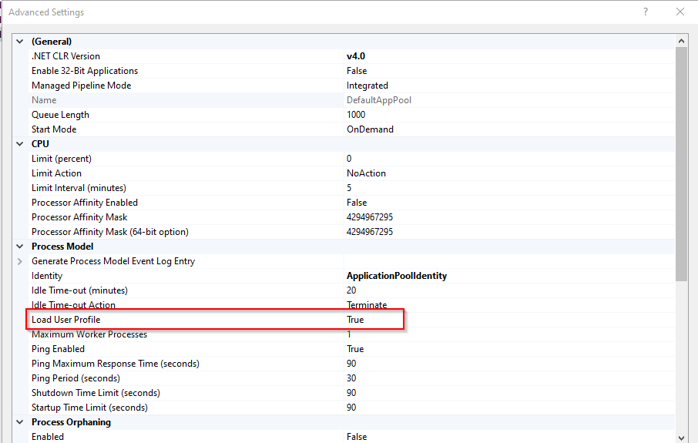
- This setting must be set to True.
- You need to verify this setting on each Q Webserver!
If you are getting the following error when clicking on the Q Setup tab in Google Manager, your LoadUserProfile setting is probably wrong.
System.Security.Cryptography.CryptographicException: Invalid provider type specified.
Note: True is the default value for newer IIS servers. If your setting's value is False, it was probably set that way to support an application that needed to run on IIS 6. Verify that you don't have an older app that still needs this setting to be False.
This setting must be set to True to allow the Google Manager to create the Json Web Tokens necessary to authenticate Q to the Google Service Account!
You must log into Q with an account with permissions to Google Manager. You must configure each tab in the order presented below.
Setup Section
Google Setup Tab
All information on this tab must be completed before you can use any other tab!
Click on Google Setup in the left menu bar.
- Google Manager supports 1 or 2 Google Tenants.
- If you use 2 tenants, the tenant used for Staff MUST be the Primary Tenant.
- For most installations, only 1 Google Tenant will be used.
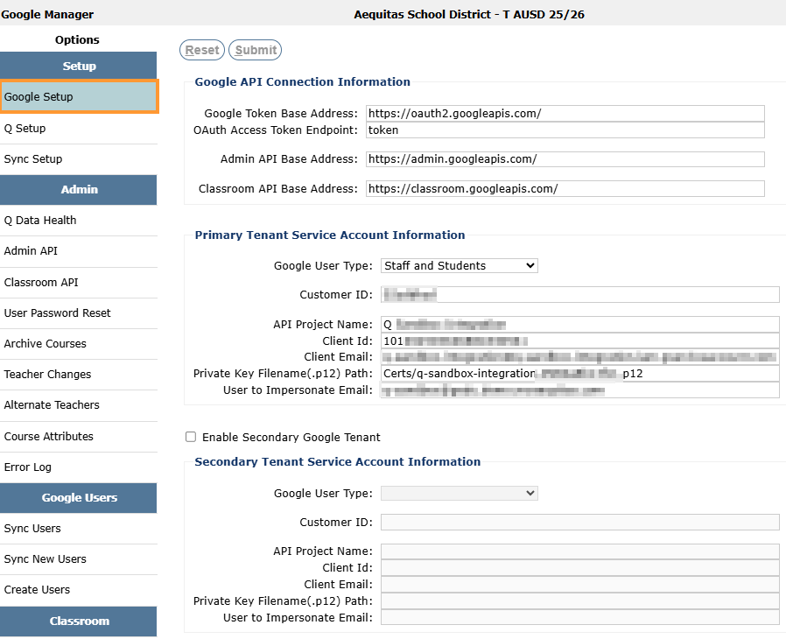
Google API Connection Information
These parameters will define the address endpoints used by the Google API methods. These parameters have been pre-set by a script in the Q installation and you should not need to modify them.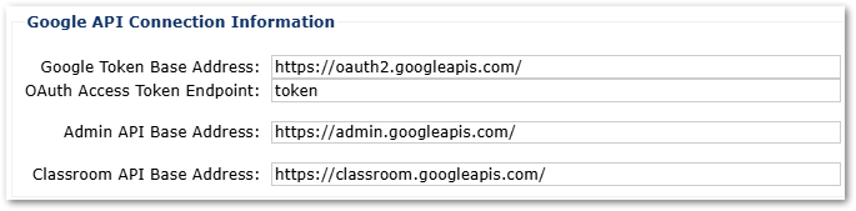
Google Token Base Address
This is the base address used by the token endpoint to obtain an OAUTH bearer token. It should be defaulted to https://oauth2.googleapis.com/.
Do not edit this value unless it is different than the above default value. The trailing / is required.
OAuth Access Token Endpoint
This is the endpoint used to obtain an OAUTH bearer token. It should be defaulted to token.
Do not edit this value unless it is different than the above default value.
Admin API Base Address
This is the base address used to access methods in the Google Admin SDK API.
It should be defaulted to https://admin.googleapis.com/.
Do not edit this value unless it is different than the above default value. The trailing / is required.
Classroom API Base Address
This is the base address used to access methods in the Google Classroom API.
It should be defaulted to https://classroom.googleapis.com/.
Do not edit this value unless it is different than the above default value. The trailing / is required.
Primary Tenant Service Account Information
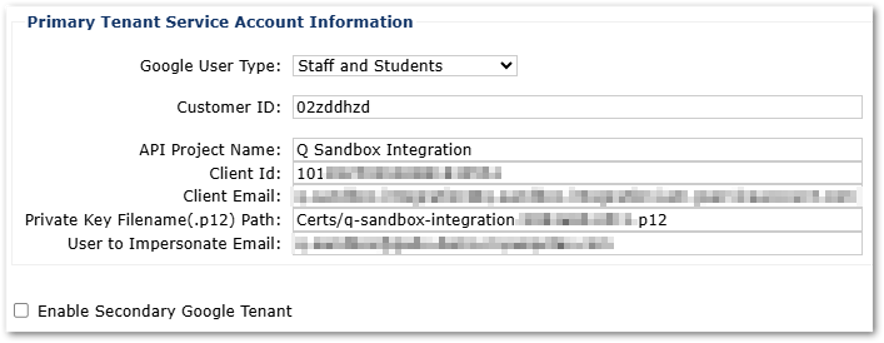 Google User Type
If you only have 1 Google Tenant, select the option for Staff and Students. If you have 2 Google Tenants, the primary Service Account MUST be set to Staff.
Customer ID
Log into your Google Admin Console with an Administrator Account.
Click on the Account settings panel.
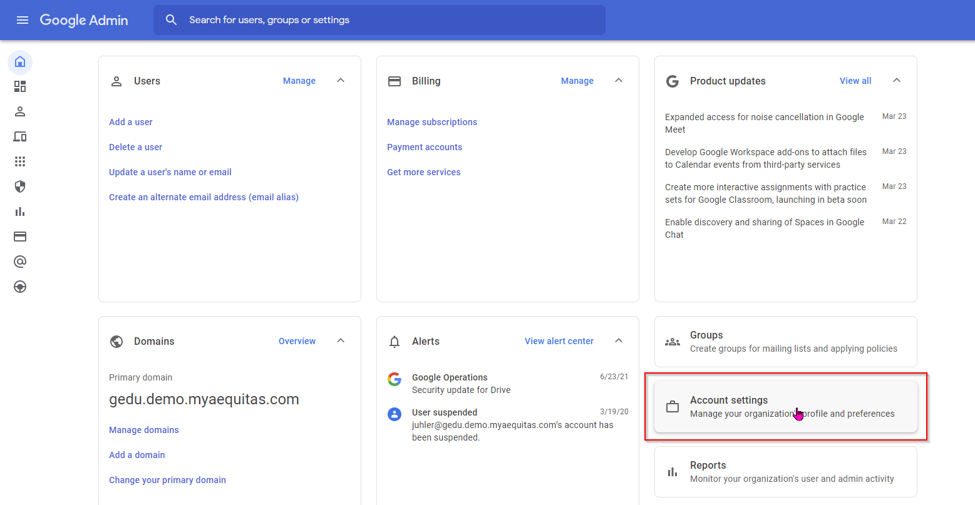 Your Customer ID will be found in the Profile tile at the top of the page.
 Enter your Customer ID.
Service Account Information
The information for the next 3 items (API Project Name, Client ID, Client Email) can be found in Service Accounts in the Google Cloud Platform Console.
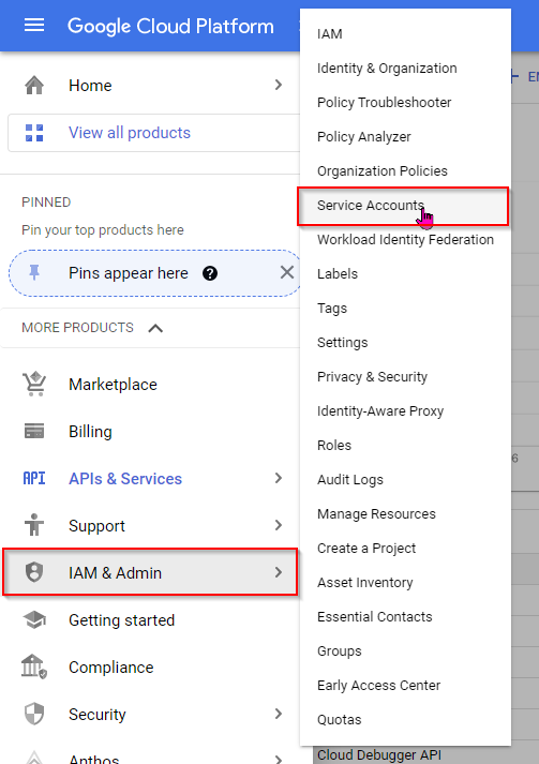
Log into the Google Cloud Platform with the Super Admin account you created and used to configure the Service Account in Google.
Select Service Accounts from the IAM & Admin Navigation Menu.
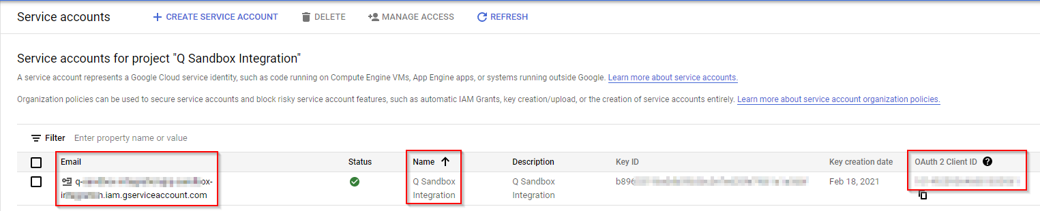
API Project Name
Enter the text displayed under the Name heading.
Q Sandbox Integration in this example.
Client Id
This is the OAuth 2 Client ID for the Service Account you created.
Enter the number displayed under the OAuth 2 Client ID heading.
Client Email
This is the Client Email for the Service Account you created.
Enter the Email address displayed under the Email heading for your Service Account.
The address will end with .iam.gserviceaccount.com in this example.
Private Key Filename (.p12) Path
This is the windows path that points to the Private Key file you saved when configuring your Service Account in Google.
Copy the saved file to the Q/Certs folder on your webserver.
Example: Certs/<private key filename>.p12
User to Impersonate Email
This is the email address of the domain user account the integration will use to access Google API methods. This user account must have complete access to the Service Account.
Enter the email address for the user account to impersonate.
i.e. myemail@mydomain.com
Secondary Tenant Service Account Information
If you have a Secondary Google Tenant, check the 'Enable Secondary Google Tenant' checkbox to enable editing the Secondary Tenant Information.
You must configure the User Type as Students.
After that, configure the rest of the options as you did for the Primary Tenant. Make sure you use the Google Account information you defined for your second tenant.
Q Setup Tab
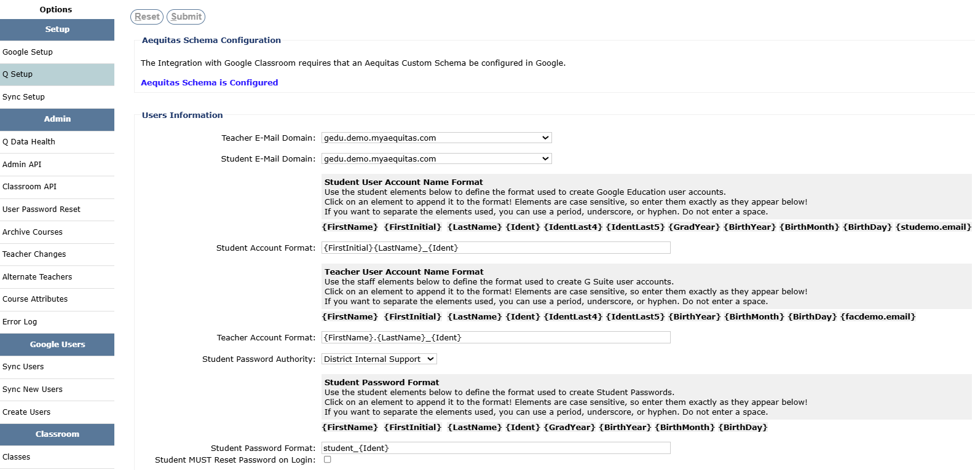 All information on this tab must be completed before you can use any Google Classroom API methods!
Click on Q Setup in the left menu bar.
Aequitas Schema Configuration
Google allows you to create and maintain additional fields of information for Google Users. This information is defined in a Custom Schema. We have defined a Custom Schema for use with this integration, and it needs to be created in Google by this function.
When you first run Q Setup, the Aequitas Schema will not be defined in Google, and you will see a button named Configure.
Click the Configure button if displayed.
Once the Custom Schema is configured, you will not see the button. Instead, you will see the text Aequitas Schema is Configured.
 Note: If you have 2 Google Tenants, you will initially have 2 buttons, one for each tenant. You need to click each button.
Users Information
The information in this section will be used by the Q Integration when creating Google User Accounts. All fields must be completed before you try exporting Q Teachers and Students into Google.
Teacher E-mail Domain
Teacher Accounts will be created with an email address in the domain you select. The domain dropdown is populated with domains defined in Google Workspace.
Click the dropdown and select the domain to use for teachers.
Student E-Mail Domain
Student Accounts will be created with an email address in the domain you select. The domain dropdown is populated with domains defined in Google Workspace.
Click the dropdown and select the domain to use for students.
Student Account Format
Each Student Account (email address) must be unique. You can define the format of the account name using the elements listed above the text area. Click on an element to insert it into the text box. You may also type in the elements to use, separated by a period, dash, or underscore if desired. No spaces.
Example: {FirstInitial}{LastName}_{Ident}
Teacher Account Format
Each Teacher Account (email address) must be unique. You can define the format of the account name using the elements listed above the text area. Click on an element to insert it into the text box. You may also type in the elements to use, separated by a period, dash, or underscore if desired. No spaces.
Example: {FirstName}.{LastName}_{Ident}
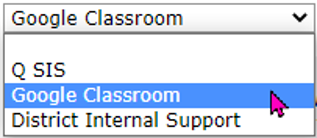
Student Password Authority
Student passwords can either be generated automatically (Google Classroom) when the user is created, or the password in Q can be used. Passwords must be at least 8 characters and include alphabetic characters, special characters, and numbers. If you use Q passwords, make sure they meet the specifications defined above.
If your district maintains passwords through another mechanism (i.e. Active Directory), set the option to 'District Internal Support'.
If Q Google Manager is creating and maintaining Google Accounts, then set the Password Authority to 'Google Classroom'.
Select where the password will come from when creating the user.
 Student Password Format
If the Student Password Authority is set to 'Google Classroom', you need to define the password format. Each Student Password must be unique. You can define the format of the password using the elements listed above the text area. Click on an element to insert it into the text box. You may also type in the elements to use, separated by a period, dash, or underscore if desired. No spaces.
Example: {FirstName}.{LastName}_{Ident}
Student MUST Reset Password on Login
The user can be required to change their password when they first log in.
If the password authority is Q, you may not want the user to change the password.
If the password authority is Google, you might want the user to change the password from the password that was auto generated.
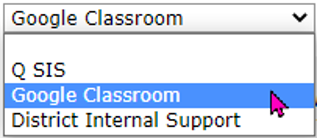
Teacher Password Authority
 Teacher passwords can either be generated automatically (Google Classroom) when the user is created, or the password in Q can be used. Passwords must be at least 8 characters and include alphabetic characters, special characters, and numbers. If you use Q passwords, make sure they meet the specifications defined above.
If your district maintains passwords through another mechanism (i.e. Active Directory), set the option to District Internal Support.
Select where the password will come from when creating the user.
 Teacher Password Format
If the Teacher Password Authority is set to Google Classroom, you need to define the password format. Each Teacher Password must be unique. You can define the format of the password using the elements listed above the text area. Click on an element to insert it into the text box. You may also type in the elements to use, separated by a period, dash, or underscore if desired. No spaces.
Example: {FirstName}.{LastName}_{Ident}
Teacher MUST Reset Password on Login
The user can be required to change their password when they first log in.
If the password authority is Q, you may not want the user to change the password.
If the password authority is Google, you might want the user to change the password from the password that was auto generated.
Student Organizational Unit
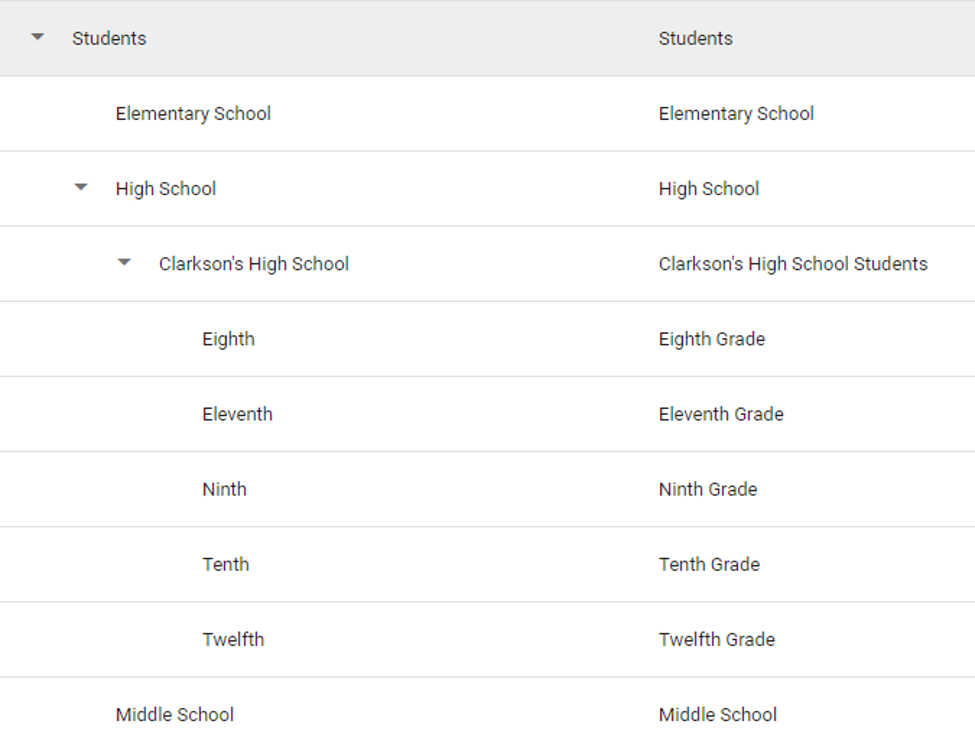
 When a student account is created, the student will be placed in the Student Organizational Unit defined by the template entered in this field. Each Student Organizational Unit must be pre-created in the Google Admin Console for each possible combination the template defines, BEFORE you try and create Users. You can define the Organizational Unit template using the elements listed above the text area. Start the template with a forward slash (/). You can also define a subtree (i.e. /Students). Enter the data elements to use, separated by a period, dash, or underscore if desired. Be careful with spaces.
Example: /Students/{school_type}/{school_name}/{grade_desc}
The Organizational Tree for this template might look like the following.
Withdrawn Student Organizational Unit
 This option is ONLY available if you allow Google Manager to manage your Student Accounts! If a student is Withdrawn when Enable Synching Q Students with Google Users (Create and Update) is checked, the student will be moved to this Organizational Unit if Allow Student's Org Unit to be Updated is checked. Leave the Withdrawn Student Organizational Unit field blank to disable this option!
Teacher Organizational Unit
 When a teacher account is created, the teacher will be placed in the Teacher Organizational Unit defined by the template entered in this field. Each Teacher Organizational Unit must be pre-created in the Google Admin Console for each possible combination the template defines, BEFORE you try and create Users. You can define the Organizational Unit template using the elements listed above the text area. Start the template with a forward slash (/). You can also define a subtree (i.e. /Staff, /Teachers). Enter the data elements to use, separated by a period, dash, or underscore if desired. Be careful with spaces.
Example: /Staff/{school_type}
Add Teachers to Classroom Teachers Group
 When checked, teachers will automatically be added to the Classroom Teacher Group you define below. Teachers must be added to this group before they can invite guardians into their class.
Classroom Teacher Group Email
This is the group email for classroom teachers. When the above item is checked, teachers will be added to this group when the teacher account is created in Google.
This completes the required setup in Q to configure Google Manager.
Sync Setup Tab
Once you have completed the Google and Q setup, you can configure the options Q will use to synchronize Google and Q.
Click on Sync Setup in the left menu bar.
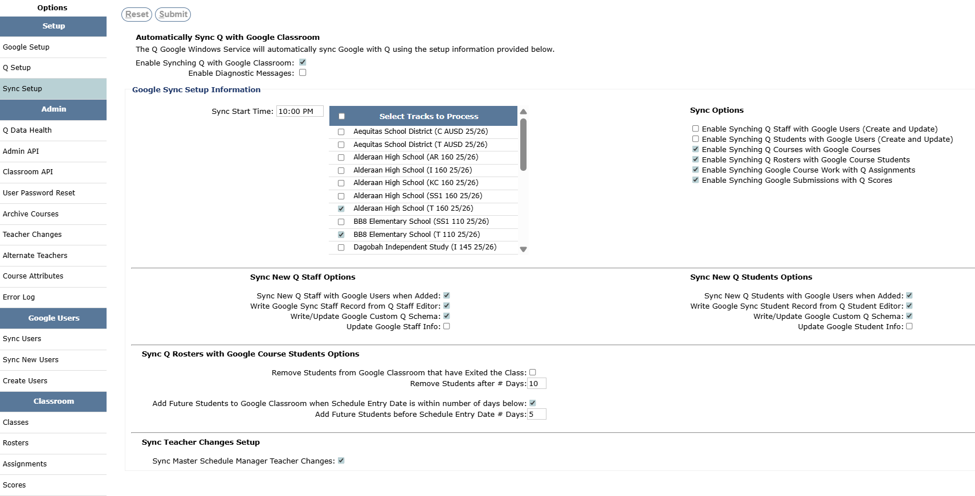 The sync options configured here will be used to sync Q with Google. There are several processes that will use these options to determine how to sync data.
The processes using these options include:
- Sync Existing Google Users
- Create/Sync Google Users from Q
- Create/Sync Google Classroom Data from Q
- Sync New Users in Google Manager
- Teacher Changes in Google Manager
- Sync Q and Google with Q Google Windows Service
Each of the options on this view must be carefully configured so Q and Google can synchronize data properly and efficiently based on your unique district needs.
Automatically Sync Q with Google Classroom
Enable Synching Q with Google Classroom
To turn on synching, make sure this checkbox is checked.
Enable Diagnostic Messages
Turn ON this option to have all Google sync operations log extra diagnostic messages to the Google Error Log. Those entries will all be labeled with TRACE. Make sure you turn this option OFF for general production use as it will consume extra resources and write a large amount of data.
Google Sync Setup Information
Sync Start Time
If you are using the Q Google Windows service, you must specify the time you want the service to synchronize data between Q and Google. This typically will be a time at night when other district application processes are complete, and there is sufficient time to process the sync before the users arrive the next day. Example: 10:00 PM
Note: The Google Windows Service runs nightly for the current date. Therefore, you should not start the Windows Service until the first day of school. Before school starts, the Windows Service will not synchronize Students, Courses or Rosters. Use the Google Manager options to perform synchronization prior to the start of school.
Select the Tracks to Process
Each of the tracks you select will be synchronized by the nightly windows service. (This selection of Tracks is only used by the Q Google Windows Service).
Sync Options
The Sync Options apply to the Q Google Windows Service and the Google Manager options listed under Google Users and Classroom.
 Note: The next 2 Sync Options should only be checked if you want Q to create Google User Accounts! If the District manages Google Accounts itself or through another 3rd party tool, do not check the next 2 options.
Enable Synching Q Staff with Google Users (Create and Update)
If you want to have Q manage the creation of Google users for Q staff, check this option. If your district manages Google users for Q staff with another process, uncheck this option.
Enable Synching Q Students with Google Users (Create and Update)
If you want to have Q manage the creation of Google users for Q students, check this option. If your district manages Google users for Q students with another process, uncheck this option.
Note: The next 4 Sync Options will be used by the Q Google Windows Service and Google Manager processing. For these 4 options, Q Teachers and Students must be linked to existing Google User accounts.
Enable Synching Q Courses with Google Courses — Recommended: ON
If you want to have Q create Google Courses for Q teacher sections, check this option. Q Teachers must be synched to Google User accounts.
Warning: Make sure teachers do not pre-create Google Classrooms before you create new classes for an upcoming term with the Google Manager!
- If teachers have pre-created Google Classrooms, this process will create new Google Classrooms that will potentially be duplicates of a classroom the teacher has pre-created.
- Only classes that are created by Google Classroom will be linked to the Q Grade Book.
- Note: If your district manages Google Courses with another process or teachers have created their own courses, un-check this option.
- In this case, teachers will have to manually link existing Google Courses to their Q sections in the Q Gradebook if they want to synchronize assignments and scores from Google to Q.
- If other 3rd party apps have created an alias for a Google Classroom, it will conflict with aliases that the Q Google Manager needs to create. If there are existing aliases, they can be removed (un-linked) in the Google Manager Classroom API for a given teacher.
Enable Synching Q Rosters with Google Course Students — Recommended: ON
If you want to have Q create Google Rosters for Q sections, check this option. Students will be added to Google Course Rosters based on their schedule entry/exit dates in the Q Student Schedules (stusched) table.
Rosters will be created for Teachers and Classes that have been linked between Q and Google Classroom.
If teachers will add students manually to courses, uncheck this option.
Note: Students must have existing Google User Accounts, and they must be synchronized with Q before trying to create Rosters for Google Classroom.
Enable Synching Google Course Work with Q Assignments — Recommended: ON
If you want to have Google Course Work automatically synchronized with Q Assignments, check this option. Course Work will only be imported for Google Courses that have been linked to Q sections.
Note: Teachers can opt-out of automatic synchronization with a preference in the Gradebook. (see image below)
If all teachers are required to manually synchronize assignments in the Gradebook, uncheck this option.
Enable Synching Google Submissions with Q Scores — Recommended: ON
If you want to have Google Student Submissions automatically synchronized with Q Scores, check this option.
Note: Teachers can opt-out of automatic synchronization with a preference in the Gradebook. (see image below)
If all teachers are required to manually synchronize scores in the Gradebook, uncheck this option.
The Grade Book preference to opt-out of the automatic synchronization of Assignments and Scores looks like the following: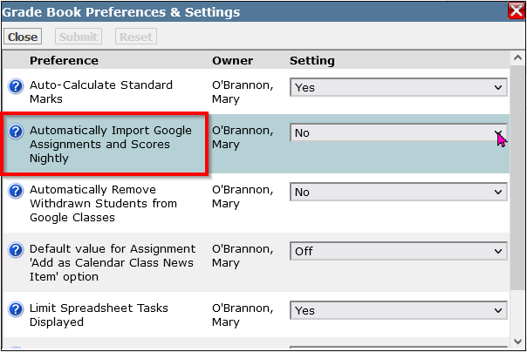
Sync New Q Staff and New Q Student Options Setup
These options apply to synchronizing Staff and Students that are newly added to Q. This process will attempt to synchronize a new teacher or new student when they have a record inserted in the QGoogleSyncQueue table. When a record exists with the processed column value set to zero, it will be processed. Once processed, the processed column value will be set to 1. The following options will set up Q to create the QGoogleSyncQueue entries.
Sync New Staff Options
Sync New Q Staff with Google Users when Added — Recommended: ON
If you want to have the Q Google Windows service automatically synchronize staff records in the QGoogleSyncQueue table, check this option.
Note: When a record exists in this table, the Q Google Windows Service will automatically synchronize the new user with Google. This synchronization occurs every 5 minutes.
If your district does not want to automatically synchronize new Q staff, un-check this option.
Note: You can still manually synchronize new staff with the Google Manager Sync New Users process for records in the QGoogleSyncQueue table.
Write Google Sync Staff Record from Q Staff Editor — Recommended: ON
If you want Q to write a synchronization record to the QGoogleSyncQueue table from the Q Staff Editor when new staff are added, check this option.
You can uncheck this option, however, if your district wants to have new staff automatically synched, the district will have to manually create this record.
If you turn this option ON, the Q Staff Editor will write the sync record to the QGoogleSyncQueue table.
The Q Google Windows service and/or the Sync New User process will attempt to synchronize new users with Google.
The sync will fail if the Google User does not exist, or the email address does not exist, but the record will remain in the table, so the sync process will be tried again, until it succeeds.
Note: The district will be responsible for writing a record to the QGoogleSyncQueue table with the processed column value set to zero if this option is un-checked, and you want to automatically synchronize new staff.
Write/Update Google Custom Q Staff Schema — Recommended: ON
If you want to have Q create/update the custom Aequitas Schema in Google, check this option.
If your district does not want to use this option, uncheck this option.
Note: In almost every integration, your district will want to turn this option ON. If you do not turn this option on, your district will have to update the Q Custom Schema information to link Google Users with Q Users.
Update Google Staff Info — Recommended: OFF if district maintains Google Staff Accounts
If you want to have Q update User information in Google for Q staff when a synchronization occurs, check this option.
If you DO NOT want Q to update user information for Q staff because your district maintains the information, uncheck this option.
Sync New Students Options
Sync New Q Students with Google Users when Added — Recommended: ON
If you want to have the Q Google Windows service automatically synchronize student records in the QGoogleSyncQueue table, check this option.
Note: When a record exists in this table, the Q Google Windows Service will automatically synchronize the new user with Google. This synchronization occurs every 5 minutes.
If your district does not want to automatically synchronize new Q students, un-check this option.
Note: You can still manually synchronize new students with the Google Manager Sync New Users process for records in the QGoogleSyncQueue table.
Write Google Sync Students Record from Q Staff Editor — Recommended: ON
If you want Q to write a synchronization record to the QGoogleSyncQueue table from the Q Student Editor when new students are added, check this option.
You can un-check this option, however, if your district wants to have new students automatically synched, the district will have to manually create this record.
If you turn this option ON, the Q Student Editor will write the sync record to the QGoogleSyncQueue table.
The Q Google Windows service and/or the Sync New User process will attempt to synchronize new users with Google.
The sync will fail if the Google User does not exist, or the email address does not exist, but the record will remain in the table, so the sync process will be tried again, until it succeeds.
Note: The district will be responsible for writing a record to the QGoogleSyncQueue table with the processed column value set to zero if this option is un-checked, and you want to automatically synchronize new students.
Write/Update Google Custom Q Student Schema — Recommended: ON
If you want to have Q create/update the custom Aequitas Schema in Google, check this option.
If your district does not want to use this option, uncheck this option.
Note: In almost every integration, your district will want to turn this option ON. If you do not turn this option on, your district will have to update the Q Custom Schema information to link Google Users with Q Users.
Update Google Student Info — Recommended: OFF if district maintains Google Student Accounts
If you want to have Q update User information in Google for Q students when a synchronization occurs, check this option.
If you DO NOT want Q to update user information for Q students because your district maintains the information, uncheck this option.
Sync Q Rosters with Google Course Students Options
Remove Students from Google Classroom that have Exited the Class — Recommended: OFF
Turn this option ON if you want students that have withdrawn from a class section in Q to be automatically removed from the linked Google Classroom roster when Roster synchronization is run.
The next option allows you to specify the number of days after the exit to wait before removing the student from Google Classroom.
Note: If you set this option ON, teachers must set the corresponding Grade Book preference to Yes to opt-in to this process. (see image below)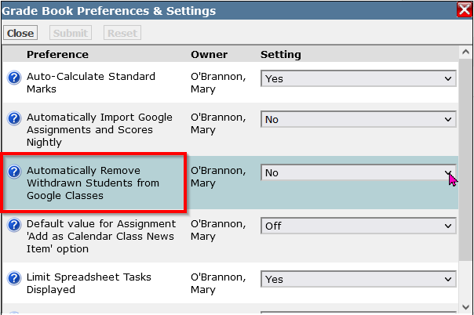
Remove Students after # Days — Recommended: 10 or more if above option is ON
If the Remove Students from Google Classroom is ON, make sure you set the # Days to wait based on clear communication with teachers!
When a student is removed from Google Classroom, ALL Assignment and Score information in Google will be deleted and cannot be recovered!
Teachers can always manually remove students from their Google Classroom roster.
Teachers must ensure all Assignments and Scores have been imported into the Q Grade Book prior to removal.
Add Future Students to Google Classroom when Schedule Entry Date is within number of days below
Turn this option ON if teachers do not want students to show in their Google Classes until a few days before their entry date into the class (i.e. students scheduled into class for next term.)
The next option allows you to specify the number of days in advance to use.
Add Future Students before Schedule Entry Date # Days
Set the number of days prior to the Schedule Entry date to include students in the roster.
Sync Teacher Changes Setup
Sync Master Schedule Manager Teacher Changes
Turn this option ON if you want the Q Master Schedule Manager to write a record to the QGoogleSyncQueue table when the teacher of record for a section is changed.
These teacher changes can be processed on the Teacher Changes tab in Google Manager.
Note: The Sync Teacher Changes Automatically option is not active currently.
Configuration Complete
After configuration is complete, you can proceed to the Google Manager Tab options below.
The functions available in Google Manager include the following:
Admin Section
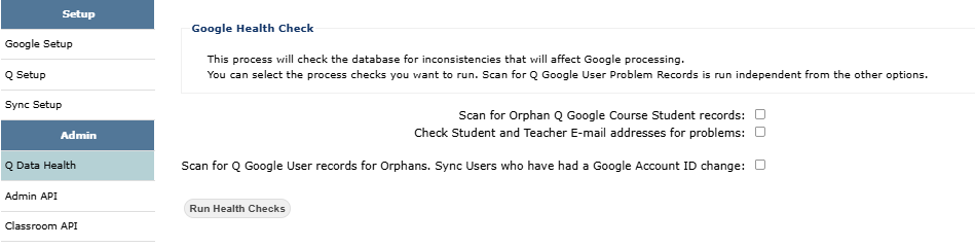
Q Data Health Tab
Verify data in Q before trying to synchronize information. Currently supports checks for:
- Orphan Q Google Course Student records
- Check Student and Teacher email address for problems
- Scan for Q Google User records for Orphans. Sync Users who have had a Google Account ID change. This option is run independently from other options.
Admin API Tab
Provides an interface in Q to access and run Google Admin API methods.
Select the Google Admin method: Google Teacher, Google Student, or Org Unit.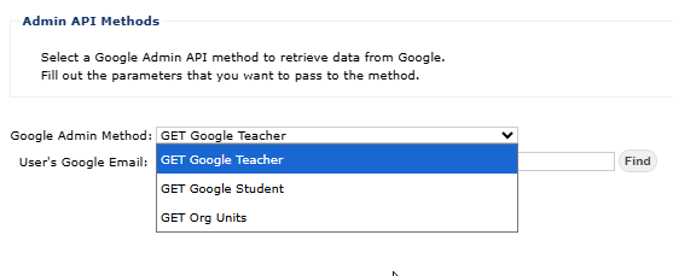
If selecting Teacher or Student method, use the Find dialog to locate and select the specific person.
Once selected, and their Google email appears, click Process.
The resulting data provides guiding information to resolve mismatches.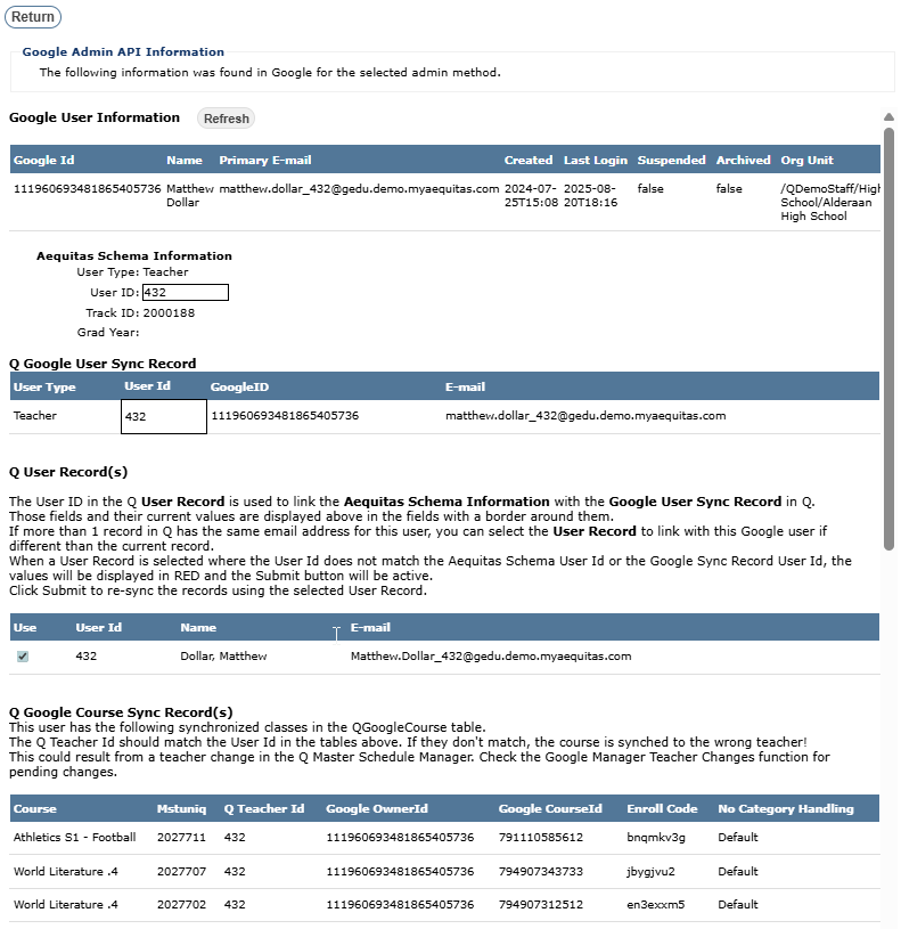
Classroom API Tab
Provides an interface in Q to access and run Google Classroom API methods.
Select from the Method options and use the Find dialog to find the desired classes.

Click Process and review the results. Click Return to close and search again.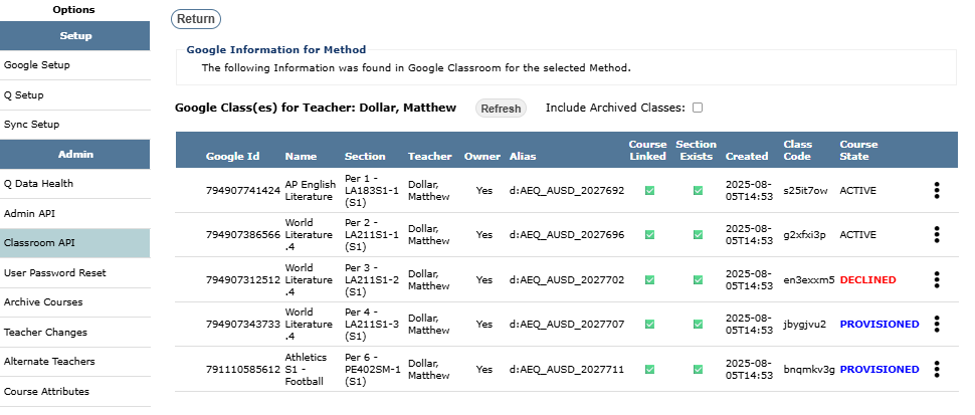
User Password Reset Tab
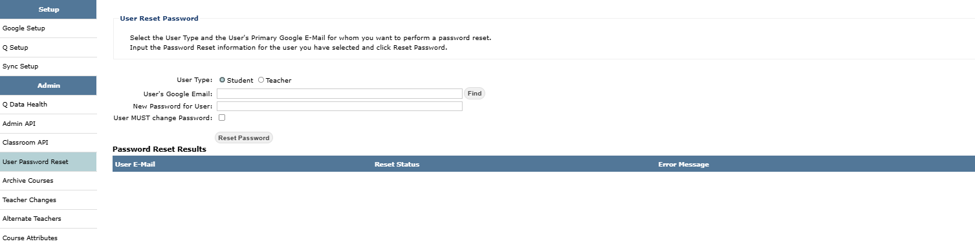
Provides an interface to reset student or staff passwords.
Select the User Type and the User's Primary Google E-Mail for whom you want to perform a password reset. Input the Password Reset information for the user you have selected and click Reset Password.
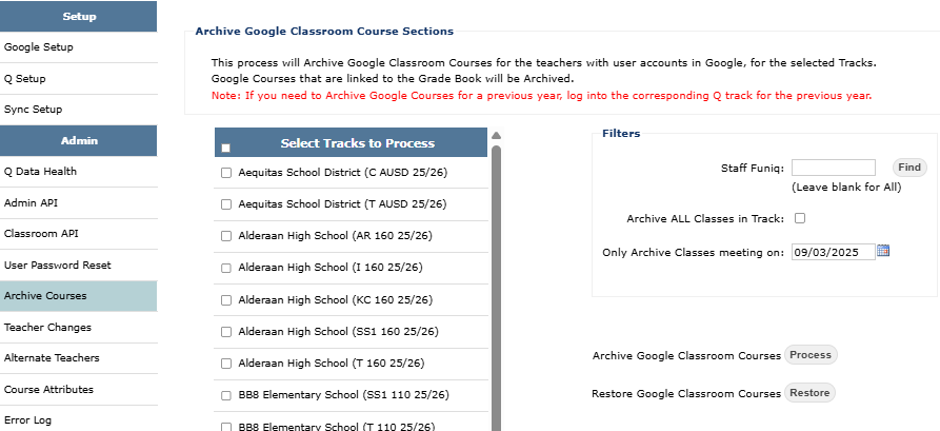
 Archive Courses Tab
Provides the capability to archive teacher Google Classes for teachers with user accounts in Google, for selected tracks. Google Courses that are linked to the Grade Book will be Archived.
To archive courses for last year, log into the Q track for that year to proceed.
Select the tracks to process.
Use the filters to:
- Select a specific staff member, if needed, or leave blank for all
- If all classes for the track(s) are to be archived, check 'Archive ALL Classes in Track'
- Or indicate whether to only archive classes meeting on a specific date.
- Click PROCESS to archive selected Google Classes
If necessary, archived classes may be restored using the filters and clicking RESTORE.
 Teacher Changes Tab
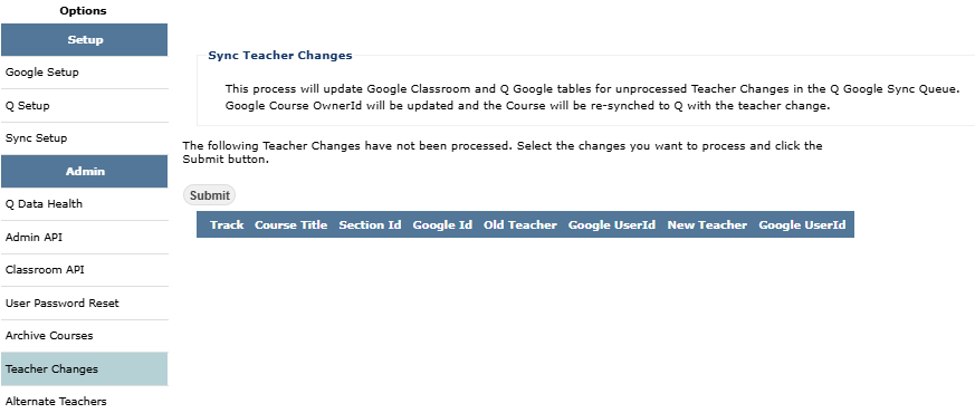
Allows you to process pending Teacher Changes from the QGoogleSyncQueue Table.
Teacher Changes that have not been processed will appear in the list, if any. Select those to process and click Submit.
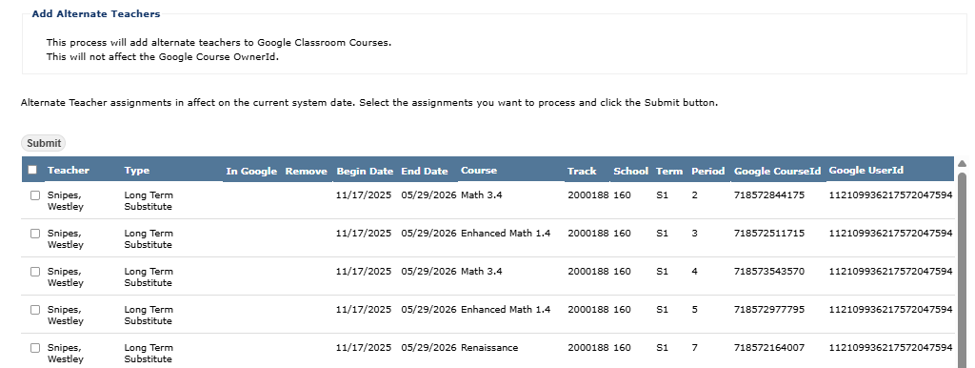
 Alternate Teachers Tab
This process will add selected Alternate Teachers to Google Classroom Courses. Alternate Teachers shown in the list will be those in effect on the system date. Select the assignments to process and click Submit.
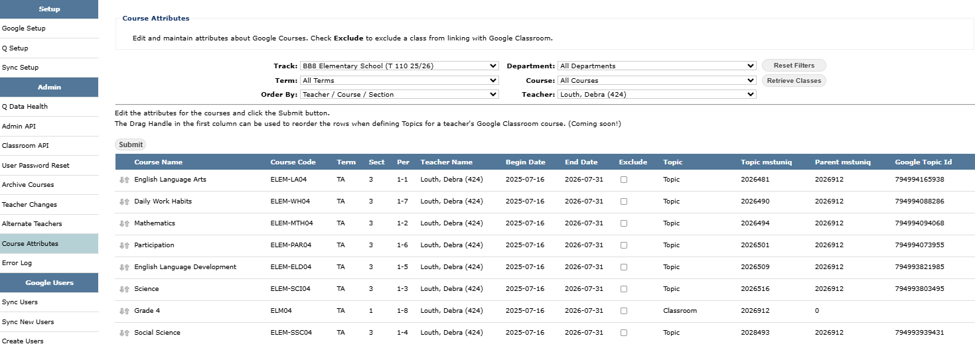
 Course Attributes Tab
Allows you to specify additional information about a section that will affect sync processing.
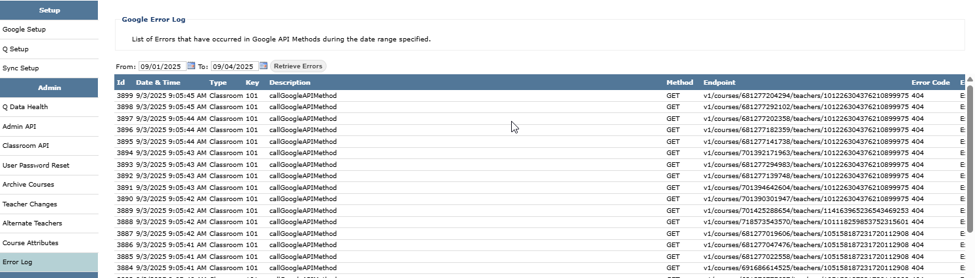
 Error Log Tab
View the QGoogleErrorLog table entries for a date range.
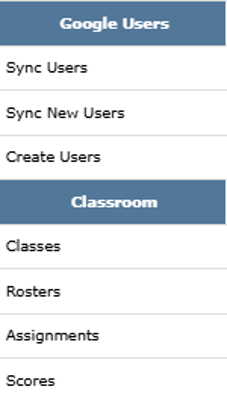
Google Users Section
Sync Users Tab
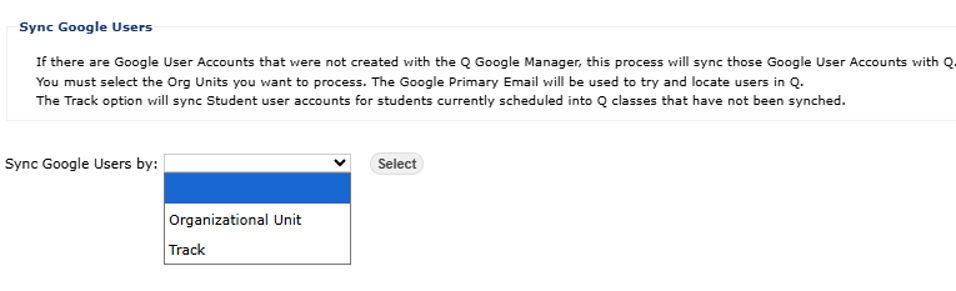
Provides a method to synchronize existing Google Users with Q.
If there are Google User Accounts that were not created with the Q Google Manager, this process will sync those Google User Accounts with Q.
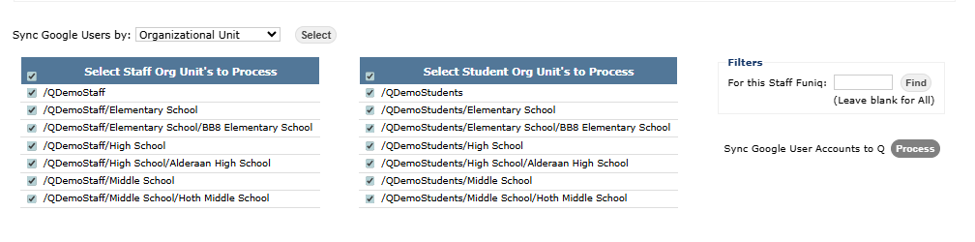
You must select the Org Units you want to process. The Google Primary Email will be used to try and locate users in Q.
The Track option will sync Student user accounts for students currently scheduled into Q classes that have not been synched.
 At the beginning of the school year, select Organizational Unit to run the process for Staff and Students.
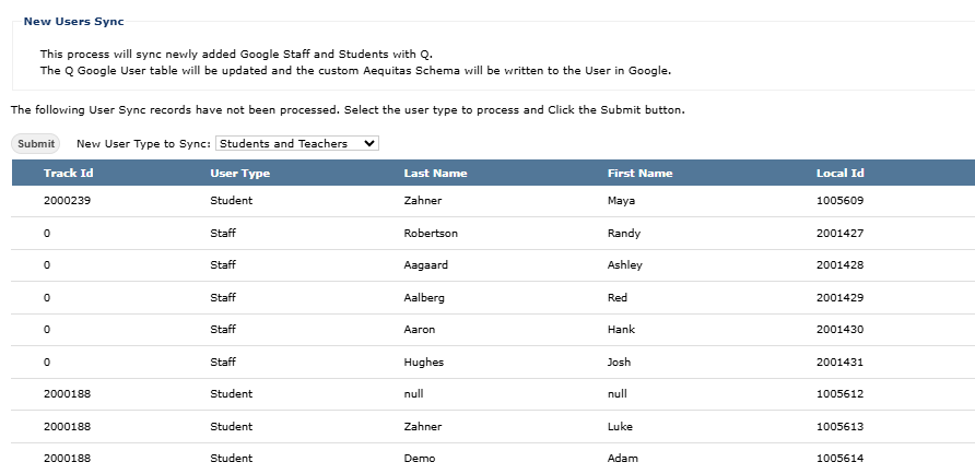
 Sync New Users Tab
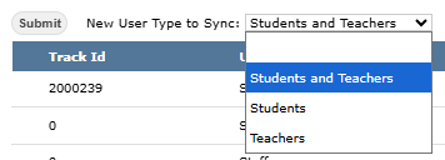
This process will sync newly added Google Staff and Students with Q.
The Q Google User table will be updated, and the custom Aequitas Schema will be written to the User in Google.
Unprocessed records will appear, if any.
Select the New User Type to sync (Students and Teachers, Students, Teachers) and click Submit to process.
Create Users Tab
This process will create new Google User Accounts for the selected User Type, and Tracks.
If a user exists in Google, they will be skipped. If a user in Q was previously processed and an error occurred, subsequent executions of this process will process the user again, after the error condition is corrected.
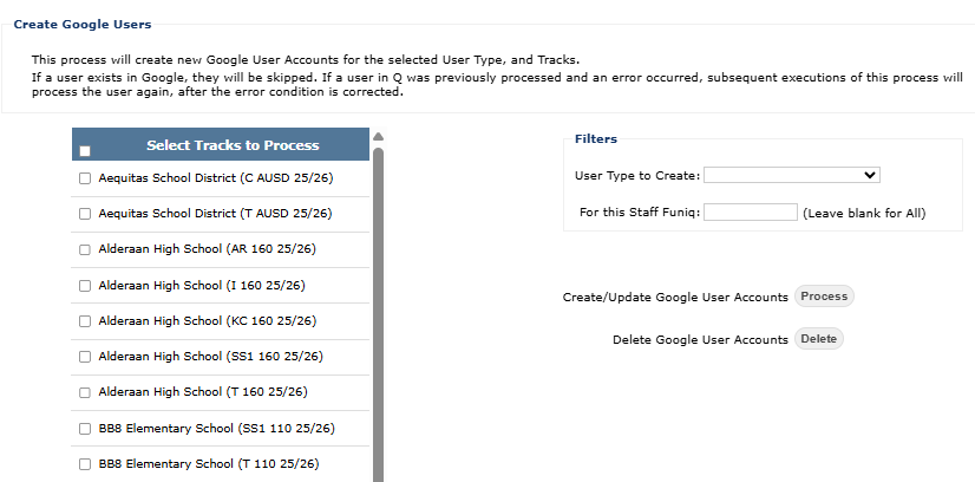 Select Tracks to process.
Use the Filters to specify the User Type to create (Students and Teachers, Students, or Teachers)
For this Staff funiq — When creating Staff enter the faculty identifier or leave blank for all faculty.
To create accounts:
- Create / Update Google User Accounts — click 'Process'
To delete selected accounts:
- Delete Google User Accounts — click 'Delete'
Classroom Section
Classes Tab
This process will create new Google Classroom Course Sections for each Q teacher that is synched to Google.
Any Course Sections that exist in Google will be updated.
NOTES:
This process is used at the beginning of term(s) to create Google Classes.
Creating classes relies on track calendar event dates. Since Google Manager is primarily used from the District Track, ensure that the setup of the track calendar for the district track is complete, including calendar events.
When creating classes for a term, be aware that the 'Classes meeting on' date will default to the system date. Be sure to change it to a date when classes for the desired term are meeting.
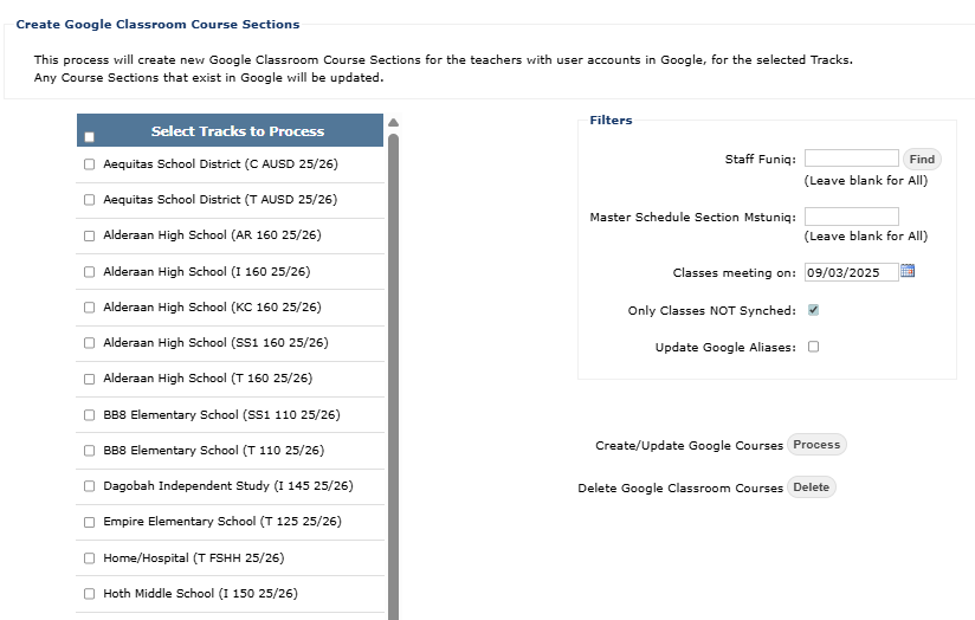 Select tracks and use the filters to select desired class sections.
NOTE: Staff Funiq and Master Schedule Section Mstuniq are displayed in Q Google Course Sync Records of Admin API when querying a teacher's records.
With filter settings selected, and selected tracks to process checked, click:
- 'Process' to Create / Update Google Courses
- Or, 'Delete' to Delete Google Classroom Courses.
Rosters Tab
This process will create Student Rosters in Google Classroom for teachers with user accounts in Google, for the selected Tracks.
Students enrolled in Q sections will be added to Google Classroom Rosters if the student has a user account in Google.
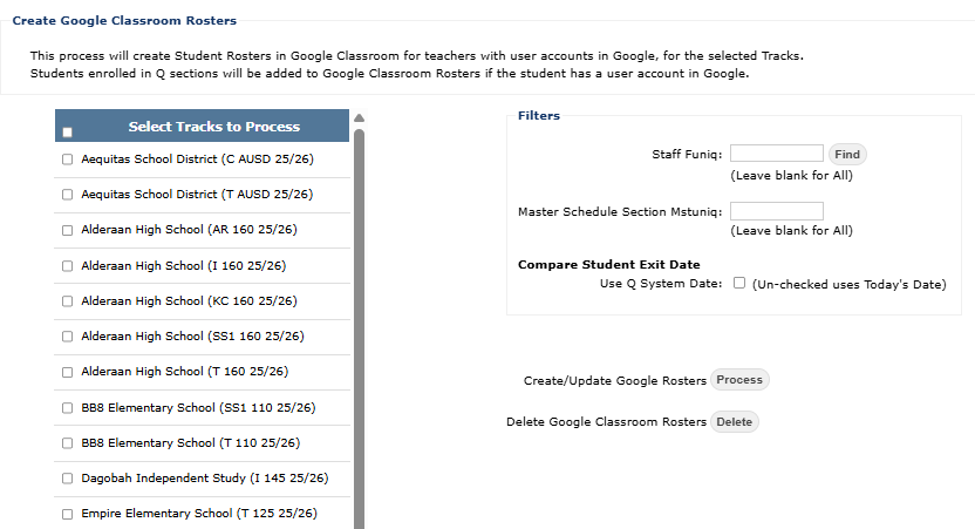 Select tracks and use the filters to select desired class sections.
NOTE: Staff Funiq and Master Schedule Section Mstuniq are displayed in Q Google Course Sync Records of Admin API when querying a teacher's records.
Compare Student Exit Date:
- Use Q System Date: Leaving unchecked will cause the process to use Today's date.
NOTE: This process defaults to using 'Today's Date'. When running prior to the start of school, check option to use System Date since students will not show as enrolled prior to the start of term.
With filter settings selected, and selected tracks to process checked, click:
- 'Process' to Create / Update Google Rosters
- Or, 'Delete' to Delete Google Classroom Rosters.
Assignments Tab
This process will import Coursework created in Google Classroom into Q for teachers with valid Google User Accounts, and Courses and Rosters defined for the classes they teach.
The process will run for each Google Teacher that is synched to Q, unless the teacher has set their preference to opt-out of nightly-processing in the Q Gradebook.
Coursework imported into the Q Gradebook will use the Google Category if defined in Q, otherwise, the teachers default Category.
NOTE: There is an option to 'Override Teacher Nightly Processing Settings'.
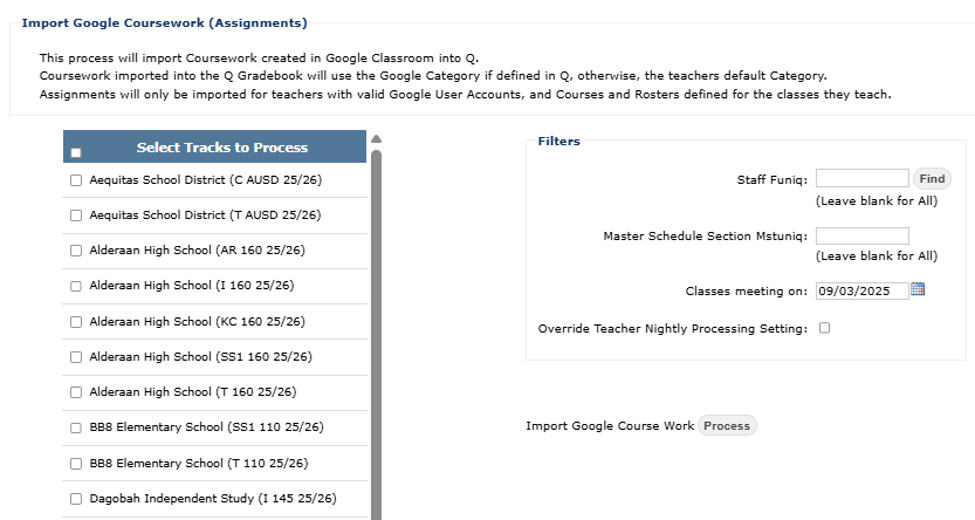 Select tracks and use the filters to select desired class sections.
NOTE: Staff Funiq and Master Schedule Section Mstuniq are displayed in Q Google Course Sync Records of Admin API when querying a teacher's records.
With filter settings selected, and selected tracks to process checked, click 'Process' to Import Google Course Work.
Scores Tab
This process will Import Google Classroom Student Submissions into the Q Gradebook, for each Google Course that is synchronized with Q, for the selected Tracks.
This process will run for each Google Teacher that is synched to Q, unless the teacher has opted-out of Nightly-processing in the Q Gradebook.
If a Gradebook Score exists, it will be updated.
NOTE: There is an option to 'Override Teacher Nightly Processing Settings'.
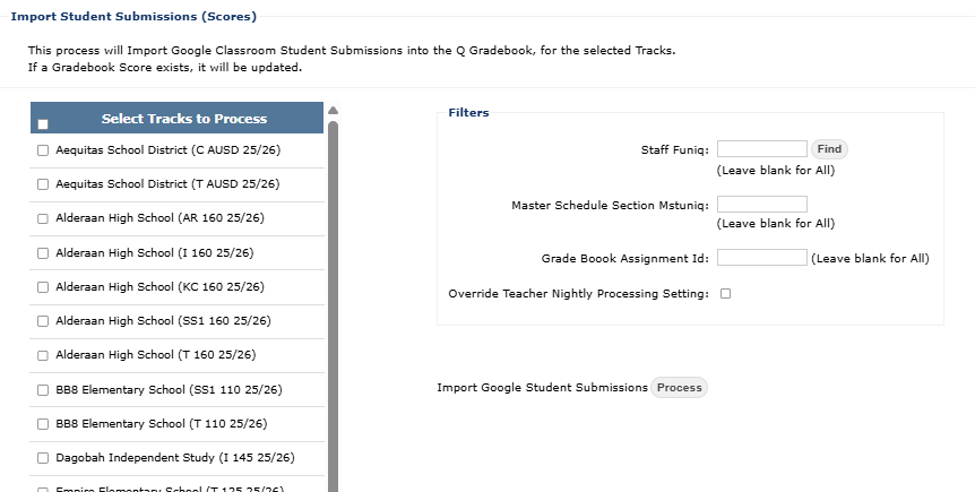 Select tracks and use the filters to select desired class sections.
NOTE: Staff Funiq and Master Schedule Section Mstuniq are displayed in Q Google Course Sync Records of Admin API when querying a teacher's records.
With filter settings selected, and selected tracks to process checked, click 'Process' to Import Google Student Submissions.
