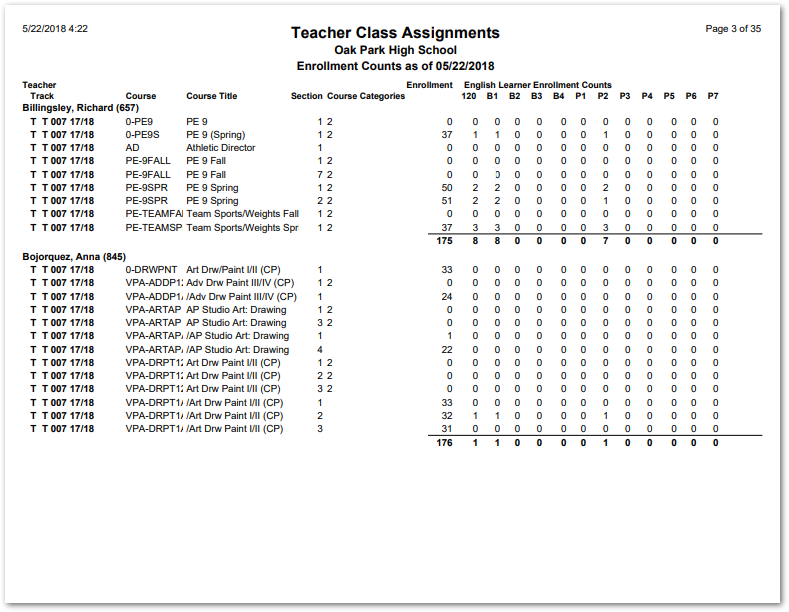
The Teacher Class Assignment Report is similar to the Master Schedule Report in that it retrieves data from the Master Schedule. However, it presents the data differently and offers some extra features not found in the Master Schedule Report.
For example, this report sorts the data in a fixed format, using the Teacher Last Name as the primary sort field. The classes assigned to each teacher are displayed as a subset under each teacher record retrieved. The 'Select' tab is disabled, so the user cannot change the primary sort field nor customize the sort order of the other data elements, all of which make for a more streamlined operation. The Track, Course ID Number, Course Title, Section number, and Course Categories are listed for each class reported. An enrollment count for each class can be reported for a designated effective date. At this level, the simple format of the report provides a general-purpose tool for auditing the Master Schedule.
Additional features, when selected, make this report very useful for auditing the English Learner (EL) program, if in use by the district. It can serve as a way of quickly determining which teachers have EL students in their classes on the effective date and what the breakdown of those EL enrollments is by Program Code, Instructional Setting Code, and/or Placement Code. The report is set up with an option to export data to a file for the purposes of electronic data transfer or archiving, which is useful for districts using the English Learner program.
While details specific to this report will follow, users can find general information about reports within the Reports documentation.
Teacher Class Assignments Report is located within Reports in the Schedule menu in Q.
The Q Teacher Class Assignments report offers the following options:
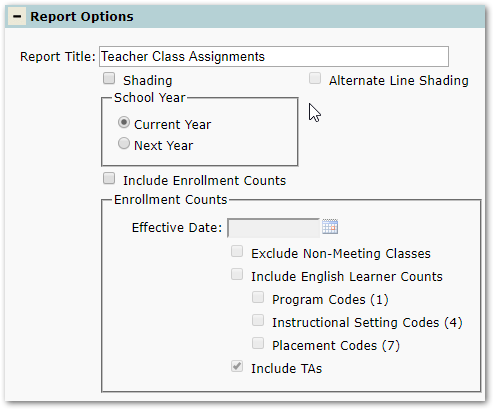
- Report Title—The default title of the report is Teacher Class Assignments but may be edited by the user
- Shading—Select to include shading on the report
- Alternate Line Shading—Check box to enable shading on alternate rows
- Current Year—Select to include teacher assignments from the current year Master Schedule
- Next Year—Select to include teacher assignments from next year’s Master Schedule
- Include Enrollment Counts—Select to include an enrollment count for each section
- Effective Date—Enter a date for enrollment counts
- Exclude Non-Meeting Classes—Select to exclude classes that do not meet
- Include English Learner Counts—Select to enable English Learner report options
- Program Codes—Select to include a count of students’ EL Program Codes
- Instructional Setting Codes—Select to include a count of students’ EL Instructional Setting Codes
- Placement Codes—Select to include a count of students’ EL Placement Codes
- Include TAs—Select to include TAs in the report counts
Note: Reports may look different depending on options, selections, and sorting.
Sample Teacher Class Assignments report