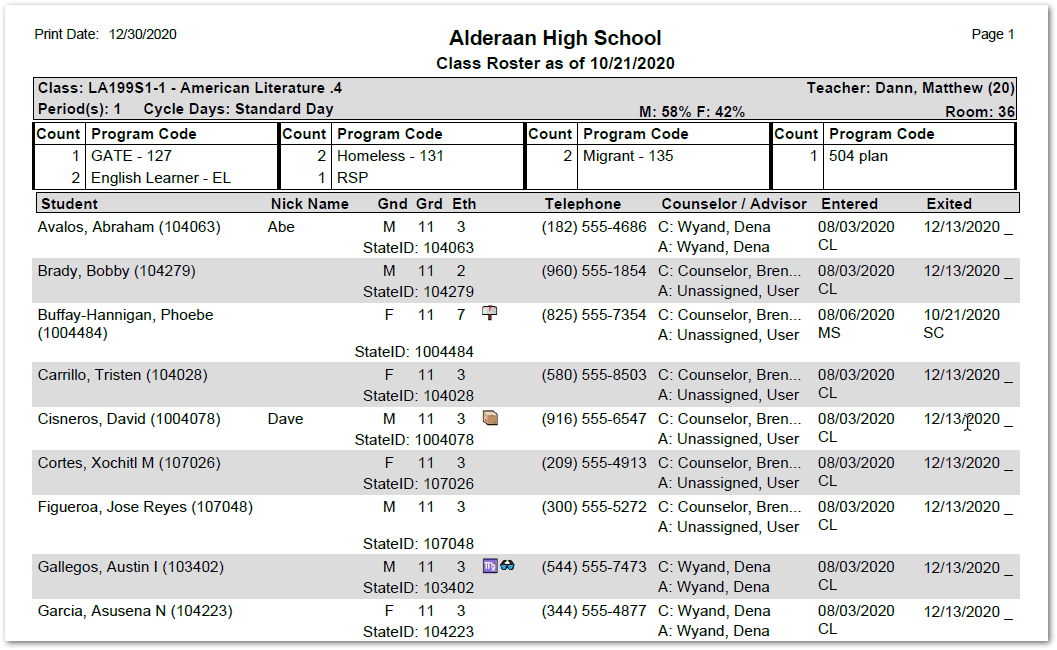
The Class Roster Report produces class rosters with selectable options to include exited students, phone numbers, ethnic codes, class entry and exit dates, entry and exit codes, student counselors and student advisors. The report also offers the user multiple class selection and sort options
While details specific to this report will follow, users can find general information about reports within the Reports documentation.
Class Roster Report is located within Reports in the Schedule menu in Q.
The Class Roster Reports includes the following options:
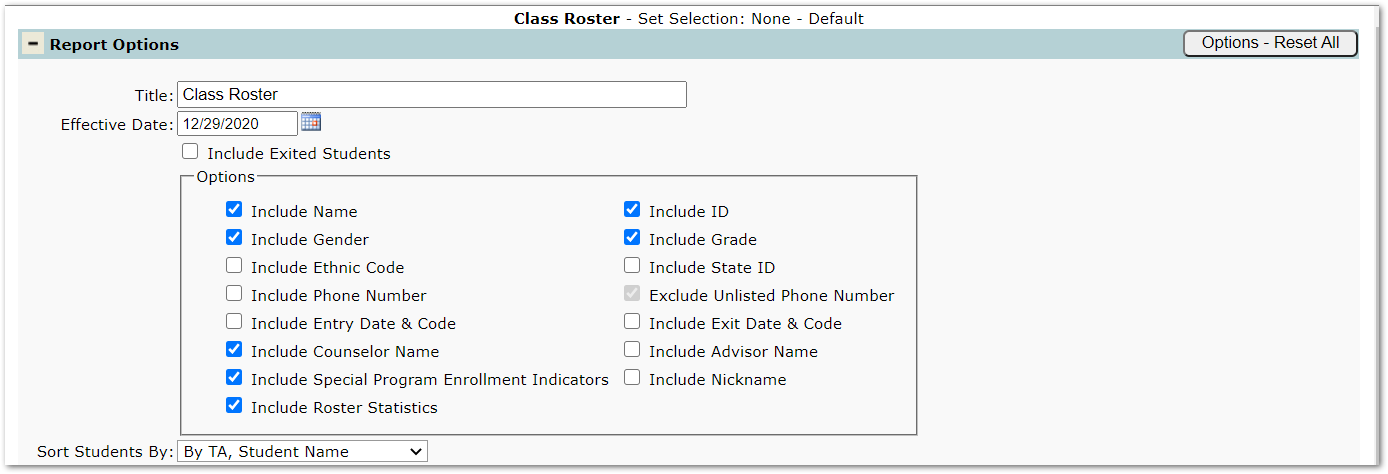
- Title – The default report title is Class Roster but may be edited by the user.
- Effective Date – The date defaults to the system date but may be adjusted by typing in the desired date, using date short cuts or the pop-up calendar.
- Included Exited Students – Check to return students who are no longer in the class.
- Include Name – Check to print student name on report (report may be printed with ID only).
- Include ID – Check to print student’s ID.
- Include Gender – Check to print student’s gender.
- Include Grade – Check to print student’s grade.
- Include Ethnic Code – Check to print student’s ethnic code.
- Include State ID – Check to print student’s State ID.
- Include Phone Number – Check to include student’s phone number.
- Exclude Unlisted Phone Number – When phone number is checked, option to exclude numbers marked as unlisted is available.
- Include Entry Date & Code –Check to print the student’s class entry date and code:
- CL – Computer Loaded
- CW -- Computer Walk-In Scheduler
- MS – Manually Scheduled
- PS – Pre-Scheduled.
- Include Exit Date & Code – Check to print the student’s class exit date and code (codes may be customized by district, and may not include all samples below):
- CD – Computer Dropped
- D – Drop Out
- S – Suspended
- SC – Schedule Change
- W – Withdrawn
- X – Transferred Out.
- Include Counselor Name – Check to print student’s counselor name.
- Include Advisor Name – Check to print student’s advisor name.
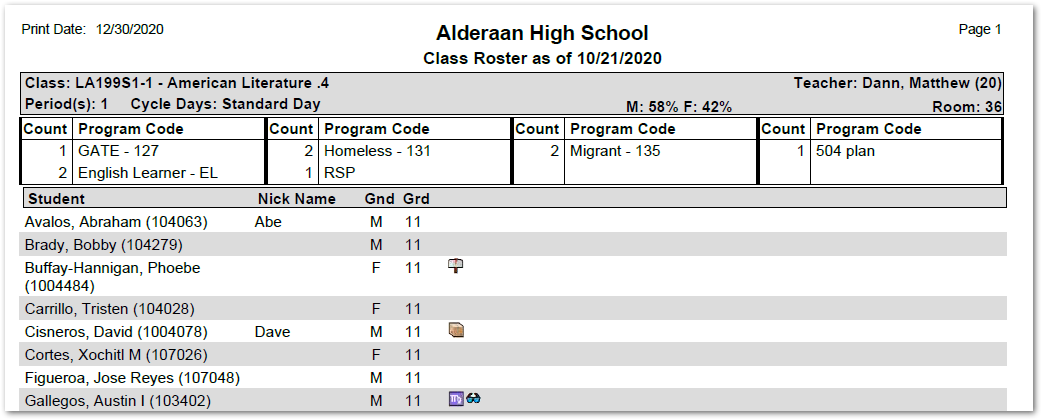
- Include Special Program Enrollment Indicators – Check to print special program indicator next to student name.
- Include Nickname – Check to print student nickname entered by teacher in Class Attendance or Grade Book.
- Include Roster Statistics – Check to print a gender breakdown by percent in the header to the left of Classroom and a count by program below the section information.
- Sort Students by:Select from drop down how students should be sorted on roster list:
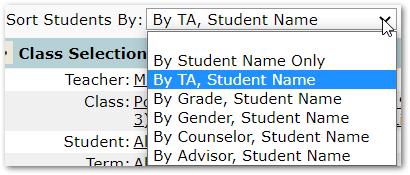
- By TA, Student Name Only
- By Student Name Only
- By Grade, Student Name
- By Gender, Student Name
- By Counselor, Student Name
- By Advisor, Student Name.
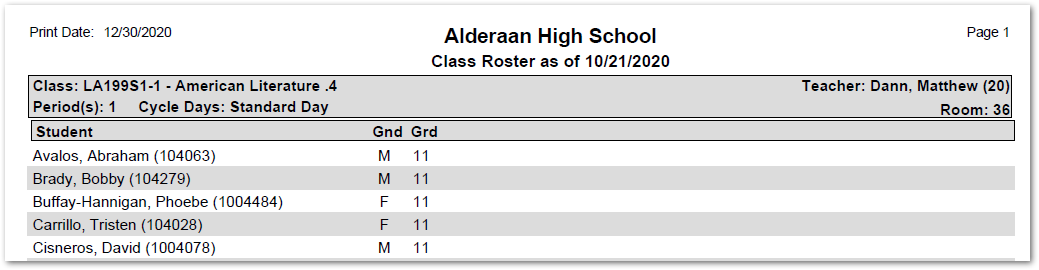
Report run with name, gender, ID, and grade options selected
Report run with name, nickname, gender, grade, special program enrollment indicators and roster statistics.
Report run with all options selected