
The ADA/ADM Audit Report provides attendance calculations for state funding purposes. The required data, Average Daily Attendance (ADA) and Average Daily Membership (ADM), is calculated by comparing the possible attendance days in a reporting period with the actual days attended. Multiple schools and multiple tracks can be reported in one session. Each selected track is processed separately and a report is generated for each. Summary records can be generated without printing the report.
While details specific to this report will follow, users can find general information about reports within the Reports documentation.
ADA/ADM Audit Report is located within Reports in the Attendance menu in Q.
The ADA/ADM Audit Report offers the following options: 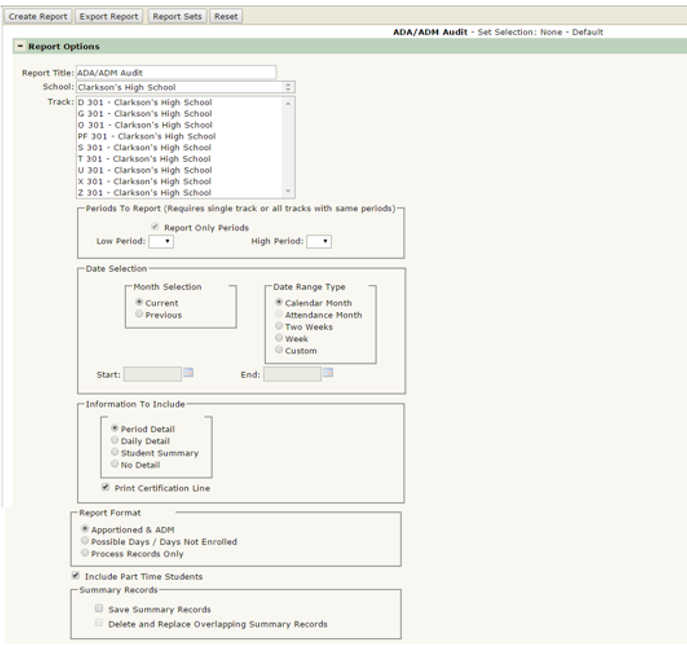
- Report Title – The report title defaults to ‘ADA/ADM Audit’, but this can be edited and a user-defined title can be entered.
- School – If you are logged in to the district, you will have the ability to select a single school or multiple schools from within the district. If you are logged in to a specific site, only that site will appear in the School dropdown.
- Track – Tracks will appear according to the school selected. If multiple schools are selected, all tracks for all schools selected will appear. You can single or multi-select a track to run this report for.
- Periods to Report – In order to use this option, either a single track has to be selected, or if there are multiple tracks selected, they must all have the same periods.
- Date Selection – Select which dates to run the report for. If there are multiple tracks selected, they must have the same attendance months defined in order to run the report by attendance month.
- NOTE: When running the report for a custom date range, if the date range spans more than 34 days, you must select either ‘Student Summary’ or ‘No Detail’ under the ‘Information to Include’ option.
- Information to Include
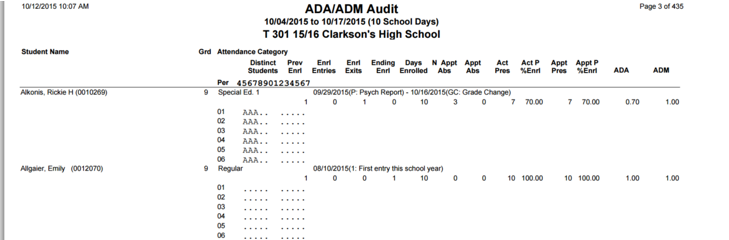
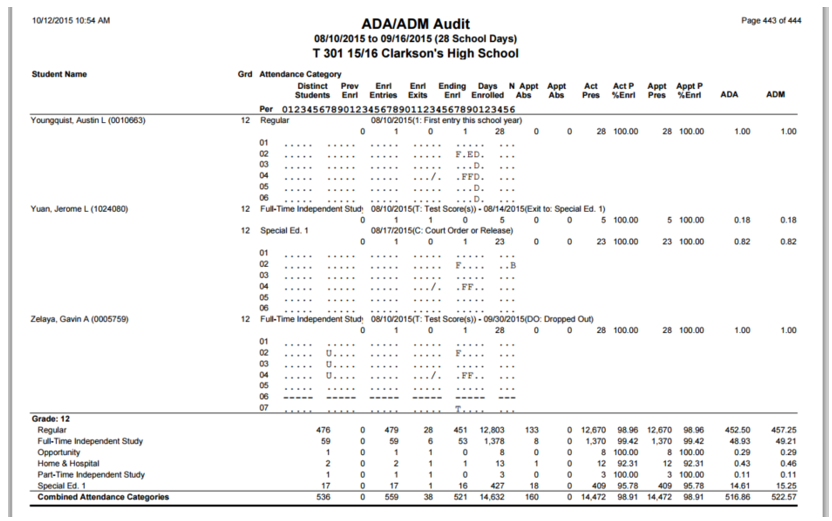
- Period Detail – Provides a list of students with attendance detail information displayed for each class period, with attendance data by attendance category and summary totals.
Example of Period Detail
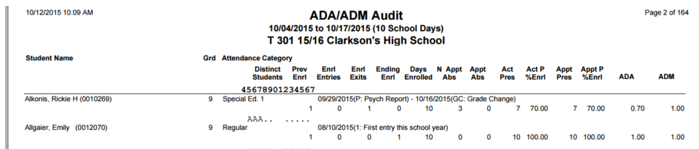
- Daily Detail – When selected, a single line of attendance information is printed for each student.
Example of Daily Detail
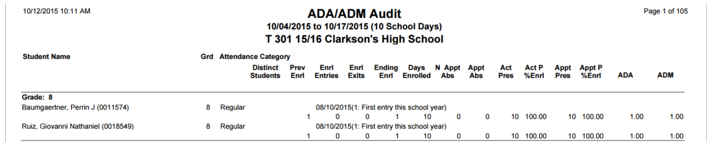
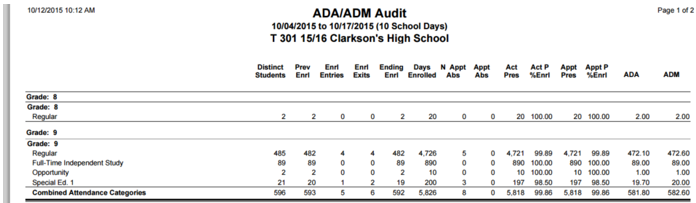
- Student Summary – Shows each student’s ADA attendance data, subtotals by attendance category, and summary totals.
Example of Student Summary
- No Detail – Provides ADA totals for each attendance category as well as a combined total. Note when this option is selected, ‘Name’ cannot be used as the primary sort field in the Sort Options.
Example of No Detail
- Period Detail – Provides a list of students with attendance detail information displayed for each class period, with attendance data by attendance category and summary totals.
- Report Format
- Apportioned & ADM – Includes Appt Abs, Appt Pres, Appt % Enrl and ADM fields.
- Possible Days/Days Not Enrolled – The Appt Abs, Appt Pres, Appt % Enrl and ADM fields are excluded and replaced by Possible Days and Days Not Enrl fields.
- Process Records Only – Use this option if you want to generate summary records only, without a printed report. ‘Save Summary Records’ option must be turned on when selecting Process Records Only.
- Include Part Time Students – Checked on by default. Deselect this to filter out part-time students from the report. A part-time student is a student who has multiple enrollments but the current school in which they are being reported for attendance is not their primary site of multiple sites.
- Summary Records
- Save Summary Records – Select this option to save the summary records each time a report is run in the current session. These summary records are required if you are going to be running the ADA/ADM Aggregate Summary Report to produce aggregate data for multiple tracks and schools.
- Delete and Replace Overlapping Summary Records – Select this option to delete and replace existing summary records when the date selected overlaps dates that have already been saved. When this option is selected, there has been a page added to the end of the report in order to give some feedback in regards to changes made in the ADASUM table, showing which files have been deleted, updated, and created.
Sample ADA/ADM Audit Report
The ADA/ADM Audit Report is a complex report with many details and columns that are abbreviated for space. Shown below is a key to the different elements.
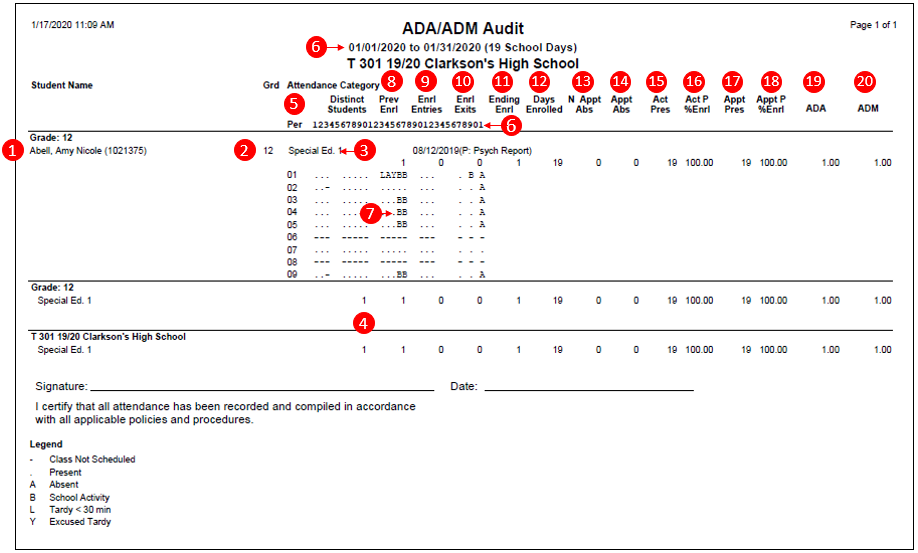
- Student Name – Student’s Full Name and Identification Number.
- Grd (Grade) – Student’s grade.
- Attendance Category – Attendance Category Code assigned to the student.
- Distinct Students – Total number of individuals reported, regardless of the number of records an individual may have due to changes in Attendance Category, Homeroom Teacher, or Grade during the reporting period. The value in this column only appears on the bottom line of a Subtotal or Summary section.
- Per (Period) – The report details each student’s attendance data for each period selected for reporting, for each day in the defined date range. The Period number lines up under this column header.
- Date column headers – The dates in the reporting period are numbered sequentially, to the immediate right of the Per (Period) column header, but because of space limitations only one numerical character can be shown. When there are more than 9 days in a reporting period the column header will show only the last digit in a two-digit date. For example: "1234567890..." represents dates 1 through 10. "1234567890123..." represents dates 1 through 13. "123456789012345678901" represents dates 1 through 21, and so on. The single character attendance codes for each student will appear aligned below these column headers in a detail report.
- Attendance Codes – Each day in the reporting period is marked by an attendance code to signify Absent, Tardy, Present, Unexcused, etc. Hyphens (-) indicate that no class was scheduled for the student on that day. Pound signs (#) indicate the student was not enrolled on that day. See legend on the last page of the report for definitions of all attendance codes used.
- Prev Enrl (Previous Enrollment) – A "1" in this column indicates that the student was enrolled in the current attendance track prior to the current reporting period. A zero (0) indicates the student was not enrolled prior to the current reporting period.
- Enrl Entries (Enrollment Entries) – A "1" in this column indicates that the student enrolled in the current attendance track sometime during the reporting period. A zero (0) indicates the student did not enroll during the reporting period.
- Enrl Exits (Enrollment Exits) – A "1" in this column indicates that the student exited the current attendance track during the reporting period. A zero (0) indicates the student did not exit during the reporting period.
- Ending Enrl (Ending Enrollment) – This value is calculated by adding the value in the Previously enrolled field to the value of the Enrollment Entries field and then subtracting the value of the Enrollment Exits field. In the detail section, this final value will either be a "1" or a zero (0) to indicate whether the student was enrolled on the last day of the reporting period or not. In the grade subtotal and summary sections the value in this field represents the total number of students enrolled on the last day of the reporting period; calculated by adding the number of 1’s in this column.
- Days Enrolled – The number of days the student was enrolled.
- N Appt Abs (Non-Apportionment Absences) – The number of absences that are considered "non-funded" for ADA purposes. This corresponds to any attendance code that was defined with no check mark in the Apportion field of the Attendance Codes in the Lookup Codes. In California, all absences are considered non-apportionment absences.
- Appt Abs (Apportionment Absences) – The number of absences reported that are defined as "funded" for ADA purposes. This corresponds to any attendance code that was defined with a check mark in the Apportion field of the Attendance Codes in the Lookup Codes. In California there is no funding for absences, excused or otherwise.
- Act Pres (Actual Present) – Number of days the student was actually present. Calculated by subtracting the total of Non-Apportioned Absences and Apportioned Absences from the Days Enrolled.
- Act P %Enrl (Actual Present Percent Enrollment) – The Actual Present value divided by the number of Days Enrolled.
- Appt Pres (Apportioned Present) – Number of days the student was present, including the Apportioned (funded) Absences but not including the Non-apportioned (non-funded) absences.
- Appt P %Enrl (Apportionment Present Percent Enrollment) – The Apportionment Present value divided by the number of Days Enrolled.
- ADA (Average Daily Attendance) – The number of Apportioned Present days divided by the number of School Days in the reporting period. When calculated for an individual student, this is the ratio or percentage of the days the student was actually present over the number of school days in the reporting period. The value is expressed in decimals.
- ADM (Average Daily Membership) – The Days Enrolled divided by the number of School Days. The value is expressed in decimals.
The Attendance Codes listed on the report come from Lookup Codes | Attendance Codes.
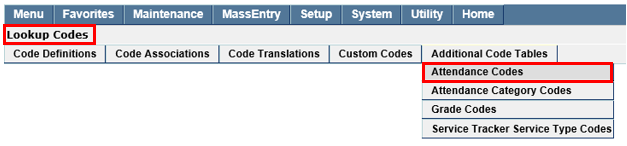

Below is the listing and description of each column of the Attendance Codes table. The definitions can be helpful when determining how to check the boxes for accurate attendance accounting and reporting.
Attendance Code Table Column Definitions
- Code – The attendance code that shows on the attendance grids.
- Description – The description that is used throughout the attendance modules and reports.
- Sequence – The sequence controls the listing order of these codes in the various attendance code dropdown menus.
- Enrolled – This field should be checked On for all attendance codes for which the student is considered enrolled in the school. If a code does not have this flag checked On, then students who are marked with these codes will not be considered in attendance calculations, such as ADA/ADM, etc. (such as ‘Incarcerated’, ‘Present-Dual enrolled’, ‘Unset’, ‘No Show’, or the equivalents).
- On Campus – Check to indicate that the student is considered to be “on campus” when this code is assigned.
- In Class – Check to indicate that the student is considered to be “in class” when this code is assigned. (Attendance codes that will be counted as absences in the Marks Processing application are those that are not designated as InClass.)
- Apportion – Check to indicate that a student is considered present for funding purposes when this code is assigned.
- Compulsory – Check this field to indicate an excused absence. Uncheck to set it as an unexcused absence. For example: in California, an absence due to religious holidays is considered an excused absence under compulsory education laws.
- Crs Credit – To be used in districts where attendance, or lack of it, has an effect on granting credit. For example: in school districts when a student has more than 10 unexcused absences, the student may lose credit for a course.
- Is Tardy – Check to indicate a tardy code.
- Tchr Entry – Check to indicate those codes that the school designates as the codes that teachers may use to take attendance in their classrooms.
- Dflt Present – Use as the default "Present Code".
- Dflt Absent – Use as the default "Absent Code".
- Color – Determines the displayed color of the code and description in the attendance applications.
