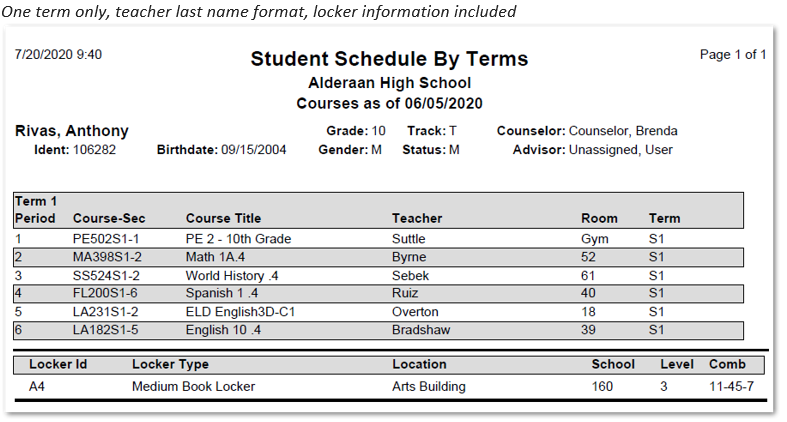
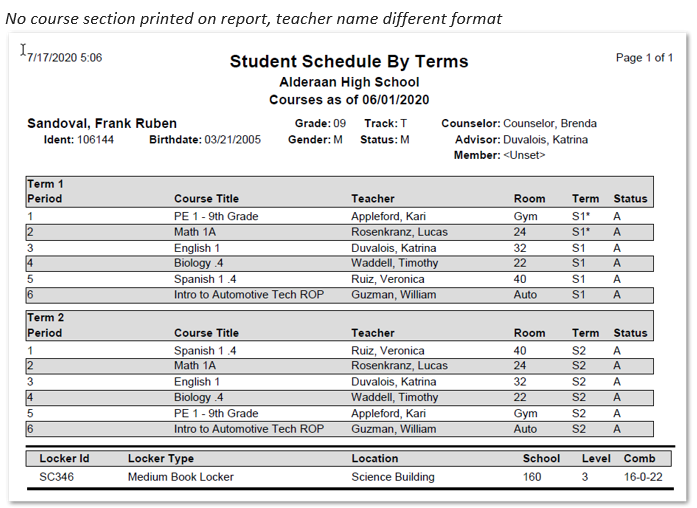
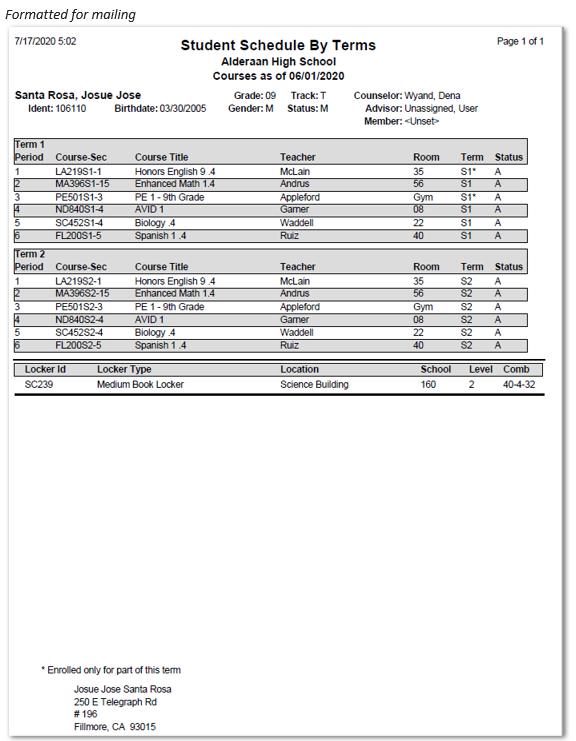
Q Student Schedule by Term report may be configured to show the student’s schedule as of a selected date with the option to include classes scheduled for selected terms. Multiple options are available to control what displays on the report. The report may be printed with the student’s mailing address formatted to be mailed in a window envelope or sorted by period for placement in teacher boxes to be distributed to classrooms.
While details specific to this report will follow, users can find general information about reports within the Reports documentation.
Student Schedule by Terms Report is located within Reports in the Schedule menu in Q.
Available options for the Student Schedule by Terms Report include: 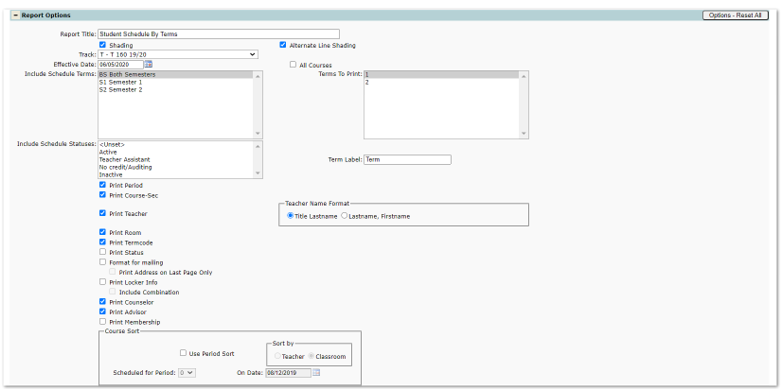
- Report Title – The default title for the report is Student Schedule by Terms but may be edited.
- Shading – Select this to print report with shading in headers
- Alternate Line Shading – Select this to print alternate lines as shaded.
- Effective Date – Defaults to system date but may be changed by the user, this date determines what classes display on the report.
- All Courses – Checking this box will print all the student’s scheduled courses.
- Include Scheduled Terms – Highlight the schedule term(s) to be included in report.
- Terms to Print – Highlight the term numbers to be included in report.
- Include Schedule Status – Select any specific status to print. Default prints all.
- Term Label – Defaults to Term but may be edited. The Label prints on Column Header

- Print Period Click this box to print period numbers of courses scheduled.
- Print Teacher
- Teacher Name Format – select one:
- Title, Lastname.
- Lastname, Firstname.
- Print Room – Click this box to print room number for scheduled courses.
- Print Termcode – Click this to print the term code course is scheduled.
- Print Status – Click to print the course status.
- Format for mailing – Click to format report for mailing.
- Print Address on Last Page Only – If student’s schedule when printed is more than one page the address will only print on last page when this box is checked.
- Print Locker Info – Check to include student’s locker information on report.
- Include Combinations – Click to have locker combination print on report.
- Print Counselor – Click to print counselor name on report.
- Print Advisor – Click to print advisor name on report.
- Print Membership – Click to print membership information on report.
- Course Sort – Selections made here will override regular sort options for report.
- The report may be sorted for distribution by the following:
- Use Period Sort.
- Sort by Teacher, Classroom.
- Scheduled for Period.
- On date.
- The report may be sorted for distribution by the following:
- Teacher Name Format – select one:
Reports may look different depending on the options, selections and sort items chosen.