
The Student Immunization application allows users to enter and maintain a student’s immunization history. The application can also be used to calculate the student’s immunization compliancy and allows for storage of additional immunizations outside of the assigned immunization rule.
Student Immunizations is located under the Health menu in Q.
Student Immunizations is a Q banner application. Individual student records may be located by entering information in the search boxes. Student immunization records may be viewed and entered when logged in to either the District track or individual school tracks.
Note: For more detailed information regarding the configuration and search functions for Student Banner applications, please refer to the Student Banner Qwiki Document that can be found under the Q menu in the Qwiki Help application.
The Immunization screen is divided into two sections. The top section contains information on the student's assigned immunization rule, exemptions, and compliance status. The bottom portion contains the student's immunization history. 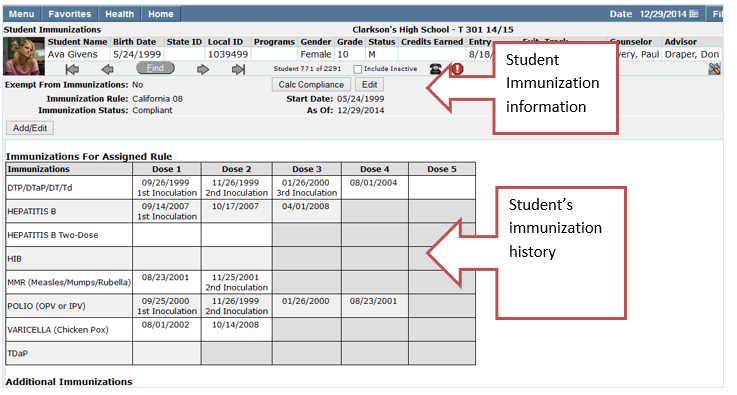
To edit a student’s immunization information:
- Locate the student using the Find feature or the arrows keys.

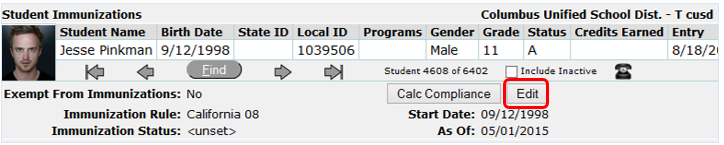
- Click the Edit button.
- Enter or modify the data fields
- If a student is exempt from ALL immunizations place a check in the box. When the box is checked the Reason field displays. Select the appropriate pre-defined exemption reason from the drop down list. To create an exemption status for only certain immunizations, use System | Lookup Codes | Code Definitions | Immunization Status and set the isexempt flag to 1 for the desired status. When that status is applied to an immunization, it makes it exempt from the Immunization Rules.
 Note: Immunization Rules are comprised of a set of parameters that define the immunizations a student should receive and the schedule for each type of immunization. Immunization Rules are typically derived from state-mandated immunization requirements for enrollment in public schools.
 - Immunization Rules are usually batch assigned by the district but can also be assigned to individual students on this screen.
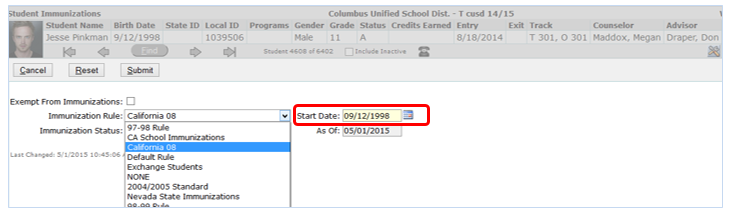
- Start date—select a start date if other than the default date, for the immunization rule to be calculated.
Note: The start date field defaults to the student’s birth date and is normally the date the rule uses to calculate an immunization dose schedule. The start date can be edited but this should only be done for special cases, such as for immigrant students who have no immunization history. In these special cases, a special Immunization Rule will typically be created and assigned to the student. - As Of—the As Of field is a read-only field and is automatically updated to reflect the date of the last change, each time the Immunization Status field is modified.
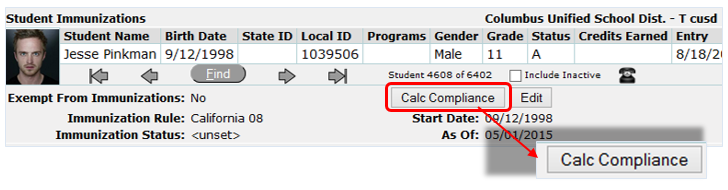
Click the Calc Compliance button to check a student’s compliance against their assigned immunization rule. A screen will appear with the results which may be printed by clicking the printer icon.
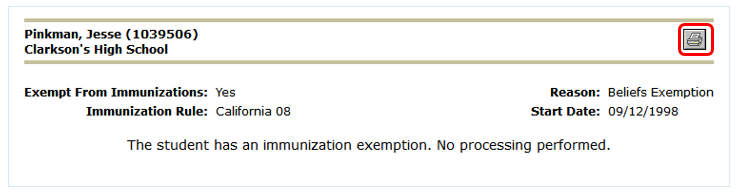
To add immunization doses to a student’s immunization history:
- Click the Add/Edit button above the Immunizations for Assigned Rule.
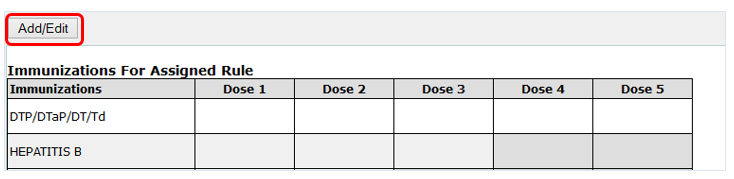
- When the Add/Edit button is clicked the immunization entry form displays showing existing dosage entries and available entry dosages. The red X next to existing entries allows users with delete rights to delete existing dosages.
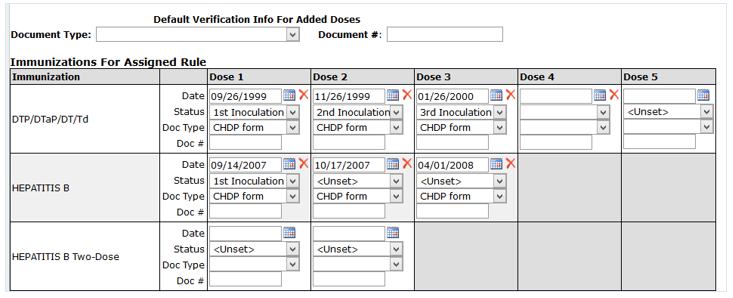
- Document Type—enter the type of document used to verify immunization dates. The Document Type may be entered at the top of the screen as a default for all immunization entries but may also be entered for each individual entry. Document Type is a required field, however, document # is not required.
- Enter the Date—under the specific dose, enter the date. Dates may be typed in using the 00/00/0000 format without typing the /. A calendar pop up box is also available for entering dates.
- Status—a status for each immunization may be entered but is not required. If a student has a status of “had the disease” it is also necessary to enter a date.
- Click Submit to save the data, or Reset to clear all fields. Click Cancel to close out of the add doses mode and return to the summary list.
- An error message will display if dosage dates entered are before the birth date or prior to the previously recorded dosage date.

Immunization doses may be recorded for immunizations that are not part of the Assigned Immunization Rule. To enter these immunizations:
- Find the student and Click on Add/Edit button.
- Scroll below the immunization chart to access the Additional Immunizations area. Click the Add Immunization Type link.
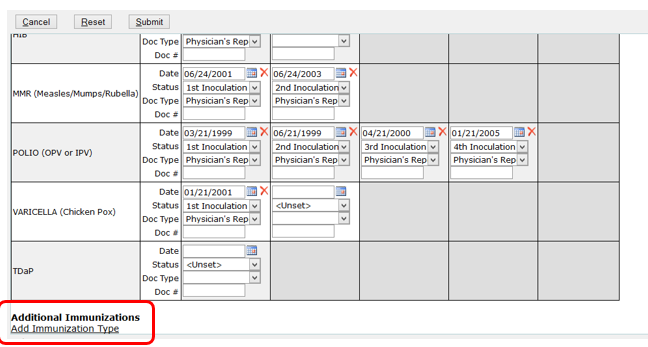
- Select Immunization from the drop down list.

- Enter information for date, status and document type.
- Click Submit to save.
