
Q has many areas where your district can add customization to show more data to your staff. You may know that you are able to create custom Student Banner items, and the following will show you how to add custom items to your Class Banners.
To set up a custom banner item, you’ll only need to add a row into the table FieldsetItem, just like when adding a custom student banner item. This example below shows how to add the Instructional Language field to the Class Banner. This field is stored in xmstsched, so we’ll grab it with the following script:
IF NOT EXISTS (SELECT 1 FROM dbo.FieldsetItem WHERE FieldsetName = 'ClassBanner' AND ItemName = 'Instructional Lang')
BEGIN
INSERT INTO FieldsetItem
(FieldsetName
, Sequence
, ItemName
, ItemSource)
VALUES
('ClassBanner'
, (SELECT MAX(Sequence) + 1 FROM FieldsetItem WHERE FieldsetName = 'ClassBanner')
, 'Instructional Lang'
, '$SELECT z.descript as value FROM dbo.xmstsched x JOIN zlang z ON x.InstructLang = z.langc WHERE mstuniq = @SectionID')
END
Note that the SQL statement in FieldsetItem.ItemSource begins with a $. This data is triggered to be rendered in the visual basic code, and the $ lets the system know a SQL statement is coming.

Once this has been added to your Q database, be sure to log out and back into Q to see your change has been made. Next, go to any class banner application and select the settings cog icon:
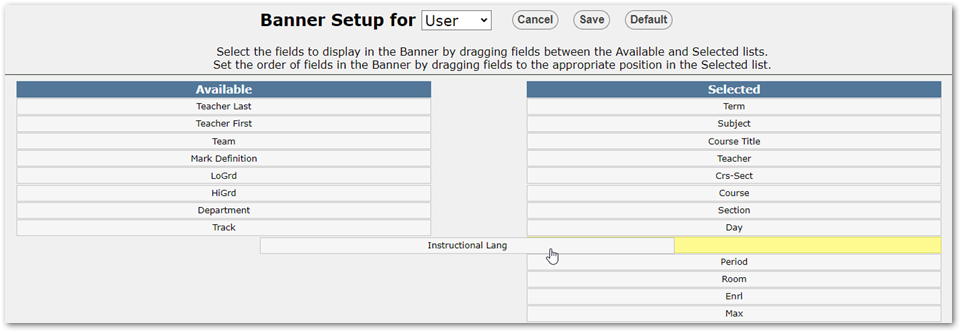
Your new banner item will be displayed in the Available column. Simply click, drag, and drop where you’d like your new field to be displayed in the Selected column:
Once you have it placed, click save and your new field will display in the Class Banner:

When you’re creating your own custom banner Item, you have can use the following variables - please note they are case sensitive:
@StaffID – The logged in user’s funiq
@BannerstaffID - for staff editor, the funiq of the staff member you’re currently on
@TrackID – The logged in trackid
@StudentID - Applies to student banner only
@SectionID – The mstuniq for the class
@MeetingID – The meetuniq for the class