
Districts using Q Food Service and/or Student Body Accounting (SBA) may accept online payments through ParentConnect, StudentConnect or for staff within Q itself. Two payment providers are supported: Authorize.net and PayPal. Payment processing may be configured for integration using API. There are several steps involved in configuring online payments including:
- Setup and configuration of SBA and / or Food Service modules for online payments.
- Establish a Sandbox and Business Account with one of the supported payment providers: Authorize.net or PayPal.
- Once you have established an account with one of the payment processors, complete the payment provider-specific set-up.
- Configure Online Payment Setup application for the chosen payment processor and method.
- Test the configuration in a sandbox environment.
- Go live
Notes For clients currently using Online Payments for Food Service or SBA:
With Q version 4.3.1:
- The configuration of Online Payments has moved from the Online Payments Tab in ParentConnect Manager to a new application called Online Payment Setup under the System menu.
- API versions of payment processing are available and recommended. Legacy versions of payment processing have been deprecated. While for the time being legacy versions of online payments will still be operational and functional, we highly recommend changing your configuration to implement the API version for your payment processor. To change to the API version, additional configuration is required on your PayPal or Authorize.NET account.
SBA
Part of the Base Configuration of SBA:
- Accounts are defined
- Items are defined per school and associated with an account.
- Items may have prices defined for:
- Full Price
- Reduced Price
- Free Price
- Tax %
- Items may have prices defined for:
SBA Online Payment Specific Configuration:
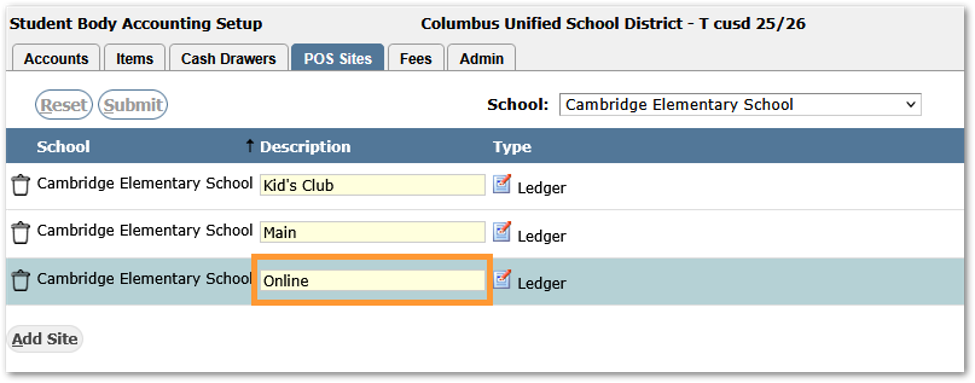
- Add a POS Site at each school that will be offering online items. Ensure that the POS Site has a description of ‘Online’.
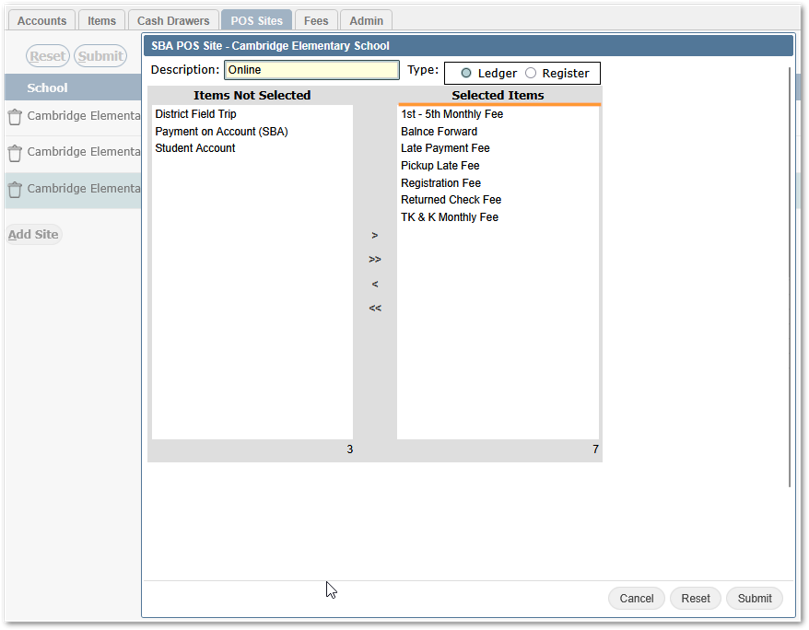
- Define the items that are available to each Schools’ Online POS site:
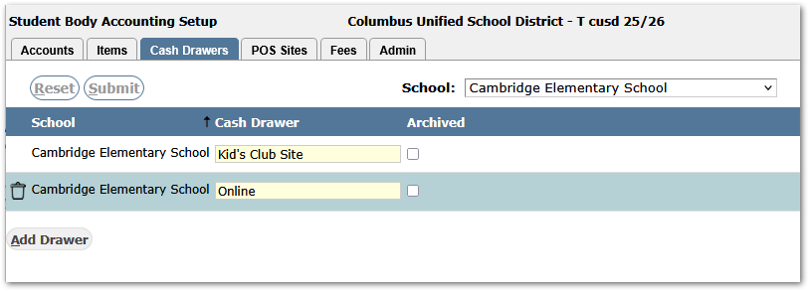
- Add a Cash Drawer for each school that will be offering online items. Ensure that the Cash Drawer has a description of ‘Online’.
Food Service
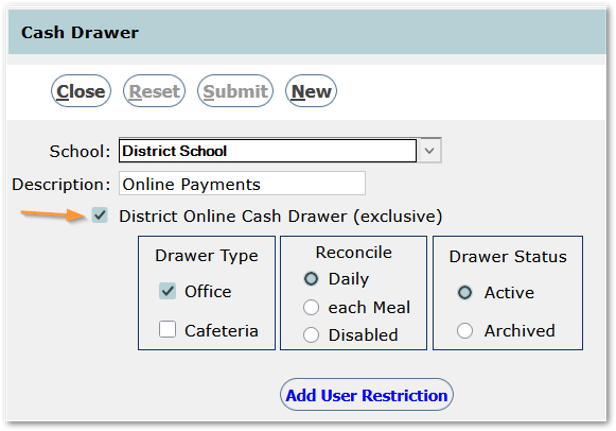
You must define an ‘Online Cash Drawer’ in Food Service for use. From Food Service Setup > Cash Drawers Tab, define a Cash Drawer for the district and check ‘District Online Cash Drawer’ checkbox. The system will only allow one Online cash drawer, and once there are transactions the checkbox will not be editable.
To use the Online Payment Processing feature in Q for both Food Services and Student Body Accounting (SBA) you must establish a Business Account with a payment provider, Authorize.net or PayPal.
For both payment gateways (Authorize.NET or PayPal), different websites are accessed and used for establishing LIVE vs. DEMO modes.
For Authorize.NET:
- LIVE mode is set up at https://www.authorize.net/
- DEMO mode is set up at https://developer.authorize.net/hello_world.html
For PayPal:
- LIVE mode is set up at https://www.paypal.com/us/home/
- DEMO mode is set up at https://developer.paypal.com/home/
Configuration of DEMO Mode should be done in a COPY of a production database, such as a training or testing database.
Please refer to the payment provider for full instructions on configuring your account.
The payment gateway accounts (LIVE and DEMO) will need to be configured using the links above. Account information such as keys and IDs will then be used from the payment gateway configuration to configure Q Online Payment Setup.
Authorize.NET API Setup
Login to your Authorize.NET account
The process within Authorize.NET for obtaining credentials will be the same whether for LIVE (Production) or DEMO (Sandbox testing). Use the appropriate website to obtain the set of credentials.
- LIVE mode is set up at https://www.authorize.net/
- DEMO mode is set up at https://developer.authorize.net/hello_world.html
API Keys
You will need to obtain 4 keys or IDs from which will then be recorded in Q Online Payment Setup
- API LoginID
- Transaction Key
- Signature Key
- Public Client Key
From the Account tab under Security Settings > General Security Settings, click ‘API Credentials & Keys’.
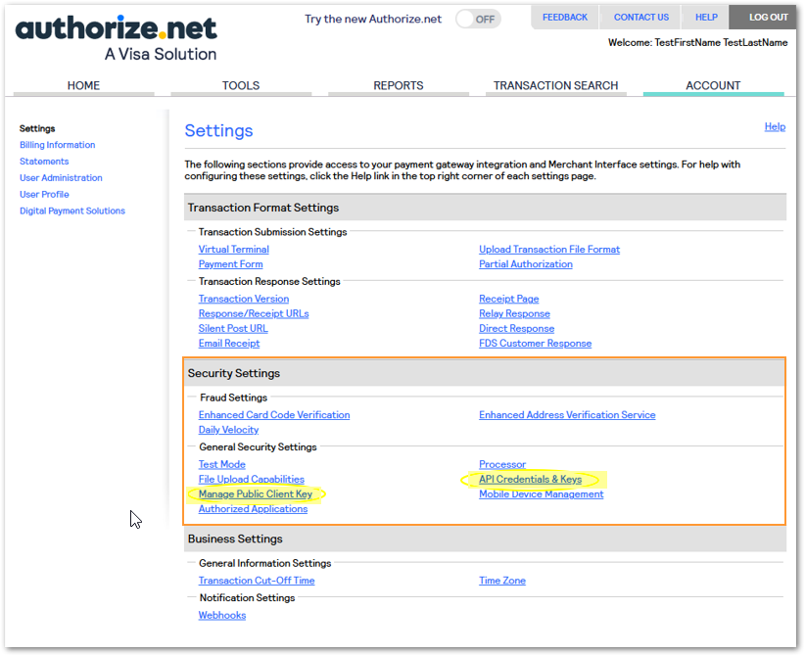
From API Credentials & Keys, use the application interface to obtain your API LoginID, Transaction Key, and Signature Keys.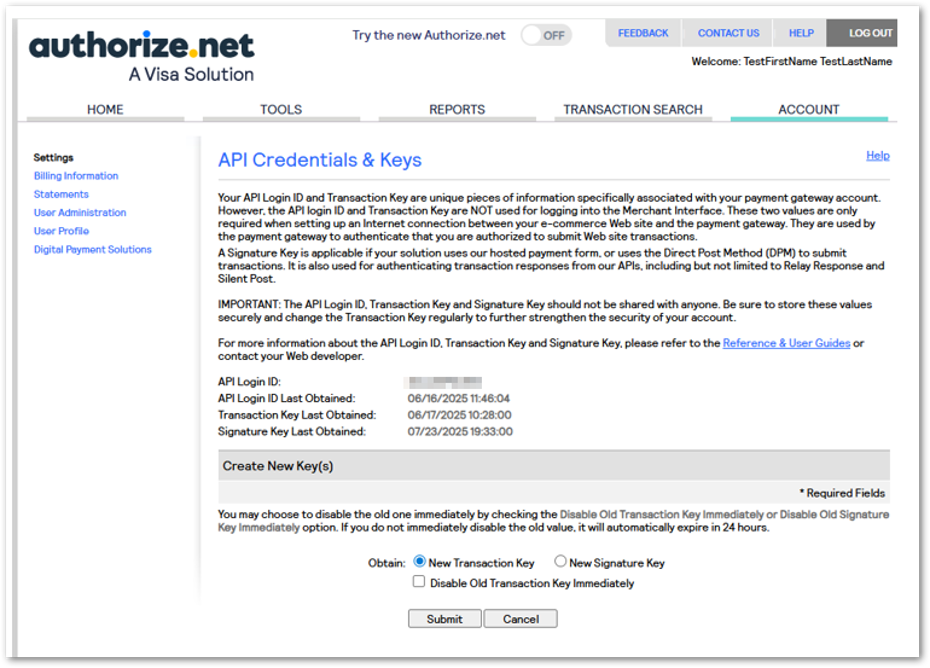
Return to the previous page: Account Tab > Security Setting > General Security Settings and select ‘Manage Public Client Key’. Use the application interface to create a Public Client Key.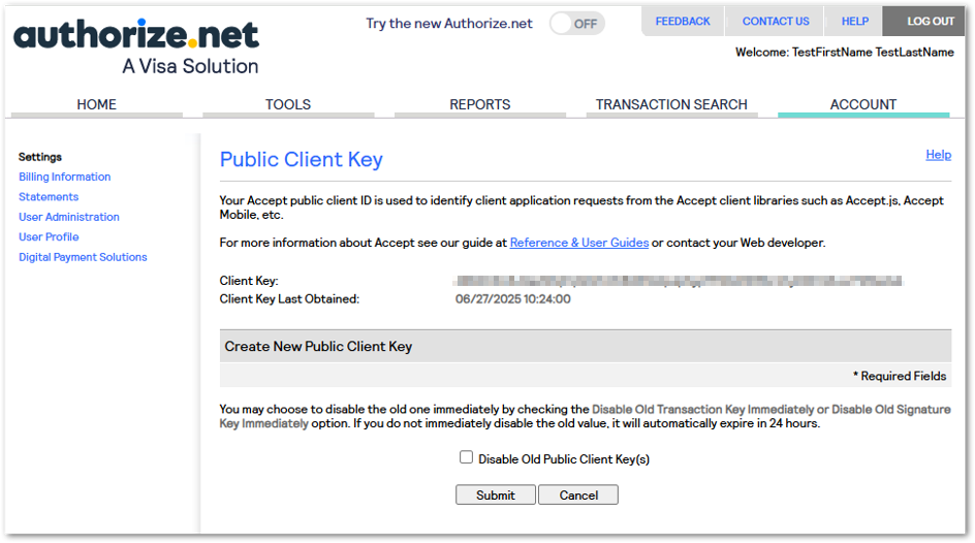
If using the new Authorize.net user interface, the home screen will appear like the one shown below.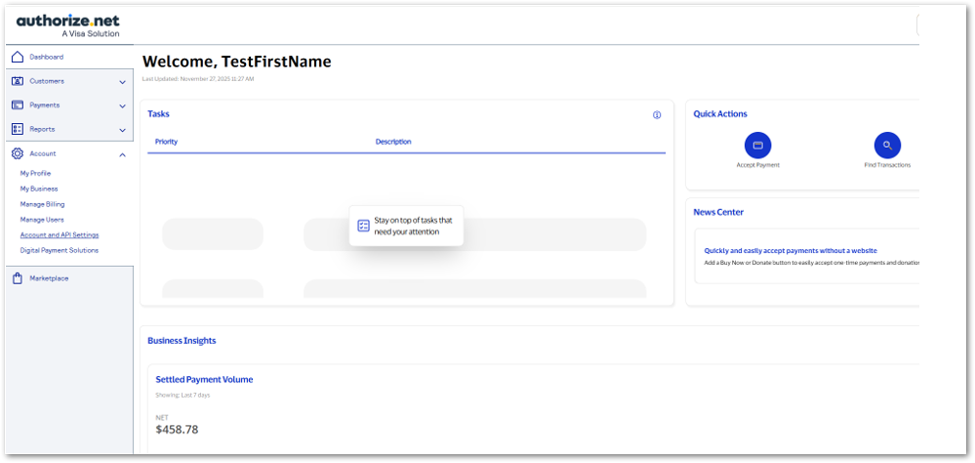
Under Account in the menu at left, select ‘Account and API Settings’.
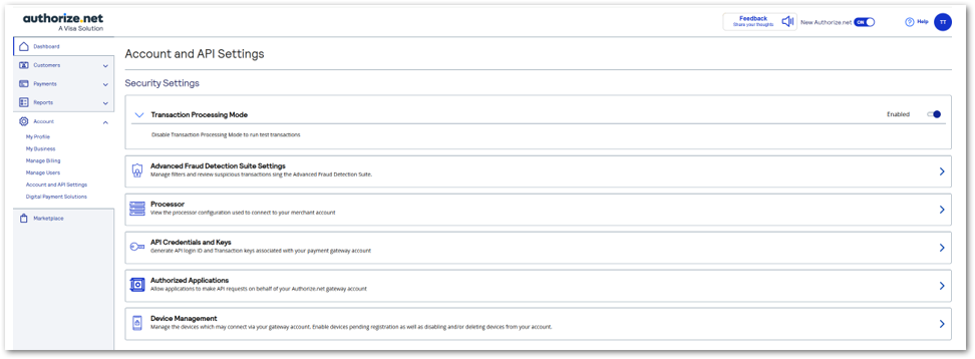
Click ‘API Credentials and Keys’.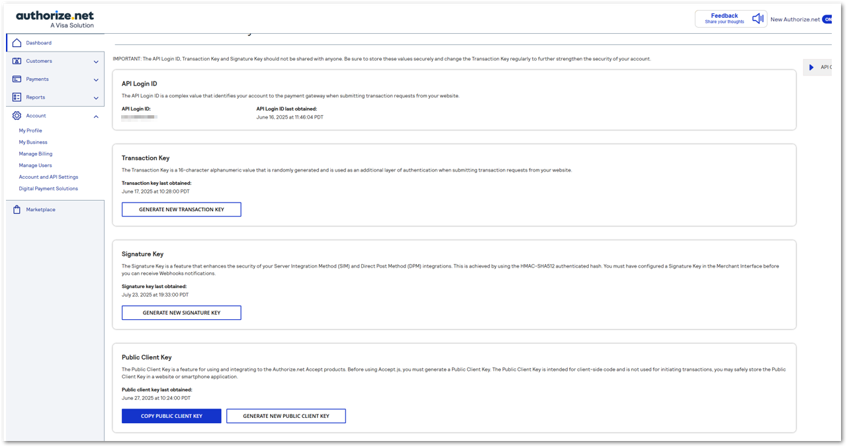
PayPal API Setup
API Keys
The process within PayPal for obtaining credentials will be the same whether for LIVE (Production) or DEMO (Sandbox testing). Use the appropriate website to obtain the set of credentials.
- LIVE mode is set up at https://www.paypal.com/us/home/
- DEMO mode is set up at https://developer.paypal.com/home/
Click API & Credentials.
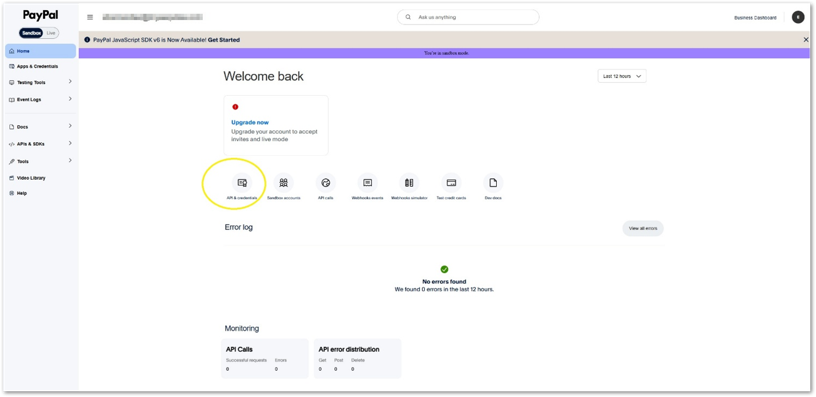 Choose Default Application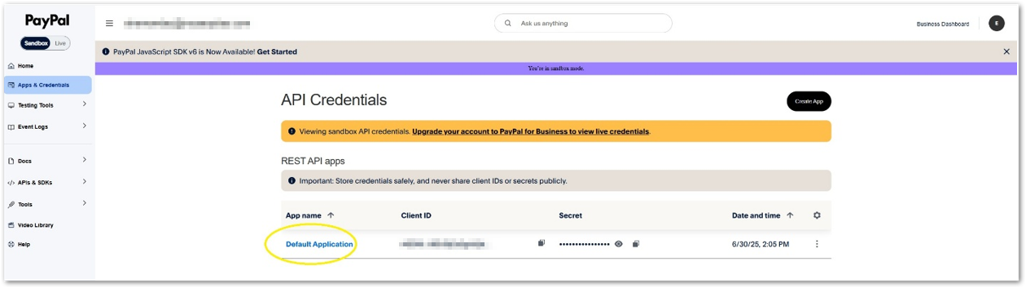
Copy the Client ID and Secret Key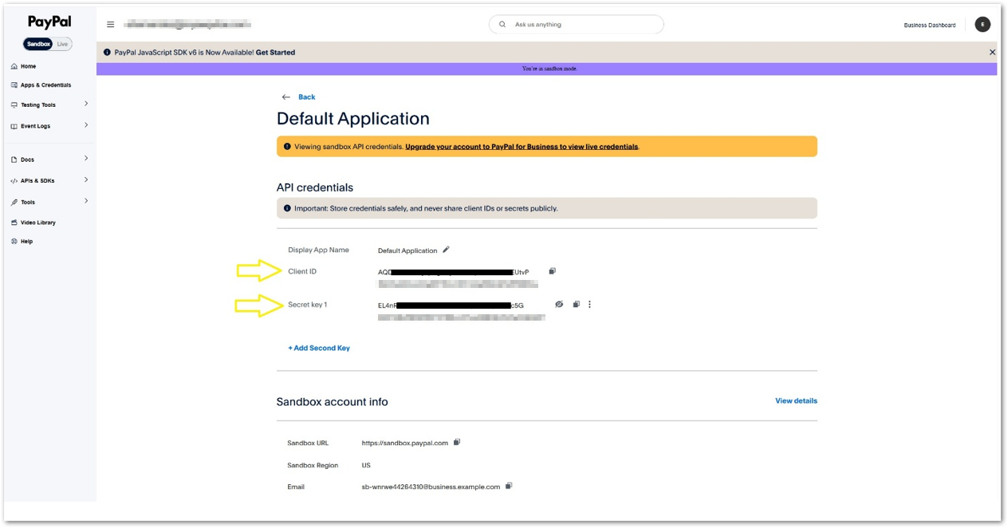
The Client ID and Secret Key will need to be copied into the Q Online Payment Setup application.
SANDBOX SETUP
Configuration of DEMO Mode should be done in a COPY of a production database, such as a training or testing database. For this Sandbox environment in Online Payment Setup, the mode will be set to “DEMO” and configured with the corresponding Keys/IDs obtained through the developer accounts for the payment gateway.
- DEMO mode is set up at https://developer.authorize.net/
- DEMO mode is set up at https://developer.paypal.com/home/
PRODUCTION SETUP
Once all testing is successful and complete, in the production database in Online Payment Setup, the mode will be set to LIVE and configured with the Keys/IDs obtained through the business accounts.
- LIVE mode is set up at https://www.authorize.net/
- LIVE mode is set up at https://www.paypal.com/us/home/
Within the Online Payment Setup Application, select one of the tabs: Food Service Payment Setup and/or SBA Payment Setup.
Food Service Payment Setup
From the FS Payment Setup Tab, select Food Service Online Payment Preferences:
- Payment Gateway - Choose the gateway. We recommend using one of the API Payment Gateways. Legacy methods are deprecated.
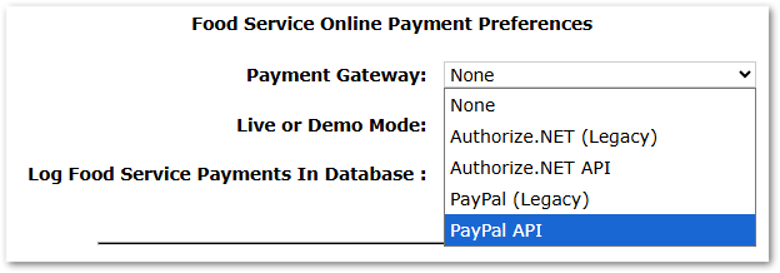
- Live or Demo Mode – Select ‘Demo’ mode for testing in a COPY of production database such as Training or Testing. ‘Demo’ should never be selected in a Production database.
NOTE: Key values for Demo and Live modes are associated with different fields in the database. Selecting a mode will show the keys associated with that mode. If when switching modes no values display, it indicates keys have not been set. Since DEMO mode should only be used in a COPY of a Production database, and LIVE mode used in a Production database, switching between modes should not occur. - Log Food Service Payments in Database – Yes or No.
Account Setting prompts in the lower portion of the page are specific to the Payment Gateway selected.
- Enter or revise the Link Text
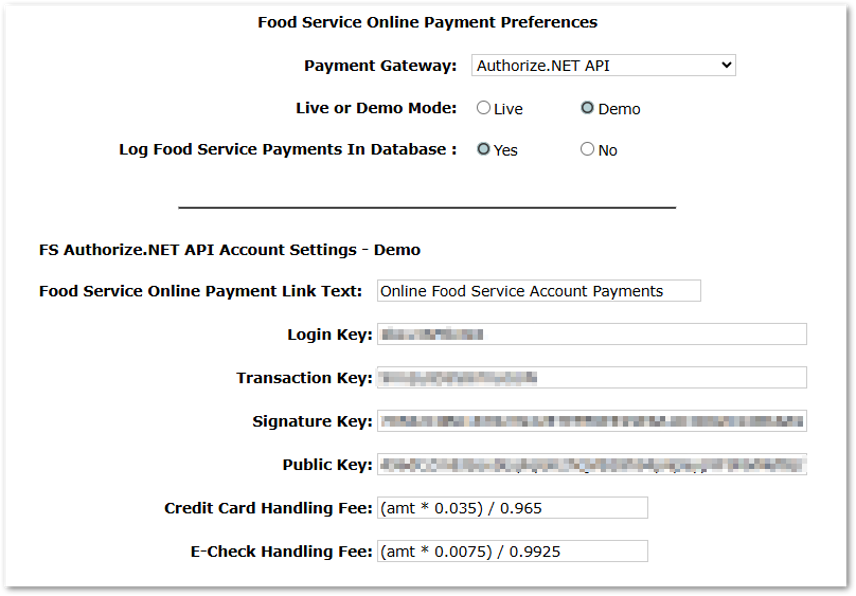
- Enter the appropriate keys, i.e. for PayPal enter PayPal Client ID and PayPal Secret; and for Authorize.net enter the Login Key, Transaction Key, Signature Key, and Public Key
- Set the Credit Card Handling Fee
- Set the PayPal Account Handling Fee for PayPal, and the E-Check Handling Fee for Authorize.Net. See examples in the screenshots below.
PayPal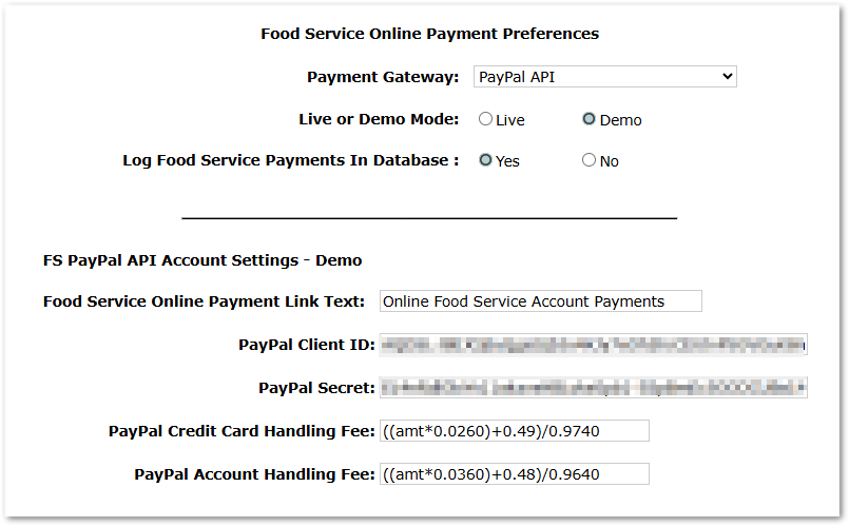
Authorize.Net
SBA Payment Setup Tab
From the SBA Payment Setup Tab, select SBA Online Payment Preferences:
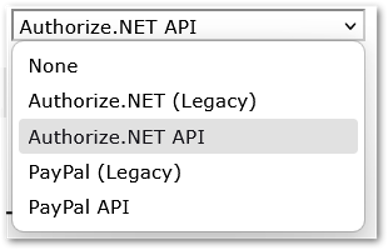
- Payment Gateway – Choose a gateway. We recommend using an API Payment Gateway. Legacy methods are deprecated.
- Live or Demo Mode – Select ‘Demo’ mode for testing in a COPY of production database such as Training or Testing. ‘Demo’ should never be selected in a Production database.
NOTE: Key values for Demo and Live modes are associated with different fields in the database. Selecting a mode will show the keys associated with that mode. If when switching modes no values display, it indicates keys have not been set. Since DEMO mode should only be used in a COPY of a Production database, and LIVE mode used in a Production database, switching between modes should not occur. - Log SBA Payments in Database – Yes or No.
Account Setting prompts in the lower portion of the page are specific to the Payment Gateway selected.
- Enter or revise the Link Text
- Enter the appropriate keys, i.e. for PayPal enter PayPal Client ID and PayPal Secret; and for Authorize.net enter the Login Key, Transaction Key, Signature Key, and Public Key
- Set the Credit Card Handling Fee
- Set the PayPal Account Handling Fee for PayPal, and the E-Check Handling Fee for Authorize.Net. See examples in the screenshots below.
PayPal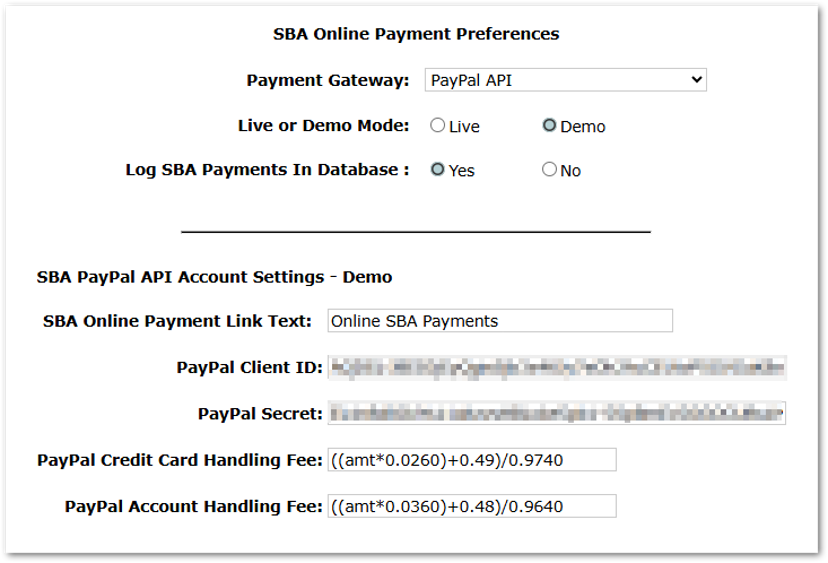 Authorize.Net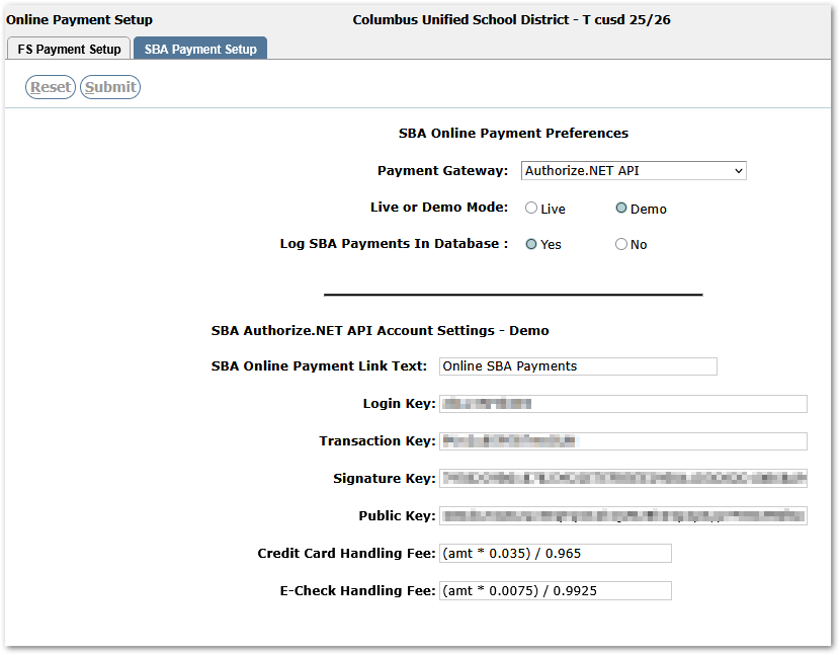
To enable students to make their own payments through StudentConnect, set preferences in StudentConnect Manager.
In StudentConnect Manager, from the District Track on the Modules tab, the preferences at top right may be changed to Yes to turn these options on.
- Enable SBA Payments
- Enable Food Service Payments
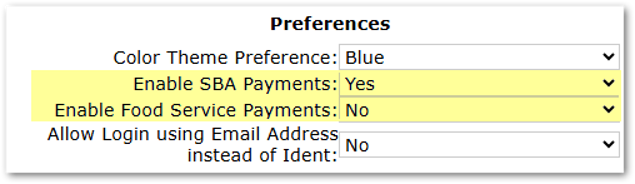
These settings may also be managed through the Preference Editor for StudentConnect: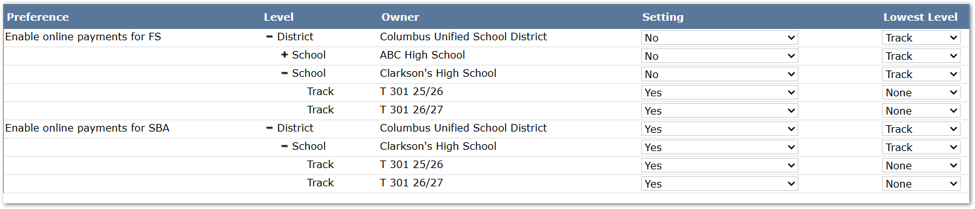
Application Interface Adjustments
Replacement text for the application interfaces that appear for users in Student Connect when making Food Service or SBA payments may be customized either through Student Connect Manager application on the Labels Tab or in the Interface Editor for Student Connect application.
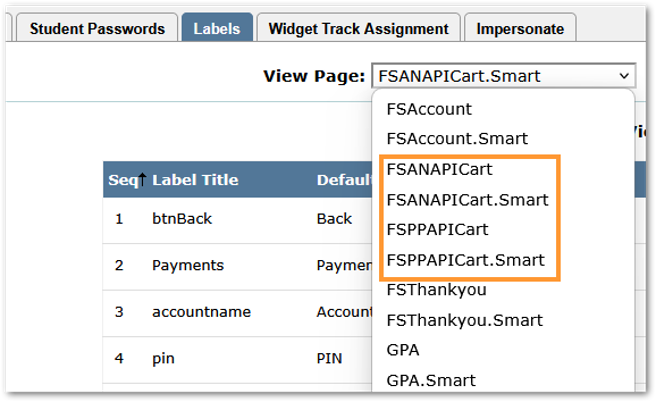 Access the pages through the View Pages drop-down list. Food Service pages are prefixed with FS, and Student Body Accounting pages are prefixed with SBA.
New pages have been added to support replacing label text for all the API pages for Authorize.Net shown as ‘…ANAPI’ and PayPal shown as ‘…PPAPI’. Pages are available for both standard and mobile (.Smart) pages.
When Online Payments for Food Service and/or SBA are configured, ParentConnect Access to Online Payments is enabled for parents when:
In ParentConnect Manager, from the District Track on the Modules tab:
- Cafeteria Information is made available to the desired tracks
- SBA Information is made available to the desired tracks.
Application Interface Adjustments
Replacement text for the application interfaces that appear for users in Parent Connect when making Food Service or SBA payments may be customized either through Parent Connect Manager application on the Translations Tab for Default (English) or in the Interface Editor for Parent Connect application.
In Parent Connect > Translations tab, access the pages through the View Pages drop-down list. Food Service pages are prefixed with FS, and Student Body Accounting pages are prefixed with SBA.
New pages have been added to support replacing label text for all the API pages for Authorize.Net shown as ‘…ANAPI’ and PayPal shown as ‘…PPAPI’. Pages are available for both standard and mobile (.Smart) pages.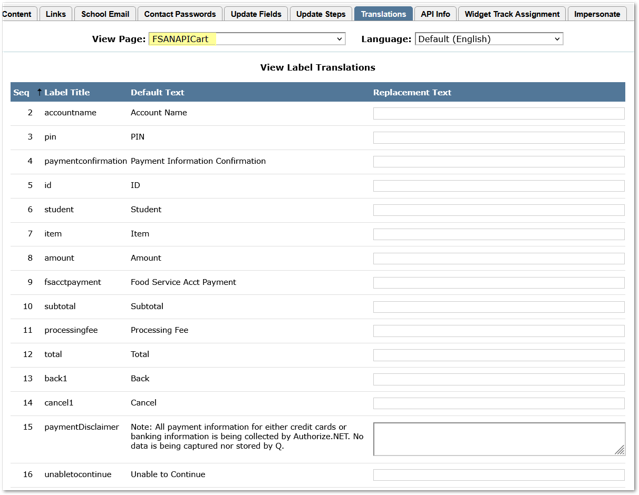
In a COPY of a production database, such as a training or testing database, where Online Payments is configured for DEMO mode you may use the following information for testing in either web or mobile applications.
For Authorize.Net
Testing information for Authorize.Net may be found at:
https://developer.authorize.net/hello_world/testing_guide.html
Credit Cards:
For testing in the sandbox environment only, use any expiration date in the future.
For the card security code:
- Use any 3-digit number for Visa, Mastercard, China UnionPay, Discover, Diners Club, EnRoute, and JCB.
- Use any 4-digit number for American Express.
For Zip codes, any may be used, but see the Authorize.net testing information linked above for zip codes to test for specific address verification responses.
Test Card Numbers:
American Express: 370000000000002
China UnionPay: 6221499053360818, 6262320002000067, 6284480000000008
Discover: 6011000000000012
JCB: 3088000000000017
Diners Club: 38000000000006
Visa: 4007000000027, 4012888818888, 4111111111111111
Mastercard: 5424000000000015, 2223000010309703, 2223000010309711
Bank Accounts
Bank Account Test routing numbers. Use any number for the account number.
Routing Number Bank Name
021000021 JPMorgan Chase Bank
121000358 Bank of America
122105278 Wells Fargo
322271627 Capital One
To test Food Service payments, from Q, click the File Menu, choose FS Account Payment, enter a payment amount, click Continue and then click ‘Check Out’.
For Payment Method – Select Credit/Debit Card and use one of the test card numbers provided. 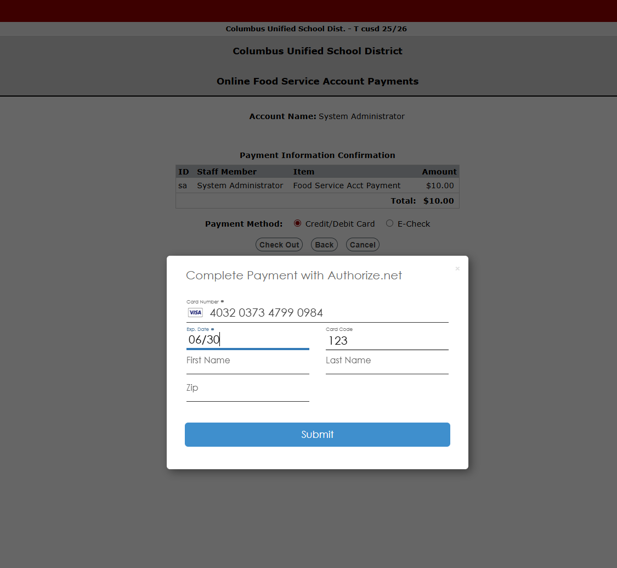
For Payment Method – Select E-Check and use one of the Account numbers provided.
For PayPal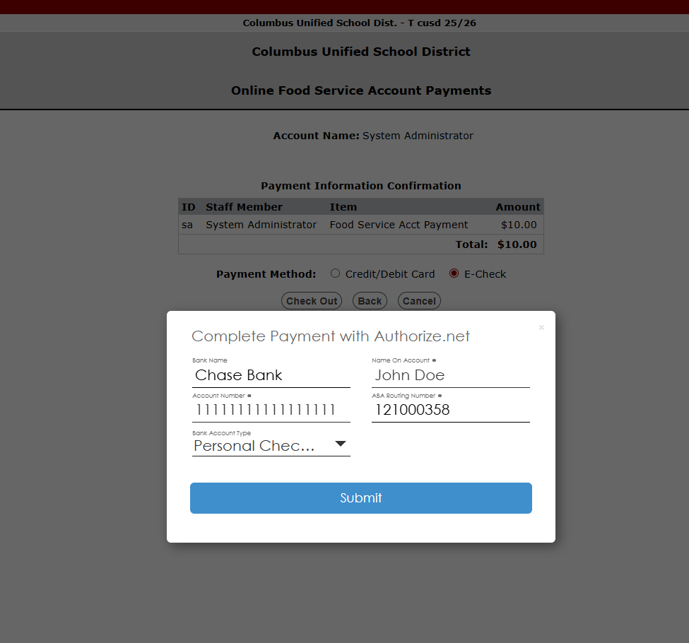
To process test transactions using sandbox credentials:
- Login to the PayPal developer account and click Sandbox Accounts.
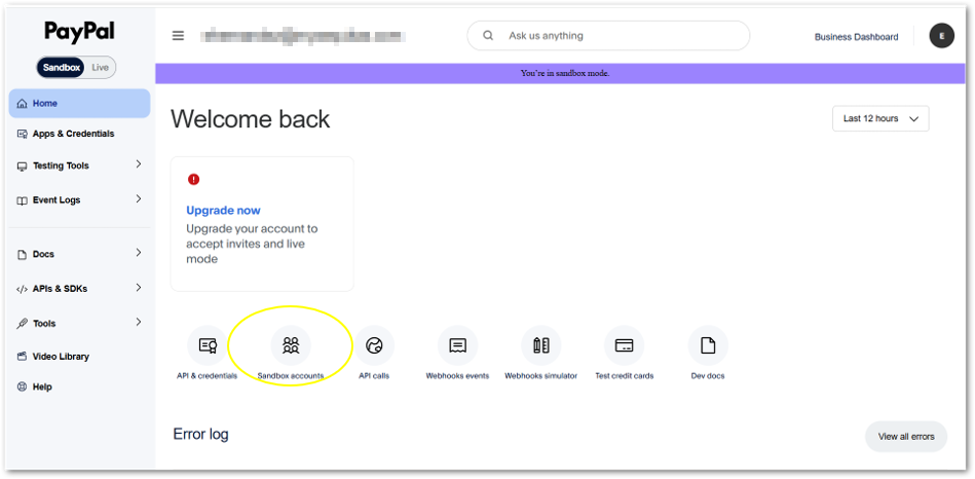
Here you can create sandbox accounts that you can use to login to PayPal to complete payments.
Click on the default personal.example.com account.
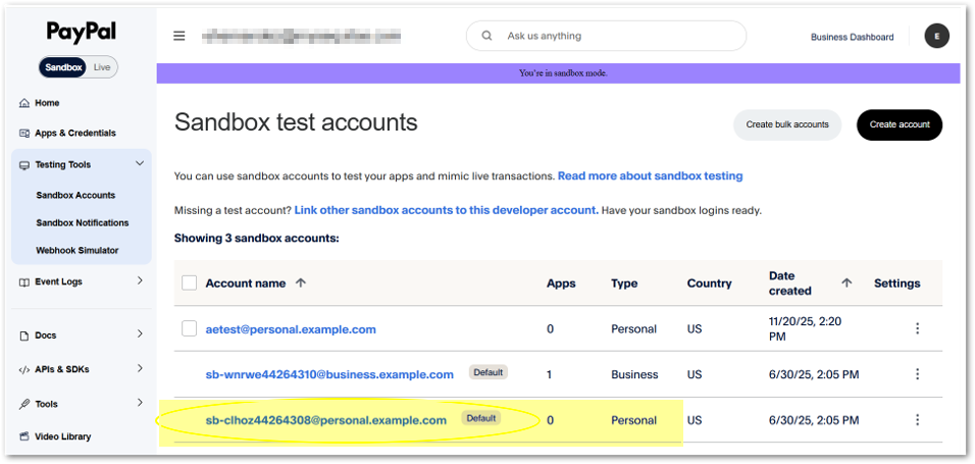
When you click on the account information for personal sandbox accounts you will see the information you can use to login as that user to complete payment.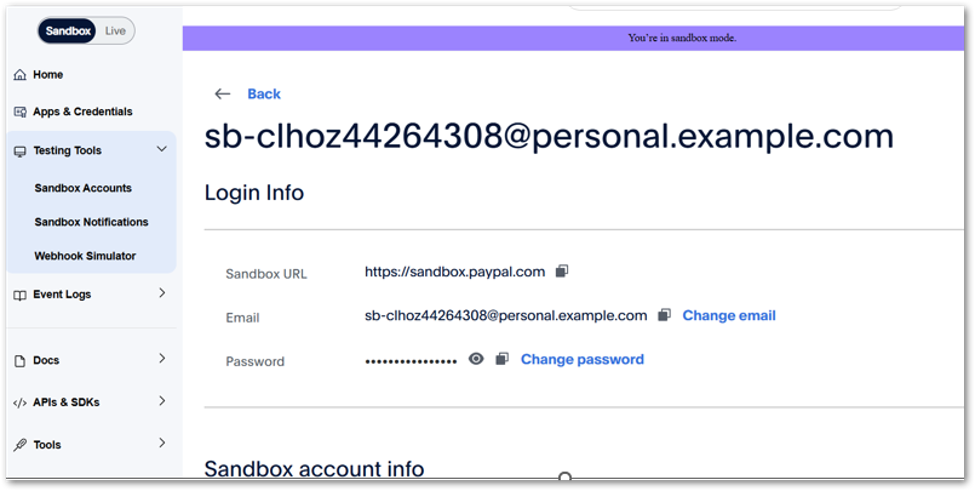
To test Food Service payments, log into Q and from the File Menu, choose FS Account Payment, entera payment amount, click Continue and then click ‘Check Out’. Use Credit Card or PayPal payment options. 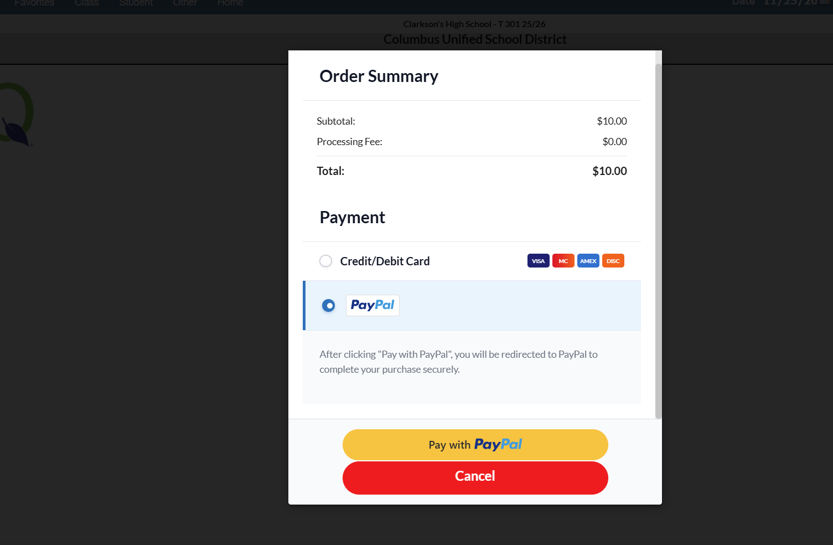
For PayPal option use the sandbox account information to login and complete payment.
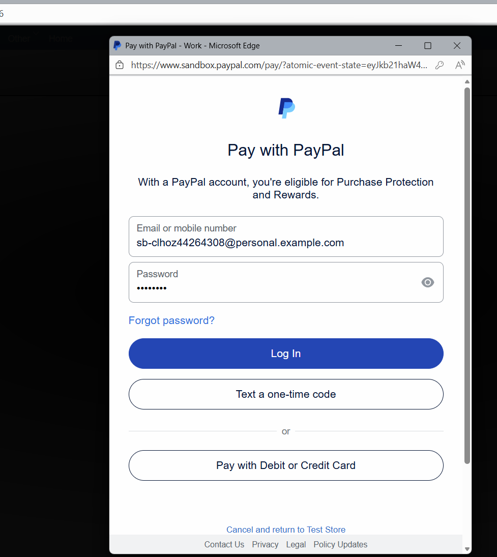
For Credit/Debit Card option, use Sandbox card information found on the PayPal developer website under Sandbox Accounts.
Once testing is successful and complete, in the Production environment, complete the steps to configure Online Payment Setup for LIVE mode using the business accounts used for accepting payments.
