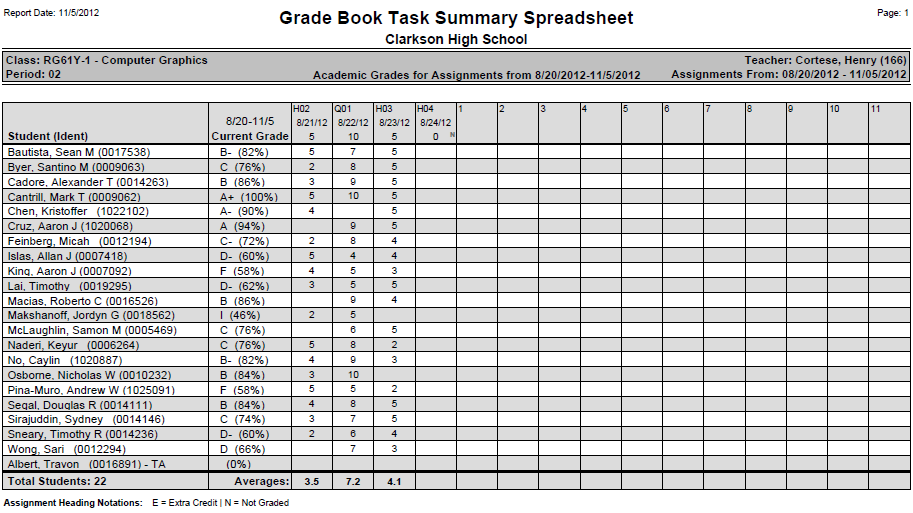
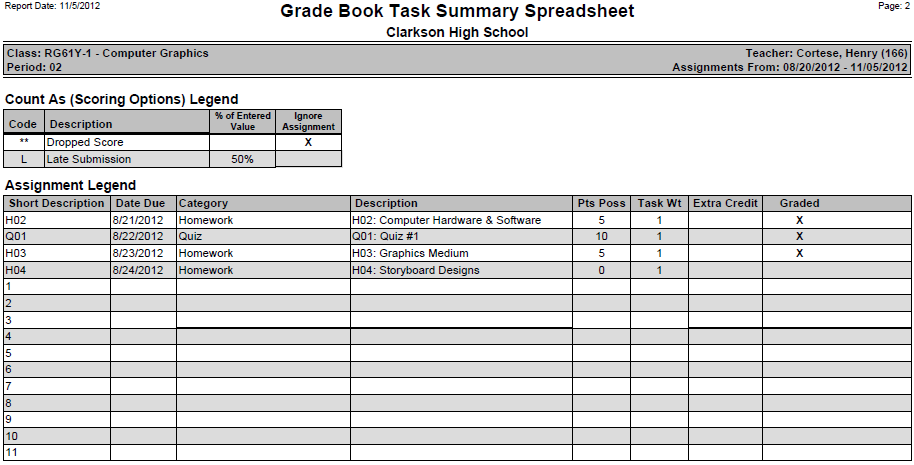
The Grade Book Task Summary Sheet report provides an at-a-glance view of all assignment scoring in a class which can be printed or exported to Excel. Numeric or Grade value scores earned by students are printed for all Tasks or for a selected Category of tasks.
Students are displayed in a roster format on the left-hand side and their scores for each assignment are displayed in a columnar format, chronologically from most recent to previous. The points possible are also displayed in the column headers.
While details specific to this report will follow, users can find general information about reports within the Reports documentation.
Grade Book Task Summary Sheet is located within Reports in the Marks menu in Q.
The Report Options can be accessed by clicking the + sign next to Report Options, or by clicking the Options link on the right-hand side of the screen. 
The Grade book Task Summary Sheet report provides the following options:
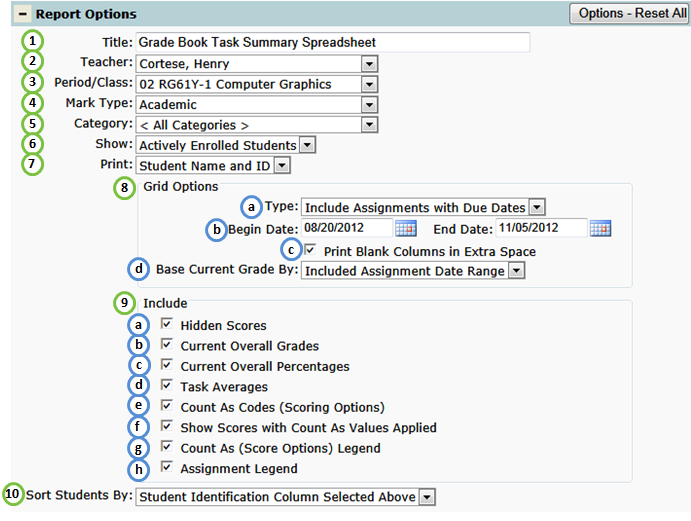
- Title - include a custom title or leave at its default title.
- Teacher - select a desired teacher. NOTE: Only teachers who have set up their grade book will be available.
- Period/Class - select a desired class. NOTE: Only classes who have at least one grade book assignment will be available.
- Mark Type - from the selected class, select the desired Mark Type that will be summarized on the report.
- Category - select a category associated to the selected Mark Type. NOTE: if All Mark Types option is selected, only the All Categories will be available.
- Show - select All Students scheduled in class or Actively Enrolled Students.
- Print - select how students(s) will be identified. By default, both the Student Name and ID# will be printed. For confidentiality purposes, students can alternatively be identified by ID or Row Numbers
- Grid Options:
- Type - print report with assignments within the selected Begin and End Dates or a blank collectionform for manual entry of scores.
- Begin and End Dates - manually enter or select assignment due dates to include.
- Print Blank Columns in Extra Space - include column fillers to the right-hand side of the spreadsheet which can be used for manually entering other assignment scores. Blank assignments will have numbered headers which will correspond to the Legend at the end of the report.
- Base Current Grade By - calcualte current grade by the included assignments or by desired term. NOTE: when selecting the Term option, a Term drop-down list will become available for you to select a specific term.
- Includable Fields:
- Hidden Scores - include scores for assignments that have been flagged as hidden by the teacher.
- Current Overall Grades - include student(s) current letter grade in class.
- Current Overall Percentages - include student(s) current percentage in class.
- Task Averages - include the current average percentage score earned by each student.
- Count As Codes (Scoring Options) - display scoring option codes adjacent to the applicable scores.
- Show Scores with Count As Values Applied - adjust original scores by the scoring options applied.
- Count As (Score Options) Legend - include a legend with associated scoring options codes.
- Assignment Legend - include a legend of the Assignment short descriptions used in the column headers.
10. Sort Results By - sort by either the Print option selected or by the student's task score (by descending score).
Grade Book Task Summary Sheet Report