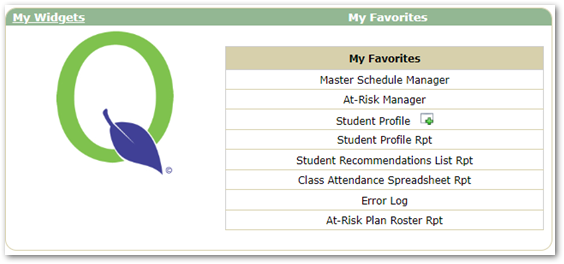
The My Favorites Widget allows users to setup quick access links to applications and reports within Q. This widget is customized by the user. If you have applications or reports that are regularly used, you can add those to My Favorites.
My Favorites displays on the home page.
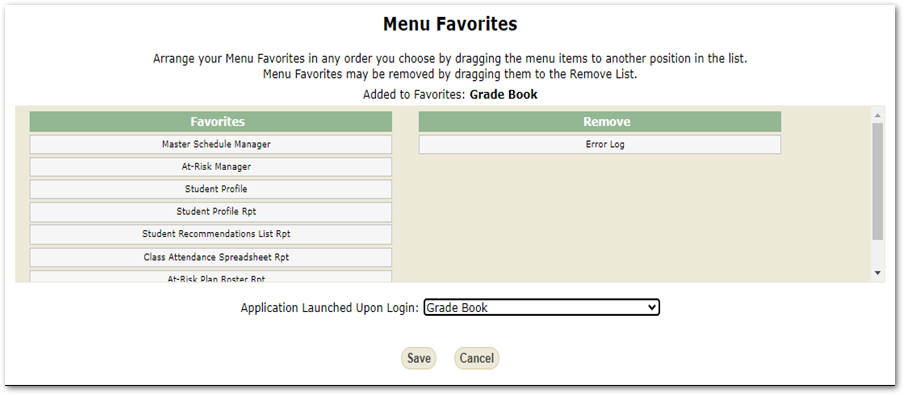
The My Favorites icon ( ) is located in the bottom left corner of your screen. To add an application or report first navigate to the item to be added, then click the favorites icon. This will open the Favorites dialog box. Here you will see what application or report is being added. An application can also be selected as the default app to launch when Q is opened.
In the example below the Gradebook application is being added to Favorites, and saved as the default application to launch. Now each time Q is opened it will automatically open to the Gradebook Application. To remove items just move under the Remove label. Save