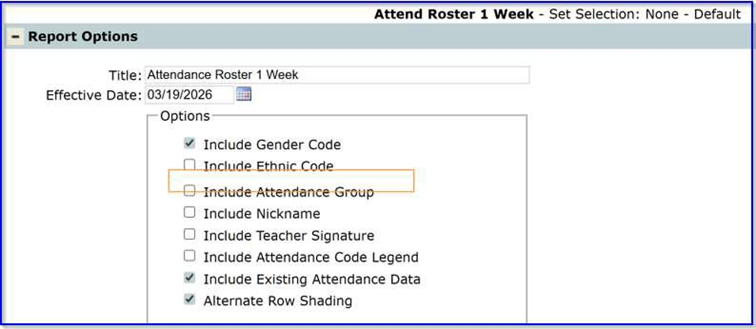
Did you know that students enrolled in Special Programs can be easily identified throughout Q by displaying a program code or symbol?
These visual indicators help authorized users quickly recognize student program participation while respecting permission-based access.
This Q-Tip explains where program codes or display symbols appear in Q and how they are configured, so districts can ensure consistent and accurate visibility across the system.
Where Program Codes or Symbols May Display
- Student Banners
- Class Attendance
- Class Marks
- Gradebook
- Attendance Roster (1-Week and 2-Week Reports)
Important Note on Program Visibility
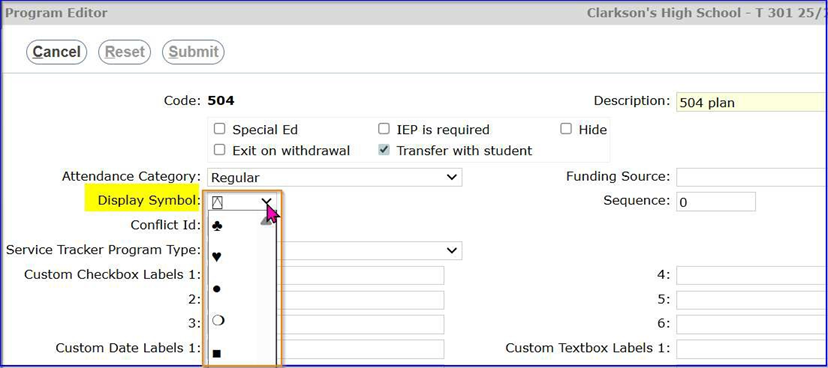
For program codes or display symbols to appear, a default Display Symbol must be assigned to each program. Programs without a defined Display Symbol will not display a program code or symbol anywhere in Q, even for users with permission to view that program.
Visibility is also permission-based—only users authorized to view specific programs will see the corresponding codes or symbols.
Program Editor
Preference Editor / System Configuration
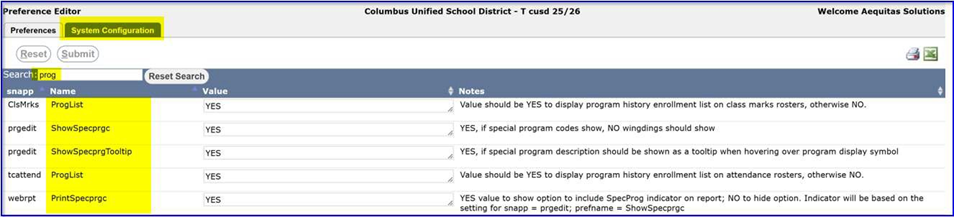
When ShowSpecprgc = YES, program codes will be displayed accordingly
When ShowSpecprgc = NO, program display symbols will be displayed accordingly.
(ours is set to show program codes for these examples!)
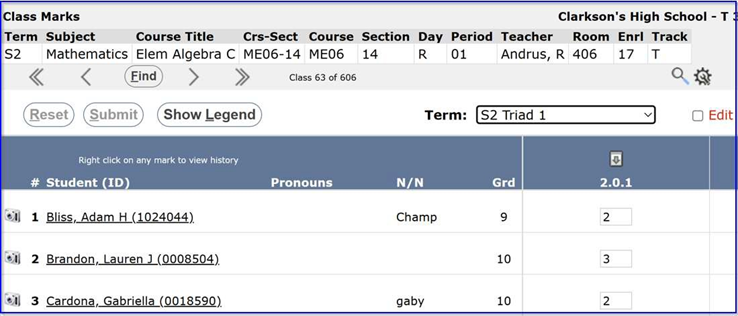
When snapp = ClsMarks and ProgList = YES:
Class Marks
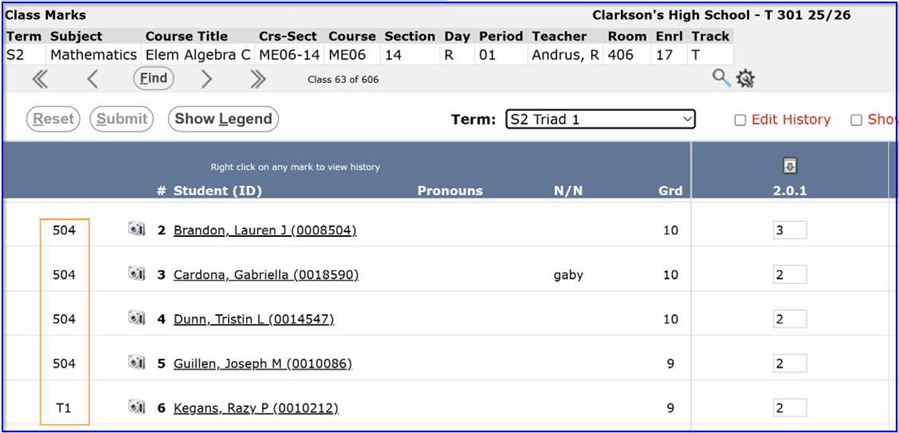
When snapp = ClsMarks and ProgList = NO:
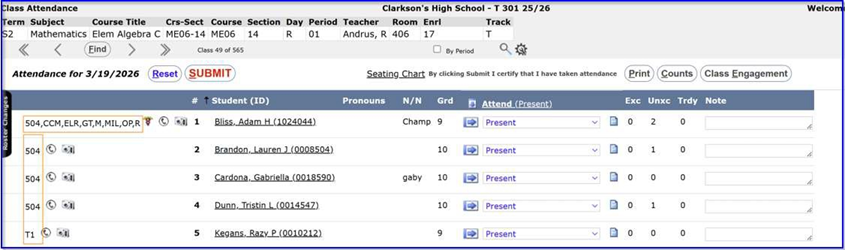
When snapp = tcattend and ProgList = YES:
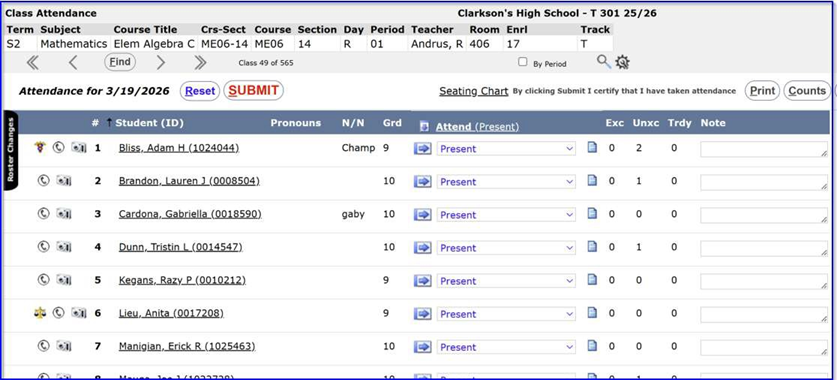
Class Attendance
When snapp = tcattend and ProgList = NO:
When ShowSpecprgcTooltip = YES:
Student Banner

When ShowSpecprgcTooltip = NO:

When PrintSpecprgc = YES:
(impacts both the Attendance Roster 1 Week and Attendance Roster 2 Week reports)
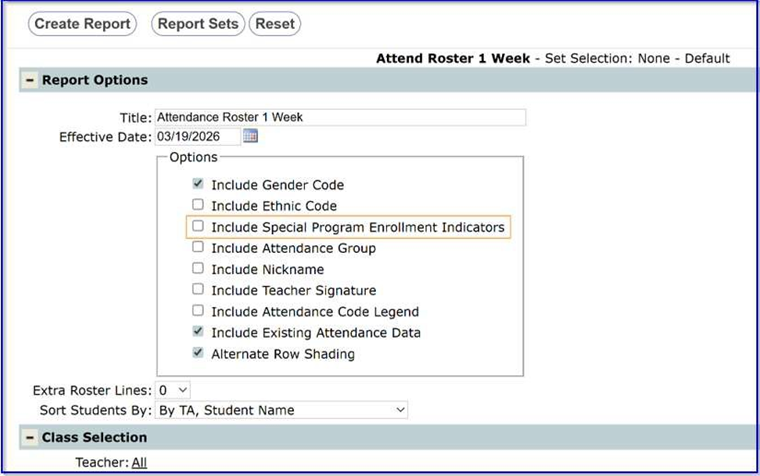
When PrintSpecprgc = NO: