
The School Editor application is used to add new schools to the district as well as to update and edit information about existing schools. Users may also add non-district schools that can be used for various reasons (e.g. transcripts, enrollment history, etc.).
School is located under the School menu in Q.
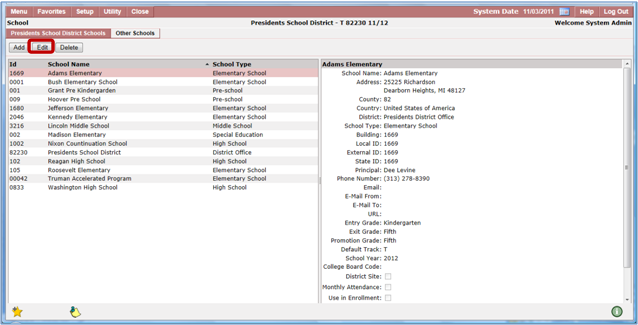
- When the School application is launched, a list of all district schools displays on the left hand side of the screen.
- Selecting a school from the list displays all the information entered in the system about the school on the right hand side.
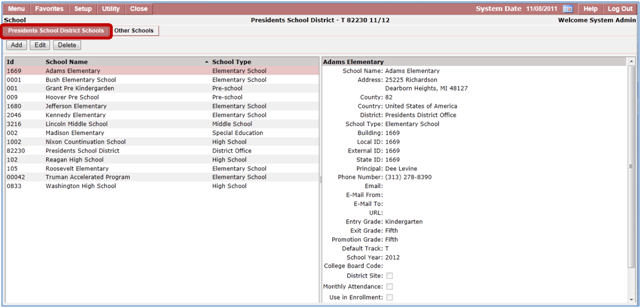
Schools which are not part of the district are also available in this application.
- Click the Other Schools button to display additional schools that have been added to the SIS.
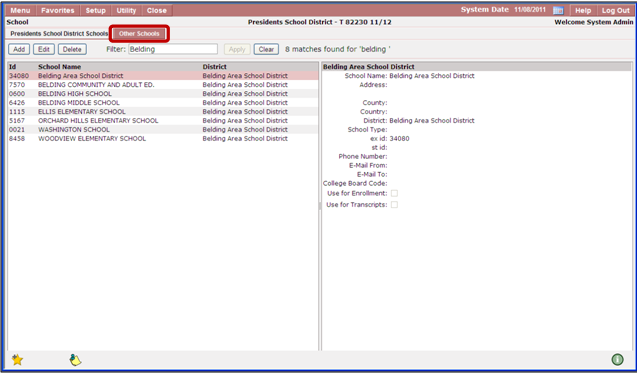
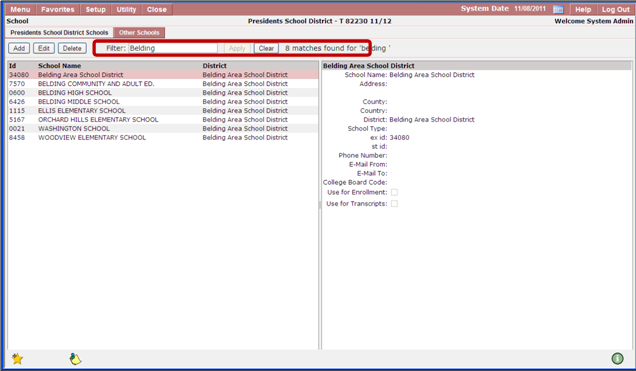
To easily locate a school in the Other Schools listing, a filter is provided.
- Type as many or as few letters in the filter box and click Apply to display a list of schools matching your criteria.
- To begin a new search, click Clear.
New schools may be added to the District Schools list or to the Other Schools list.
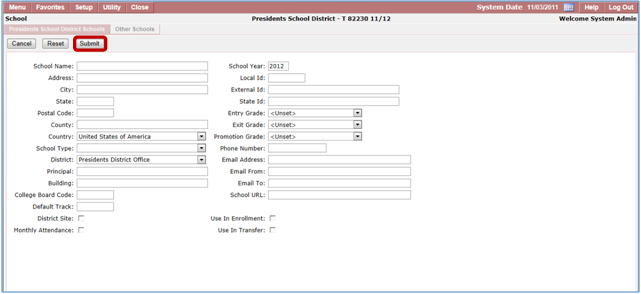
To add a district school:
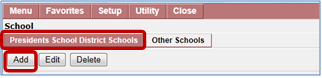
- Select the District Schools tab.
- Click the Add button.
- Enter all the pertinent school information.
- Click Submit to save information.
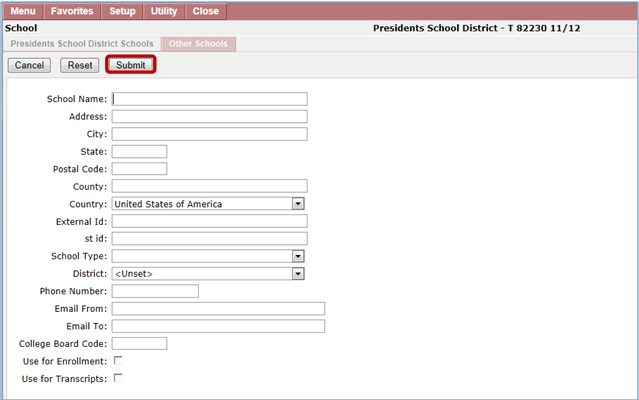
To add a non-district school:
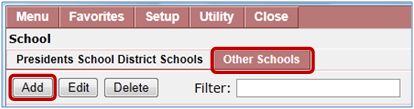
- Select the Other Schools tab.
- Click the Add button.
- Enter all the pertinent school information.
- Click Submit.
- Select either the District Schools or Other Schools tab.
- Select the school to edit from the list.
- Information details for the selected school will display on the right hand side of the screen.
- Click the Edit button.
- The edit screen displays all the school information; modify as needed.
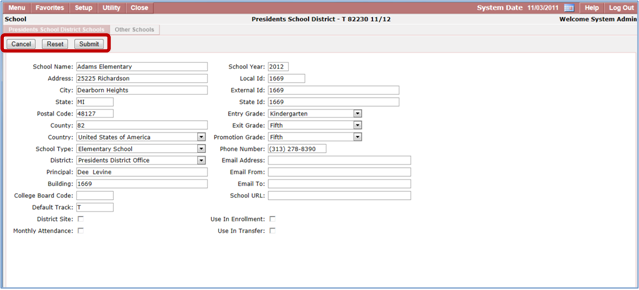
Open Enrollment - When this box is checked students can enroll in the school even if enrollment validation is on and they do not live within the school's address range.
After your modifications are completed you may:
- Click Cancel to cancel any changes made.
- Click Reset to return to original information.
- Click Submit to save changes.
