
The Q Seating Chart Report prints seating charts for a selected teacher, class and date.
While details specific to this report will follow, users can find general information about reports within the Reports documentation.
Seating Chart Report is located within Reports in the Schedule menu in Q.
Report Options
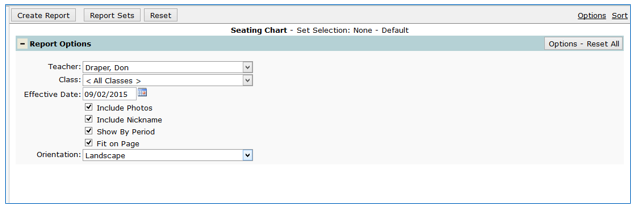
The Seating Chart report options include:
- Teacher: If the logged in user has access to all, teachers with currently scheduled classes with seating charts display in the drop down list for selection. If the logged in user is the teacher, the teacher defaults to their name.
- Class: Once the teacher has been selected, the drop down lists displays all of their currently scheduled classes where seating charts have been created.
- Effective Date: Enter the effective date for the Seating Charts.
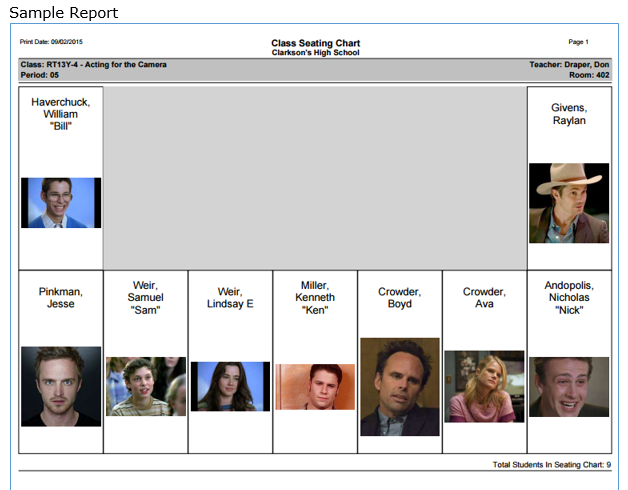
- Include Photos: If checked the report will include student photos (if available) on the report.
- Include Nickname: Nicknames entered in the student editor and those entered by the teacher in class attendance will print on the seating chart when this box is checked.
- Show by period: This option can be used when a teacher has multiple classes scheduled in the same period and has created a seating chart for all students scheduled in the period.
- Fit on Page: Checking this option will shrink the seating chart to fit on one page.
- Orientation: Portrait or Landscape may be selected from the drop down list.
Example Reports
Videos
