
Are you in need of entering marks for a student that is no longer scheduled into a class? There are a few ways to accomplish this.
1. Within the Grade Book, users can select the “All Students radio button. This will allow students who are no longer scheduled into the class appear on the roster – note they appear in red font.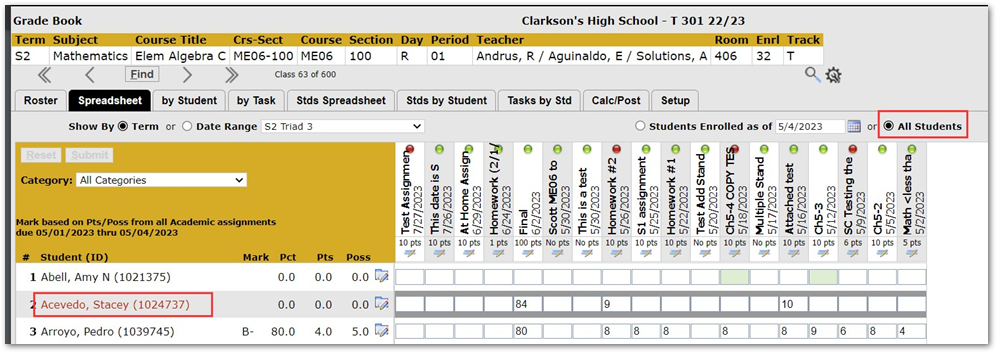
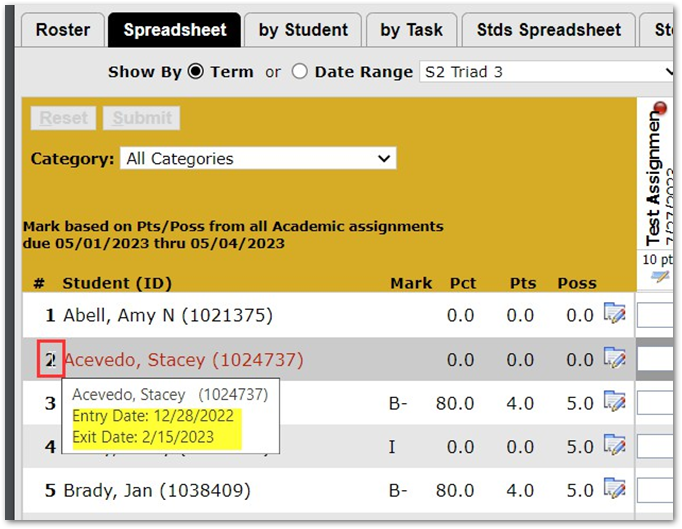
To view schedule dates for a given student, simply hover over the roster number and you will see the student’s schedule entry and exit dates:
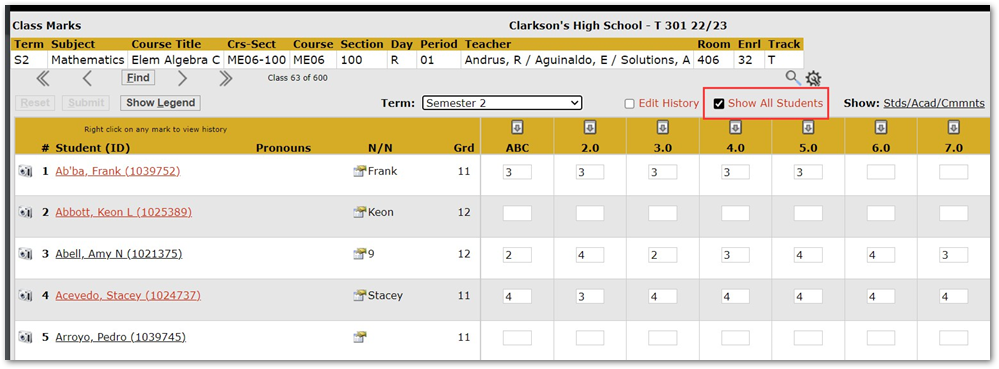
2. Within Class Marks, users can select the “Show All Students” checkbox which will include students no longer scheduled into the course. (please note this is a permission item, so all users may not see this option). Students will again appear in red text ,and the same capability is in place within Class Marks to hover over the student’s roster number to view schedule entry and exit information:
When it comes time to process marks that have been entered by teachers, prior to processing these marks to Academic History, there are a few steps to take for preparation.
- Determine who has not yet entered marks for students. This is an important step to allow sites to reach out to teachers to remind them marks have not yet been entered for a given class.
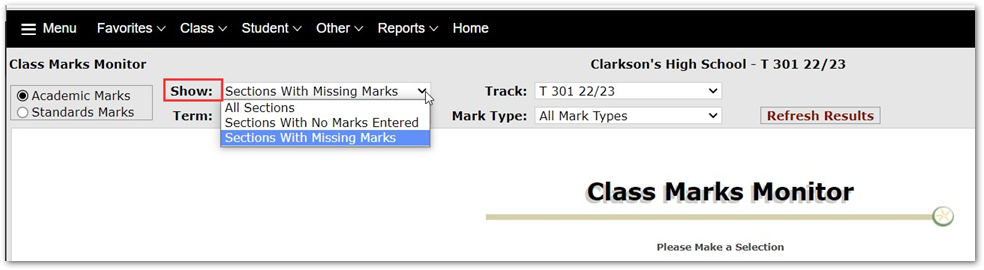
- One option to accomplish this is the Class Marks Monitor. The Class Marks Monitor gives the option to return either sections with no marks entered, or sections with missing marks (marks have partially been entered for some students).
- Another option that can be used to determine who has not yet entered marks for students is the Class Marks Listing Report. This report gives users the ability to view only classes with no marks entered:
One other important step to take prior to processing marks is verifying the marks that have been entered to ensure there are no errors. To do so, users can run either the Class Marks Listing report, or the Student Marks Listing report. Each of these reports will give a breakdown of marks that have been entered. Users can filter these reports to return students within a particular threshold as well by using the Marks Filters area within each of these reports.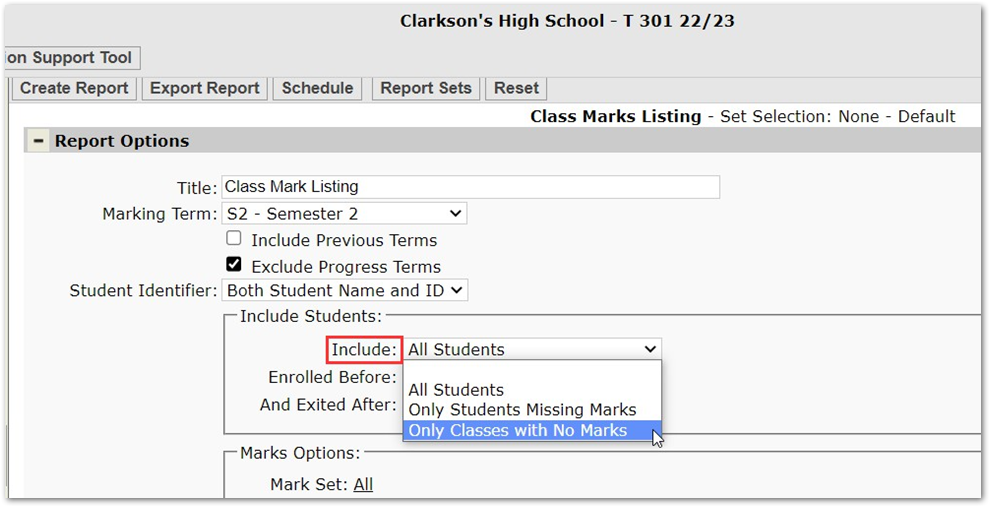
- One option to accomplish this is the Class Marks Monitor. The Class Marks Monitor gives the option to return either sections with no marks entered, or sections with missing marks (marks have partially been entered for some students).
- Once all marks have been entered and verified are correct, Marks Processing can then be run to ensure these marks are posted to Academic History for students.
Happy Processing!