The Q Merge Students application assists with the cleanup of multiple student ID numbers which may be assigned to the same student with different pieces of student data attached to each ID number. The merge application enables system administrators to identify students with duplicate information and merge student data into one record, effectively removing duplicate student records. The merging of student records is a permanent action which cannot be undone. Therefore, it is imperative that all student data attached to the ID number to be merged be printed or saved to PDF before completing the process.
Note: The merge process and the screens depicted below may vary based on district processes and procedures.
The Merge Student application is designed to move information from one student ID to another however, there are two major situations where the Merge Application requires user cleanup before it can be used:
- When the two student ID numbers have different State Identification numbers they cannot be merged using the application. If it is determined that the two numbers are the same person, the State ID numbers must be made to match.
- If the two student ID numbers have overlapping enrollment records, the overlapping records must be cleaned up before a merge can take place.
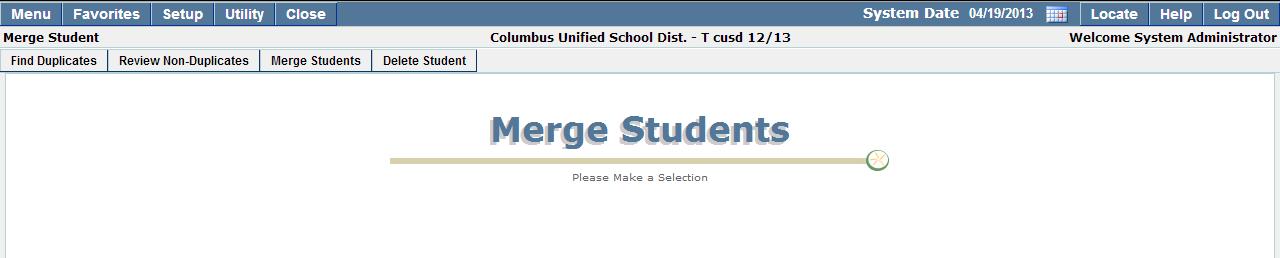
Merge Students is located under the System menu in Q.
The Merge Student application will allow you to identify duplicate student records based on the user defined match criteria.
To identify duplicate students in the Merge Student application:
You can search for duplicate students based on the following Match Criteria:
- Last Name (exact or similar)
- First Name (exact, similar or match first initial)
- Birthdate (exact, similar)
- Gender
- State ID
- Select search criteria by single clicking in the box next to the desired field.
- Click Show Results
Note: Search Criteria may limit the number of student records returned. The more criteria you select, the fewer records may be returned. 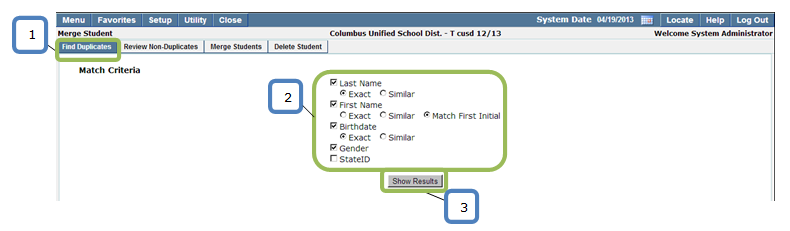
- To edit match criteria, click Change Match Criteria to be returned to the selection screen.
- The records which the system has identified as potential duplicates will be shown next to one another for easy comparison.
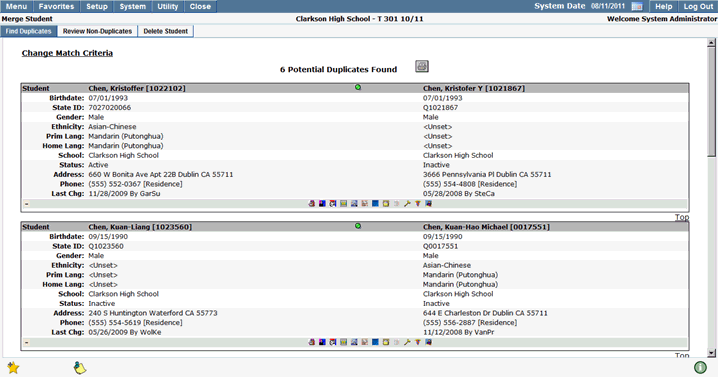
Icons near the bottom of each set of records will open additional student information. To minimize information which has been maximized, click the minus (-) sign.

Once duplicate students have been identified by the system, it is important to review each set of records individually and confirm that they are in fact duplicates before the record is flagged as a duplicate and ultimately deleted.
- Students may have similar names or, in some instances, the same name. It is important to use as much student data as possible to confirm that the student is in fact, a duplicate. Concluding that a student has a duplicate record based solely on their name, could lead to non-duplicate records being flagged as duplicates and possibly deleted.
- If the students' names have been reviewed and there is still belief that a student record is a duplicate, continue reviewing student data.
- Verify student DOB, address, phone numbers and all student demographic data available. Compare as much data as possible to verify which of the duplicate records you are going to delete, or flag as non duplicates.
- Since the student merge process is final it is recommended that student demographic data be saved in the event menaul data entry is needed once the merge process is complete.
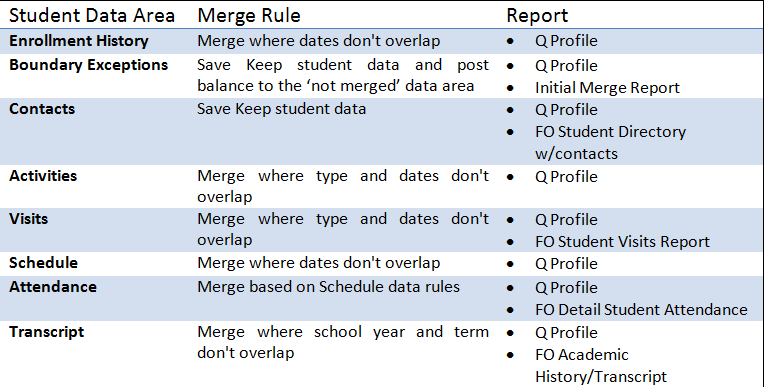
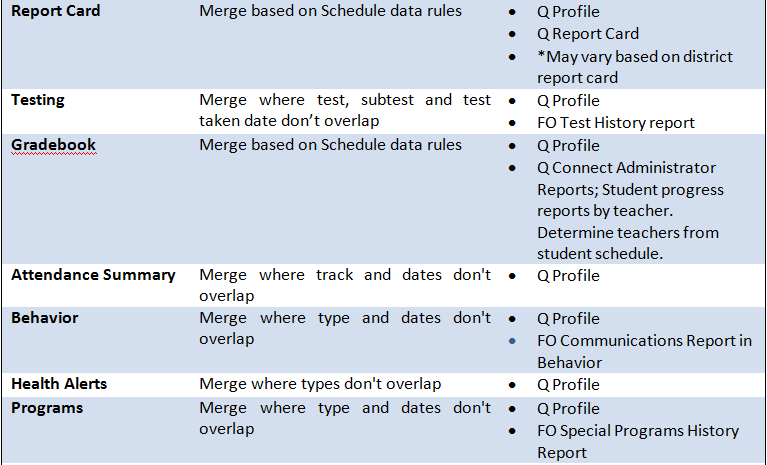
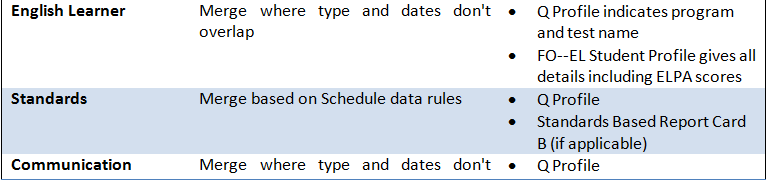
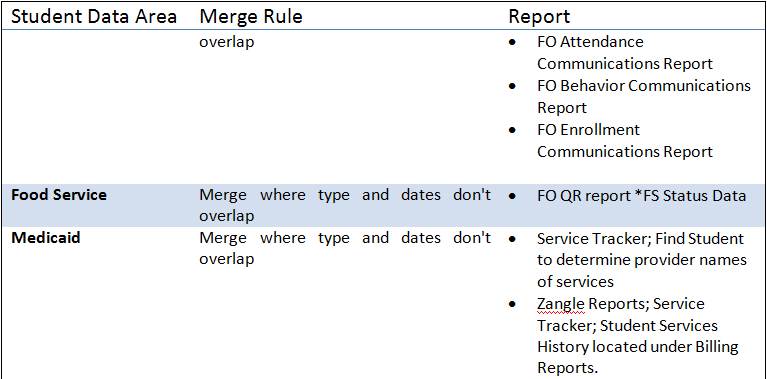
- There are several reports throughout the system that may be used to gather student information. An overview of student information may be obtained by printing the Q Student Profile. Additional reports are recommended in certain circumstances where more detailed information is required. The following chart lists the areas of student information, the corresponding merge rule and which reports to run to obtain student data.


Once all available student information has been reviewed and students have been identified as a non-duplicates; click the green Non-Duplicates button located in the upper middle of the two potential duplicate records.
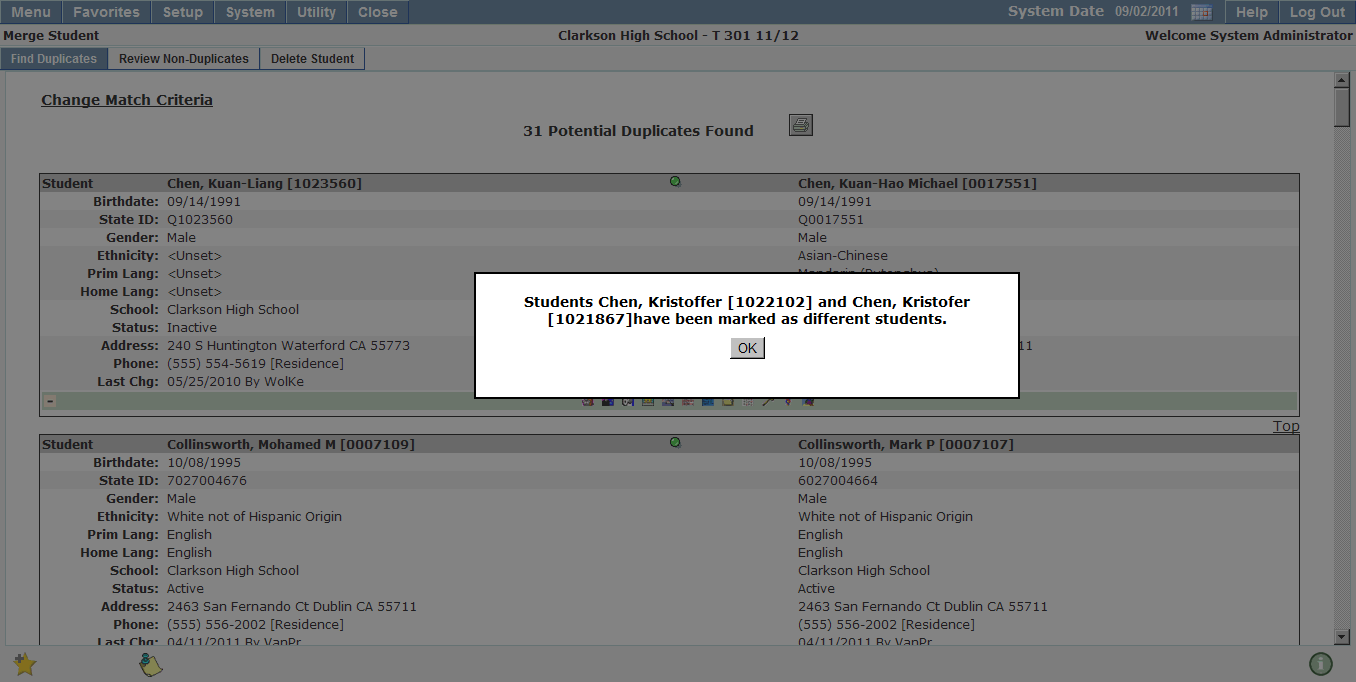
Once the Non-Duplicate button has been clicked, a pop up message confirming the action will be displayed, click OK. The students will be removed from the Potential Duplicate Student list.
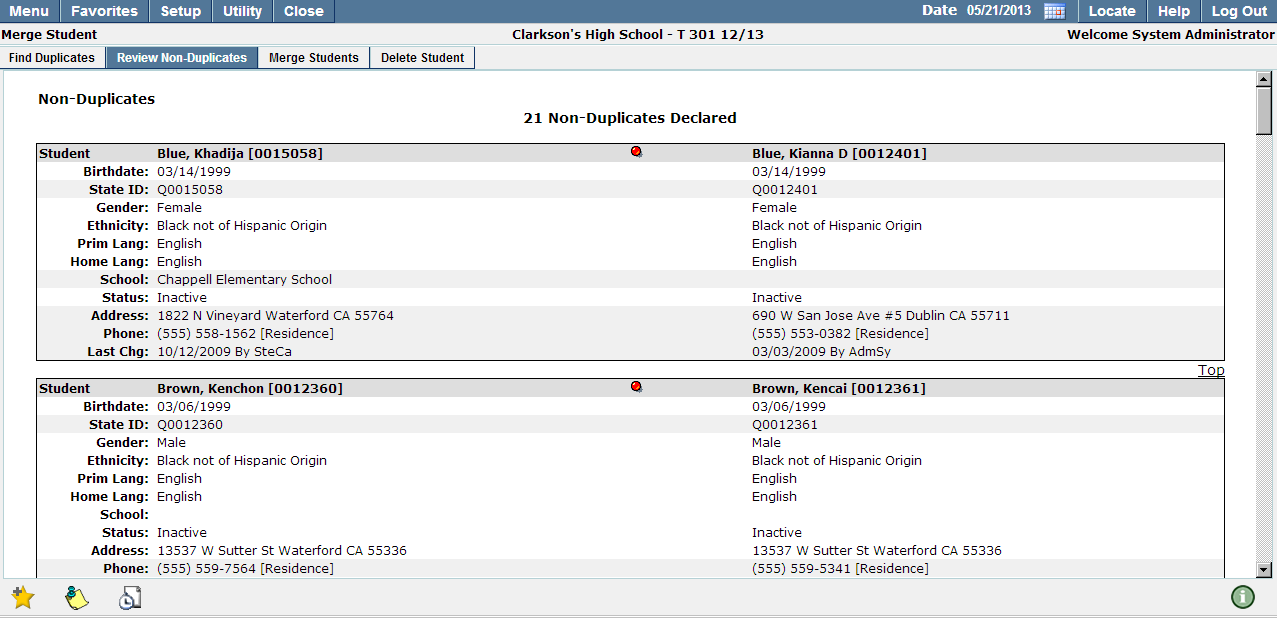
Once student records have been flagged as non-duplicates they will appear in the Review Non-Duplicates tab. If a student has been flagged as a non-duplicate in error, click the red Remove from Non-Duplicates button. This action will move the students from the Review Non-Duplicates tab back to the Find Duplicates tab where records can be reviewed and deleted if necessary.
Once potential duplicate records have been thoroughly reviewed and the most thorough record has been identified, a district may choose to delete the second, less complete record.
Note: Once a student record is deleted, any and all data attached to that student record will be deleted from the system. It is essential that users ensure that any necessary data has been entered into the record to be kept before the duplicate is deleted.
- Click the Delete Student tab.

- Enter the Student ID of the student whose record you wish to delete.
- Click Show Student
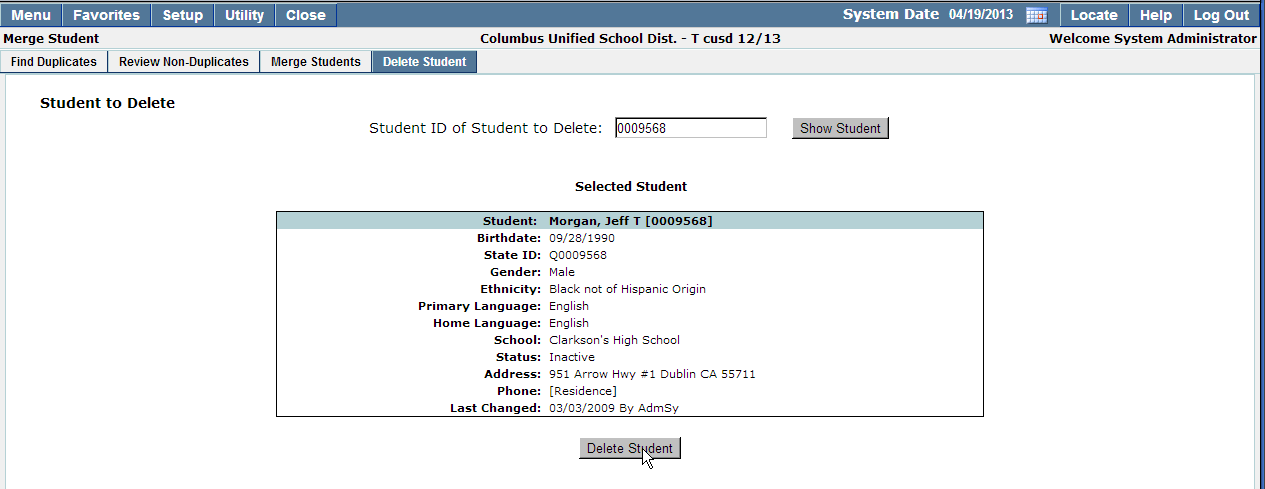
- Confirm the selected student is the one you would like deleted.
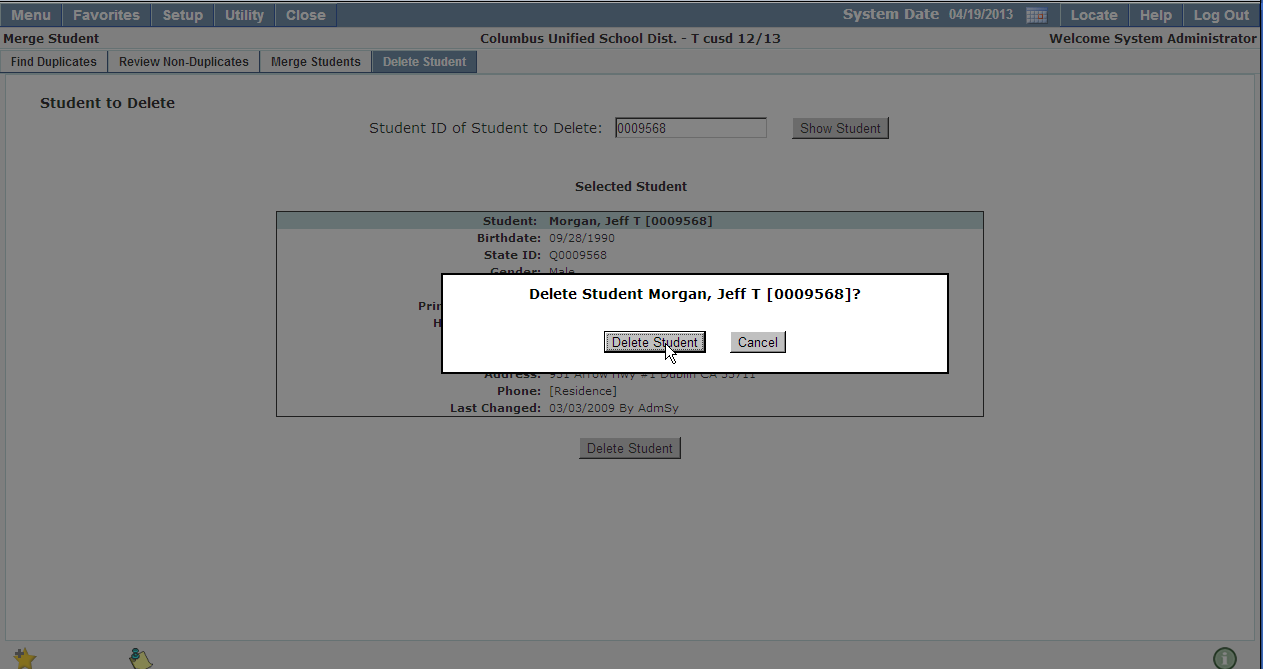
- Click Delete Student, you will receive a pop up confirmation showing the student name and ID number of the record you have chosen to delete.
- Once the student name and ID have been confirmed, click Delete Student. If upon review of the student name and ID you realize the wrong student has been selected, click Cancel.
- You will see a progress window, while the system deletes the student record.
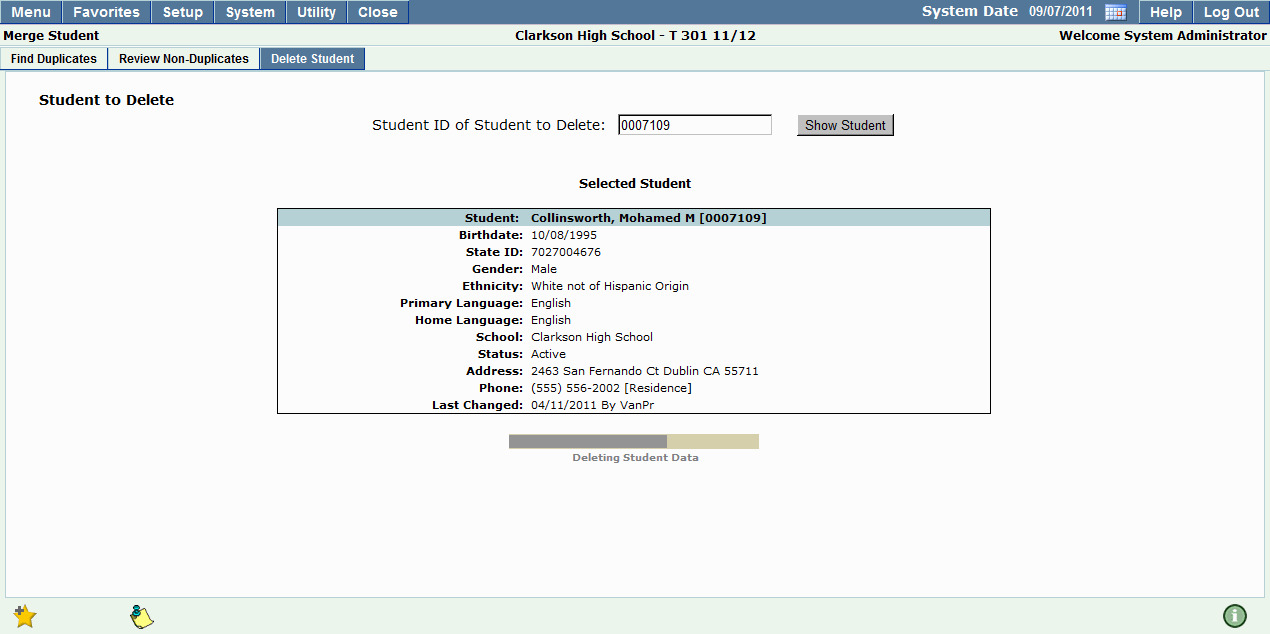
- Once the record has been deleted, you will be returned to the Delete Student tab. Continue entering the ID numbers of duplicate students; repeat the deletion process until all duplicate records have been removed.
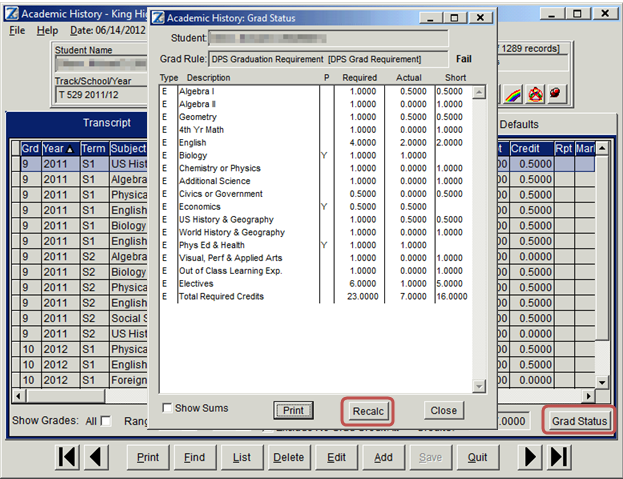
High school students whose records have been merged must have their eligibility and graduation requirements re-calculated after report card or transcript data is merged.
- Once the merge process has been completed, log in to the students active year and track in the Front Office applications.
- From the Main Menu, select Academic History.
- From the Academic History menu, select Academic History.
- Find Student.
- Click Grad Status button.
- A window will open
- Click Recalc button to update graduation requirements.
- Verify the graduation requirements from the Merge student ID are now included in teh Keep Student ID.
Note: Student GPAs also need to be recalculated after report card or transcript data is merged.