Food Service Student Tools provides the ability to create and maintain Food Service Placement Records for and assign separate Food Service IDs for use in the cafeteria.
Student Tools is located under the Food Service PoS menu in Q.
Creating placement records for students gives food service sites the ability to feed students that do not have active statuses at school sites but are still eligible to receive food service benefits. A student with a current enrollment record is automatically included in eligibility for the school of enrollment. Students without a current enrollment record are not included in eligibility nor recognized by Food Service until they have been placed into a Food Service Site. The Student Placement application allows any student in the database, regardless of enrollment status to be assigned to any Food Service Site. The school of enrollment is the food service site for purposes of student eligibility and accounting. The Placement application allows you to override this ownership and assign a student’s eligibility to another food service site.
For example:
- A district student is enrolled at School A, but receives meals from School B, and School B must claim the student’s eligibility.
Placement allows students who are not currently enrolled to be assigned to a food service site and thereby included in eligibility.
For example:
- Children who are not enrolled district students but are enrolled in the district pre-school and receive district Food Service benefits.
- Exited district students who attend a non-district school, such as a Young Mothers Program, and receive district Food Service benefits.
- Students from outside your district who receive services from your district such as County Special Education students, and also receive district Food Service benefits.
Permissions
Users will only be able to edit or delete a student placement record if they are assigned the Food Service PoS: Student Tools [Administrator] permission item for their role.
Creating a Student Placement Record
From within the Student Tools application, click Student Placement.
Find a student
- If the student to be placed is enrolled at a school site within your district, select the school site from the Enrolled drop down list. If the student is not currently enrolled, select Not Enrolled. Enter search criteria, click Refresh to build an available list of students that meet the criteria that has been entered.
- Select the student(s) you would like to place by clicking in the box to the left of their Student ID.
- Enter a Placement date by entering it in a MMDDYYYY format or by clicking on the Calendar icon and selecting it there. Select the Food Service Site and set the Placement Date.
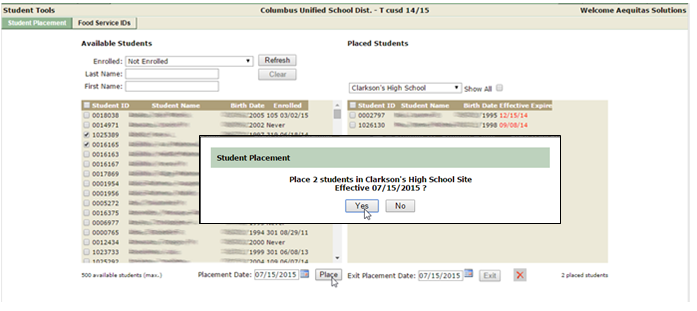
- Click Place. A confirmation prompt will be displayed. Click Yes to place the student, or No to cancel and return to the previous screen. You will be notified if a problem such as a date-range conflict has prevented the placement. Placed students will be removed from the selection list on the left hand side of the screen and moved to the placed selection list on the right. Placed students are assigned an “open-ended” placement with no exit date defined. To designate an Exit date, select the Placed student and an Exit Placement Date and click Exit. Click Show All to view students with Placement records that have been expired.
Exit/Expire a Placement Record
To access a placement record for a student that has been placed:
- Select the placement site from the Placed Students drop down list to view the list of currently placed students.
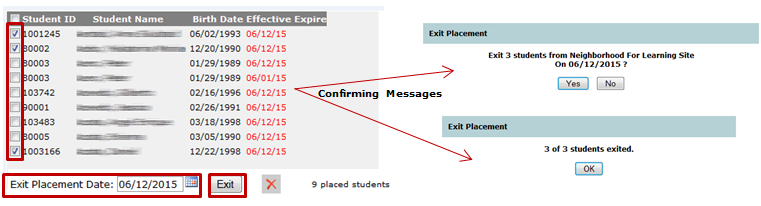
- Click Show All to include students formerly placed at the site that have exited. To terminate a student’s placement, select the student(s) being exited, select the Exit Placement Date and click EXIT. At each step, confirming messages will appear.
- Click Show All, select a student(s) with an Expire Date and click Undo Exit to the right of the Exit Placement Date field.
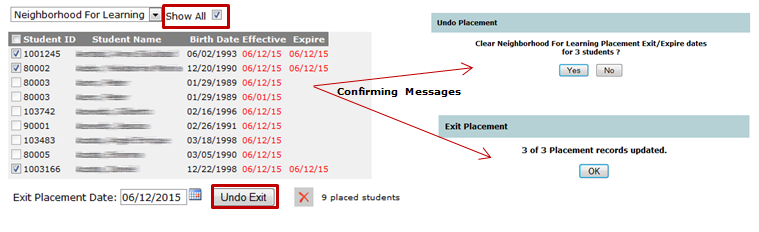
- Once the Expire Date is removed, a new Exit Placement Date can be selected, then click EXIT.
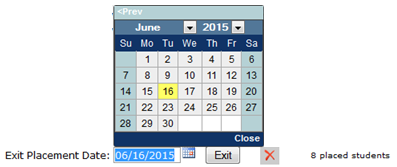
- To change the Effective Date the placement record must be deleted and re- added. See the Section Delete a Placement Record for instructions.
Should a student change sites mid-year, end the original placement on the appropriate date and then add a new placement record with an appropriate Begin date. Eligibility is assigned to each site for that date range. DO NOT simply change the Food Service Site unless your intent is to remove all eligibility for that student from the original site and assign it instead to the replacement site for that date range.
Delete a Placement Record
To delete a placement record that has been created:
- Select the school of placement from the Placed Students drop down list.
- Click Show All. All students with current and expired placement records will be displayed.
- Place a checkmark next to the Placement record that you would like to delete.
- Click the Red X located to the right of the Exit Placement Date.
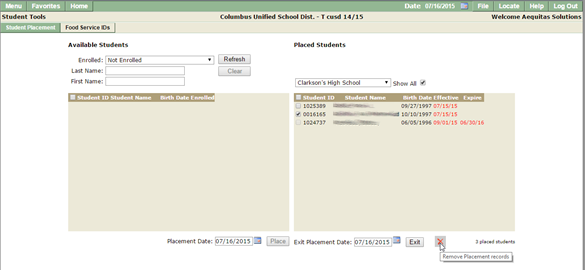
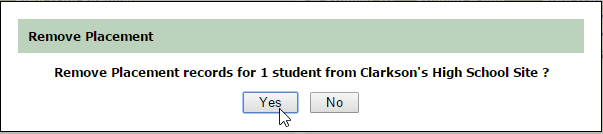
- You will be presented with a confirmation prompt. Click Yes to complete the deletion, or click No to return to the previous screen.
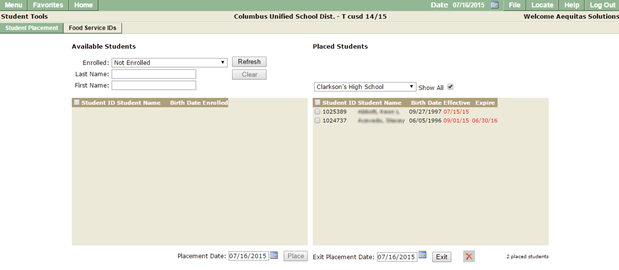
- If you have chosen to delete the Placement, it will be removed from the list of placed students.
This utility provides a way to create Food Service IDs. A Food Service ID is an alias for the Q student ID. The alias is typically a shorter number and intended for use in elementary food lines where students enter their own ID number using a keypad.
- IDs are retained from year to year.
- IDs can be released for inactive/graduated/exited students.
- Placed students appear only in the roster of the placed site.
Permissions
Users will only be able to clear IDs if they are assigned the Food Service PoS: Student Tools [Administrator] permission item for their role.
Assigning Food Service IDs
- Click on the Food Service IDs tab and select the school and display criteria from the dropdown lists. The students are listed in alphabetical order with a blank FS Ident, if not previously assigned, and the last column shows the range(s) of IDs available.
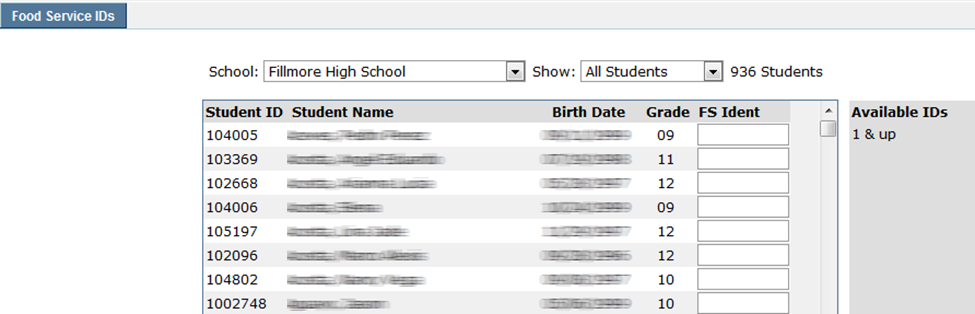
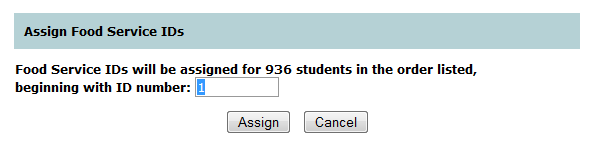
- Food Service IDs may be assigned to students by hand, individually, or en masse. To manually enter an ID, simply enter it into the FS Ident textbox. To assign en masse, click the Assign IDs
A pop up window will prompt the user for the beginning sequence number based on the available ID. In the above case all IDs are available starting with 1. If a multiple digit number was desired, the beginning number could be made to be 100. Click Assign
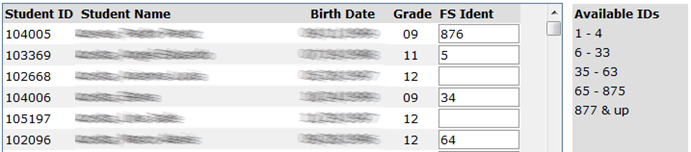
If IDs have previously been assigned to students, those IDs will show in FS Ident and the Available IDs column will be adjusted to reflect that.
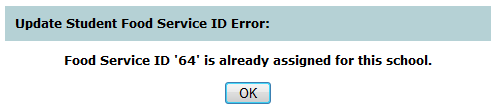
If entries are made or changed by hand, the system will check for duplicates.
Q will not overwrite existing IDs, it will work around them as shown below.
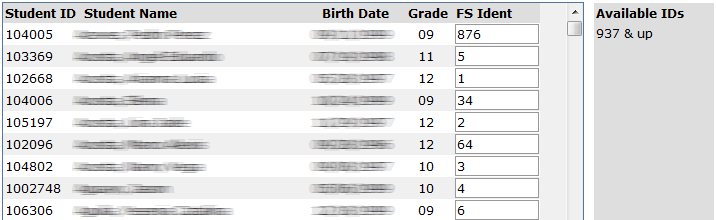
If a Food Service ID has been forgotten or needs to be changed, it can be retrieved or changed from this page. To change an ID, just enter the new number and click Enter.
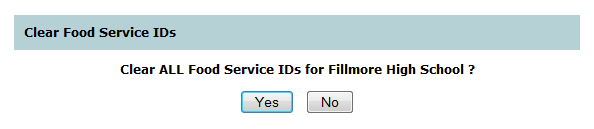
- To clear all IDs and start over click Clear IDs.

This will clear all the Food Service IDs at this school. Click Yes to continue and No to return to the previous screen. Using the Clear IDs button requires administrator permission.