
Q Communications Setup is used to configure Communications tracking applications including defining:
- Communication Categories and their associated Communication Types
- View / Edit attributes of Communication Categories by Permission Role
- Properties of Communication Types
- Mapping applications and reports to Communications Categories for applications and reports that have a mail merge report feature.
Communications Setup is located under the Communications menu in Q.
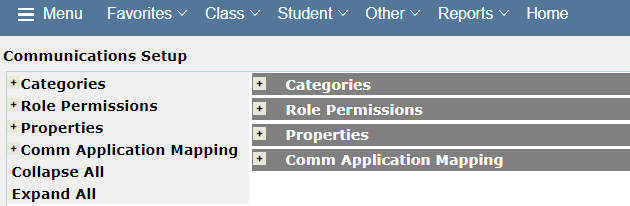
Upon launching the application, like other Setup applications, each area to configure is represented by a band. You may expand the band to work on by clicking the + sign, or click Expand All and then select the band.
Before getting started with Communication Setup a few things need to be configured in the Lookup Editor:
- Communication Types
- Communication Outcomes
- Communication Roles
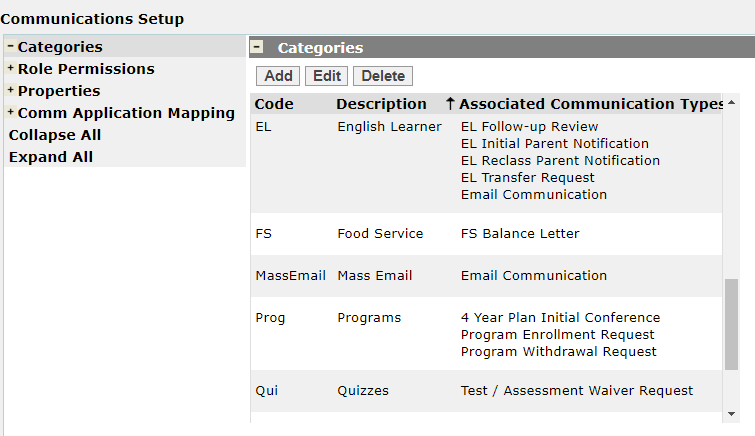
Expand the Communication Category band to work with the Categories.
Categories are classifications of Communication Types. Categories may be defined in the Setup application or the Category codes may be created first in Lookup Editor. Once initially defined, this Setup band is used to associate Communication Types with each Category.
To add a Category, click Add: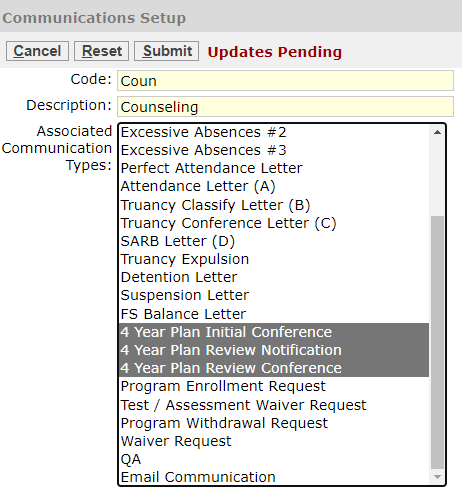
- Enter a code and description
- And select the specific Communication Types to be associated with this Category.
- Click Submit.
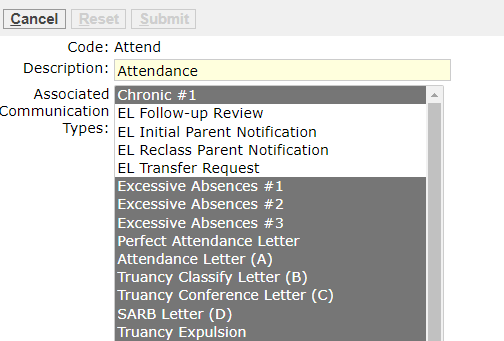
To Edit a Category:
- Select the Category, and click Edit.
- In edit mode, you may alter the Description and change the associated Communication Types.
- Submit changes.
To Delete a Category:
- Select the Category, and click Delete.
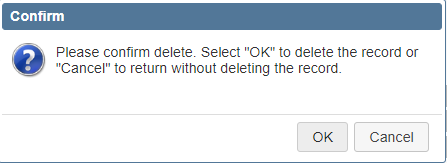
- Click OK on the confirmation message if you are sure you want to delete the Category, otherwise click Cancel.
When permissions have been given to Student Communications, Mass Communications or Communications Management applications, the Role Permission band will enable you to configure access permission to Communication Categories, by Permission role. Until permissions have been given, though, the following message will appear:
Once application permissions have been granted, Permission Roles with application permissions to one of the Communication applications mentioned above will appear at left. The staff members in the selected role will be displayed in the center with the viewable Communication Categories displayed at right.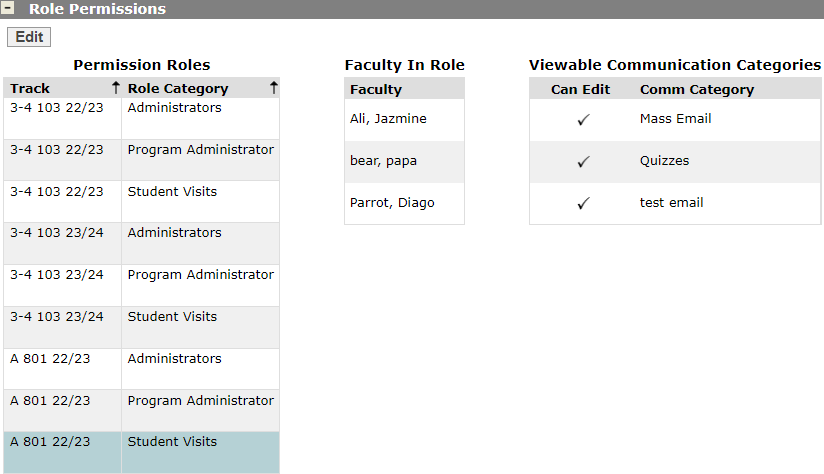
To make any changes to the configuration, select the Permission Role at left and click Edit.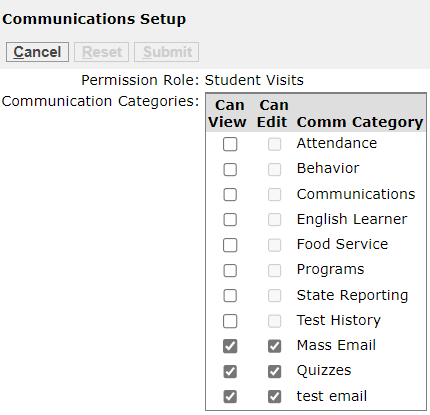
- Adjust the View / Edit settings as desired for each Category
- Click Submit to save the changes.
- To back out of making a change, click Cancel.
Communication types may be filtered at left by Category or Type using the selection filters under the column headings. The filters default to ‘All’. To remove a filter you have set, click the small red X.
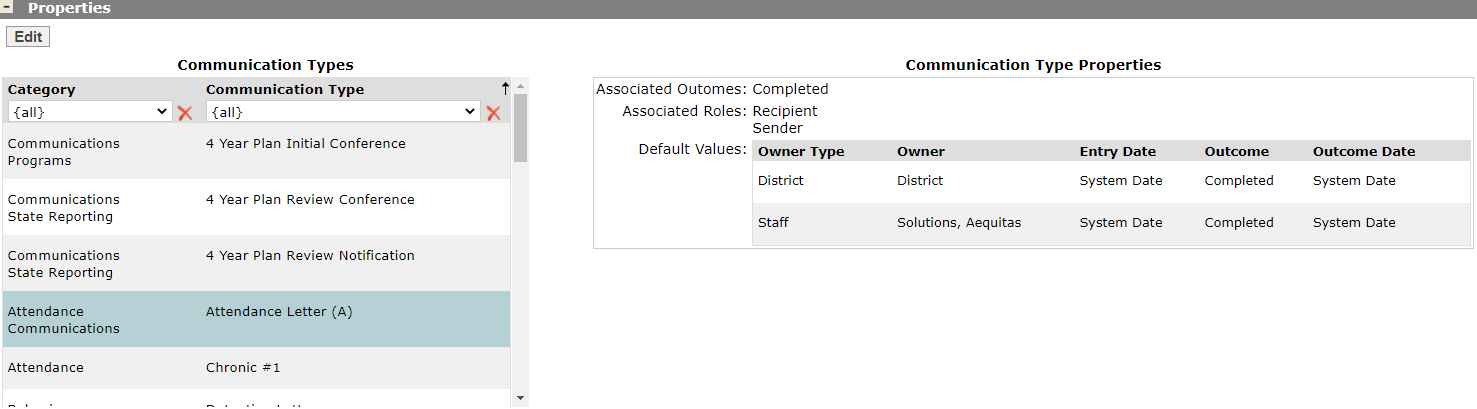
To edit a record, select the record at left, and click Edit.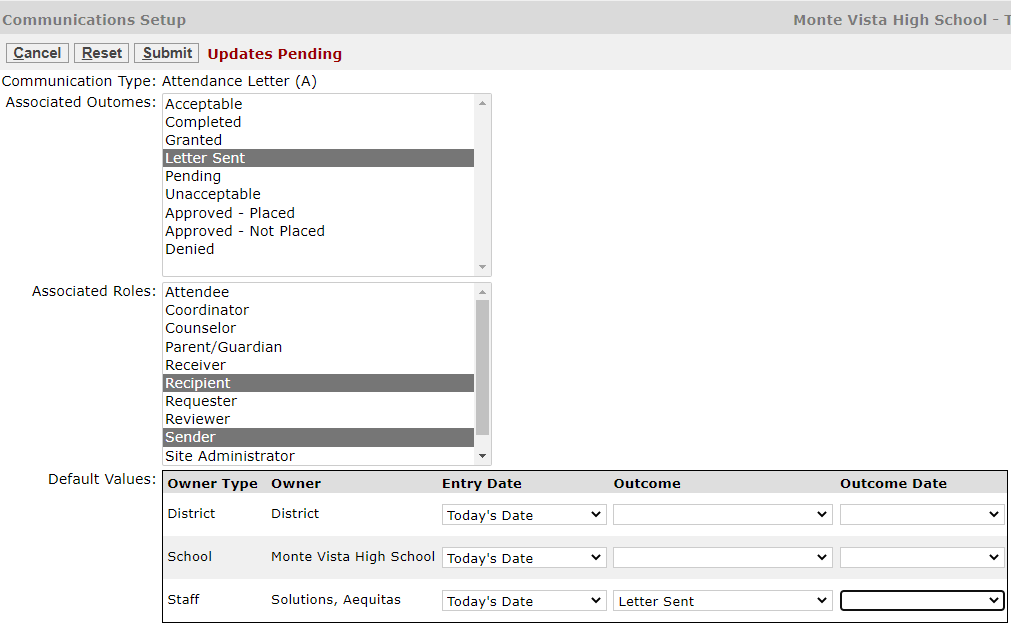
Use the CNTL key and select the desired associated outcomes and roles.
If the district would like default values to be filled in when Communication records are initially created, make selections for Entry Date, Outcome, and Outcome date as desired.
Date selection options are either Today’s Date or System Date.
This band is used to associate a Communication Category with each of the set of applications or reports that have a mail merge feature. When configured, Communication Types associated with the Category will then be available to be assigned to a mail merge document.
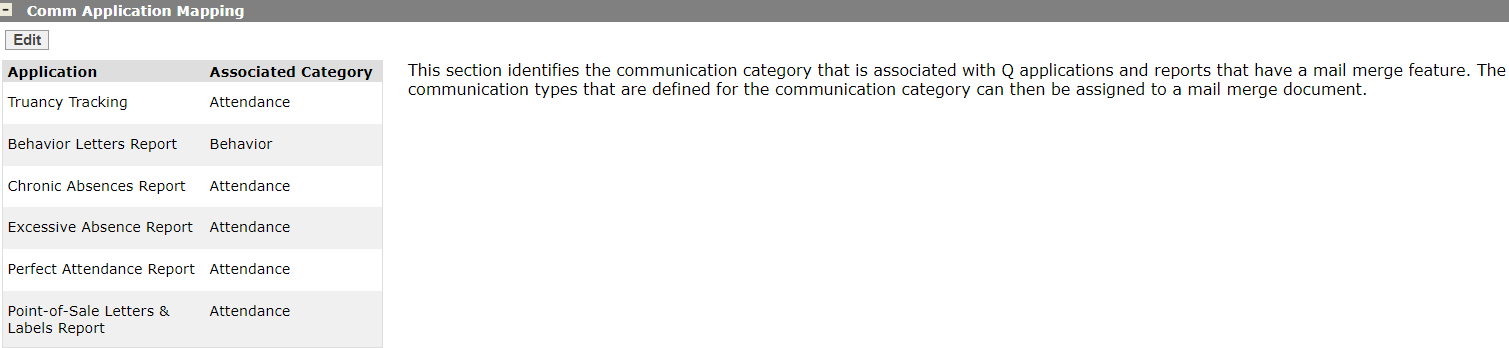
To edit the configuration, click the Edit button.

For each application or report listed, select the appropriate Communication Category for the district.
Click Submit to save the change.
