
The Message Editor is a component found within several applications in Q, including Attendance, Behavior, and Food Service. The Message Editor allows the user to create custom merge documents within Q. Documents may be created in different languages and formatted to send as letters or emails.
Access: In the Truancy Tracking application ‘Message Editor’ is a tab within the application, but in reports, such as Behavior Letters, select ‘Mail Merge’ and then ‘Edit’.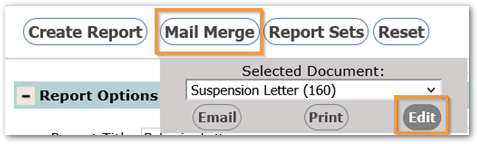
Creating a New Document

To create a new document select:
create a new document select:
- Document: The drop-down list will display current documents that can be edited. The last option is “Add New..”
- Select ‘Add New…’, the new document pop-up box opens
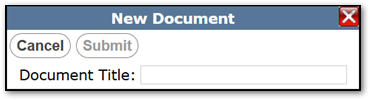
- Add a document Title and click Submit
Customizing Your Document
- Ribbon: Following prior steps, a new blank document will be created, and the ribbon will update with options.

- Message Format: Users can choose between Letter and Email
- Language: The language will default to English, but other languages are available in the drop-down list.
- Insert Data: Users can insert special tags into their document for commonly used data points. These can be especially helpful when printing letters or sending emails in bulk. There are a variety of types and uses for these inserted data points.
- Example: Using the Student Last Name option will insert the tag {stuFirst} into the document.
- If a user began an email or letter with Dear {stuFirst}, then each letter or email would begin with a greeting that corresponds with each student’s name.
- Formatting Options: Documents in Q have a variety of formatting options, many of which are common across most word processing software and applications.
Provided below are a few that may require additional details.
- Table: To insert a table, click the Table icon, click the Table tab, and then use the provided grid to “draw” your desired table. Click to insert.
- Once the table has been inserted, a new bar will display underneath to assist you in altering the table to your needs.
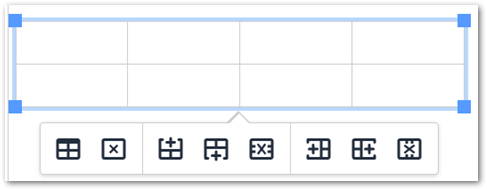
- Once the table has been inserted, a new bar will display underneath to assist you in altering the table to your needs.
- Insert/Edit Image: Users can insert images into documents. Clicking the icon will open the Insert/Edit Image window.
- General Tab:
- Source: URL for location of image or logo
- Alternative description: Additional field for notes
- Image title: Image title is required or the image will NOT print.
- Width & Height: These will default when the image is loaded, but can be adjusted to control the size. (Clicking the lock icon will let the user edit the width and height independently.)
- Advanced Tab:
- Style: A view-only field. Display HTML coding based on the options utilized underneath the field.
- Vertical and Horizontal Space: Determines the amount of space surrounding the image. This can allow users to designate exact placement of an image. This is a numerical field associated with Pixels. For example, placing 50 in the Vertical Space field will increase the Vertical Spacing for the image by 50 pixels.
- This field will only affect email-based communications. Documents will need to be manually spaced in the Message Editor.
- Border Width: Determines the width of the chosen border.
- Border Style: Provides a list of borders that can be added to an image.
- General Tab:
- Insert/Edit Link: Hyperlinks can be included in your document. Clicking the icon will open the Insert/Edit Link window.
- URL: The URL for the hyperlink.
- Text to display: Text that will display in the document.
- Title: Text that will display when the cursor hovers over the link.
- Open link in..: If the current window is selected, the link will open, replacing the current page. New Window selection will open the link in a new window.
- Emoticons: Emoticons can be included in your text. Clicking the Emoticon icon will open up the Emoticon window.
- Users can browse for specific emoticons or use the search function. Once a desired emoticon is found, users can click it to insert it into the text.
- Source Code: Information can be added or edited in the Source Code. Selecting the Code Icon will open a new window displaying the document’s HTML code. Edits can be made here and saved.
- Table: To insert a table, click the Table icon, click the Table tab, and then use the provided grid to “draw” your desired table. Click to insert.
Q Academy Live
Quick Reference Guides
