
Q Health Setup application is used to create the immunization and screening rules that will be used in Q Student Immunizations and Student Screenings. It is also used to enter the Health contacts and Standing Orders that will be used in other health applications.
Health Setup is located under the Health menu in Q.
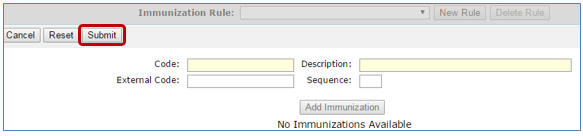
Immunization Rules are added under the Immunization Rules tab. To add a rule:
- Click the Immunization Rules tab
- Select New Rule

- Enter a code number for the rule. Example ‘CA15’ (Required)
- Enter a description of rule. Example ‘California 15’ (Required)
- Optional / An external code to be District if desired
- Sequence Number
- Submit
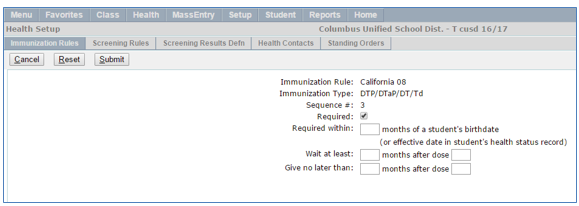
Add Immunizations to the Immunization Rule
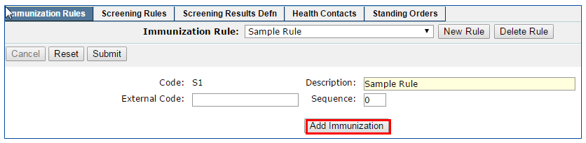
Once a rule has been defined, immunizations are added to the rule.
- Click on the Add Immunization Button
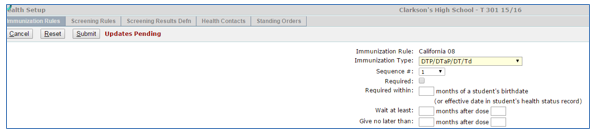
- Click on the Immunization Type drop down and select an immunization
- Click on the Sequence Number drop down and select the correct number
- If the immunization is required check the required box ‘ON’
- The remaining items are optional and can used to further define when immunizations are to be given
- Submit
Delete\Edit Immunizations from an Immunization Rule
Immunizations may be deleted and/or edited from defined Immunization Rules.
- Select Immunization Rule to edit from the Immunization Rule dropdown list.
- To delete an immunization Click on the ‘X’ on the left side border
- It will return a message box asking if you want to delete the selected immunization. Click Delete or Cancel
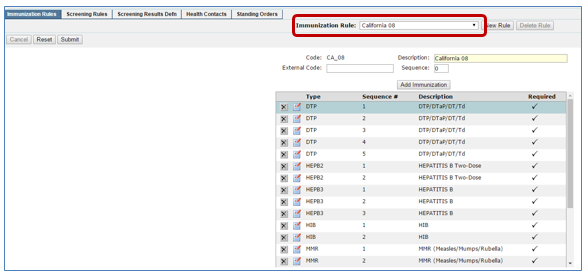
- To edit an immunization, click on the icon with the red check mark to open the edit screen
- Edit the appropriate data fields
- Submit to save changes
Delete an Immunization Rule
Immunization rules may be deleted. To delete an immunization rule:
- Select Rule to be deleted from drop down list
- Click on Delete Rule button
- It will return a message box Click OK or Cancel


Screening Rules are added under the Screening Rules tab. To add a new screening rule:
- Click Screening Rules tab
- Click New Rule

- Enter a code number for the rule. Example ‘SR15’ (Required)
- Enter a description of rule. Example ‘Screening Rule 15’ (Required)
- Optional / An external code to be determined by the District (if desired)
- Sequence Number
- Submit
Add Individual Screenings to Rule
Once the Screening Rule has been added you can add specific screenings to the rule.
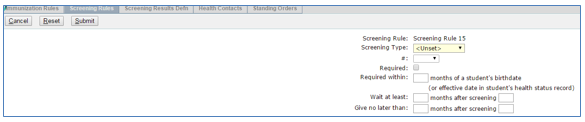
To add screenings to the rule:
- Click on the Add Screening Button

- Click on the Screening Type drop down and select a screening
- Click on the Sequence Number drop down and select the correct number
- If the Screening is required check the required box ‘ON’
- The remaining items are optional and can be used to further define when screenings are to be given
- Submit
Delete\Edit Screenings
Individual Screenings may be deleted and/or edited from defined Screening Rules.
- Select Screening Rule to edit from drop down list
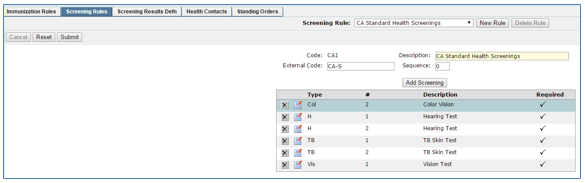
- To delete a Screening Click on the ‘X’ on the left side border
- It will return a message box asking if you want to delete the selected screening. Click Delete or Cancel
- To edit a screening click on the icon with the red check mark then edit the appropriate data fields
- Submit
Delete a Screening Rule
Screening rules may be deleted. To delete a screening rule:
- Select Rule to be deleted from drop down list
- Click on Delete Rule button

- It will return a message box Click ‘OK’ or ‘Cancel’

The following tables are configured under the Screening Results Defn tab. All tables may be viewed by clicking Expand All. Collapse All will close all individual tables. Clicking on the + sign next to the table name will open it for viewing and editing.
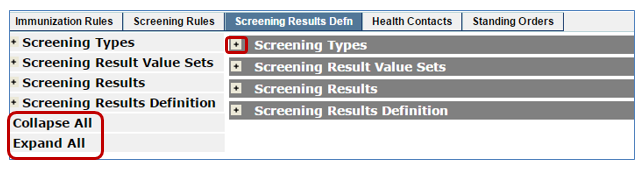
- Tables
- Screening Types (Zscrntype)—contains all the screening types to be administered
- Screening Results Value Set (Zrsltvalueset)—contains the descriptions that are displayed in the drop downs of the student screenings application. As an example ‘Average Hearing’
- Screening Results (Zscrnrslt)—the description field from this table is the text that displays in the result section of the student screening application. As an example ‘Hearing in Both Ears’. Note: zscrnrslt is linked to zrsltvalueset on the rsltvaluesetc column
- Screening Results Definition (Scrnrdef)—This links the screening type to the result. As an example Screening type of Hearing is linked to the hearing results. Note: zscrnrslt is linked to zrsltvalueset on the rsltvaluesetc column
Adding a New Screening Type
- Click the Screenings Result Defn Tab
- Expand the Screening Types table
- Click the Edit Button

- Click the Add button at the bottom left
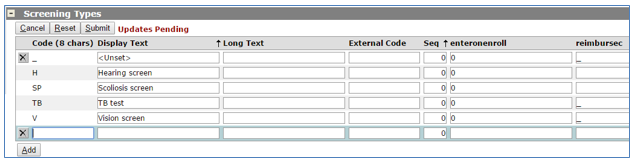
- Code - Enter code value for the screening
- Display Text – Enter a description of the screening
- Long Text – Optional
- External Code – Optional
- Seq – Enter a sequence number (to control the display order on the screen)
- Enteronenroll – Enter a ‘1’ if this screening is required for enrollment. (This will apply only if the district has elected to enable the entry of student immunizations and screenings during enrollment by setting the HIMMENTRY preference ON in the snpref table)
- Reimbursec – Code value to be used if screening can be reimbursed (Optional)
- Click Submit to update, Reset to clear all the fields, and Cancel to abort the entry
Edit\Delete a Screening Type
- To delete a screening type click the edit button and an ‘X’ will display on the left side border for any screening type that is unassigned
- To edit a screening type click on the edit button and update the data as required.
- Click Submit to update, Reset to clear all the fields, and Cancel to abort the entry
Add Screening Result Value Sets
To add a Screening Result Value Set:
- Click the Screenings Result Defn Tab
- Expand the Screening Result Value Sets table
- Click the Edit Button

- Click the Add Button at the bottom left
- Value Set Code – Enter value for the code set (each set may contain multiple entries)
- Value Code – Enter value code for each value set entry
- Enter a Description - Enter a description for each value set entry – Review the entries for the value set ‘earrslt’ in the sample below
- External Code – Optional
- Seq – Enter a sequence number (to control the display order on the screen)
- Click Submit to update, Reset to clear all the fields, and Cancel to abort the entry

Edit\Delete a Screening Result Value Set

- To delete a screening result value set click the edit button and an ‘X’ will display on the left side border for any screening result value set that is unassigned
- To edit a screening result value set click on the edit button and update the data as required.
- Click Submit to update, Reset to clear all the fields, and Cancel to abort the entry
Add Screening Results
- Click the Screenings Result Defn Tab
- Expand the Screening Results table
- Click the Edit Button

- Click the Add Button at the bottom left
- Code – Enter value for the code
- Display Text – Enter description of screening result
- Long Text - optional
- External Code – Optional
- Seq – Enter a sequence number (to control the display order on the screen)
- Isfreeform – Enter a value of 1 to allow users to enter a free form result
- Rsltvaluesetc – Select from the drop down list the code of the Result Value Set that applies to each result type. Note: zscrnrslt is linked to zrsltvalueset on the rsltvaluesetc column
- Click Submit to update, Reset to clear all the fields, and Cancel to abort the entry
Add Screening Results Definitions
- Click the Screenings Result Defn Tab
- Expand the Screening Results Definition table
- Click the Edit Button
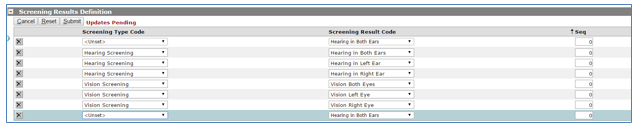
- Click the Add Button at the bottom left
- Screening Type Code – Select a screening type code from the dropdown (each screening type may have multiple screening result codes)
- Screening Result Code – Select a matching screening result code from the dropdown box for the screening type selected and click Submit
- Repeat steps 2 - 4 until all the screening results codes have been entered for the selected screening type
- Seq – Enter a sequence number (to group the screen results to the screening type)
- Click Submit to update, Reset to clear all the fields, and Cancel to abort the entry
Edit\Delete a Screening Result Definition
- Click the Screenings Result Defn Tab
- Expand the Screening Results Definition table
- Click the Edit Button

- Edit Code by selecting from the dropdown
- Edit Screening Result Code by selecting a matching screening result code from the dropdown box
- To delete screening results definition click on ‘X’ on the left side of the screen
- Click Submit to update, Reset to clear all the fields, and Cancel to abort the entry
Health Contacts are medical professionals such as doctors, dentist and therapists who provide services to students in your district. Health contacts that the district regularly associates with may be added to the database for use in Student Health. Due to the potentially high number of Health Contacts in a large district it is not mandatory to enter Health Contacts. All Health Contacts display when the Health Contacts tab is clicked. Highlighting the individual contact from the list on the left side of the screen will display the contact’s details on the right hand side of the screen.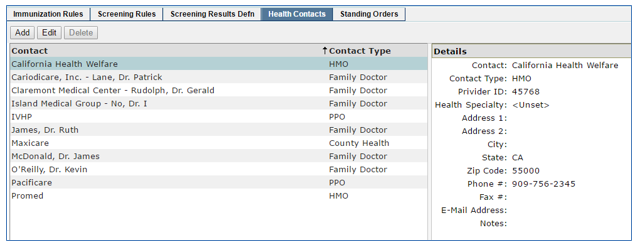
To add a new Health Contact:
- Click the Health Contacts tab
- Click Add
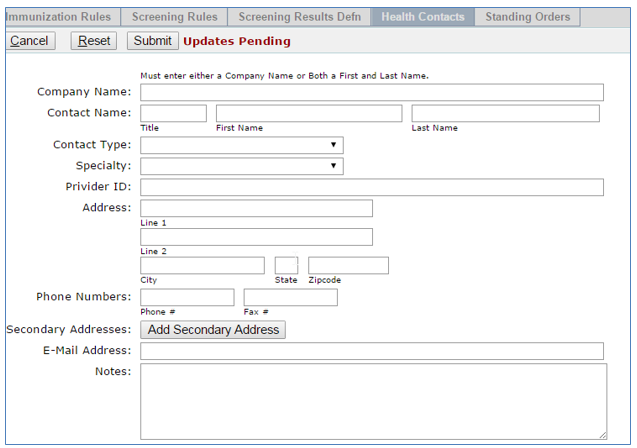
- Enter the Company Name
- Enter the Contact Name (Title – First Name – Last Name)
- Select a Contact Type from the dropdown box
- Select a Specialty from the dropdown box (optional)
- Enter the Address ( address line 1- address line 2 - City – State – Zip code)
- Enter Phone and Fax Numbers
- Click on Secondary Addresses (optional – you can add additional addresses if needed simply click on the Add Secondary Address box at the bottom)
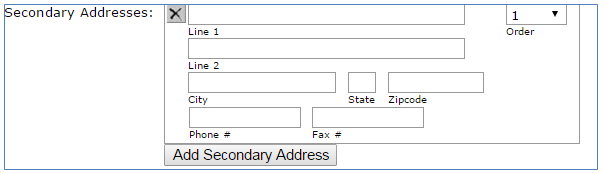
- Click on the ‘X’ to delete any secondary address
- Enter an email address (optional)
- Enter any desired Notes (optional)
- Click Submit to update, Reset to clear all the fields, and Cancel to abort the entry
Edit Health Contacts
To edit a Health Contact:
- Click the Health Contacts tab
- Click Edit
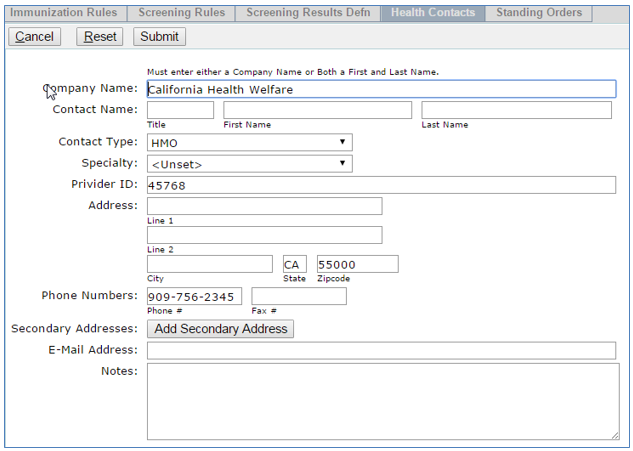
- Update the desired fields
- Click Submit to update, Reset to clear all the fields, and Cancel to abort the entry
Delete Health Contacts
- To delete a contact highlight the contact Click on ‘Delete button
- It will return a message box “Delete Selected Row’ Click ‘OK’ or ‘Cancel’

Standing Orders is used to create and maintain official district health orders, instructions or policies. The records entered in Standing Orders are referenced in Student Health when creating Medication records and office visit records for students. All Standing Orders display when the Standing Orders tab is clicked. Highlighting the individual standing order from the list on the left side of the screen will display the order’s details on the right hand side of the screen.
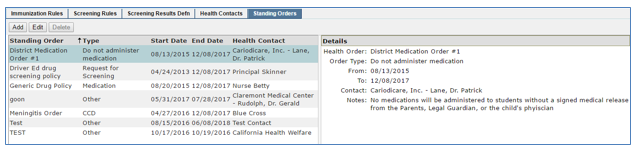
To add a new Standing Order:
- Click the Standing Orders tab
- Click Add
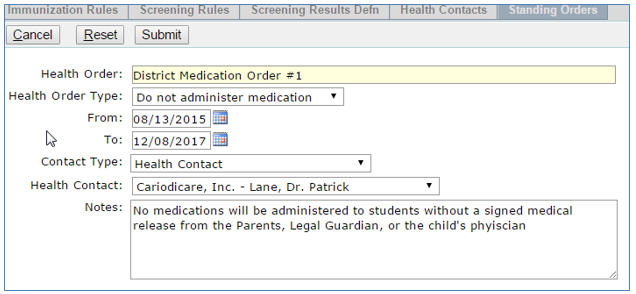
- Enter the Health Order - required
- Enter the From Date (optional - start date of the order)
- Enter the To Date (optional - end date of the order)
- Enter Contact Type - health contact is selected then select a contact from the dropdown box in the next field Health Contact – if the contact type of Other is selected then the health contact field becomes a text field - optional
- Notes – optional
- Click Submit to update, Reset to clear all the fields, and Cancel to abort the entry
Edit Standing Orders
To edit a Standing Order:
- Click the Standing Orders tab
- Click Edit
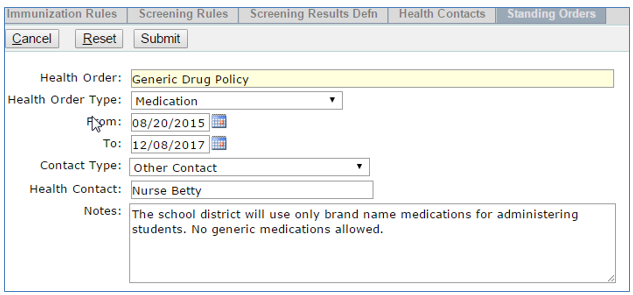
- Update the desired fields
- Click Submit to update, Reset to clear all the fields, and Cancel to abort the entry
Delete Standing Orders
- To delete a Standing Order highlight the standing order and Click on ‘Delete button
- It will return a message box “Delete Selected Row’ Click ‘OK’ or ‘Cancel’
Note:
A Standing Order cannot be deleted if it has students assigned to the order.
