
Q Analytics is an add-on module that allows users to quickly and accurately analyze real-time district data to report on trends, identify problem areas, and discover solutions.
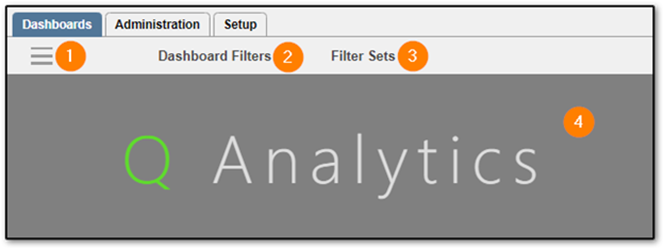
The Dashboards tab consists of 4 main parts: (1) Dashboard Menu, (2) Dashboard Filters, (3) Filter Sets, and (4) Dashboard Display.
Dashboard Menu
The Dashboard Menu is where users select a dashboard to load into the Dashboard Display area.
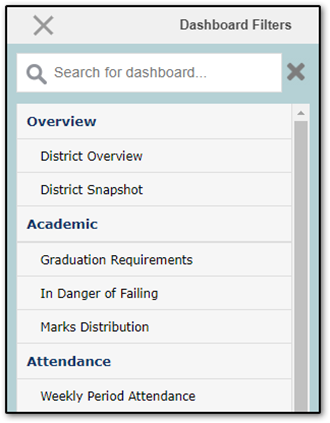
Dashboard Menu. The available dashboards will depend on the logged-in user's permissions.
Clicking the 3-line Dashboard Menu icon will cause the Dashboard Menu to show. The Dashboard Menu icon will also change to an X. Click the X to hide the Dashboard Menu.
The menu will only display the dashboards that the logged-in user has access to. Access is determined by the user’s permission role and the dashboards available to each permission role are defined on the Administration tab.
Click into the search area to search and filter dashboards by name. Click the X to the right of the search area to clear the search field.
Clicking a dashboard will automatically hide the Dashboard Menu and load the selected dashboard into the Dashboard Display area.
Dashboard Filters
The Dashboard Filters area allows users to select which data filters will be passed to the dashboard when it loads.
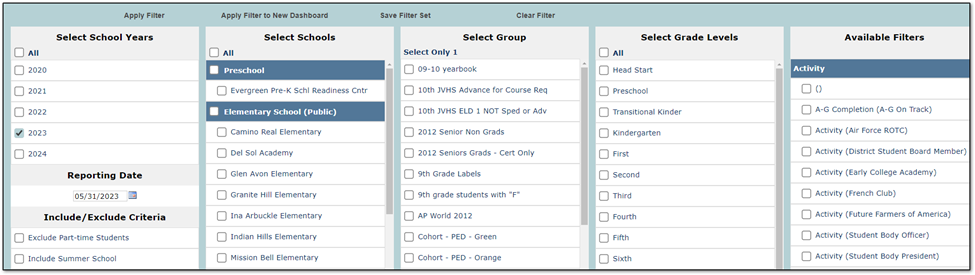
Dashboard Filters. Available filters will depend on the logged-in user's permissions.
Clicking Dashboard Filters will display the filters. The available filters are based on the logged-in user’s permissions. For example, the user will only see Schools for which they have a status record.
The School Years filter is limited to the last 5 years. The available Groups are defined by an administrator on the Setup tab. The Available Filters column contains filters for Activities, At-Risk Indicators, and Programs.
Click the checkbox for each filter that you want to apply to the dashboard. Once you have selected the desired filters you have 4 options:

Apply Filter – Hides the Dashboard Filters area and reloads the current dashboard with the data filters applied.
Apply Filter to New Dashboard – Closes the Dashboard Filters area and shows the Dashboard Menu. Select a dashboard and it will load with the filters applied.
Save Filter Set – Loads the Filter Sets area. From here, you can either save the currently selected filters as a new filter set or update an existing filter set. To save the currently selected filters as a new set enter a Set Name under Save Current Filter Set and then click Save Set. To update an existing filter set click a filter set on the left and then click Update Selected Set.
Clear Filter – Clicking Clear Filter will deselect all filters.
Filter Sets
Filter Sets allow users to create predefined groups of commonly used filters, similar to the Report Sets used in Q Reporting.
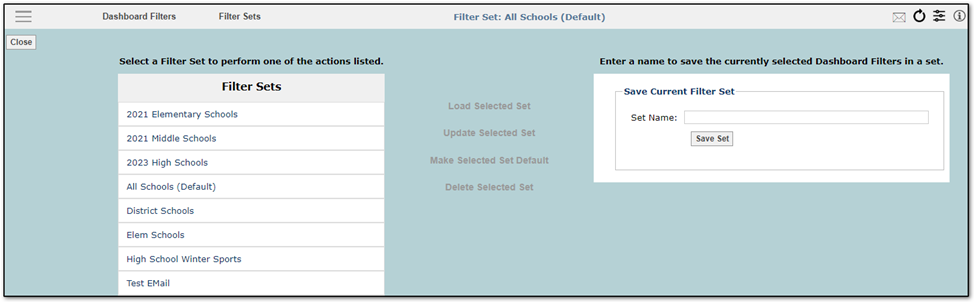
When you first open the Filter Sets area the four buttons in the middle will be disabled. Select a filter set on the left to enable the four buttons.
Load Selected Set – Loads the selected filter set and applies it to the current dashboard
Update Selected Set – Updates the selected filter set with the filters currently applied to the dashboard
Make Selected Set Default – Updates the selected filter set to be the default set. This filter set will be preselected when launching Q Analytics
Delete Selected Set – Deletes the selected filter set
Dashboard Display
Once a dashboard is selected the filters and widgets for that dashboard will be displayed.
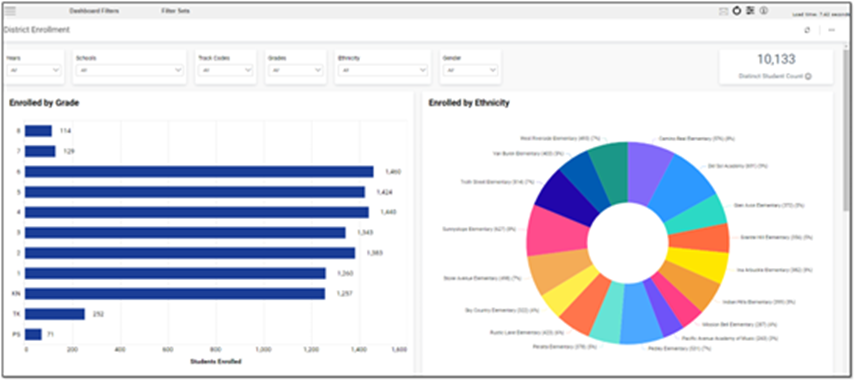
The District Enrollment Dashboard with the Enrolled by Grade and Enrolled by Ethnicity widgets.
Dashboards will initially load with the data filtered according to the Dashboard Filters. There is a second set of filters, called widget filters, in the Dashboard Display area that can be used to further refine the data.

The values available in the widget filters are determined by the values selected in the dashboard filters. For example, if only three schools are selected in the dashboard filters the user will only be able to choose from those three schools in the widget filters.
Data can also be filtered by clicking on the widgets and choosing Filter:
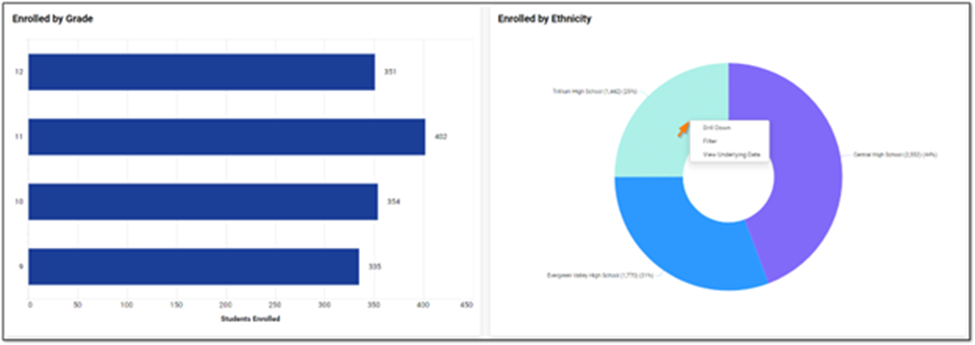
For example, the user in the above screenshot has clicked Trillium High School in the Enrolled by Ethnicity widget. When they click Filter, the Enrolled by Grade widget will reload and only display data for Trillium High School.
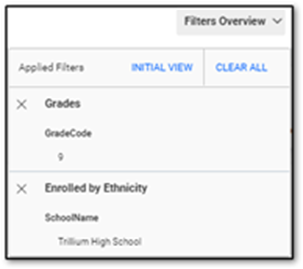
Once widget filters have been selected a Filters Overview button will appear at the top-right. Individual widget filters can be removed by clicking X or all filters can be cleared at once by clicking CLEAR ALL.
There are several other icons at the top-right:
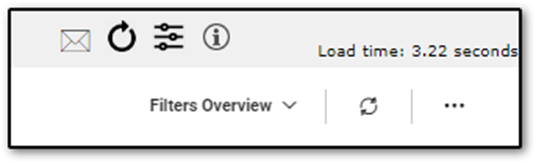
 Email Students/Contacts - This button only appears on dashboards with email enabled. Fewer than 500 students must be selected. User must have permissions to see the icon. Clicking the icon will launch the Send E-Mail interface:
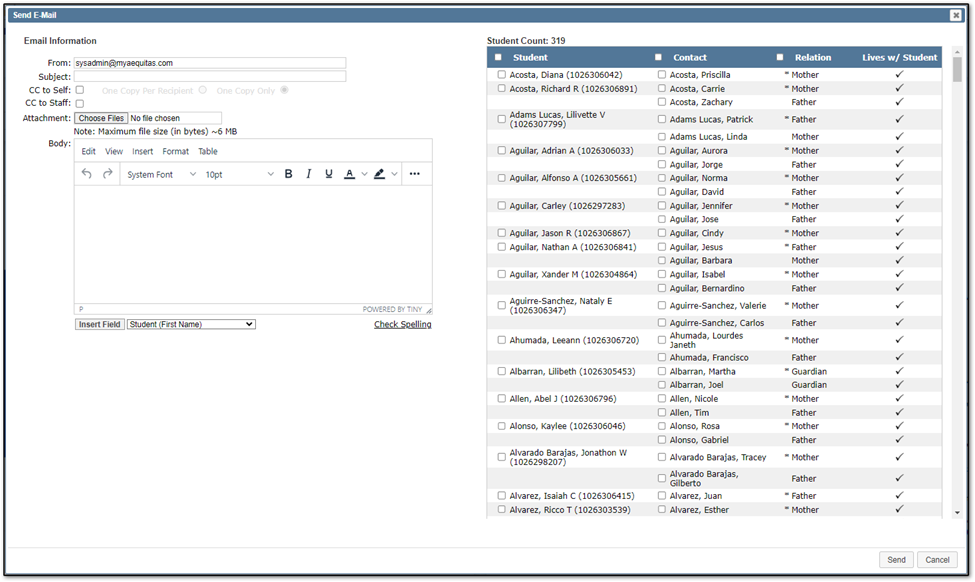
For more information on using the Send E-Mail interface, refer to the QWiki article for Mass Email. Reload Current Dashboard - Reloads dashboard from the Bold BI server.
 Show Filter - Displays a window detailing all filters passed to the dashboard.
 Dashboard Information - Displays dashboard notes.
 Refresh - Refreshes the current dashboard and filter selection.
 Options – Export the current dashboard as an image, PDF, or Excel document.
Some widgets may show additional options when users click on them, in addition the Filter capability described above.
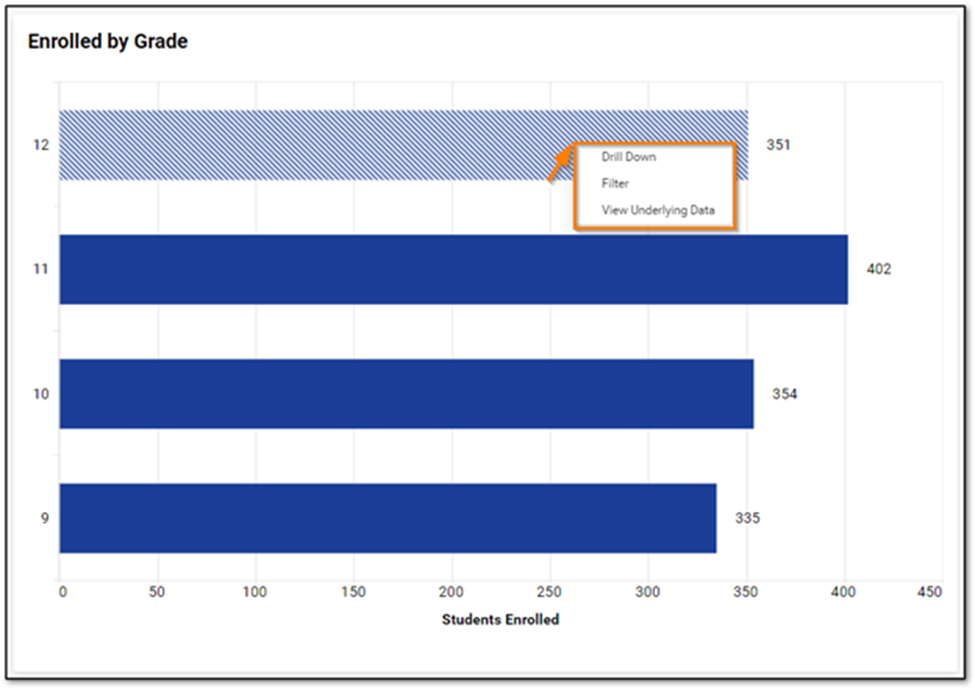
Some widgets have a Drill Down option which will provide a more granular view of the data.
The View Underlying Data option allows users to view the raw data in an Excel-like format and export it.
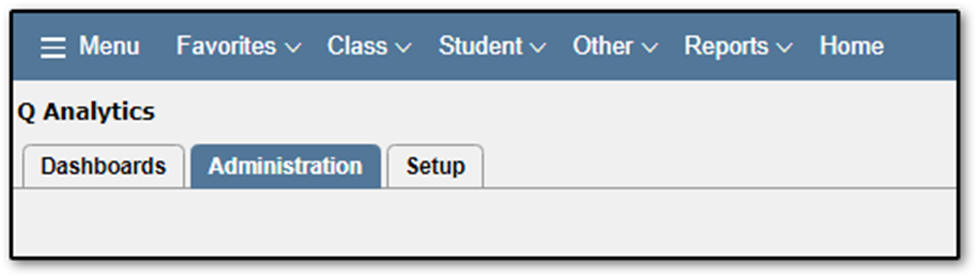
Users with the appropriate permissions can use the Q Analytics Administration tab to control dashboard options. Changes on this tab affect all users that access Q Analytics.
Dashboards
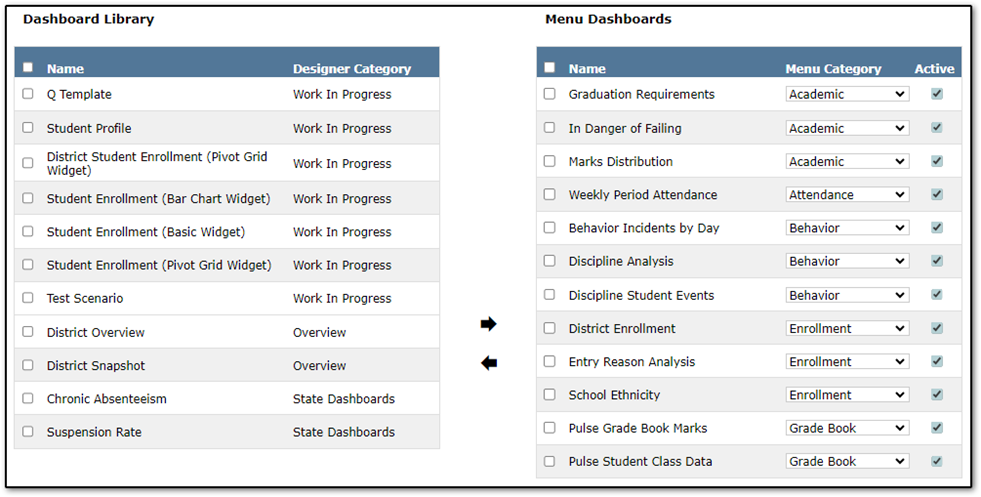
The Dashboards area allows for configuration of the Dashboards Menu that end users see in the Dashboards tab.
The Dashboard Library section displays dashboards that are not published to the Dashboard Menu. The Menu Dashboards section displays the dashboards that are published to the Dashboard Menu.
To move dashboards from one section to the other, check the box next to the dashboard and click either the right or left arrow. Once you have made your selection click Submit. Note: You must exit Q Analytics and reload the application before you will see the dashboard on the Dashboards tab. Users may not see newly added dashboards depending on their Dashboard Roles.
Name - Dashboard name from Q Analytics server
Designer Category - Designer Category from Q Analytics server
Menu Category - The Category this dashboard will fall under on the Dashboard Menu. Categories may be defined and edited on the Setup tab
Active - Uncheck this box to prevent the dashboard from displaying in the Dashboard Menu
Dashboard Roles
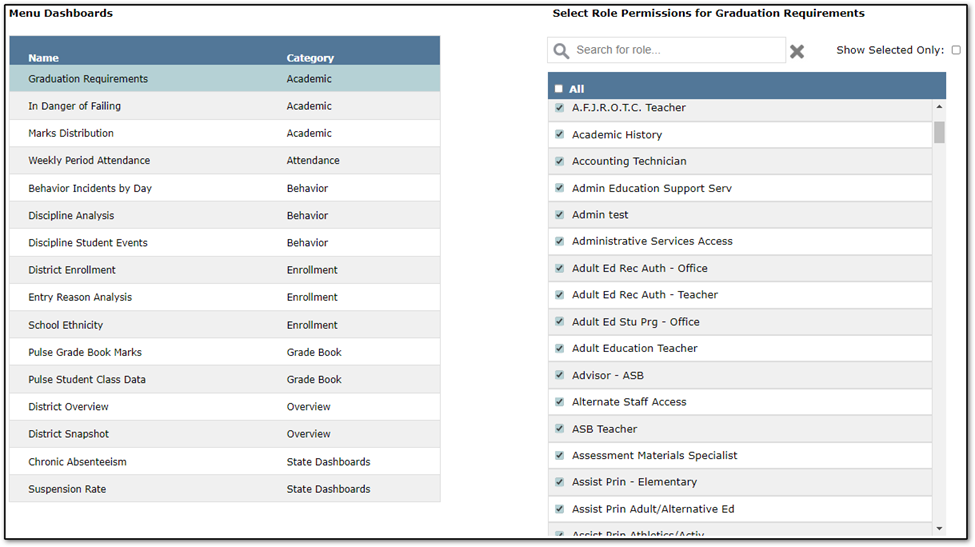
The Dashboard Roles area allows for configuration of which permission roles have access to each dashboard in the Dashboard Menu. For more information on Q permission roles see the Permissions Editor QWiki.
Click a dashboard in the Menu Dashboards area to edit the permission roles that will have access to that particular dashboard. Once you click a dashboard the Select Role Permissions window will load all available permission roles. Check a box next to each permission role that should have access to the dashboard. You can search for roles using the search box. You can check the All box to select every role. Once you have made your selections click Submit to save.
To view a list of permission roles that currently have access to the dashboard check the box for Show Selected Only.
Dashboard Notes
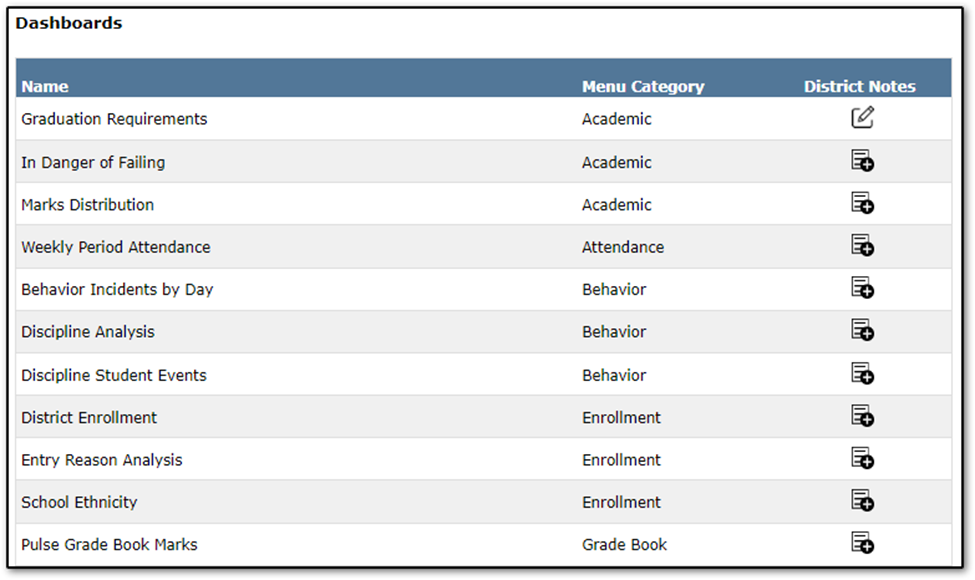
The Dashboard Notes area allows for configuration of the notes that display when a user clicks the Dashboard Information icon on a dashboard. Notes can be used to help explain the data displayed in the dashboard to end users.
To edit or add notes for a dashboard click the associated icon in the District Notes column. This launches the Client Notes window:
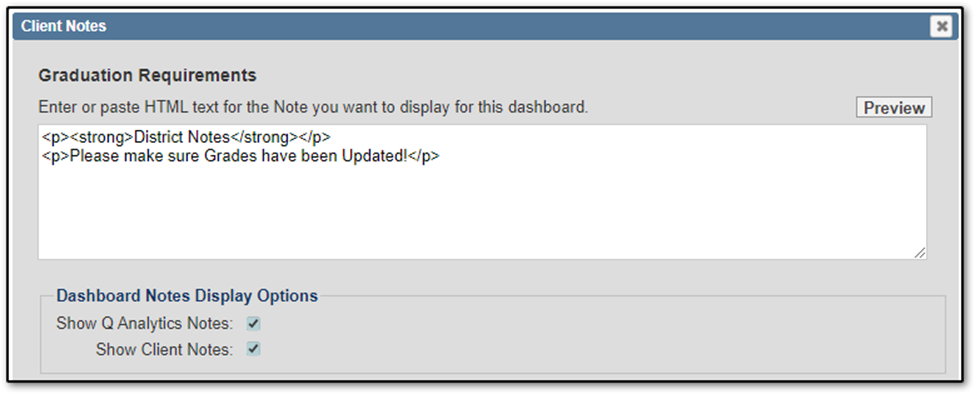
Enter your notes in the text box. You may use HTML formatting. Click Preview to see how the notes will appear to end users.
Show Q Analytics Notes - Dashboards created by Aequitas come with pre-defined notes. Check this box to display these notes or uncheck it to hide them.
Show Client Notes - Check this box to display the custom notes entered in the Client Notes window or uncheck it to hide them.
Update Filters
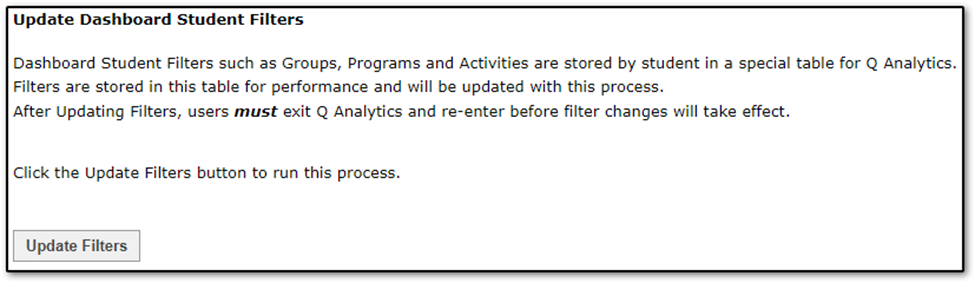
The Update Filters process stores whether a student is in a particular Group, Program, or Activity in a special table for the Dashboard Filters. This is done for performance reasons. Click the Update Filters button to manually run this process.
This process is set up as a nightly job so most administrators will never need to run the manual process.
An example of when to run the process is after a group gets added/removed from the Groups filter on the Setup tab. If you add a new group to the Groups filter, you would not see it in Dashboard Filters until the Update Filters process is run- either manually or by the nightly job.
The Q Analytics application rights allow access to various features of the Dashboard, Administration, and Setup tabs. To learn more about controlling the individual dashboards that are available to users, refer to QWiki > Q Analytics > Administration > Dashboard Roles.
The following application rights are available in Permissions Editor:
| Application Right | Description |
|---|---|
| Analysis: Q Analytics [Application] | Access to Q Analytics application. |
| Analysis: Q Analytics [Administrator] | Access to all functions and features of Q Analytics. |
| Analysis: Q Analytics [Q Analytics Admin Setup Access] | Access to all the functions and features of Q Analytics that appear on the Administration and Setup tabs. |
| Analysis: Q Analytics [Create Q Analytics Dashboard Access] | Not currently used. Reserved for future use. |
| Analysis: Q Analytics [Q Analytics Dashboard Email Enabled] | Access to email for dashboards. Note: If Enable E-Mail from Dashboards (Q Analytics > Setup tab) is not enabled for the Site, users will not be able to see email even if they have this application right. Not all dashboards support email. |
| Analysis: Q Analytics [Admin Dashboards] | Access to the Dashboards function that allows the user to select which Dashboards in the Dashboard Library on the Q Analytics server will appear on the Q Analytics Menu. This function edits the Dashboard Menu for the entire district. |
| Analysis: Q Analytics [Admin Dashboard Roles] | Allows users in role to define the roles that have access to the Dashboards on the Menu. |
| Analysis: Q Analytics [Admin Dashboard Notes] | Users in a role with this permission can edit and maintain District Notes on all Dashboards in Q Analytics. Notes are district wide for each Dashboard. |
| Analysis: Q Analytics [Admin Update Filters] | Users with this permission can update a special table in the Q database that maintains the status of all filters for every student in the district. Roles with permission to Setup Groups should also have access to this permission as Update Filters must be run after updating Groups. |
| Analysis: Q Analytics [Setup Site] | Users can edit and maintain the Q Analytics Site definition. This is a crucial function and access should be limited to 1 or 2 individuals. |
| Analysis: Q Analytics [Setup Categories] | Users can maintain the Categories used to list Dashboards on the Menu for the entire district. This function should have limited access. |
| Analysis: Q Analytics [Setup Options] | Users can maintain the Options that may be used to change the processing logic of some Dashboards. This function should have limited access as it affects the entire district. |
| Analysis: Q Analytics [Setup Groups] | Users in a role with this permission may edit and maintain the Q Groups that are used as Dashboard Filters. This function affects the Groups available to all users in the district, however, individual users will only be able to use the Groups they have permission to use in Q Groups. It may make sense to give this permission to a role used by individual schools to allow a local school user to maintain the Groups available to users in the School. Roles with permission to Setup Groups should also have access to Admin Update Filters as Update Filters must be run after updating Groups. |
Users with the appropriate permissions can use the Setup tab to change Site configuration settings, set Categories, set optional dashboard parameters, and set which Groups should appear in Q Analytics.
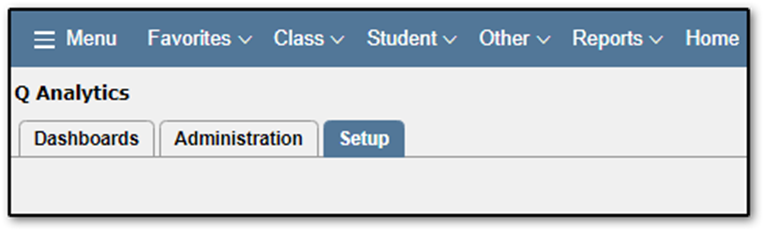
Sites
The Sites area allows for editing and maintenance of the Q Analytics Site definition.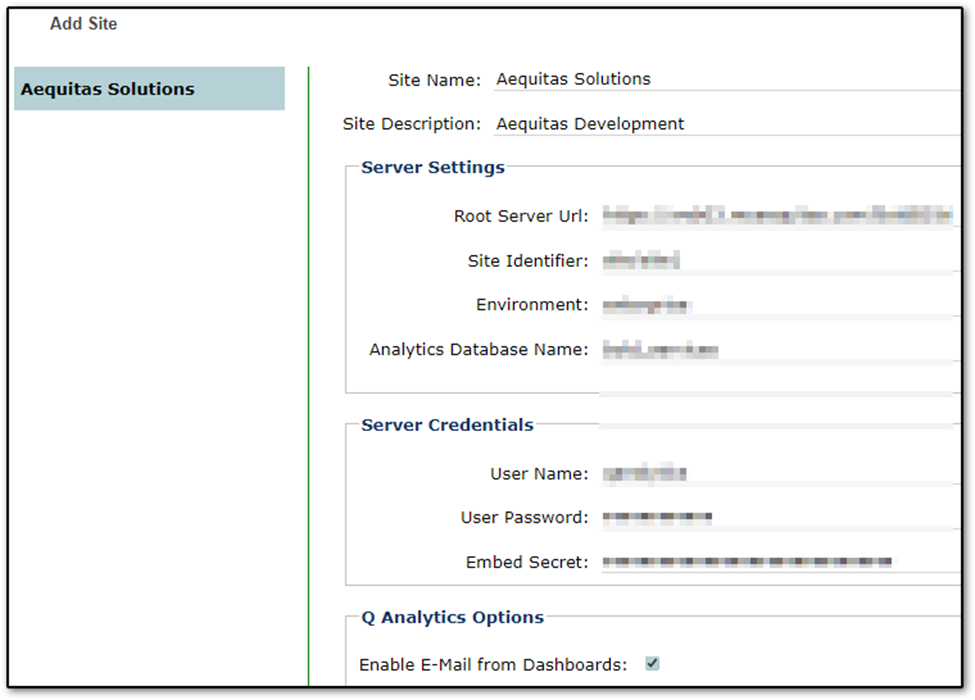 Add Site - Click this button to add a site
Site Name - Name of the default site
Site Description - Description for site
Root Server Url - URL of Q Analytics server. Should point to the bi folder
Site Identifier - The site that will be used as the default site
Environment - Set enterprise or cloud-based environment
Analytics Database Name - Name of Bold BI database
User Name - Bold BI system administrator user name
User Password - Password for the above user
Embed Secret - Embed secret value from Bold BI Embed Settings
Enable E-Mail from Dashboards - If this box is checked, users with appropriate permissions will be able to access the Send E-Mail interface for dashboards with email enabled. If the box is unchecked, users will not be able to send emails from Q Analytics, regardless of their permissions.
Categories
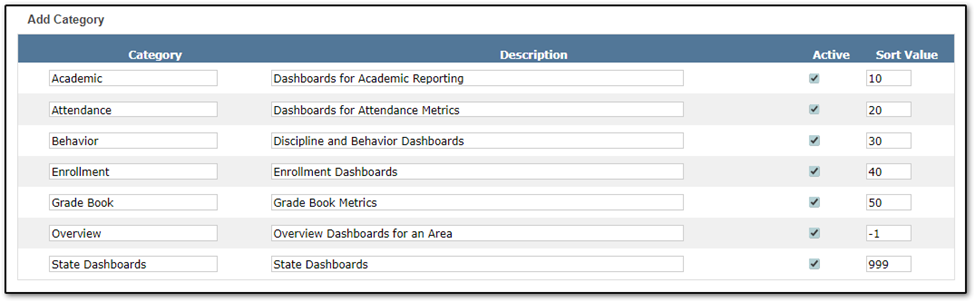
The Categories area allows for configuration of the Categories that users see in the Dashboard Menu on the Dashboard tab.
To add a new Category click the Add Category button.
To delete a Category you must first remove all dashboards from that Category on the Administration tab under Dashboards. Once all dashboards have been removed from the Category, a delete icon will be displayed next to the Category.
Category - Enter a name for the Category.
Description - Enter a description of the Category.
Active - Uncheck this box to hide a Category. If unchecked, users will no longer see the Category label or any of the associated dashboards in the Dashboard Menu.
Sort Value - Enter a value to sort the Categories.
Options
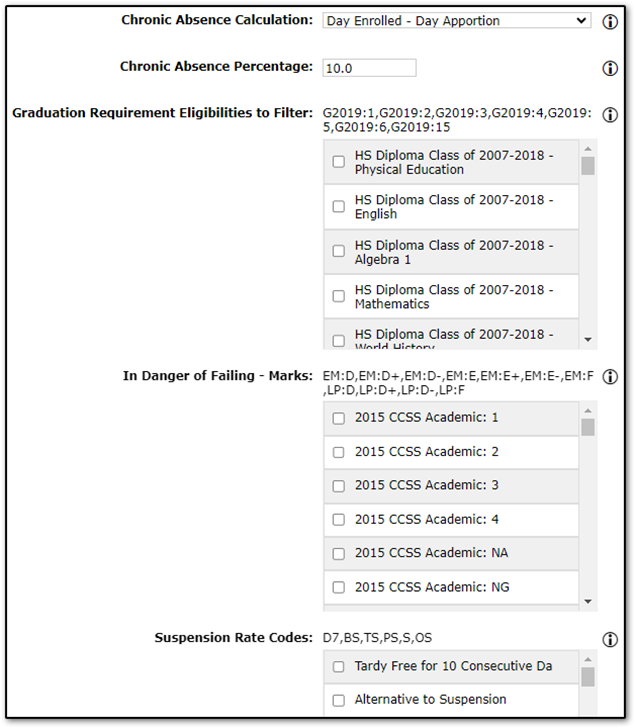
The Options area allows for configuration of optional parameter values. Some dashboards use these values to calculate their data sets.
Chronic Absence Calculation - Select the Method you use to calculate daily absences from Attendance Summary data. (Simple Daily numbers or 50% of the students periods must be marked absent).
Chronic Absence Percentage - What is the threshold Percentage you use to consider an individual student a Chronically Absent student based on attendance within their enrollment.
Graduation Requirement Eligibilities to Filter - Select any graduation requirement eligibilities for filter students. Most common would be a Total Credit Earned category.
In Danger of Failing - Marks - Select any graduation requirement eligibilities for filter students. Most common would be a Total Credit Earned category.
Suspension Rate Codes - Select the codes from Behavior Penalty Type that you use to identify student suspensions.
Groups
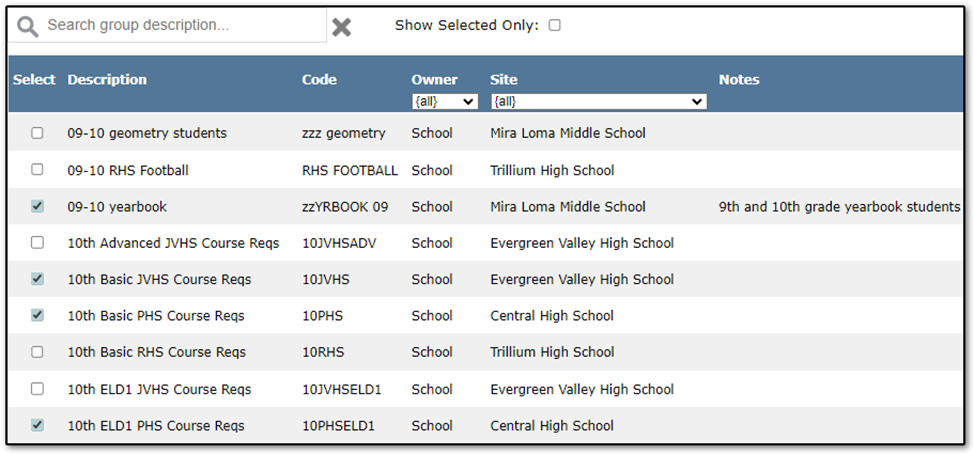
The Groups area allows users to edit and maintain the Q Groups that may be used as Dashboard Filters. This function affects the Groups available to all users in the district, however, individual users will only be able to use the Groups they have permission to use in Q Groups.
The search box will filter Groups by Description. Check the Show Selected Only box to filter Groups down to those currently being used as Dashboard Filters.
Select - Check this box for the Group to be included in the Dashboard Filters.
Description - Group description from Group Editor.
Code - Group Code from Group Editor.
Owner - Owner Type from Group Editor. Only School and District-owned Groups are available.
Site - Owner from Group Editor.
Notes - Notes from Group Editor.
