
The Seating Chart application is a banner application which allows teachers to create seating charts for courses assigned to them in the Master Schedule. Users will only have access to data for the courses which they are assigned to teach in the Master Schedule for the logged in track.
Seating Chart is a Class Banner Application. For more information on configuring and searching for courses in Class Banner, please refer to the Class Banner documentation.
Seating Chart is located under the Schedule menu in Q.
The Seating Chart interface is comprised of three tabs; Seating Chart, Assign Students, and Design layout. Before teachers or staff can view students in the Seating Chart tab a classroom seat layout must be created in the Design Layout tab.
Design Layout Tab
Design layouts can be created and saved for use by other faculty members. Once a seating design layout has been created for a classroom, any teacher assigned to that classroom can choose to use existing layouts, or create new seating layout diagrams for that classroom.
Creating a New Seating Chart
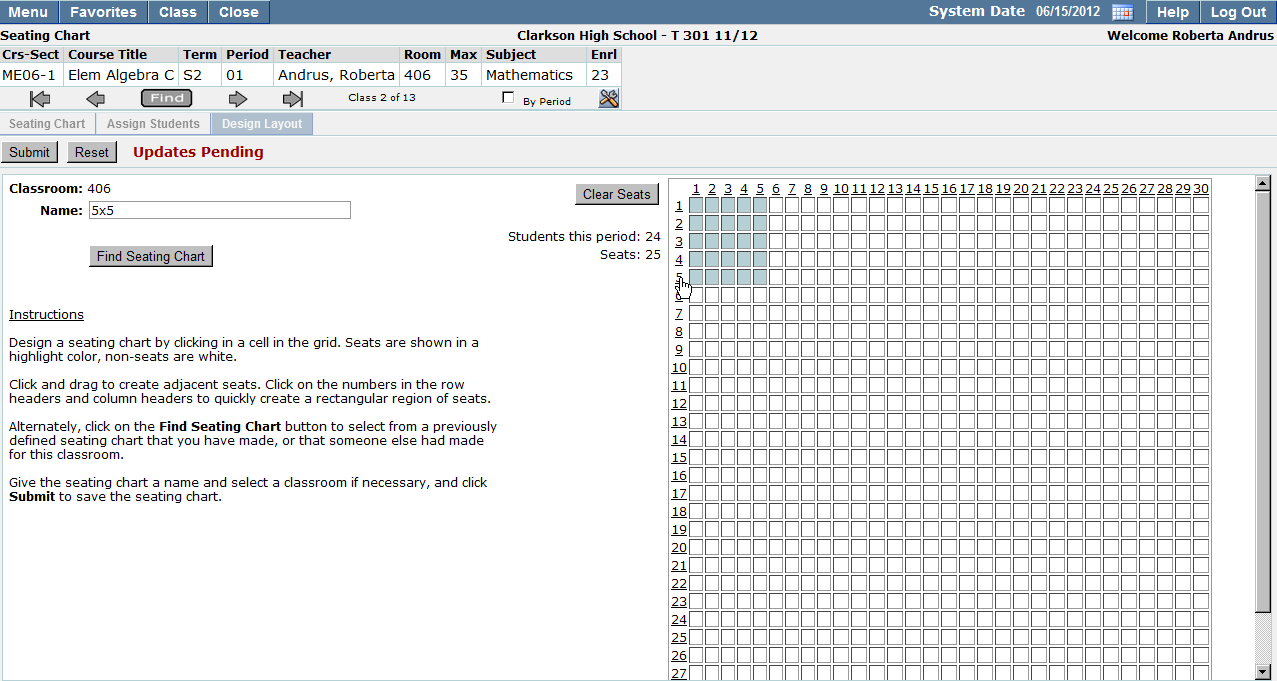
1. If the course you are teaching has been tied to a classroom in the Master Schedule, the classroom field will be auto populated. If the course has not been assigned a classroom, manually enter the classroom number in the Classroom field.
2. Name the seating chart.
Note: The seating chart may be seen by other staff members who may potentially be assigned to teach a course in your current classroom. Using a naming convention based on the diameter of the classroom will allow others to easily identify useful seating layouts.
3. Students this period will display the number of currently enrolled students. The number of seats available will be populated based on the diameter of the seating chart created. If no seats have been highlighted in the diagram, the seats field will display zero (0).
4. To create new seats, or add seats to a current diagram single click on the seat(s) which you would like to add. The seat color will change from white, to a highlighted color to display that it has been created.
5. To create multiple seats at once, click the number in the row headers and column headers to quickly create a rectangular region of seats.
6. To save the seating chart you have created, click Submit. To cancel and clear all changes you have made, click Reset.
Note: To view Instructions on how to create a seating chart, click the Instructions link.
Finding an Existing Seating Chart
1. To search for an existing seating chart, click Find Seating Chart.
2. A list of existing seating charts for the classroom will be displayed. Filter through the list quickly using the Teacher, Classroom, and Seating Chart name drop down lists. Clicking on the number in the seats column will display a preview of the seating chart diagram.
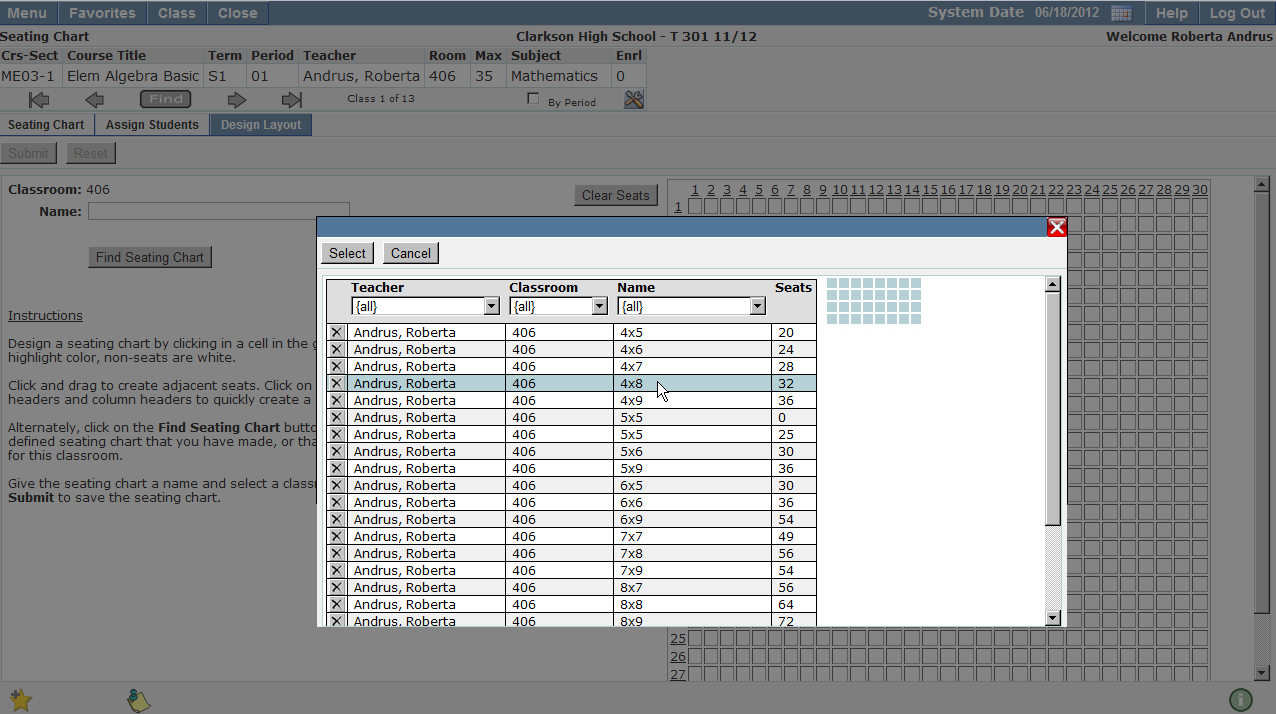
3. To select an existing seating chart diagram. Single click to highlight the desired row and click Select. The selected seating chart diagram will be opened.
4. To exit the seating chart selection list, click Cancel.
5. Once a seating chart layout has been created, you may begin assigning students to seats.
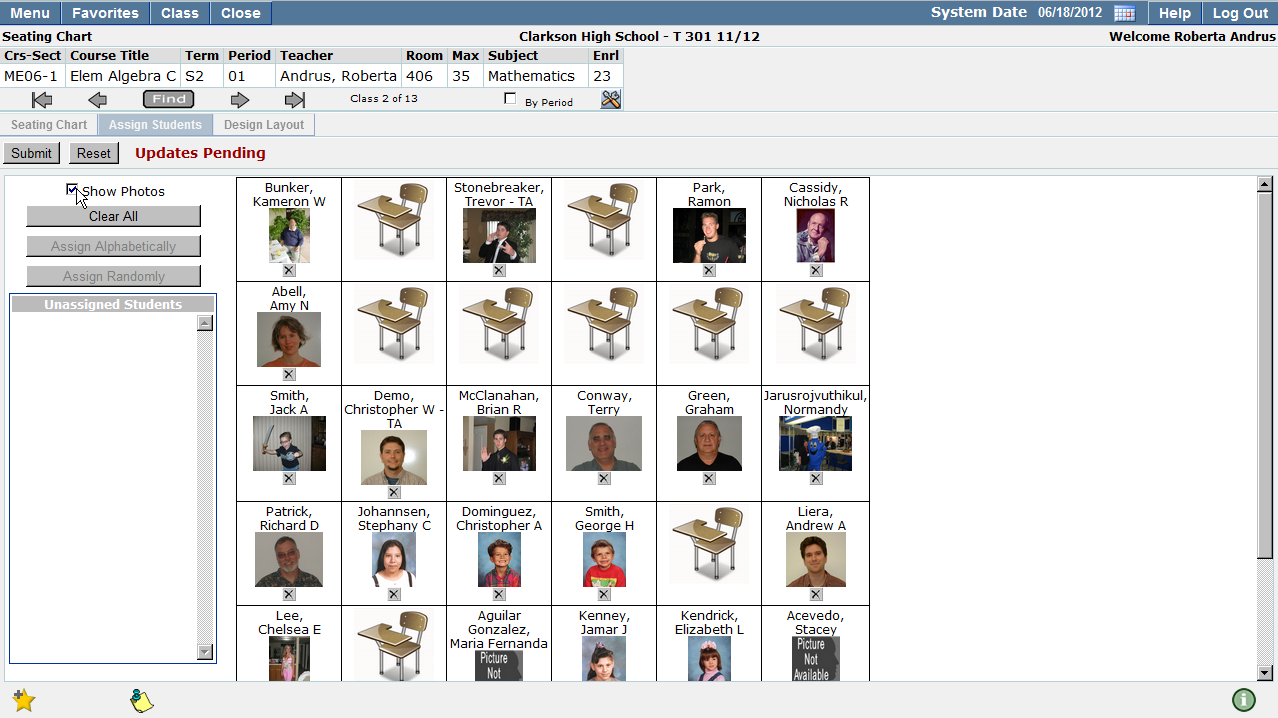
Students which have not been assigned a seat in the classroom will be displayed on the left hand side of the screen in the ‘Unassigned Students’ list. There are three ways that students can be assigned to seats in the Assign Students tab.
Assign Manually:
a. To manually assign students to seats in the seating chart, click the student name in the ‘Unassigned Student’ list and drag it onto the seat icon button in the cell where you would like the student assigned. As a student is assigned to a seat, their name will be removed from the list as it appears in the cell.
b. To delete students from seats, click on the X button in the cell. The student name will be removed from the seating chart and added to the unassigned students list.
c. To clear all seat assignments, click Clear All. Students will be removed from their current seat assignments and will be moved to the unassigned student list.
Assign Alphabetically:
a. Click Assign Alphabetically to have students assigned to seats alphabetically by last name, beginning in the bottom row, from left to right. Click Submit to save your changes or Reset to clear seat assignments.
b. To clear students from their seat assignments, click on the X button in the seating chart cell. The deleted students’ names will be moved from the seating chart to the Unassigned Students list.
c. Students and / or seats that are already assigned will be skipped in this process.
Assign Randomly:
a. To randomly assign students to seats in the seating chart, click Assign Randomly.
b. To clear a student, or multiple students from their seat assignments click on the X button in the seating chart cell. The student name will be removed from the seat and will appear in the Unassigned Students list.
c. Students and / or seats that are already assigned will be skipped in this process.
Note: To clear all seating assignments, click Clear All. Students will be moved from their current seat assignments to the unassigned student list. To view student photos in the seating chart click Show Photos. Student photos will be displayed under the corresponding student names in the seating chart.
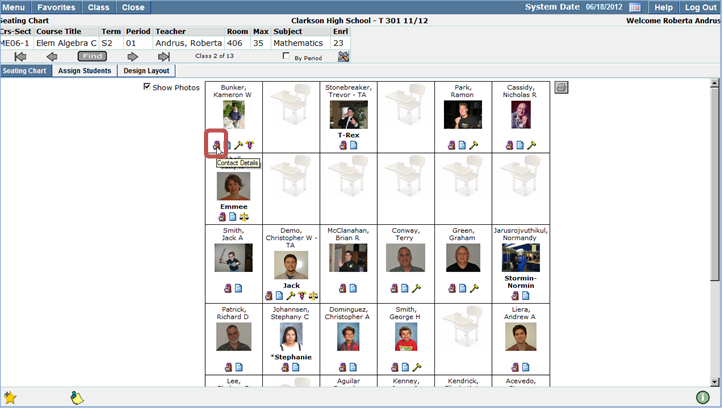
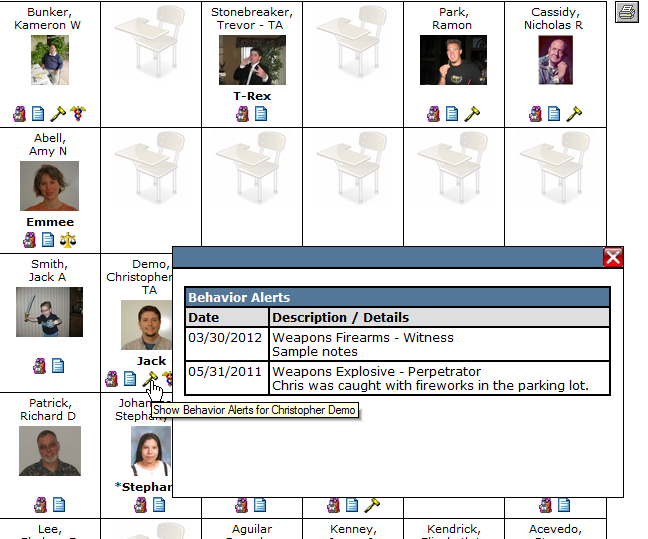
The Seating Chart tab allows teachers to view student demographic information in the seating chart layout. Contact information, and Class Attendance History information icons will be displayed for each student. Student Alerts and Special Program Enrollment icons will be displayed for students if applicable.
Student Contacts
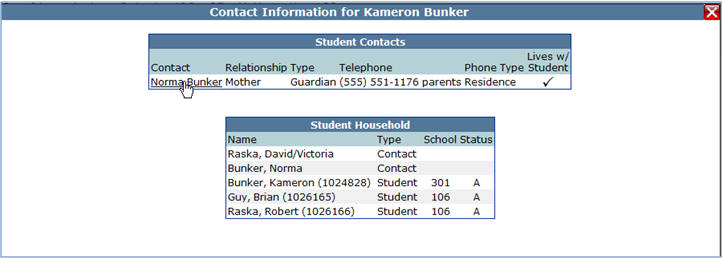
1. To view student contacts, click the Contact Details icon 
2. Contact and household information for the selected student will be displayed in a new window. Contact names, their relationship to the selected student, telephone numbers, and phone types will be displayed. If a student contact has provided an email address, the contact name will be displayed as a hyperlink. Clicking on the contact hyperlink will open your main email program, allowing you to easily create a new email message for the selected contact.
3. To close contact information, click the X located in the upper right hand corner of the contact information box.
Student Class Attendance Detail
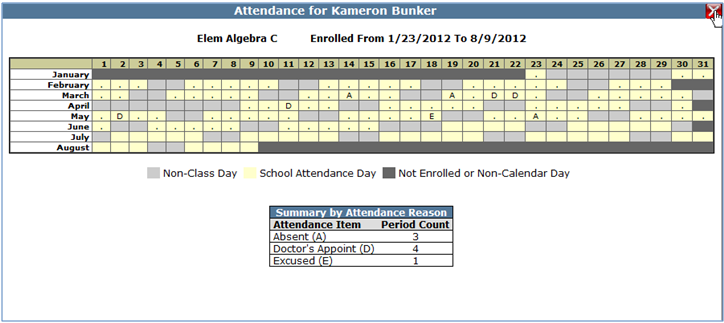
1. To view student class attendance detail, click the Class Attendance icon 
2. A pop up window will display students’ attendance history for the course in a read only format. A summary by attendance reason with attendance codes and period counts will be displayed at the bottom of the pop up window.
3. To close attendance history, click the X located in the upper right hand corner of the pop up information box.
Student Alert Icons
Student Alert icons may be created by office personnel or administrators for students with Behavioral, Health, and / or Legal Bindings. To view alert details, click on the desired icon to read alert details in a pop up window.
 Behavior Alert,
  Health Alert,
  Legal Alert
Unassigned Students
Students who do not have a seating assignment will be listed at the bottom of the seating chart. Click the ‘Unassigned Students’ link to be directed to a list of students who have not yet been assigned a seat in the seating chart grid.
Note: If the number of available seats is fewer than the number of current students in the course, students may be left unassigned. To correct this issue, create additional seats in the Design Layout tab.
