
The Loader Summary Results by Course Report assists users in understanding the Loader results. The report summarizes the results by course, showing the number of requests, scheduled requests and unscheduled requests by status of the request.
While details specific to this report will follow, users can find general information about reports within the Reports documentation.
Loader Summary Results by Course Report is located within Reports in the Schedule menu in Q.
Report Options
Report Options can be accessed by clicking the + sign next to Report Options, or by clicking the Options link on the right-hand side of the screen.
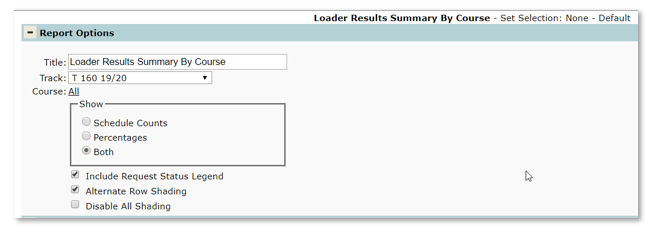
- Report Title – The report title defaults to Loader Results Summary by Course unless changed by the user
- Track – Select a track to report from within the logged-on school
- Course – The user may select specific courses by clicking the All link and selecting desired courses. The report defaults to All courses.
- Show
- Schedule Counts – Check this to display the number of scheduled requests as a tally count
- Percentages – Check this to display the number of scheduled requests as a percentage
- Both – Check this to display both the tally count and percentage
- Include Request Status Legend – Prints the request status legend at the bottom of the report
- Alternate Row Shading – Check this option to include shading
- Disable all Shading – Check this option to remove all shading from report
Example Reports
Sample Loader Results Summary by Course with show both and alternate row shading options selected
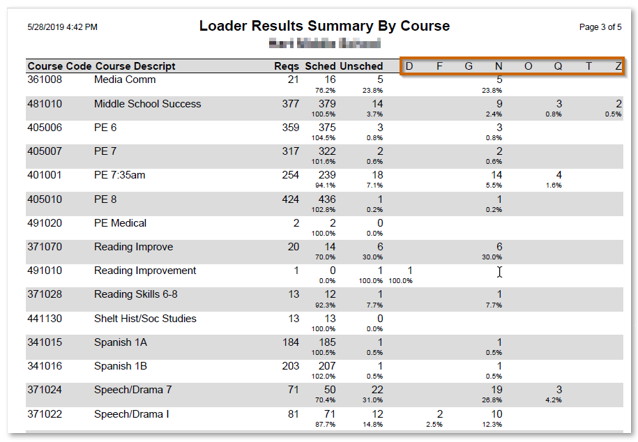
Request Status Legend
