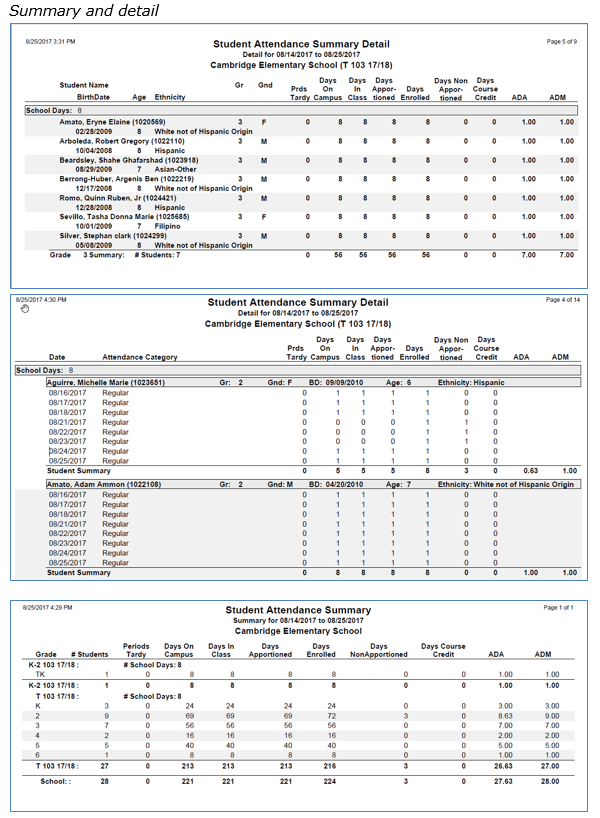
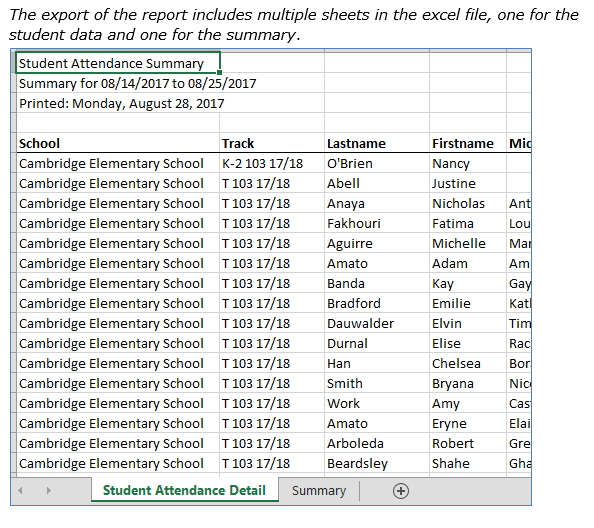
The Q Student Attendance Summary report prints a wide variety of student Attendance data for a defined date range. The report may be printed to combine detail and summary information, detail only or summary only.
NOTE: Q Calculate Attendance MUST be run for the target date range in order to create the attendance summary data to be printed in the Q Attendance Summary report.
While details specific to this report will follow, users can find general information about reports within the Reports documentation.
Student Attendance Summary Report is located within Reports in the Attendance menu in Q.
Report Options
The Student Attendance Summary Report includes the following options:
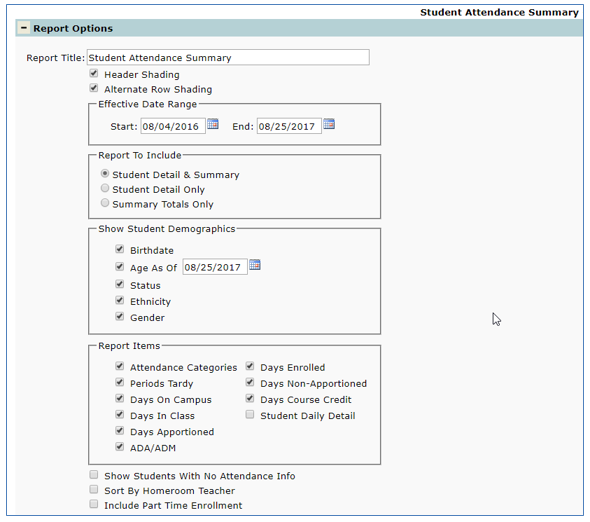
- Title – The default title for this report is Student Attendance Summary. The title may be edited with a user-defined title
- Header Shading – Check this box to include shading on the report header
- Alternate Row Shading – Check this box to have every other line in the report shaded
- Effective Date Range – Define a date range for records to be reported by typing in the dates or using the pop up calendars
- Report to Include:
- Student Detail and Summary – Report details per student of plus the summary totals per grade level, track and school site
- Student Detail Only – Report only details per student, no summary totals
- Summary Totals Only – Reports summary totals only, no details included
- Show Student Demographics – Optional data may be included for each student by checking box to include desired information
- Birth date
- Age As of fill in the date (specify date by typing in value or using pop up calendar)
- Status
- Ethnicity
- Gender
- Report Items
- Attendance Categories – Attendance categories are codes such as ‘Regular’, ‘Special education’, ‘Gifted’, etc., generated by Programs. If a student is enrolled in a program during the date range of the Attendance Summary Report, the Attendance Categories will be displayed as a column in the report if the Student Daily Detail is turned on
- Periods Tardy – Displays the total number of tardy marks a student received during the defined date range
- Days On Campus – Displays the total number of days the student was physically present on campus during the defined date range. This calculation is determined by the attributes assigned to the attendance codes used. Typically, ‘Present’, ‘Tardy’ and ‘School Business’ are defined as on campus attendance codes
- Days In Class – this option works the same way as Days on Campus. Not all on campus attendance codes are necessarily in class codes. For example ‘School Business’ may be designated as an on campus but not in class, etc. Selecting this option will show the total qualifying days (or portion of days) in class according to the minimum period requirement
- Days Apportioned – apportioned attendance codes are codes that are considered ‘present’ for ADA funding purposes. This includes ‘present’ but it is also possible for an excused absence or tardy to be apportioned. These attributes are defined in the Attendance codes by checking the Apportion field. Selecting this option will show the total qualifying days (or portion of days) apportioned according to the minimum period requirement as defined for the target track in the Track Editor
- ADA/ADM – if ADA/ADM is selected and a detail report is selected, a date range must be entered for which ADA and ADM will be calculated on the detail repot. ADA and ADM for the summary report are always calculated only for the summary date entered.
- Days Enrolled – enrolled attendance codes are any codes that will be used in ADA calculations. (Most attendance codes are used in ADA with the exception of some ‘Suspended’ codes). These attributes were defined in the Attendance codes by selecting the Enrolled field. Selecting this option will show the total qualifying days (or portion of days) enrolled according to the minimum period requirement as defined for the target track in the Track Editor.
- Days Non-Apportioned – Non-apportioned attendance codes are codes that are considered ‘absent’ for ADA funding purposes. These attributes were defined in the Attendance Codes table by deselecting the Apportion Selecting this option will show the total qualifying days (or portion of days) of non-apportioned absences according to the minimum period requirement as defined for the target track in the Track Editor.
- Days course Credit – course credit are codes that are considered ‘present’ for course credit purposes. This attribute is defined in the Attendance Codes table by checking the Crscredit Selecting this option will show the total qualifying days (or portion of days) of course credit according to the minimum period requirement as defined for the target track in the Track Editor
- Student Daily Detail – select this option to print a line for each school day for each student in the detail range.
- Show Students With No Attendance Info – determines whether students with no attendance (attsum) records will be included in the report
- Sort by Homeroom Teacher – check this field to sort the detail report by homeroom teacher
- Include Part Time Enrollment – include data from students who are enrolled part time in the track
Example Reports