The SBA Fees application is used to assess fees to a target pool of students.
- The target pool can be all students (for the school), or students by grade, course, track or group.
- Individual students can be targeted from within a pool.
- The fee for a single item can be assessed to one or more students.
- All outstanding fees can be assessed to all qualifying students in the target pool.
The successful use of Student Body Accounting applications depends on the complete setup of Accounts, Items, Cash Drawers, POS Sites and Fees in the Student Body Accounting Setup application. Please refer to the documentation for assistance.
SBA Fees is located under the SBA menu in Q.
There are many options for creating target pools for assessing Fees.
- Use the Filter option to select from All, Grade, Course, Track or Group and select the Cash Drawer. If logged into the district, also select the School.
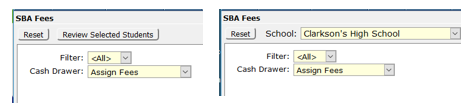
Each filter option offers selections appropriate to the filter. For example, if Course is selected as the filter, Courses will show in the associated drop-down list.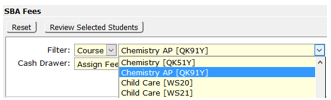
- Use Student Selection
Student Selection filtering choices are a subset of the filter chosen above. For instance, if Course was the Filter, as shown above, and Grade was set to Eleventh in Student Selection only students that would show when clicking Review Selected Students would be 11th graders in the selected course.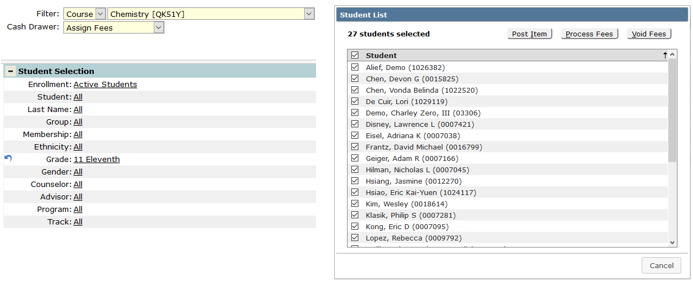
Once the target pool has been selected click Review Selected Students.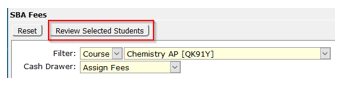
All the students on the list can be selected by using the checkbox in the Student header. A tally of students selected shows at the top of the window.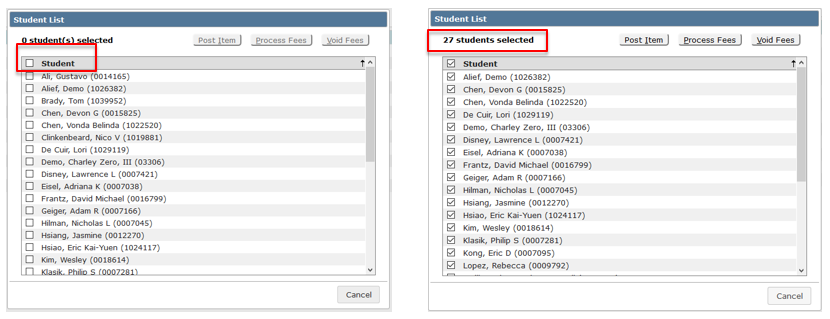
There are 3 possible choices after reviewing and selecting the students:
- Post Items
- Process Fees
- Void Fees

Post Item -Allows the user to assign fees, or any other item, to the target group.
- Select the Cash Drawer
- Select the Item - This is the complete SBA Items list for the logged in school. Items follow the configuration for Free/Reduced pricing as well as taxes created in SBA Setup.
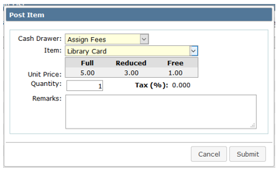
- Click Submit
View the posting summary and click OK.
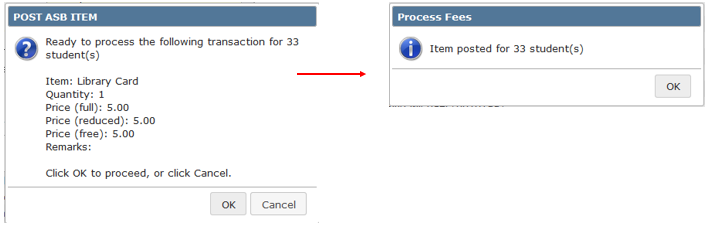
Process Fees – Posts all fees for which any of the students in the target group qualify.
- Click Process Fees
- Review/Set date (defaults to system date)
- Click Submit
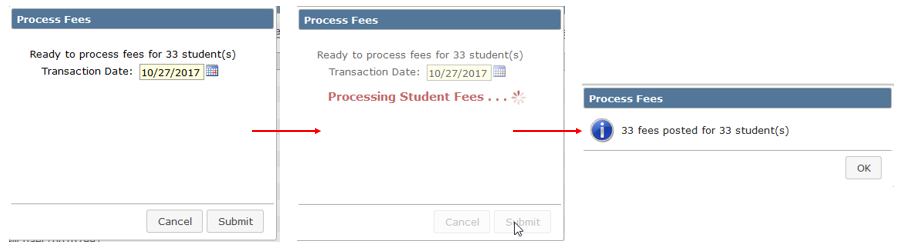
NOTE: Because all fees are posted for the targeted group, sometimes the fees posted amount is greater than the number of students as some students may qualify for multiple fees.
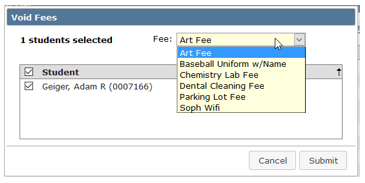
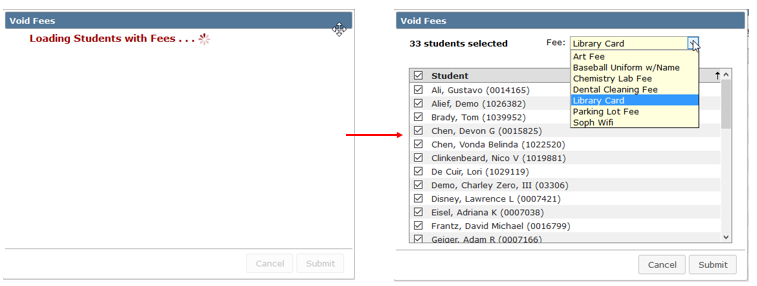
Void Fees - Voids one or more assessed fees for one or more students.
Only fees assessed using Process Fees in this application or SBA Transactions or SBA Accounts can be voided using this process. Manually assessed fees are voided using the SBA Accounts application.
- Click Void Fees - All Students with Fees are loaded
- Choose which Fee to Void from the drop-down list
- Select the students to be voided
- Click Submit
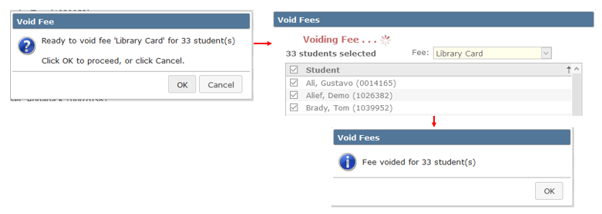
When done voiding a Fee the screen reloads to show the remaining fees and the user can continue to void more or cancel and return to the previous window.