
The Report Card report produces a report card with the student's most recent course marks and/or benchmark scores for each reporting period as defined in the Report Card Setup application. Additional information such as a Report Card Legend, Address and Attendance may also be included.
While details specific to this report will follow, users can find general information about reports within the Reports documentation.
Report Card is located within Reports in the Marks menu in Q.
Report Options
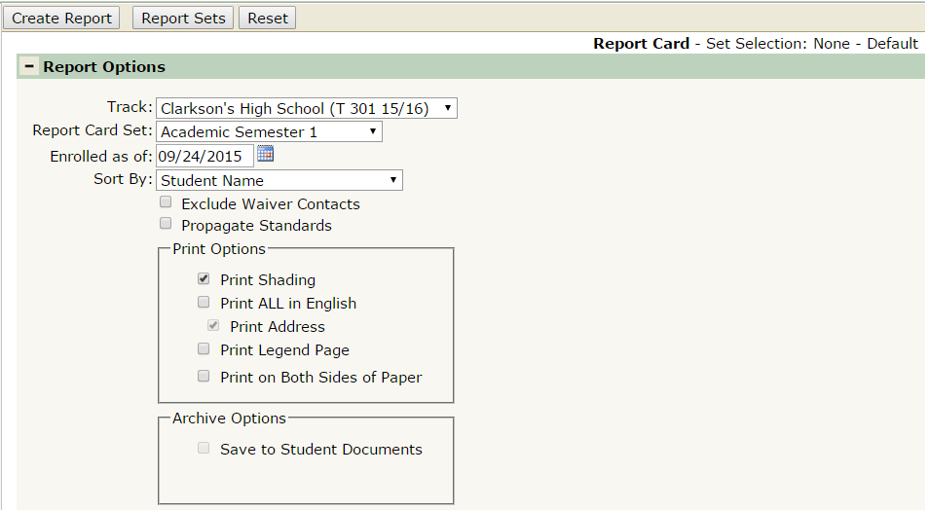
- Track: Select a desired track. Only tracks that have defined at least one Report Card set will be available.
- Report Card Set: Select a desired Report Card Set created in the Report Card Setup application.
- Enrolled As Of: This date will auto-populate based on the date saved with the selected Report Card Set, but can be changed
- Sort By: Select from Student Name, Student Grade, Student Name, Advisor, Student Name, or Zip Code, Address Name. The Sort By options selected will sort the batch of report cards accordingly.
- Exclude Waiver Contacts: When you have the Exclude Waiver Contacts option turned on in the Report Card, when the "Address To" option in Report Card Setup is set to "Contacts" or "Contacts or Parent/Guardian", a report card will not be printed for those who have flagged that they waive their right to receive a hard copy of the Report Card in the Parent Portal. NOTE: this option will ONLY be honored when set to print to "Contacts or Parent/Guardian" if the student has a contact that meets the defined conmail flag in Report Card Setup. If a student does not have any contacts that meet the conmail flag selection in Report Card Setup, a generic report card will still be printed addressed to 'Parent/Guardian' regardless if the contact has opted out of receiving a hard copy of their student's report card.
 (Screenshot from Parent Connect – located under ‘My Information’ > ‘Edit This Information’ for a student)
- Propagate Standards: If a student has received a score of 4 for a standard for Sem 2 Triad 1, turning this option on would automatically copy the standard score of 4 and give that as the score for the future terms (up to whatever term is set as the Propagate To term). The idea behind this is when a student has mastered a standard, if the district feels they do not need to be re-assessed, propagate standards will help avoid blanks being printed for a student, and save time for teachers from having to go in and enter the same score again.
- Print Options:
- Print Shading – Include shading on the report card.
- Print All in English – Ignore student’s or contact’s primary language and print the report card in English.
- Print Address – Include student or contact name and address.
- Print Legend Page – Include a separate page for a report card legend.
- Print on Both Sides of Paper – Utilize both sides of paper when printing report cards.
- Archive Options:
- Save to Student Documents – This option will save a PDF copy to Student Documents of the report card for selected students when the report card is generated. In order for this option to become active, you must turn ON Print All in English and turn OFF Print Address.
Example Reports
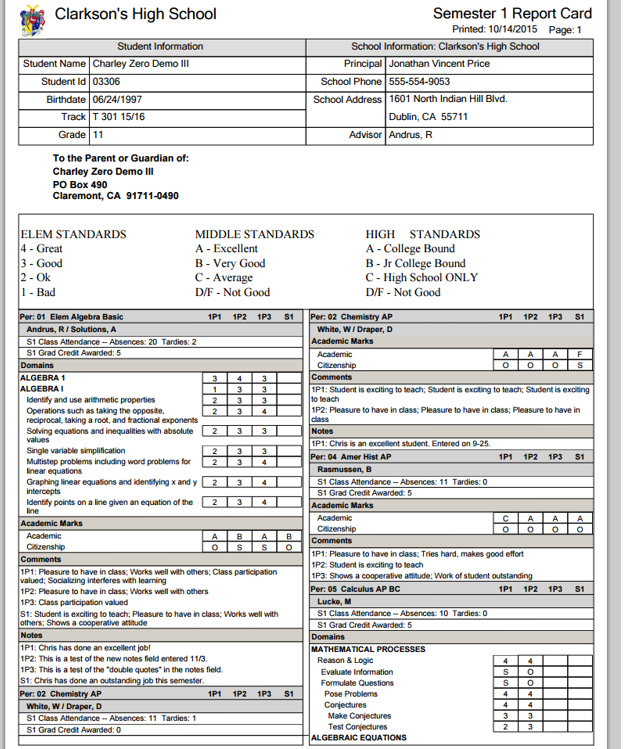 (Sample Report Card report)
Videos
