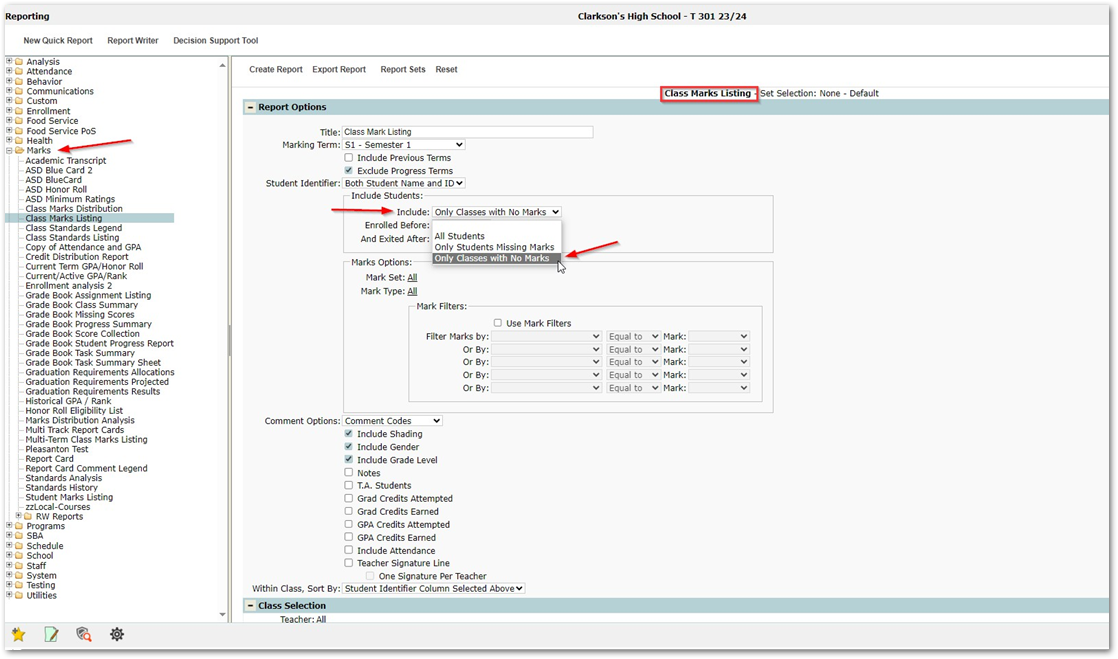
Today we will look at two ways to determine who has not entered marks. These options can be useful when it comes time to reach out to staff members who are missing or have not finished entering marks as deadlines approach. The first one is the Class Marks Monitor application and the second one uses the Class Marks Listing Report found in the Marks report tree.
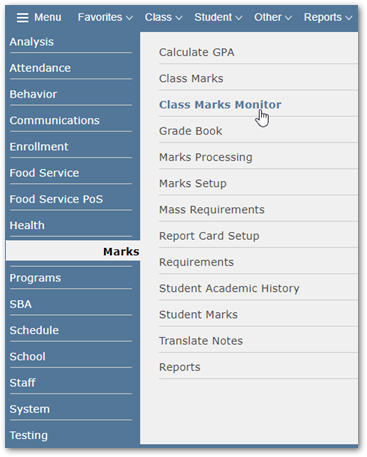
1. The most useful application to determine who has not entered marks is found in the Menu > Marks > Class Marks Monitor
At the top of the screen are multiple filtering options (dropdowns/radio buttons) to help filter your results and locate the sections you are most interested in addressing.

Clicking ‘Refresh Results’ will return a table of sections based on your filtering selections.
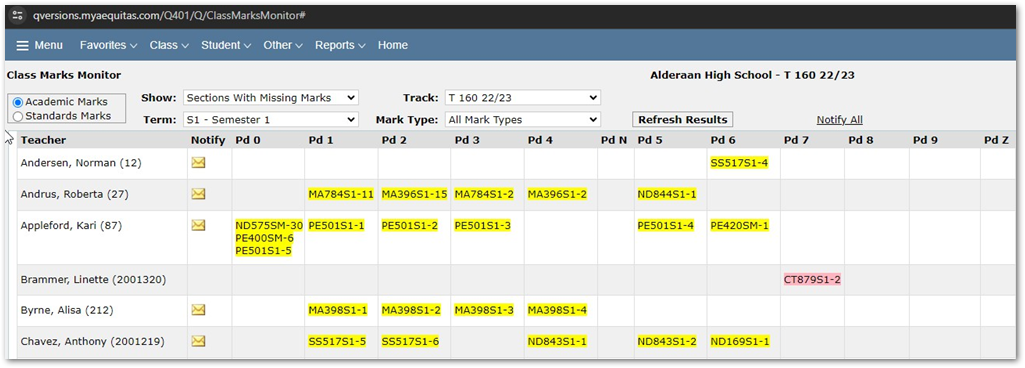

Class sections are color coded to quickly identify the Marks entered status, You can individually Email staff using the mail icon or you can mass notify using the ‘Notify all’ option at top right.
2. The Class Marks Listing report is another very useful option to locate classes that have not entered marks.
Located in the Marks Report tree, This report can be exported to excel, and has a very useful report option to ‘Include Only classes with No Marks’ allowing you to find the classes that need to be addressed quickly