
Student Communications is a student banner application that enables the user to review and manage existing communications records on a student-by-student basis. Individual student communication records may be filtered by key criteria, and added, edited or deleted.
Once the application has been launched, users must retrieve and select a student through the Student Banner.
Student Communications is located under the Communications menu in Q.
For each individual student, the set of Communication records will appear. For some students there may be many records. The ability to filter records will help to find specific types of records: 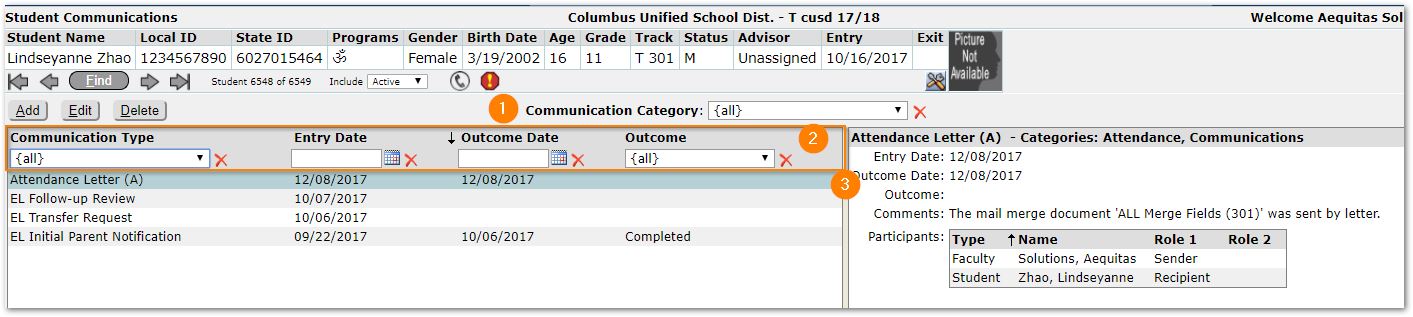
- Communications Category – The default is ‘All’, but you may wish to select a specific category to review.
- The column headers act as filter fields. You may select a specific Communication Type, or input an Entry or Outcome date, or select an Outcome to find specific Communication records. To clear a filter field, click the red x on the right.
- When you select a record, it becomes highlighted at left, with the detail data for the record displayed at right.
For the selected student, click the Add button.
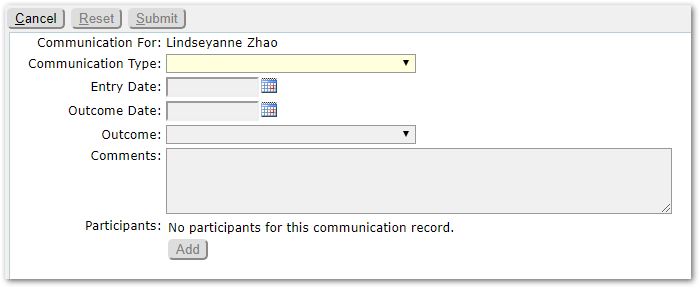
Complete the record by entering the data:
- Communication Type – Select the desired type. This field is required.
- Entry Date – Indicates the date the communication was initiated.
- Outcome Date – This date is intended to indicate the date of the recorded Outcome.
- Outcome – Indicates the outcome of the communications event such as 'Letter Sent', etc.
- Comments – Add any notes you wish to the record.
- Participants:
- To add participants to the Communication record click Add.
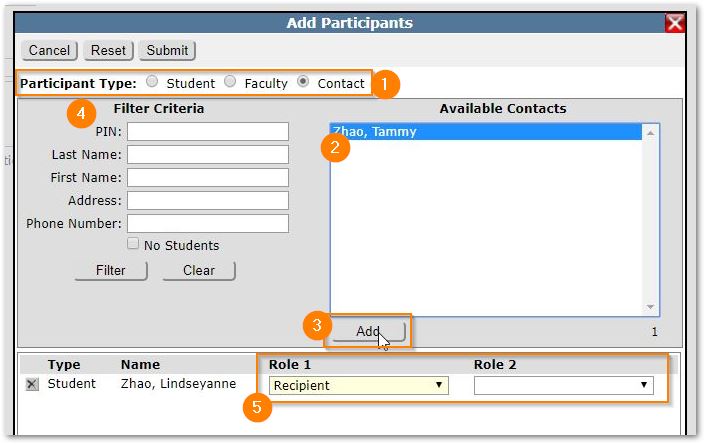
- Select a Participant Type. This will default to Student, but you may select Faculty or Contact.
- Student or Contacts associated with the student will appear as Available Contacts in the list at right.
- If the desired individual is shown in the list at right, highlight and click Add.
- If the desired individual is not shown, use the filter criteria at left to find the individual, then highlight and click Add.
- Participants will then appear in the list below. Each will need at least one Role selected for their participation in the communication.
- To add participants to the Communication record click Add.
- Repeat as needed to add all the appropriate participants.
- Submit to save changes.
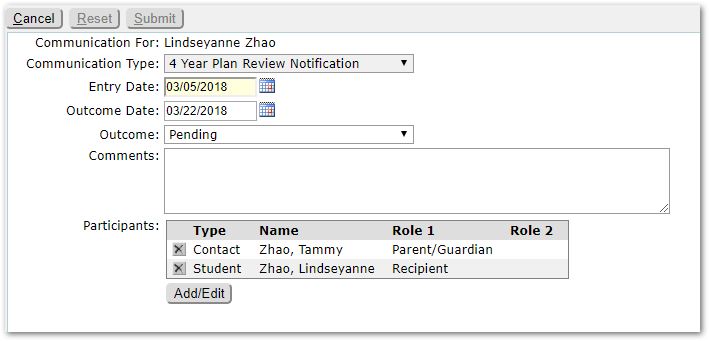
In this example two participants have been added, the student and a parent/guardian.
- For the selected student, find and select the desired communication record using the filter tools described above if needed.
- Click Edit.
- Make any adjustments as needed, just as you would when adding a record.
- Click Submit to save the changes.
- For the selected student, find and select the desired communication record using the filter tools described above if needed.
- Click Delete.
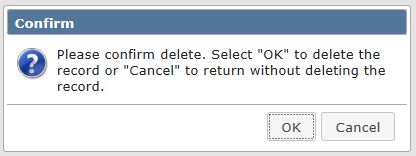
- Click OK on the confirmation message if you are sure you want to delete the record, otherwise click Cancel.
