
The Master Schedule report lists the school’s Master Schedule information. Options allow the user to group the master schedule information by Course, Teacher, Period, Classroom or Team. Additional options are available to further customize the report.
While details specific to this report will follow, users can find general information about reports within the Reports documentation.
Master Schedule Report is located within Reports in the Schedule menu in Q.
Report Options
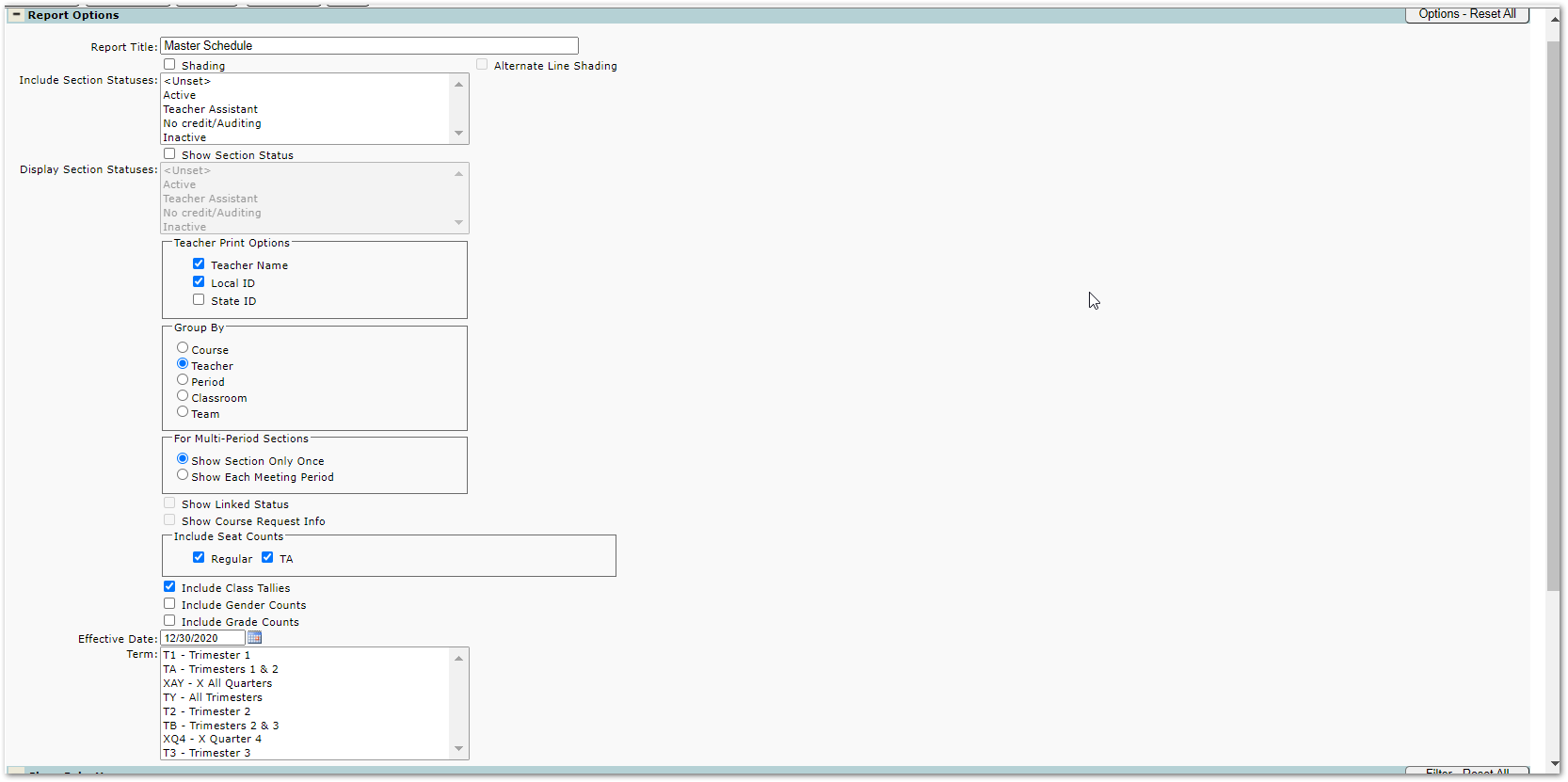
- Report Title – The report title defaults to Master Schedule unless changed by the user
- Shading/Alternate Line Shading – Check these boxes to include shading
- Include Section Status – The report may be filtered by selected status
- Show Section Status – Select this option Display Section Status on report
- Teacher Print Options- Check options to print on report, at least one selection is required
- Print Teacher Name
- Local ID
- State ID
- Group By– Check options to print on report
- Course
- Teacher - when grouping by Teacher, grand totals for all selected counts and tallies print
- Period
- Classroom
- Team - when grouping by Team, sections not associated with a team display *No Team as the group header
- For multi-period sections– the user may select whether to:
- Show Section only once
- Show each meeting period
- Show Linked Status – If section linking was used when building the master schedule courses that are linked will display a Y in the Link column.
- Show Course Request Info – Checking this option will display the following information for each course:
- Total number of students with Primary Course Request
- Total number of primary requests scheduled
- Total number of students scheduled without a request
- Total number of alternate requests
- Total number of alternate requests scheduled
- Total number of requests scheduled as a percentage
- Include Seat Counts – Displays number of seats defined for course in Track Course Setup
- Regular – Number of seats for class section
- TA – Default number of seats for TA
- Include Class Tallies – Prints the number of students scheduled in the class
- Include Gender Counts – The number of scheduled students broken down by gender
- Include Grade Counts – The number of scheduled students broken down by grade
- Effective Date – The class tallies are calculated using this date
- Term – The report may be filtered to print only selected term, if no selection is made all terms print.
Example Reports
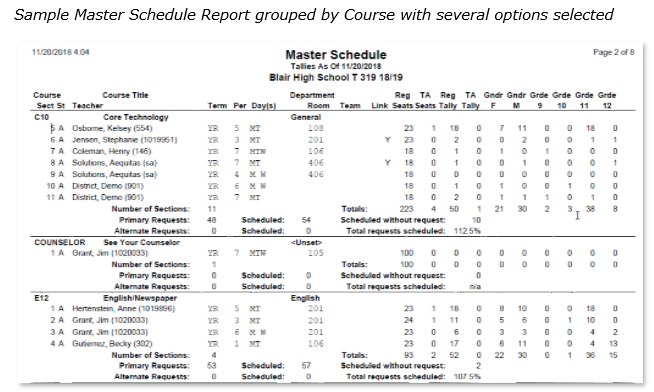
Sample report grouped by Teacher with totals
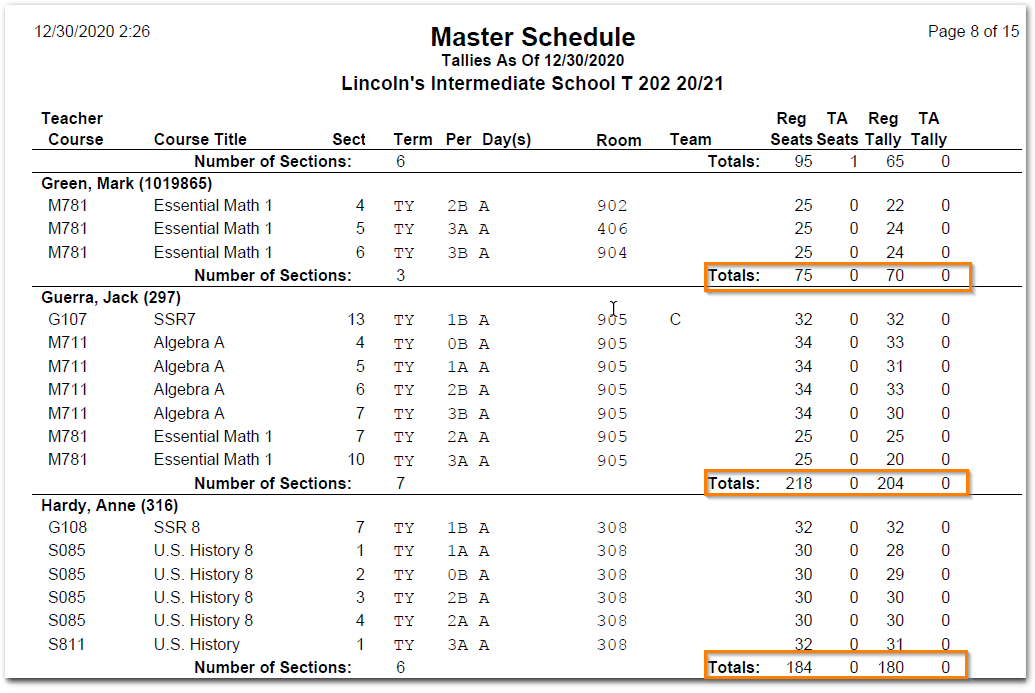
Sample report grouped by Team
